
Vantagepoint On-Premise Visual Settings Guide
A visual walkthrough of every Deltek Vantagepoint On-Premise integration setting in Mosaic
What this page covers: This guide walks through each provisioning setting available in the Deltek Vantagepoint On-Premise integration. Use it to plan your configuration before onboarding, reference during setup, or review when adjusting settings later.
| Applies to | Deltek Vantagepoint On-Premise |
| When to use | Before onboarding, during setup, or when changing settings |
| Related guides | Vantagepoint On-Premise Integration Setup, Project & Phase Status Matching |
Overview
These provisioning settings control how data flows between Deltek Vantagepoint and Mosaic. Each setting determines whether a specific data type is transferred, how it is mapped, and what values are used.
The choices you make here should align with the Standard Operating Procedures (SOP) discussed with your Customer Success Manager (CSM). These settings bring in the data to match your expected workflows.
Settings are organized by data type. Each section covers the On-Premise-specific configuration options, setting values, and numbering.
Before you apply settings: Selecting Transfer or Automatically linked for Projects and Phases will immediately begin syncing all matching records. It is strongly recommended to save as draft first, then apply after your onboarding/SOP call with your CSM and Solutions Engineers.
About "Transfer updates from today forward": Once saved, this option displays the date the setting was last changed — for example, Transfer updates from 8/19/2026 forward. The date is shown for reference only; it is not enforced as a sync cut-off.
Sections at a Glance
| Section | What It Covers |
|---|---|
| Connection | An optional name for this connection |
| Members | Employee records, Roles, and Cost Rates |
| Portfolios | Organizing Projects into Portfolio folders |
| Projects | Project linking, Ref #s, statuses, fees, and naming |
| Phases | Phase linking, statuses, naming, and ordering |
| Work Categories | Labor Code linking from Vantagepoint |
| Time Entries | Timesheet data, billable status, and hourly rates |
| Rates | Rate Groups, Role Rates, and Rate Descriptions |
On-Premise connection setup is not part of the integration settings modal. Credentials are configured separately during initial onboarding with the Mosaic Solutions team.
Connection
Connection Settings
1. Connection Name (optional)
In Mosaic
An optional name for this connection. It distinguishes this connection from other Vantagepoint connections on the same team, and appears wherever the connection is referenced in Mosaic. Leave it blank to show none.
This is a text input with a 50-character limit — for example, Houston Office.
Members
Members in Mosaic represent the people in your organization — your Employees imported from Vantagepoint. Each Member must be manually linked in Mosaic to their corresponding Vantagepoint Employee. The settings below control which Member fields are transferred and how they are mapped.
Member Settings
1. Standard Roles
In Mosaic
Standard Roles define the set of available Roles that can be assigned to Members across the platform. These are used for resource planning, filtering, and rate calculations.
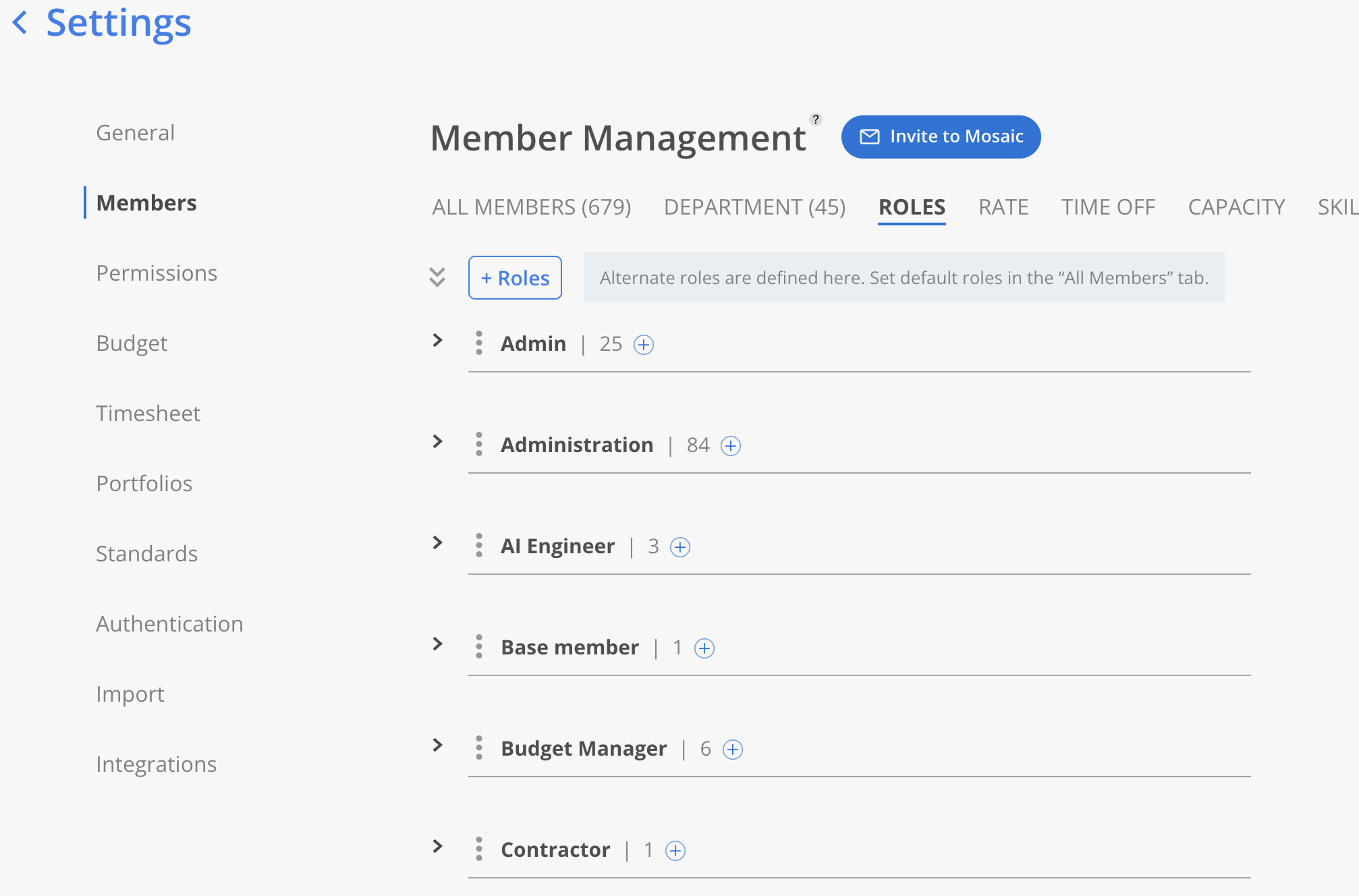
For On-Premise deployments, you may also have the option to map Billing Categories as Roles.
In Vantagepoint: Standard Roles correspond to Labor Categories found in the Labor Category Table — sometimes referred to as Employee Titles (e.g., Principal, Engineer II, Project Manager).
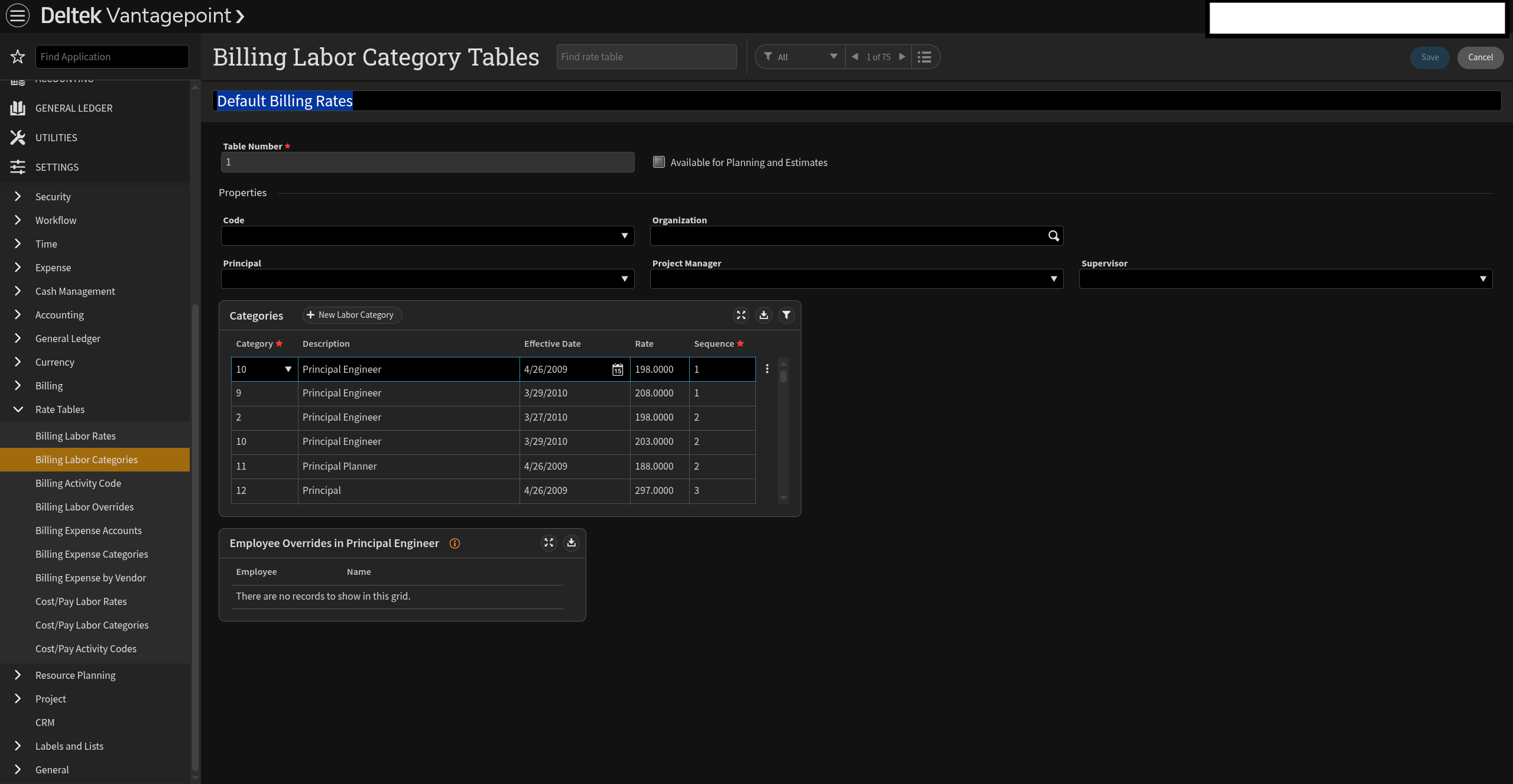
Transferring Standard Roles requires that the Labor Billing Terms data is available in your replica database.
Setting Options
- Transfer updates from today forward — Vantagepoint Standard Roles will be transferred to Mosaic after changes in Vantagepoint. Required for syncing Labor Billing Terms. This setting will overwrite Standard Roles on Mosaic.
- Do not transfer (Recommended) — Vantagepoint Standard Roles will not be transferred to Mosaic. Select this option if manual management in Mosaic is preferred.
2. Default Roles
In Mosaic
A Member's Default Role determines which Role is automatically assigned when they are added to a Project. This drives resource planning defaults and rate assignments.
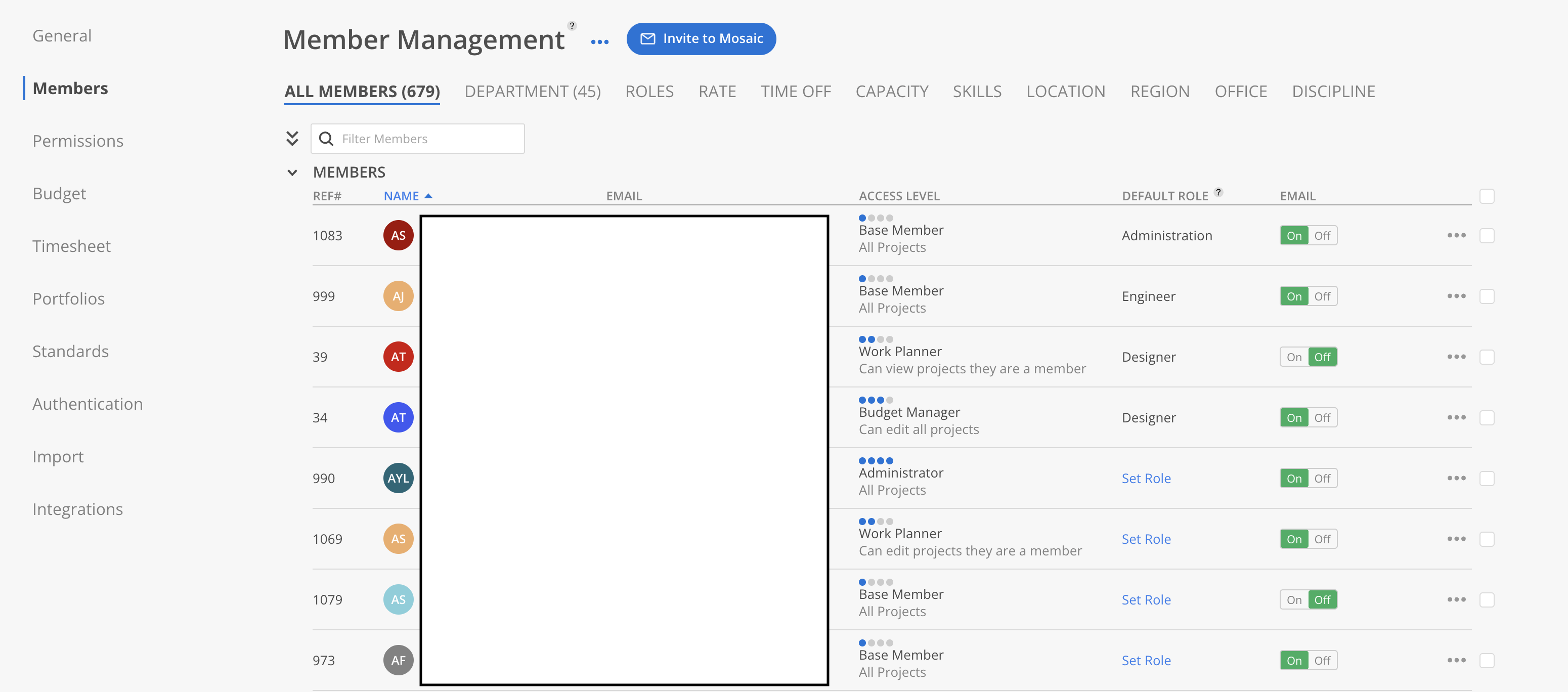
In Vantagepoint: The Default Role maps to the Employee's default Labor Category assignment on their Employee record.
Transferring Default Roles requires that the Labor Billing Terms data is available in your replica database.
Setting Options
- Transfer updates from today forward — Vantagepoint Member Default Org Roles will be transferred to Mosaic after changes in Vantagepoint. This is required for syncing Labor Billing Terms. This setting will overwrite Member Default Org Roles on Mosaic.
- Transfer one time at first link — Vantagepoint Member Org Roles will only be transferred to Mosaic when the Vantagepoint Member is first linked.
- Do not transfer (Recommended) — Vantagepoint Member Org Roles will not be transferred to Mosaic. Select this option if manual management in Mosaic is preferred.
3. Cost Rates
In Mosaic
Cost Rates represent a Member's salary or expected cost per hour. They appear on Member profiles and are used for financial calculations including profit margins, project health metrics, and budget forecasting.
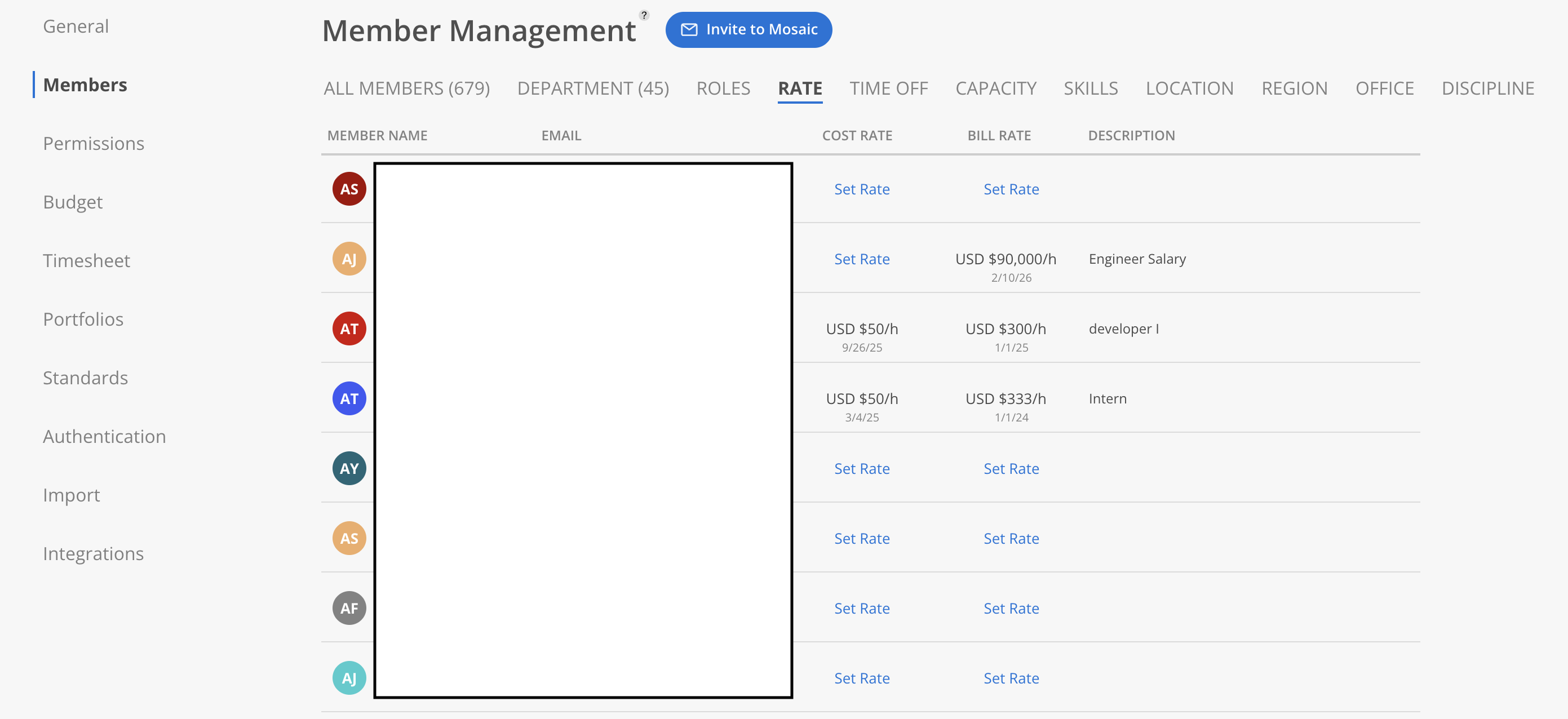
In Vantagepoint: Cost Rates are sourced from the Employee record — either the Job Cost Rate, Provisional Cost Rate, or Labor Category Group rate, depending on the Cost Rates Source setting.
Transferring Cost Rates is required for Labor Billing Terms if the Billing Type is Rate Times Multiplier.
You must Enable Cost Rates for the Organization to transfer Cost Rates. This setting is controlled by the Cost Rates feature flag — contact your Mosaic team if this option is not visible.
Setting Options
- Transfer updates from today forward (Recommended) — This setting will overwrite Member Default Cost Rates on Mosaic. Vantagepoint Cost Rates will be transferred to Mosaic after changes in Vantagepoint. Note that new rates are not passed down to existing projects. Enable Cost Rates for the Organization to transfer Cost Rates. This is required for transferring Labor Billing Terms if the Billing Type is Rate Times Multiplier.
- Do not transfer — Vantagepoint Cost Rates will not be transferred to Mosaic. Select this option if manual management in Mosaic is preferred.
4. Default Roles Source
In Mosaic
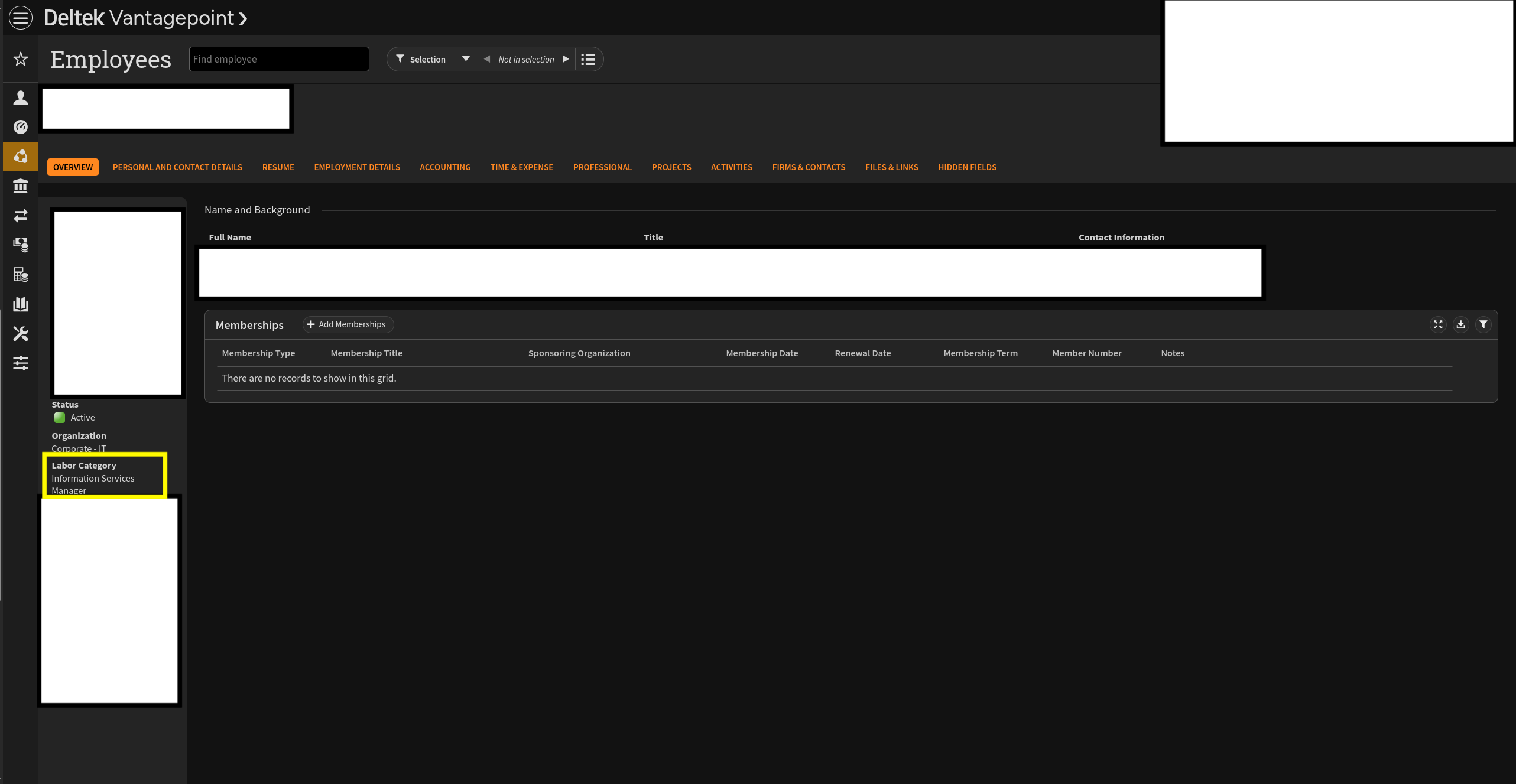
This setting determines which Vantagepoint field is used as the Default Role for Members in Mosaic. Each option reads from a different field on the Employee record.
In Vantagepoint: The three source options map to different fields on the Employee record. The most common choice is Billing Category, which reads from the Labor Category field visible in the Employee Hub under Employment Details.
Setting Options
| Option | Vantagepoint Source | Where to Find It in Vantagepoint |
|---|---|---|
| Billing Category | EMCompany.BillingCategory — the employee's assigned Labor Category | Employee Hub > Employment Details > Labor Category field |
| Employee Title | EMMain.Title — the employee's job title code | Employee Hub > Title field |
| Custom Resource Planning Designation | EmployeeCustomTabFields.CustResourcePlanningDesignation | Employee Hub > Custom tab (if your firm has configured this field) |
Billing Category = Labor Category. In Vantagepoint's database, the field is called
BillingCategory, but in the Vantagepoint UI it appears as Labor Category under the Employee Hub. Both refer to the same field. The entries in the Labor Category Table (e.g., "Principal", "Engineer II", "Associate") are what Mosaic uses as Role names when this option is selected.
If an employee does not have a value set for the selected source field, their Default Role will not sync. For example, if you choose Billing Category but an employee has no Labor Category assigned in Vantagepoint, that member will have no Default Role in Mosaic.
5. Cost Rates Source
In Mosaic
This setting determines which Vantagepoint field populates each Member's Cost Rate. It controls where the Cost Rate value comes from — not whether it is transferred (that is controlled by the Cost Rates setting above).
In Vantagepoint: The three source options map to different fields on the Vantagepoint Employee record: the Employee Job Cost Rate, the Provisional Cost Rate, or the Labor Category Group rate.
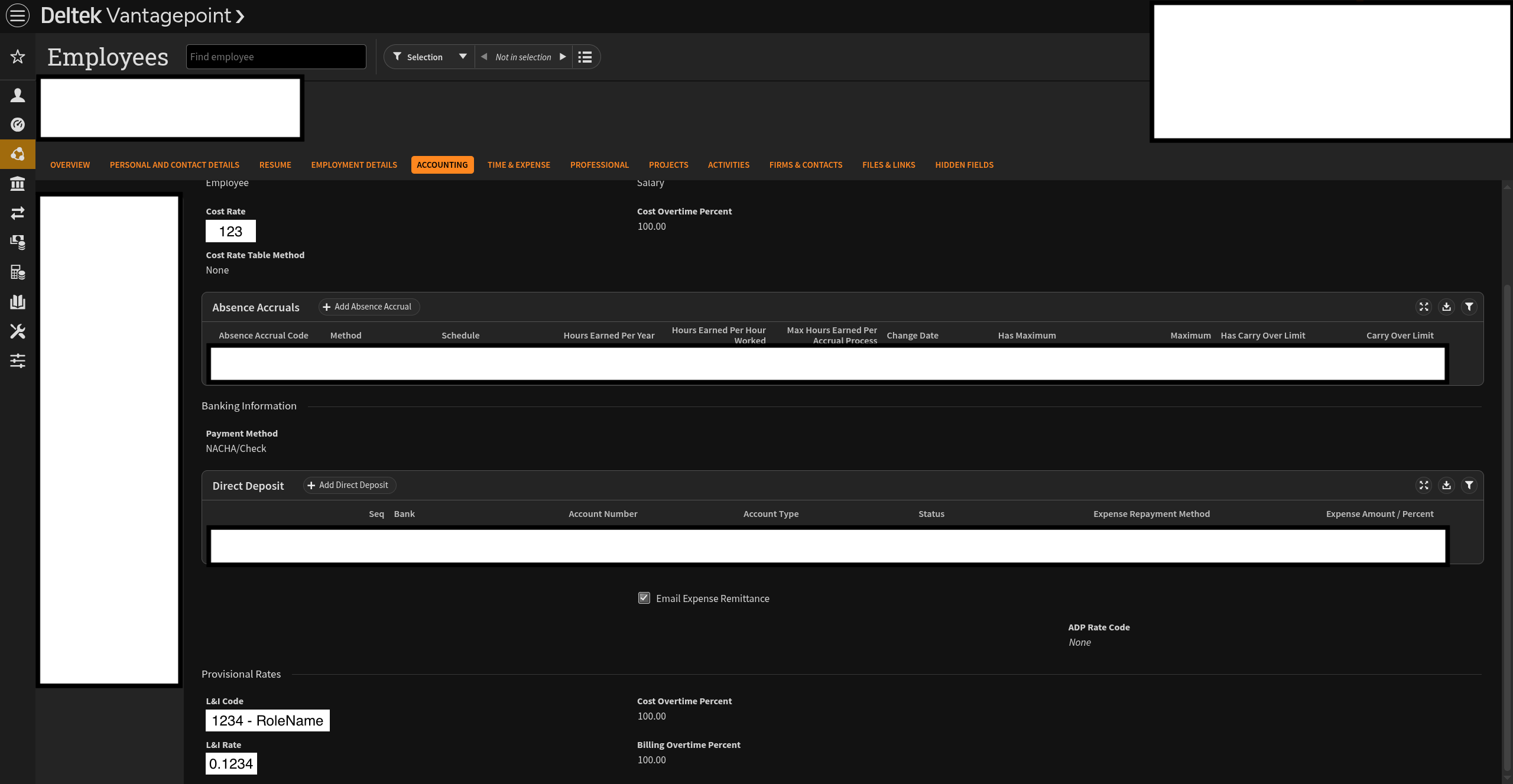
Setting Options
- Employee Job Cost Rate (Recommended) — Cost Rates from the Vantagepoint Employee Job will be used for Mosaic Members.
- Provisional Cost Rate — Cost Rates from the Vantagepoint Employee Provisional Cost Rate will be used for Mosaic Members.
- Labor Category Group — Cost Rates from the Default Role Rate Group will be used for Mosaic Members.
This setting is controlled by the Cost Rates feature flag. Contact your Mosaic team if this option is not visible.
6. Employee Archive Status
Definition
In Vantagepoint, employees can be marked as archived or inactive. This setting determines whether that archive status flows into Mosaic to archive the corresponding Member.
Setting Options
- Transfer all + updates — Vantagepoint Employee Archive Statuses will be transferred to Mosaic for all currently transferred Members. Additional updates in Vantagepoint will also be transferred. This setting will overwrite Archive Status on Mosaic.
- Do not transfer (Recommended) — Vantagepoint Employee Archive Statuses will not be transferred to Mosaic. Select this option if manual management in Mosaic is preferred.
In Mosaic
When set to Transfer all + updates, archiving an employee in Vantagepoint archives the corresponding Member in Mosaic, removing them from active member lists and project staffing. Reactivating the employee reverses the archive on the next sync.
When set to Do not transfer, Member archive status is managed manually in Mosaic under Settings > Members.
Archiving a Member in Mosaic does not delete their historical project assignments, time entries, or rate records — it only removes them from active lists and prevents future staffing.
7. Project Role Override
In Mosaic
Controls what happens to a Member's existing Mosaic project- and phase-level roles when their default role changes in Vantagepoint.
Setting Options
- Override all existing roles — When a member's default Vantagepoint role is updated, it will replace all of their existing Mosaic project- and phase-level roles. Not recommended if Project-Level Roles is set to Transfer.
- Do not override (Recommended) — Members' existing Mosaic project- and phase-level roles are kept as-is.
This setting interacts with Project-Level Roles in the Projects section. Overriding all existing roles while Project-Level Roles is set to Transfer can undo role assignments that Vantagepoint just sent.
Portfolios
Portfolio Settings
1. Default for new Projects
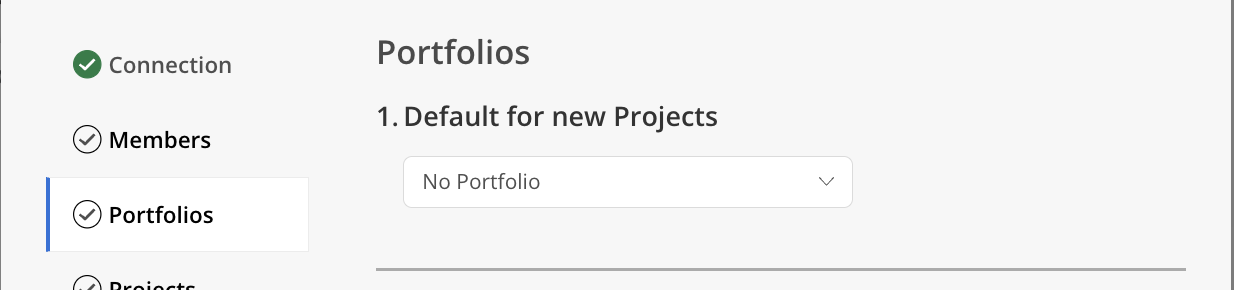
In Mosaic
A Portfolio is a folder used to organize multiple Projects — for example, by department, client, manager, or type of work. This setting determines which Portfolio newly linked Vantagepoint Projects are placed into by default.
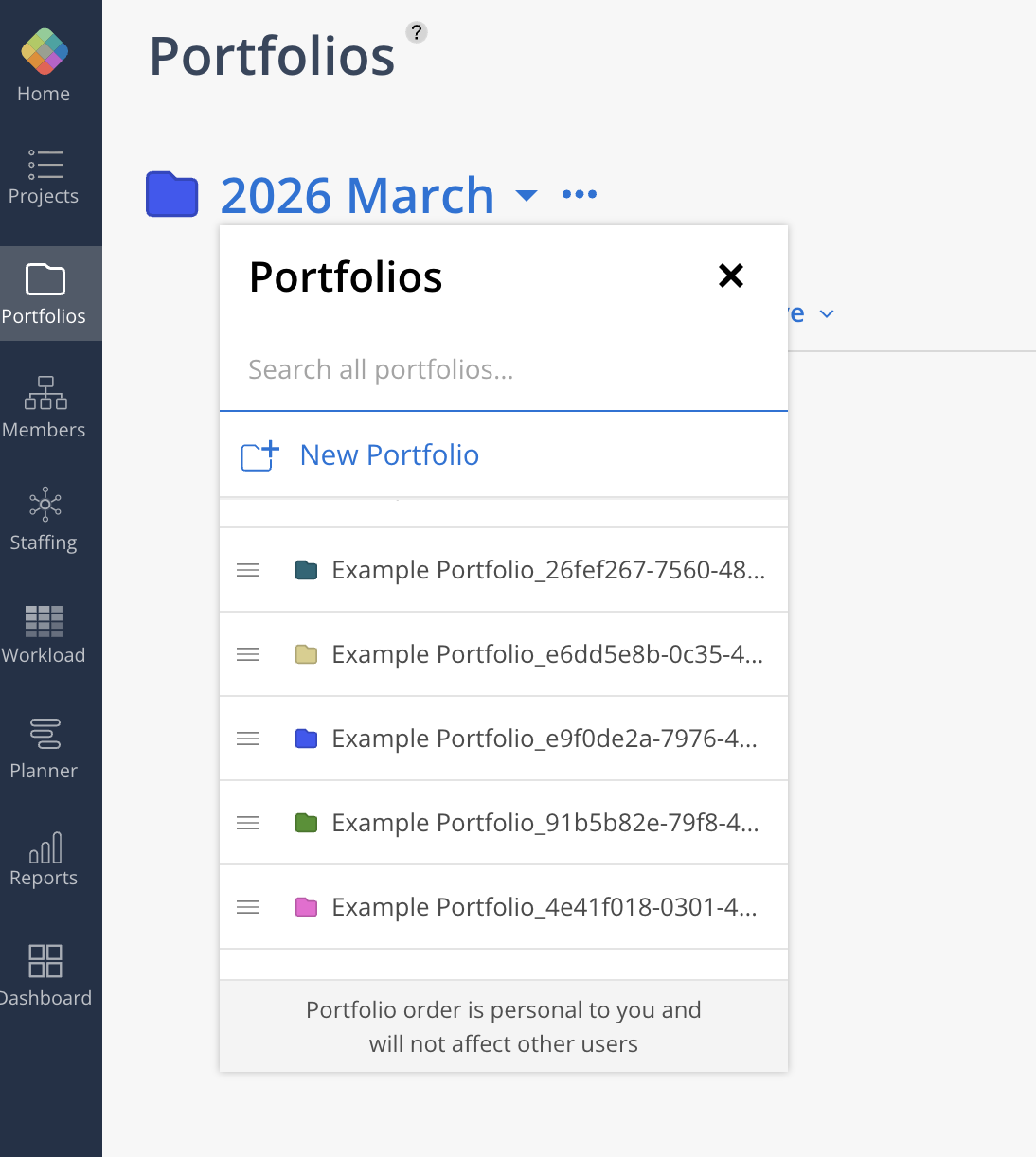
In Vantagepoint: There is no direct equivalent to Portfolios in Vantagepoint. This is a Mosaic-only organizational concept. Projects in Vantagepoint are organized differently (e.g., by Organization, Client, or Project Number).
Setting Options
- No Portfolio (default) — Newly linked Projects will not be assigned to any Portfolio. They can be moved into a Portfolio manually later.
- Import — A built-in Portfolio provided by Mosaic specifically for integration-linked Projects. Convenient if you want all imported Projects to land in one place before being organized further.
- [Your Portfolios] — Select any other existing Mosaic Portfolio to automatically place newly linked Vantagepoint Projects into that Portfolio.
This setting only applies to new Projects at the time they are first linked. It does not retroactively move existing linked Projects.
Many firms start by selecting Import as the default, then periodically sort imported Projects into department- or client-specific Portfolios.
Projects
Project Settings
1. Linking Method
In Mosaic
This setting determines how Vantagepoint Projects are connected to Mosaic. Importing means bringing a Project from Vantagepoint into Mosaic for the first time. Linking means establishing an ongoing connection so that changes sync automatically.
In Vantagepoint: Projects live in the Projects Hub.
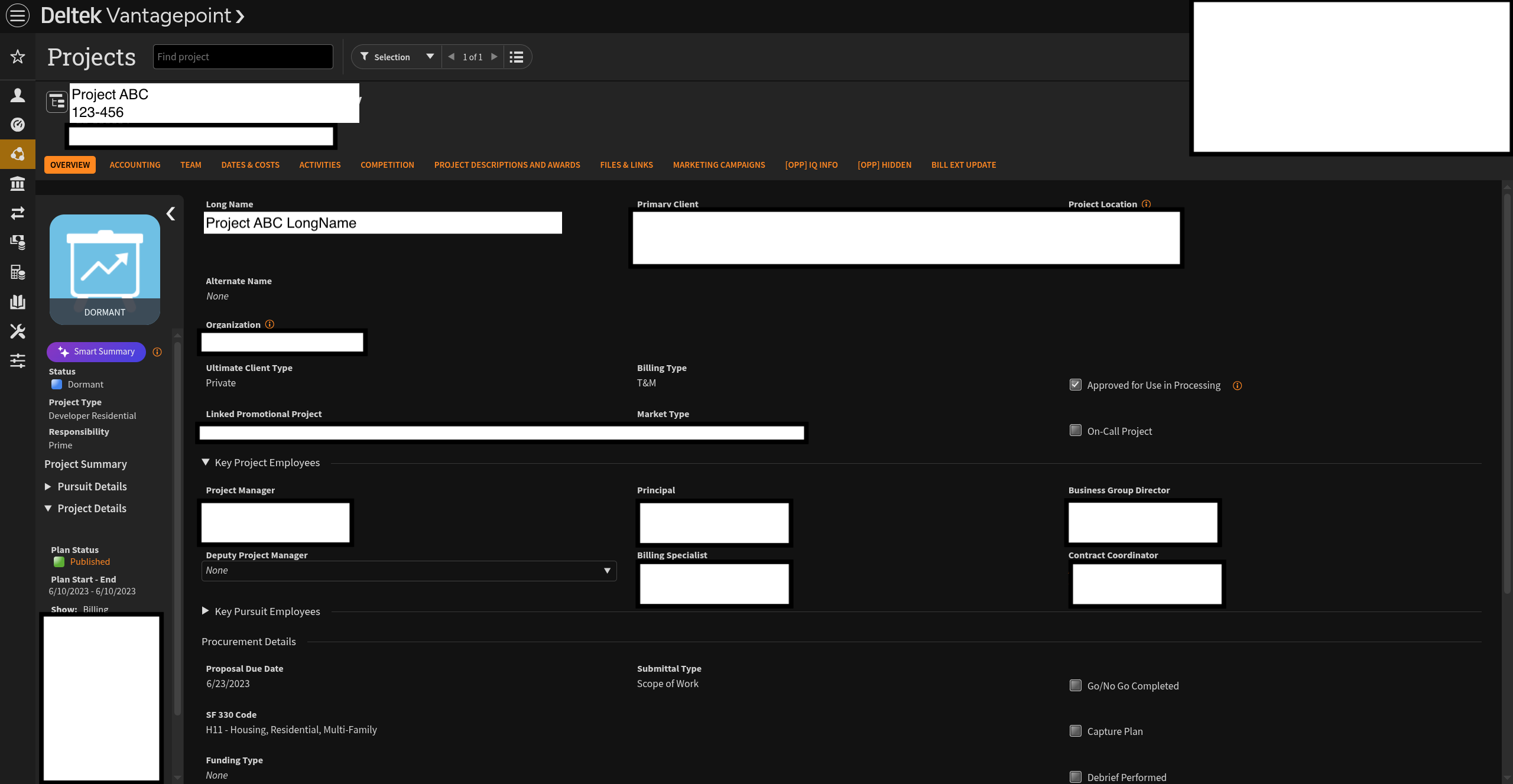
Setting Options
- Manually linked — No Projects will be automatically linked.
- Automatically linked (Recommended) — All Projects that meet the criteria specified in the Automatic Linking Filter will be automatically linked. Projects that do not meet the criteria may be manually linked.
2. Linked Project and Phase Titles
In Mosaic
This setting controls whether Mosaic keeps Project and Phase titles in sync with Vantagepoint, or allows them to diverge after the initial link.
In Vantagepoint: Project titles come from the Name or Long Name fields on the Vantagepoint Project record.
Setting Options
- Overwrite (Recommended) — Mosaic Project and Phase titles will match the Vantagepoint Project and Phase titles after changes in Vantagepoint. If a linked Mosaic Project or Phase title is edited in Mosaic, it may not match the title of the Vantagepoint Project or Phase until any value of the Project or Phase is changed in Vantagepoint.
- Do not overwrite — If a Mosaic Project or Phase title is edited, it may not match the Vantagepoint Project or Phase title making it hard to uniquely identify matching Projects.
If you choose Overwrite, ensure that team members do not edit Project or Phase titles directly in Mosaic.
3. Linked Project and Phase Ref #s
In Mosaic
Reference numbers (Ref #s) uniquely identify Projects and Phases. This setting controls whether the Vantagepoint Project and Phase numbers overwrite the Ref #s on linked Mosaic Projects and Phases.
This setting is being rolled out gradually. If you do not see it in your integration settings yet, contact your Customer Success Manager.
Setting Options
- Overwrite (Recommended) — Mosaic Project and Phase Ref #s will match the Vantagepoint Project and Phase Ref #s after changes in Vantagepoint. If a linked Mosaic Project or Phase Ref # is edited in Mosaic, it may not match the Ref # of the Vantagepoint Project or Phase until any value of the Project or Phase is changed in Vantagepoint.
- Do not overwrite — If a Mosaic Project or Phase Ref # is edited, it may not match the Vantagepoint Project or Phase Ref # making it hard to uniquely identify matching Projects.
4. Project and Phase Billable
In Mosaic
The billable status indicates whether a Project or Phase is charged to the client.
In Vantagepoint: Billable statuses are derived from Charge Types on the Project or Phase record.
| Vantagepoint Charge Type | Mosaic Billable Status |
|---|---|
| Regular | Billable |
| Overhead | Not Billable |
| Promotional | Not Billable |
Setting Options
- Transfer updates from today forward (Recommended) — Vantagepoint Project and Phase billable statuses will be transferred to Mosaic after changes in Vantagepoint. This setting will overwrite billable statuses on Mosaic.
- Transfer one time at first link — Vantagepoint Project and Phase billable statuses will only be transferred to Mosaic when the Vantagepoint Project or Phase is first linked.
- Do not transfer — Vantagepoint Project and Phase billable statuses will not be transferred to Mosaic. Select this option if manual management in Mosaic is preferred.
5. Project and Phase Dates
In Mosaic
Project and Phase start and end dates drive timelines, scheduling, and resource planning in Mosaic.
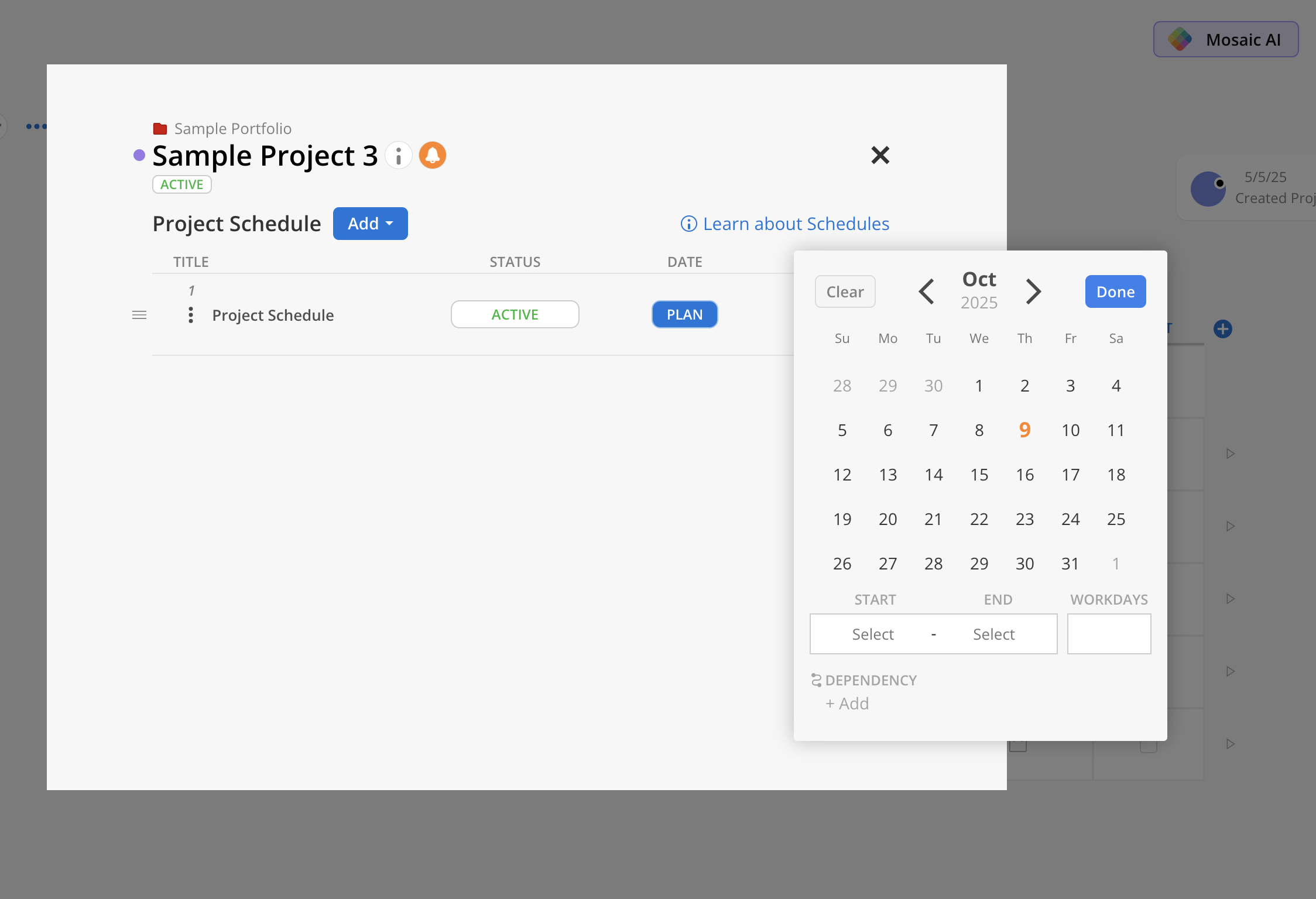
In Vantagepoint: Dates come from the Start Date and Estimated Completion Date fields.
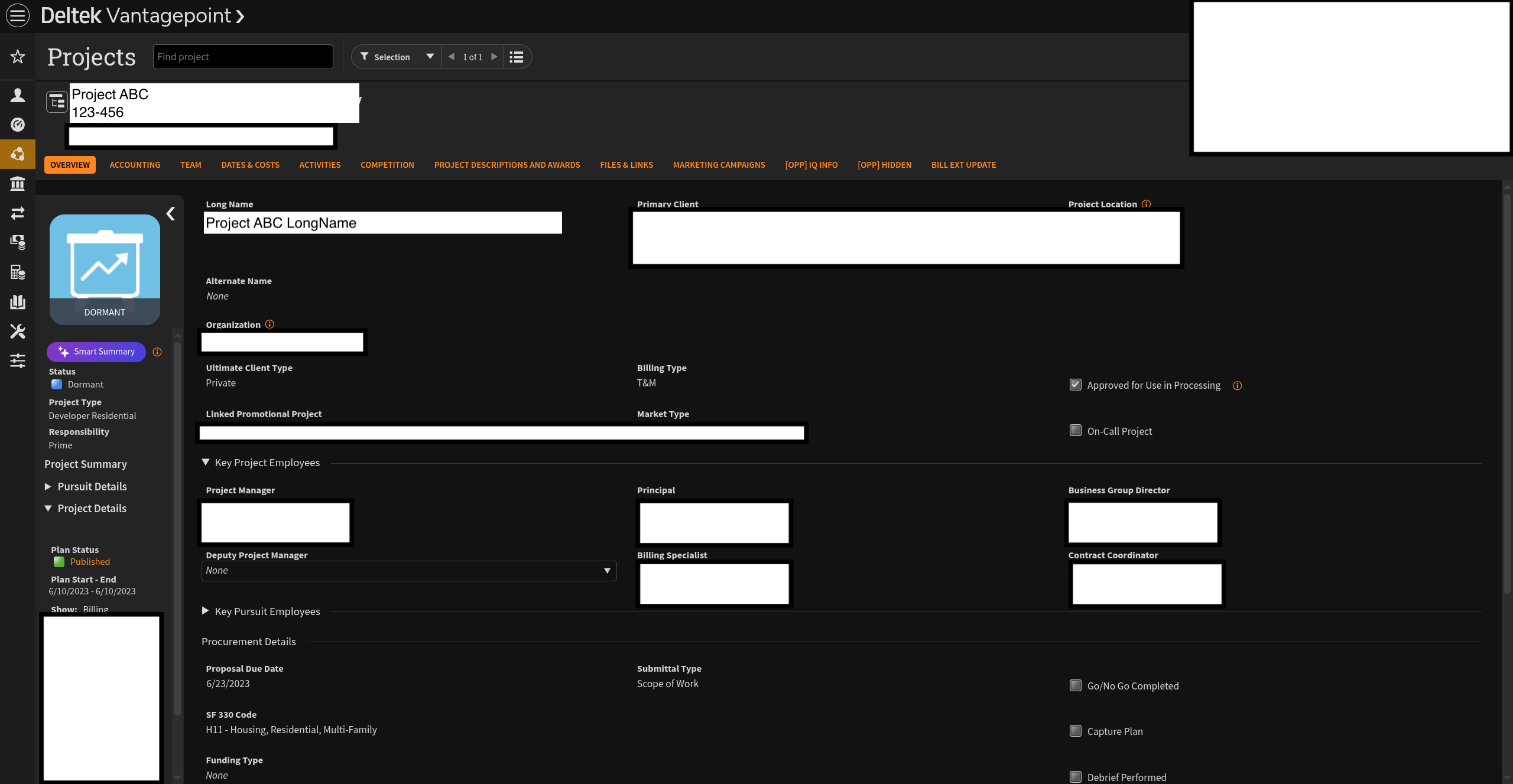
Setting Options
- Transfer updates from today forward (Recommended) — Vantagepoint Project and Phase dates will be transferred to Mosaic after changes in Vantagepoint. This setting will overwrite dates on Mosaic.
- Transfer one time at first link — Vantagepoint Project and Phase dates will only be transferred to Mosaic when the Vantagepoint Project and Phase is first linked.
- Do not transfer — Vantagepoint Project and Phase dates will not be transferred to Mosaic. Select this option if manual management in Mosaic is preferred.
If you choose Transfer updates from today forward, avoid editing dates directly in Mosaic — those changes will be overwritten.
6. Project and Phase Fee
In Mosaic
The Fee represents the total amount you plan to bill for a Project, or the portion allocated to a specific Phase.
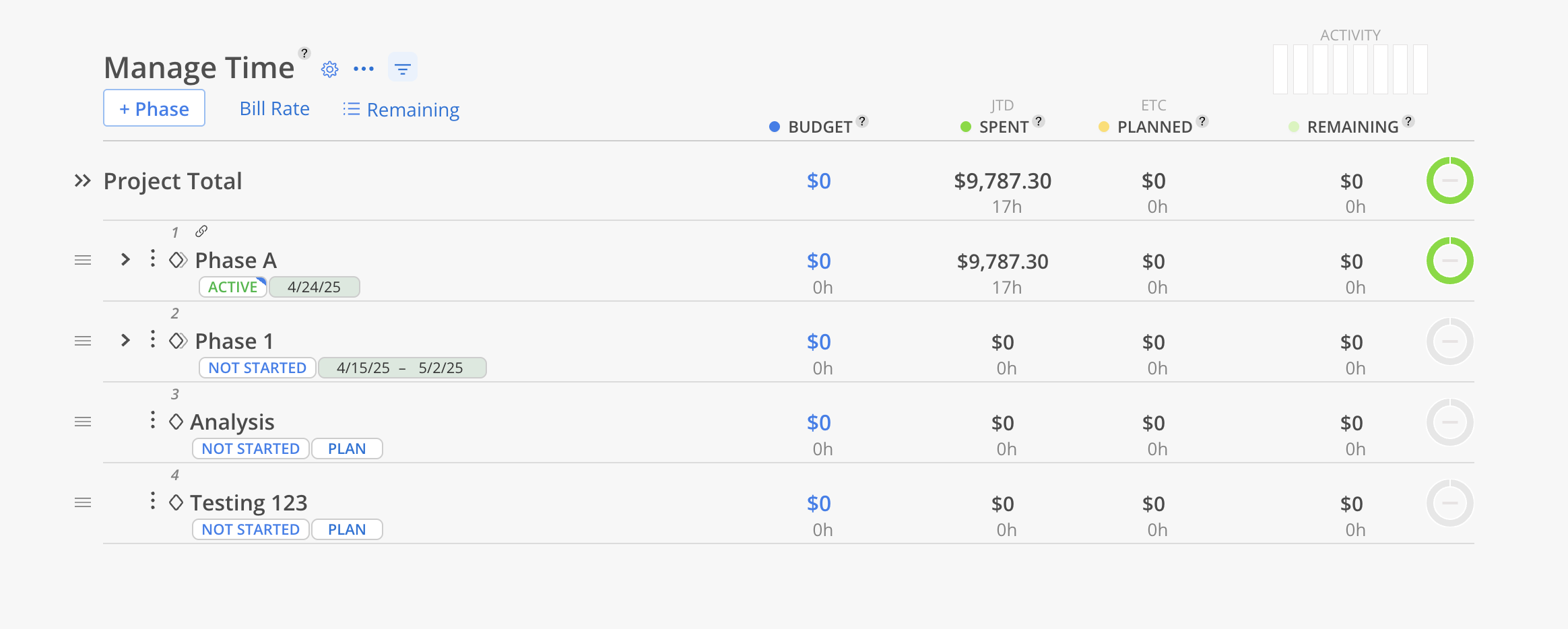
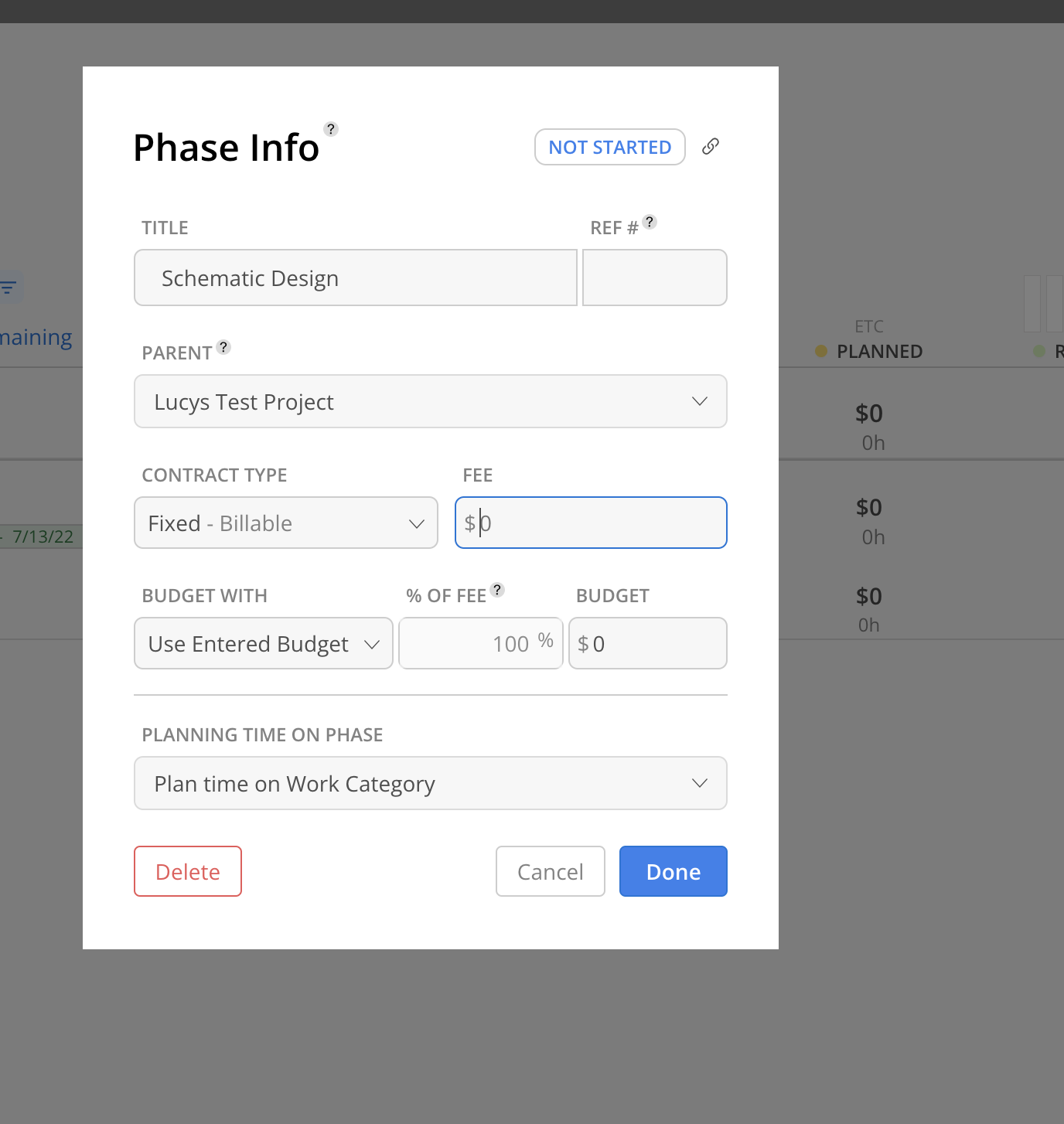
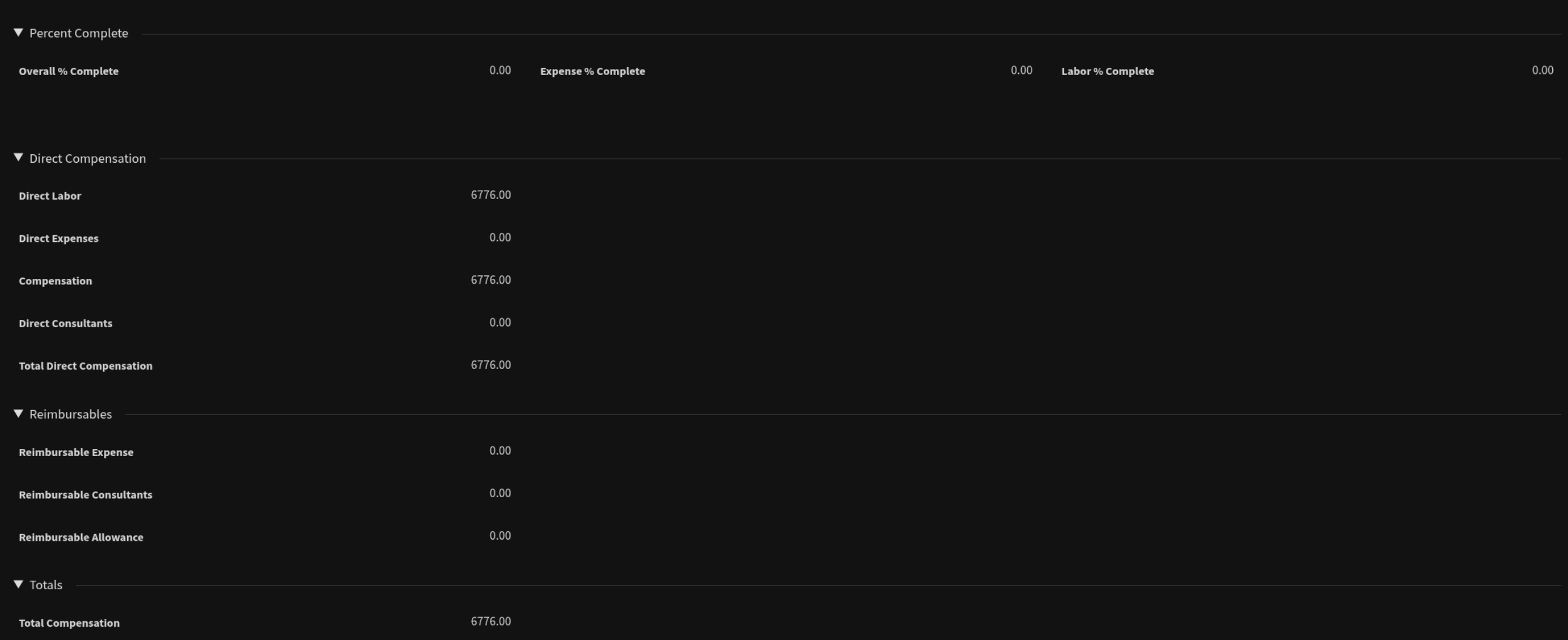
In Vantagepoint: The Fee value comes from fields in the Projects Hub > Contract Management > Compensation tab.
Setting Options
- Transfer updates from today forward (Recommended) — Vantagepoint Project and Phase Fees will be transferred to Mosaic after changes in Vantagepoint. This setting will overwrite Fees on Mosaic.
- Transfer one time at first link — Vantagepoint Project and Phase Fees will only be transferred to Mosaic when the Vantagepoint Project or Phase is first linked.
- Do not transfer — Vantagepoint Project and Phase Fees will not be transferred to Mosaic. Select this option if manual management in Mosaic is preferred.
The actual value transferred depends on the Project and Phase Fee Source setting.
7. Project and Phase Rate Types
In Mosaic
Rate Types determine how billing rates are calculated for Time Entries on a Project.
In Vantagepoint: Rate Types correspond to the Billing Type field on the Project or Phase record.
Setting Options
- Transfer updates from today forward (Recommended) — Vantagepoint Project and Phase rate types will be transferred to Mosaic after changes in Vantagepoint. This setting will overwrite rate types on Mosaic.
- Transfer one time at first link — Vantagepoint Project and Phase rate types will only be transferred to Mosaic when the Vantagepoint Project or Phase is first linked.
- Do not transfer — Vantagepoint Project and Phase rate types will not be transferred to Mosaic. Select this option if manual management in Mosaic is preferred.
8. Project and Phase Rate Group
In Mosaic
Rate Groups define which set of billing rates apply to a given Project or Phase.
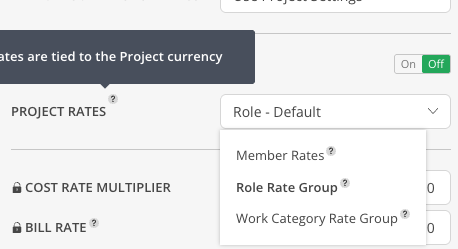
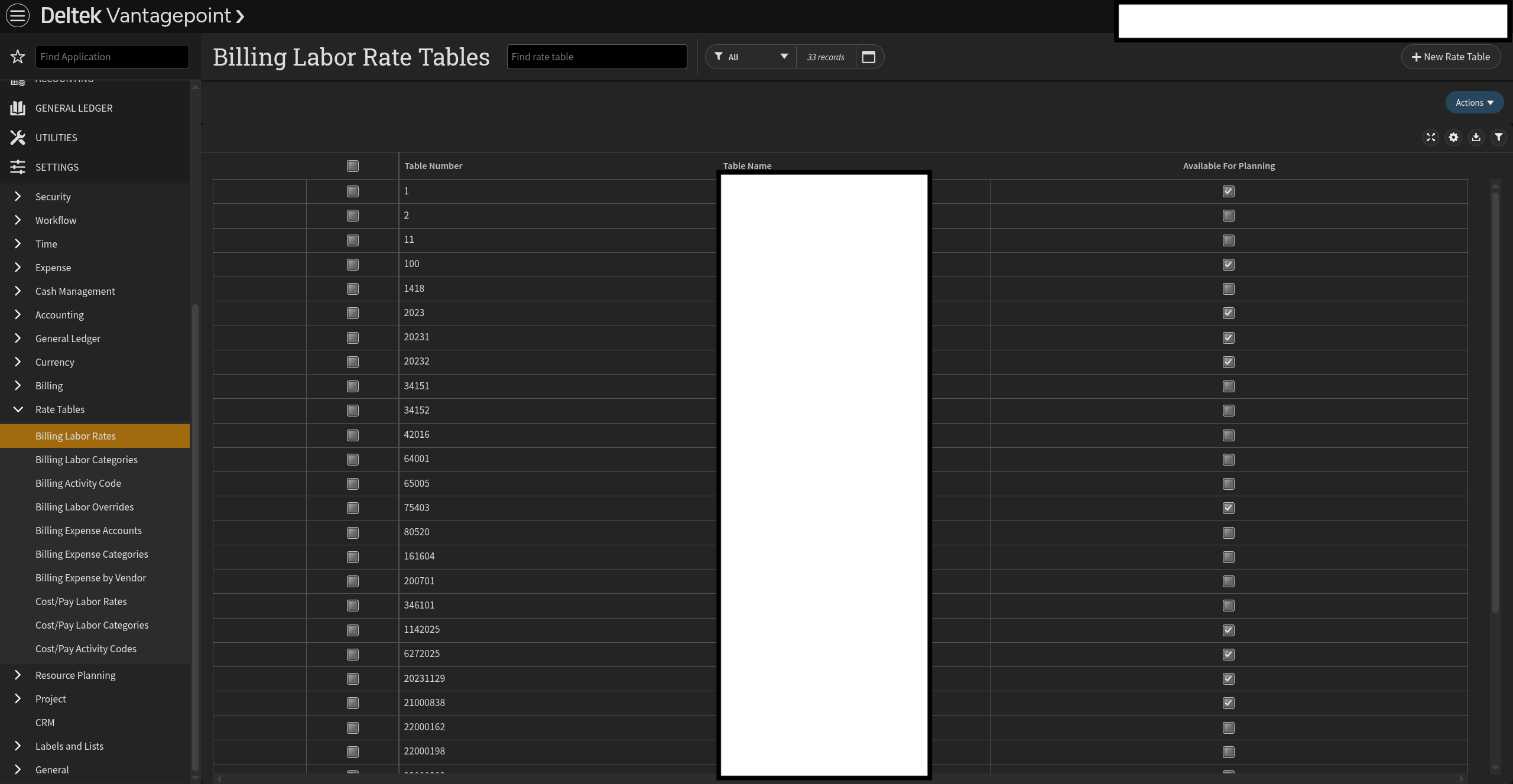
In Vantagepoint: Rate Groups correspond to Rate Tables assigned to Projects.
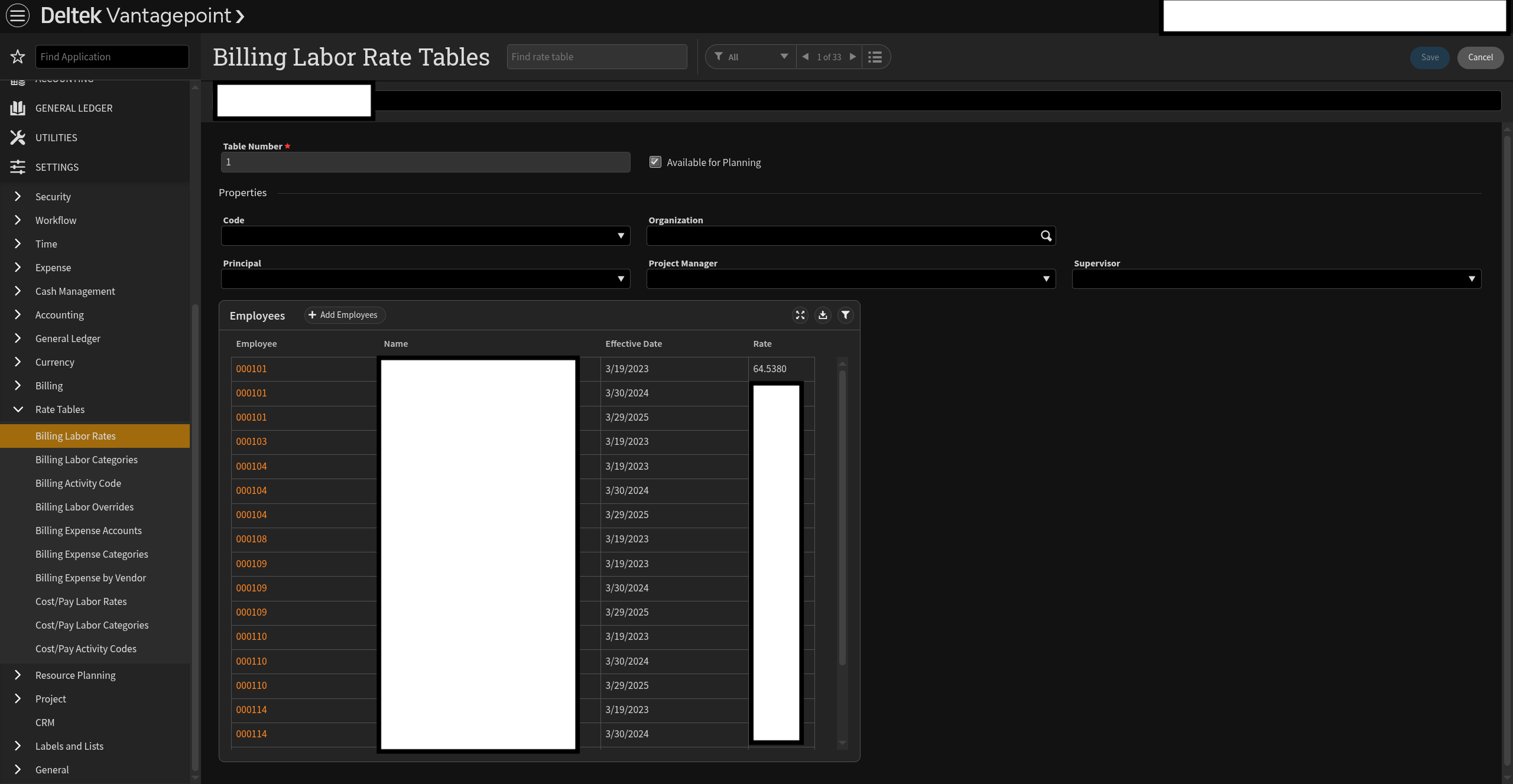
Setting Options
- Transfer updates from today forward (Recommended) — Vantagepoint Project and Phase Rate Group associations will be transferred to Mosaic after changes in Vantagepoint. This setting will overwrite Rate Groups associations on Mosaic.
- Transfer one time at first link — Vantagepoint Project and Phase Rate Groups associations will only be transferred to Mosaic when the Vantagepoint Project or Phase is first linked.
- Do not transfer — Vantagepoint Project and Phase Rate Groups associations will not be transferred to Mosaic. Select this option if manual management in Mosaic is preferred.
To access Role Rates, this setting must be enabled alongside the Rate Group transfer settings in the Rates section.
9. Project-Level Member Rates
In Mosaic
Project-Level Member Rates are the billing rates assigned to specific Members on specific Projects, as opposed to a Member's default organization-wide rate.
In Vantagepoint: These rates come from the Billing Terms assigned at the Project level for individual Employees.
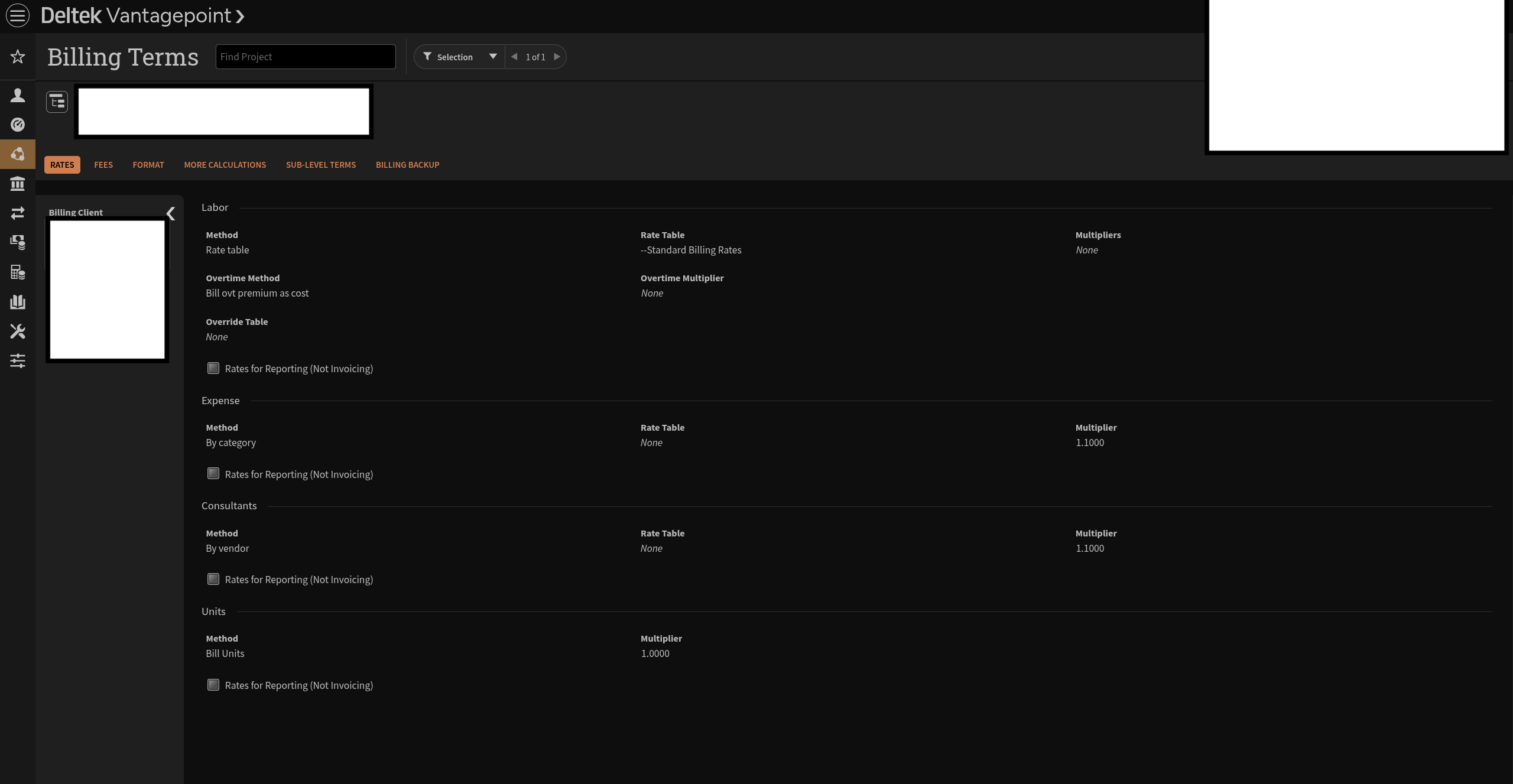
Setting Options
- Transfer updates from today forward — Vantagepoint Project-level Member rates and rate multipliers will be transferred to Mosaic after changes in Vantagepoint. This setting will overwrite rates and rate multipliers on Mosaic.
- Do not transfer (Recommended) — Vantagepoint Project-level Member rates and rate multipliers will not be transferred to Mosaic. Select this option if manual management in Mosaic is preferred.
10. Bill Rate Source for Member Rates
In Mosaic
Determines which rate is used as the base when calculating Bill Rates on Projects that use Member Rates. This setting does not source data from Vantagepoint.
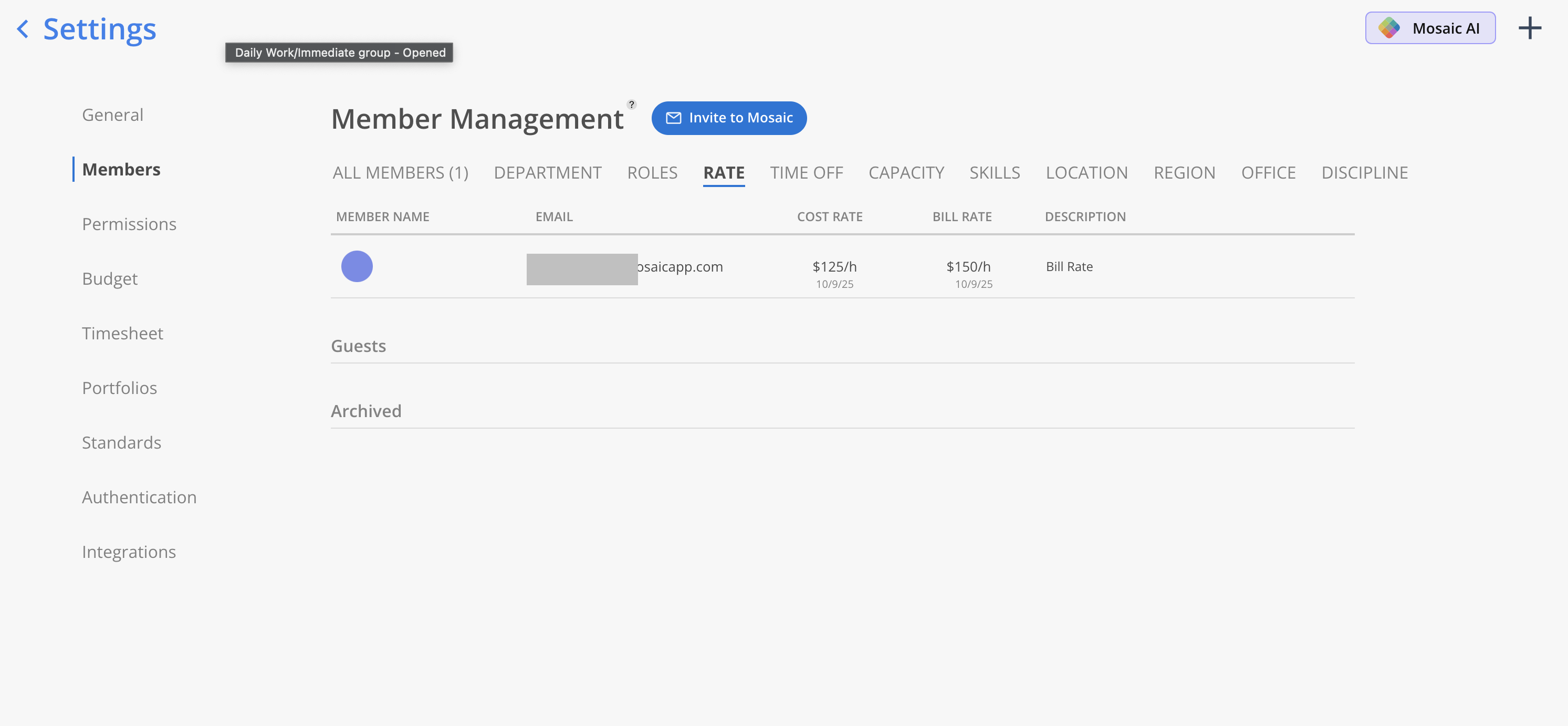
Setting Options
- Cost Rate (Recommended) — Calculates the final Bill Rates using Org-level Member Cost Rates as the base. Project-Level Member Cost Rates will be used if set. Final Bill Rate = Member Cost Rate × Multiplier.
- Bill Rate — Calculates the final Bill Rates using Org-level Member Bill Rates as the base. Project-Level Member Bill Rates will be used if set. Final Bill Rate = Member Bill Rate × Multiplier.
11. Bill Rate Source for Role Rates
In Mosaic
Determines which rate is used as the base when calculating Bill Rates on Projects that use Role Rates. This setting does not source data from Vantagepoint.
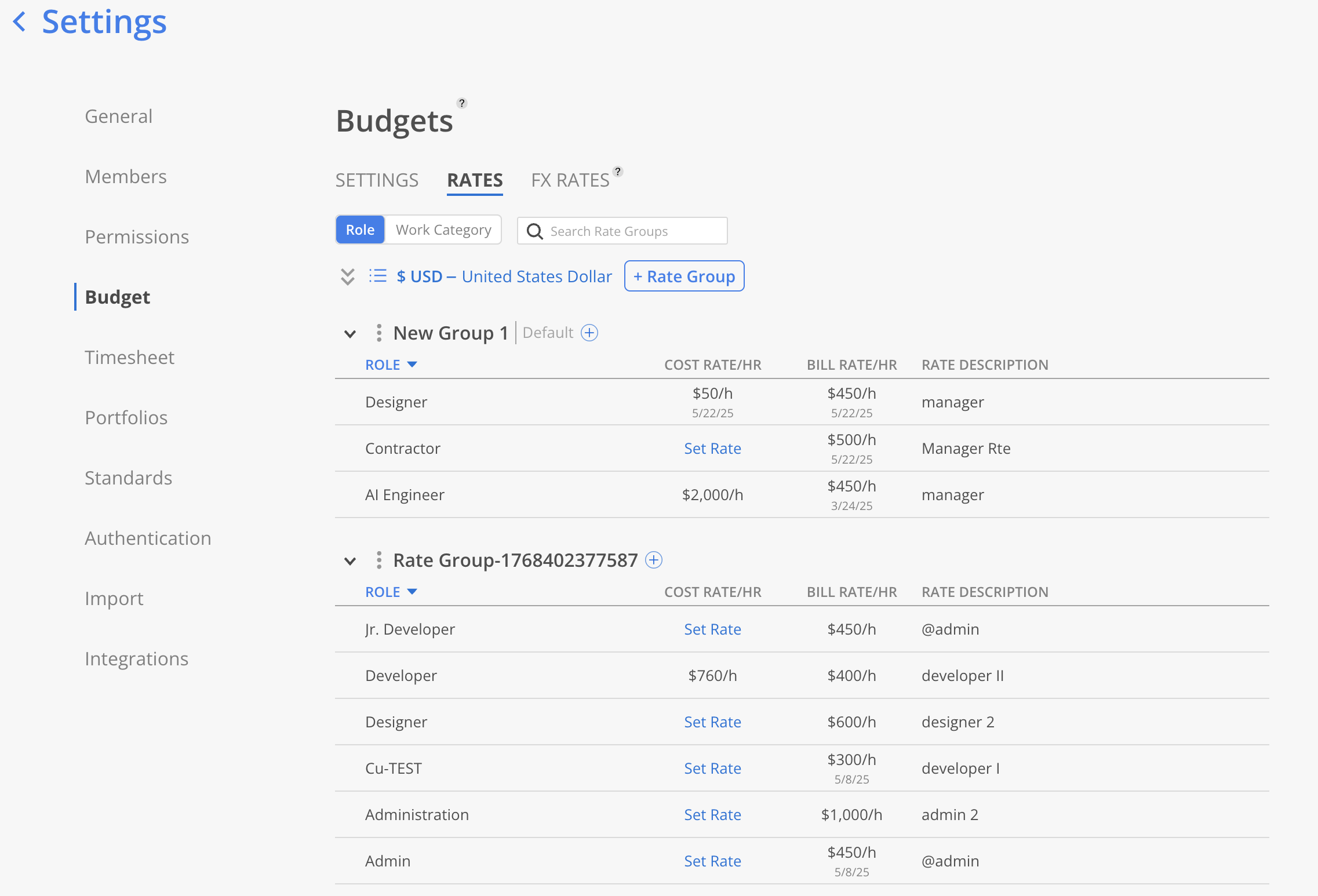
Setting Options
- Cost Rate (Recommended) — Calculates the final Bill Rates using the Project's or Phase's associated Role Rate Group's Cost Rates as the base. Final Bill Rate = Role Cost Rate × Multiplier.
- Bill Rate — Calculates the final Bill Rates using the Project's or Phase's associated Role Rate Group's Bill Rates as the base. Final Bill Rate = Role Bill Rate × Multiplier.
12. Bill Rate Source for Work Category Rates
In Mosaic
Determines which rate is used as the base when calculating Bill Rates on Projects that use Work Category Rates. This setting does not source data from Vantagepoint.
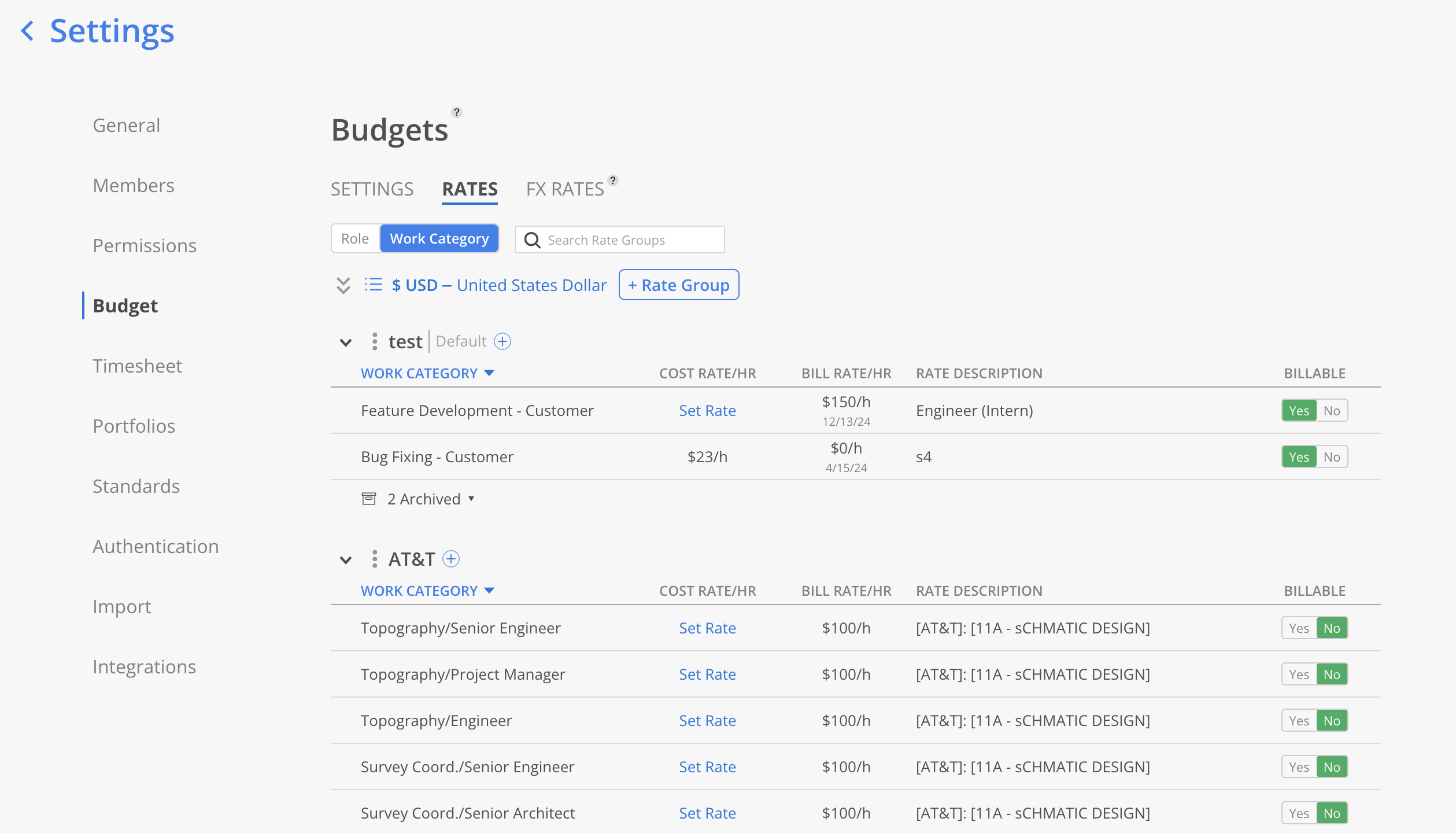
Setting Options
- Cost Rate (Recommended) — Calculates the final Bill Rates using the Project's or Phase's associated Work Category Rate Group's Cost Rates as the base. Final Bill Rate = Work Category Cost Rate × Multiplier.
- Bill Rate — Calculates the final Bill Rates using the Project's or Phase's associated Work Category Rate Group's Bill Rates as the base. Final Bill Rate = Work Category Bill Rate × Multiplier.
13. Project Managers
In Mosaic
When enabled, Members designated as Project Managers in Vantagepoint will be assigned the Project Manager role in Mosaic. This assignment is additive — existing Mosaic Project Managers will not be removed.
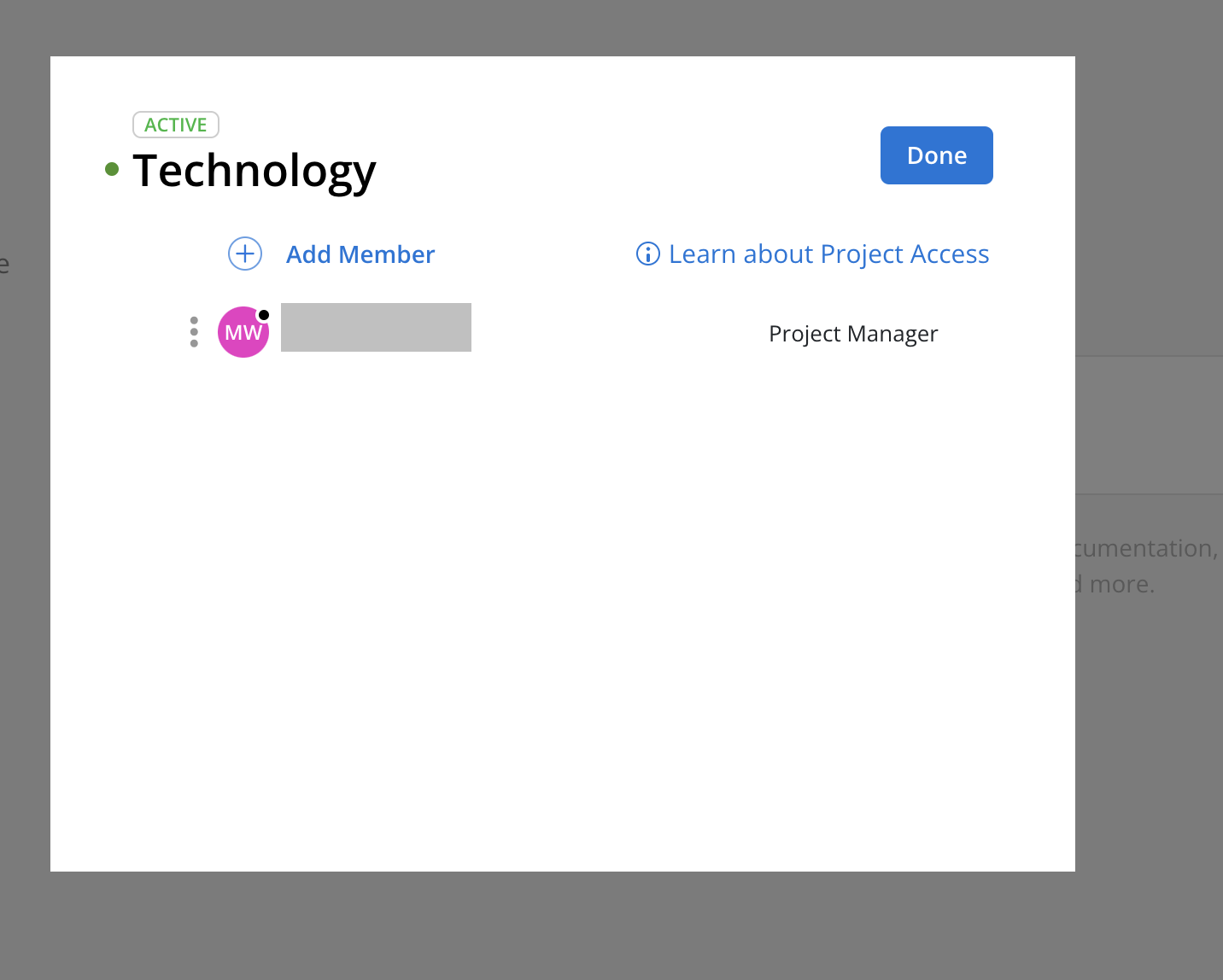
In Vantagepoint: Project Managers are identified by the Principal field on the Project record.
Setting Options
- Transfer updates from today forward (Recommended) — Vantagepoint Project Managers will be transferred to Mosaic after changes in Vantagepoint. Existing Mosaic Project Managers will not be removed.
- Do not transfer — Vantagepoint Project Managers will not be transferred to Mosaic. Select this option if manual management in Mosaic is preferred.
14. Archived Projects
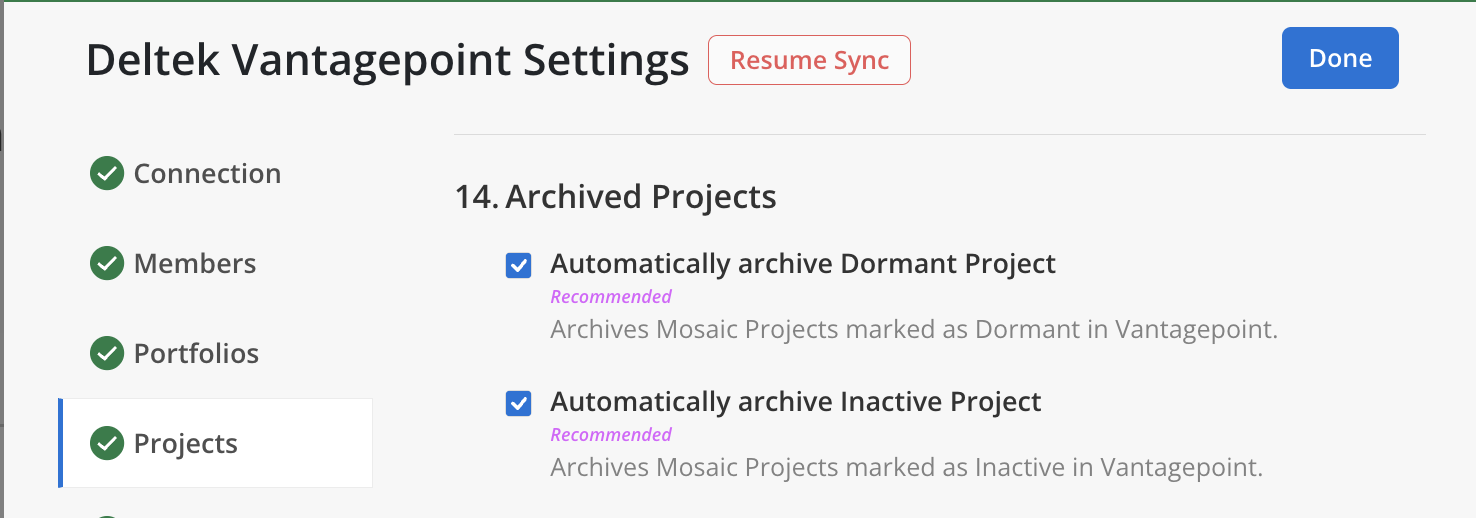
In Mosaic
Archiving hides Projects from active planning views but preserves all data. This is a non-destructive action.
In Vantagepoint: Archiving is triggered by the Project Status field (Dormant or Inactive).
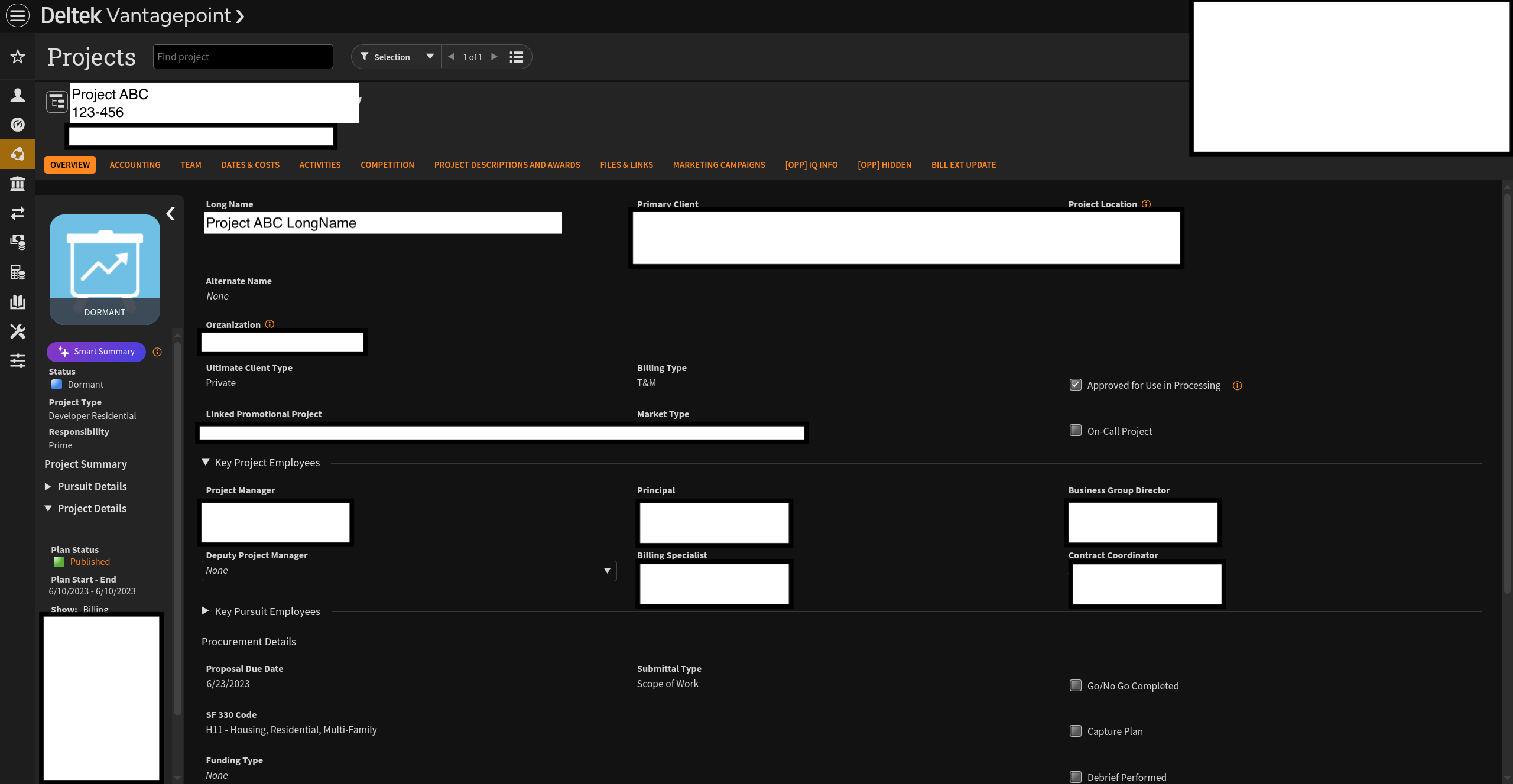
Setting Options
- Automatically archive Dormant Project (Recommended) — Archives Mosaic Projects marked as Dormant in Vantagepoint.
- Automatically archive Inactive Project (Recommended) — Archives Mosaic Projects marked as Inactive in Vantagepoint.
You can select both, one, or neither.
15. Project Status Matching
In Mosaic
Maps each Vantagepoint project status to a corresponding Mosaic Project status. The mapping is applied any time a project's status changes in Vantagepoint.
Default Mapping
| Vantagepoint Status | Mosaic Status |
|---|---|
| Active (A) | Active |
| Inactive (I) | Proposal |
| Dormant (D) | Complete |
For each Vantagepoint status, select the Mosaic Project status that should be applied. The change is applied when the status is updated in Vantagepoint.
How it works
- Each Vantagepoint status is matched to a Mosaic status. The list of source statuses comes from your connected tool, so you'll need a tested connection before you can edit.
- Unmapped statuses sync as Active — if a status isn't listed, Mosaic sets the project or phase to Active.
- Click Reset to default at any time to restore Mosaic's recommended mapping for this integration.
- Changes apply on Save (the button reads Done when there are no changes). Updates affect future syncs; already-synced records keep their current status until they next change in Vantagepoint.
For a full walkthrough of the mapping editor, see Project & Phase Status Matching.
Previously (before Status Matching): Dormant Projects Status & Inactive Projects Status
Dormant Projects Status
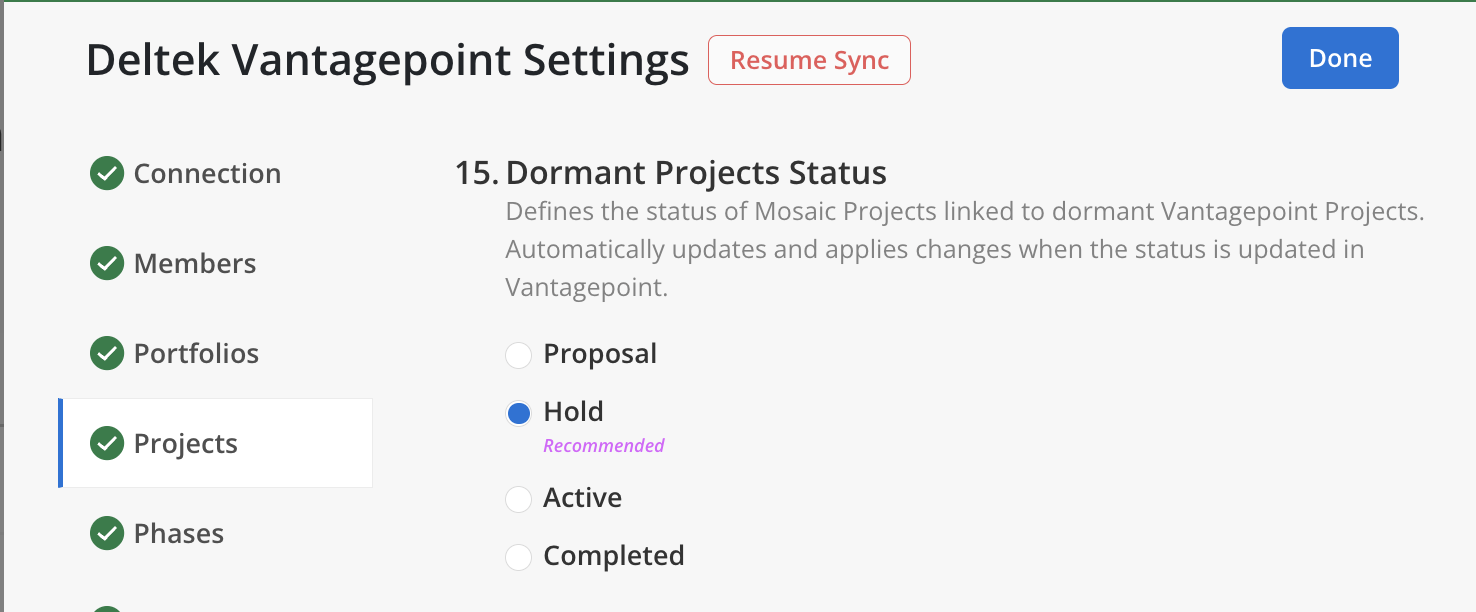
In Mosaic
Maps the Vantagepoint "Dormant" Project status to a corresponding Mosaic Project status. The change applies when the status is updated in Vantagepoint.
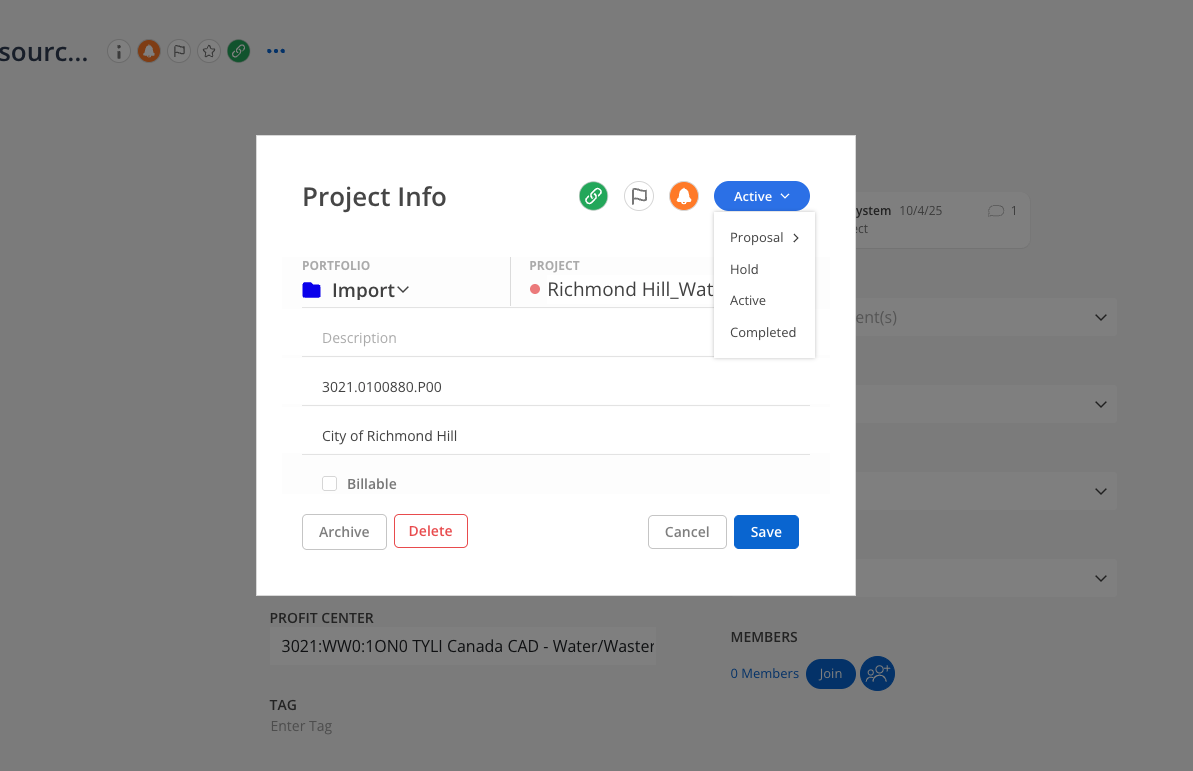
Inactive Projects Status
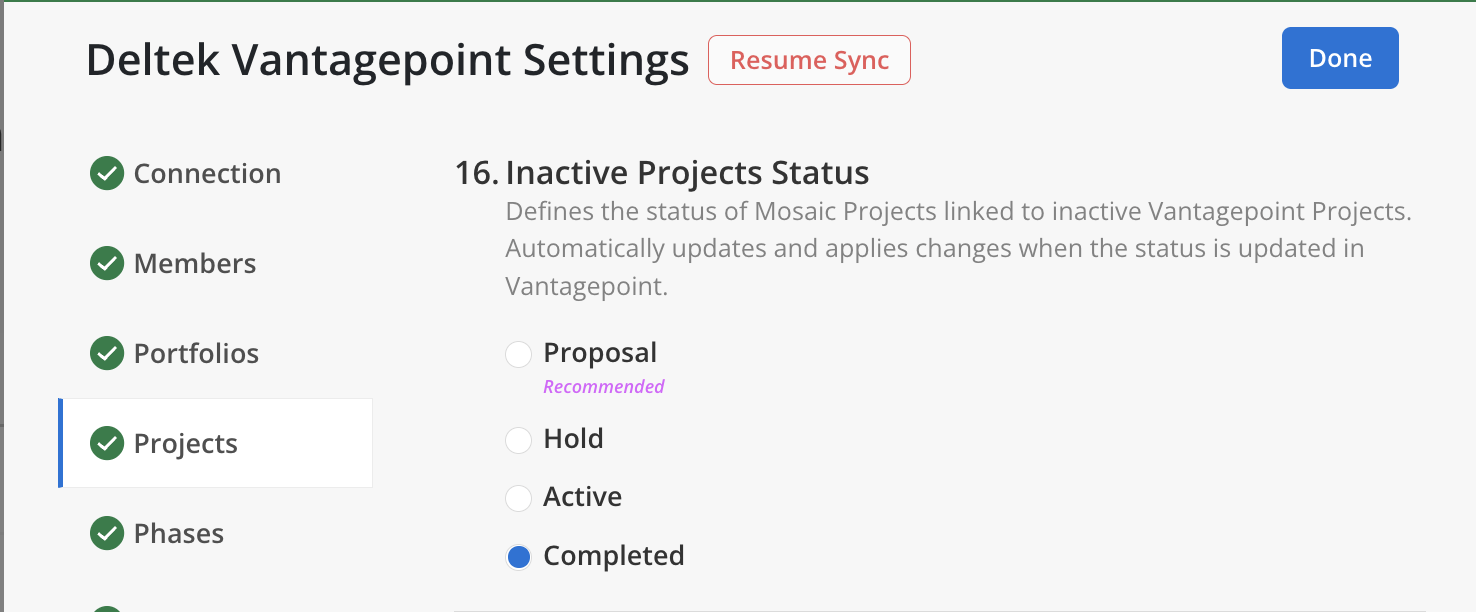
In Mosaic
Maps the Vantagepoint "Inactive" Project status to a corresponding Mosaic Project status. The change applies when the status is updated in Vantagepoint.
16. Project and Phase Dates Source
In Mosaic
Determines which Vantagepoint date fields are used for Project and Phase start and end dates in Mosaic.
In Vantagepoint: The two date source options map to different fields: Start/Estimated Completion Dates or Project Plan Dates.
Setting Options
- Start and Estimated Completion Dates (Recommended) — Vantagepoint start and estimated completion dates will be transferred to Mosaic start and end dates.
- Project Plan Dates — Vantagepoint Project Plan dates will be transferred to Mosaic start and end dates.
If a Project does not have Phases, dates will be transferred to the Project Schedule.
17. Project, Phase, and Time Entry Overhead
In Mosaic
Controls whether the Vantagepoint firm-wide budgeted overhead rate is applied to transferred Project Fees, Phase Fees, and Time Entry Rates.
In Vantagepoint: The overhead rate is a firm-wide budgeted rate configured in Vantagepoint's system settings.
Setting Options
- Apply to Projects, Phases, and Time Entries — Vantagepoint firm-wide budgeted overhead rate will be applied to transferred Project and Phase Fees, and Time Entry Rates after changes in Vantagepoint.
- Do Not Apply (Recommended) — Transferred Projects, Phases, and Time Entries will not have an overhead rate applied.
18. Project and Phase Default Rate Multiplier
In Mosaic
Controls what happens to the Mosaic Rate Multiplier when a Vantagepoint Project or Phase does not have a Rate Multiplier defined.
Setting Options
- Update to 1 — If the Vantagepoint Project or Phase rate multiplier is not defined, the Mosaic Project or Phase rate multiplier will be set to 1. This setting will overwrite rate multipliers on Mosaic.
- Do not update (Recommended) — If the Vantagepoint Project or Phase rate multiplier is not defined, the Mosaic Project or Phase rate multiplier will not be modified.
19. Project and Phase Fee Source
In Mosaic
Determines which Vantagepoint field(s) are used to calculate the Fee for Projects and Phases.
In Vantagepoint: Fee values come from the Compensation tab, Budget Form, or Billing Terms Fee table.
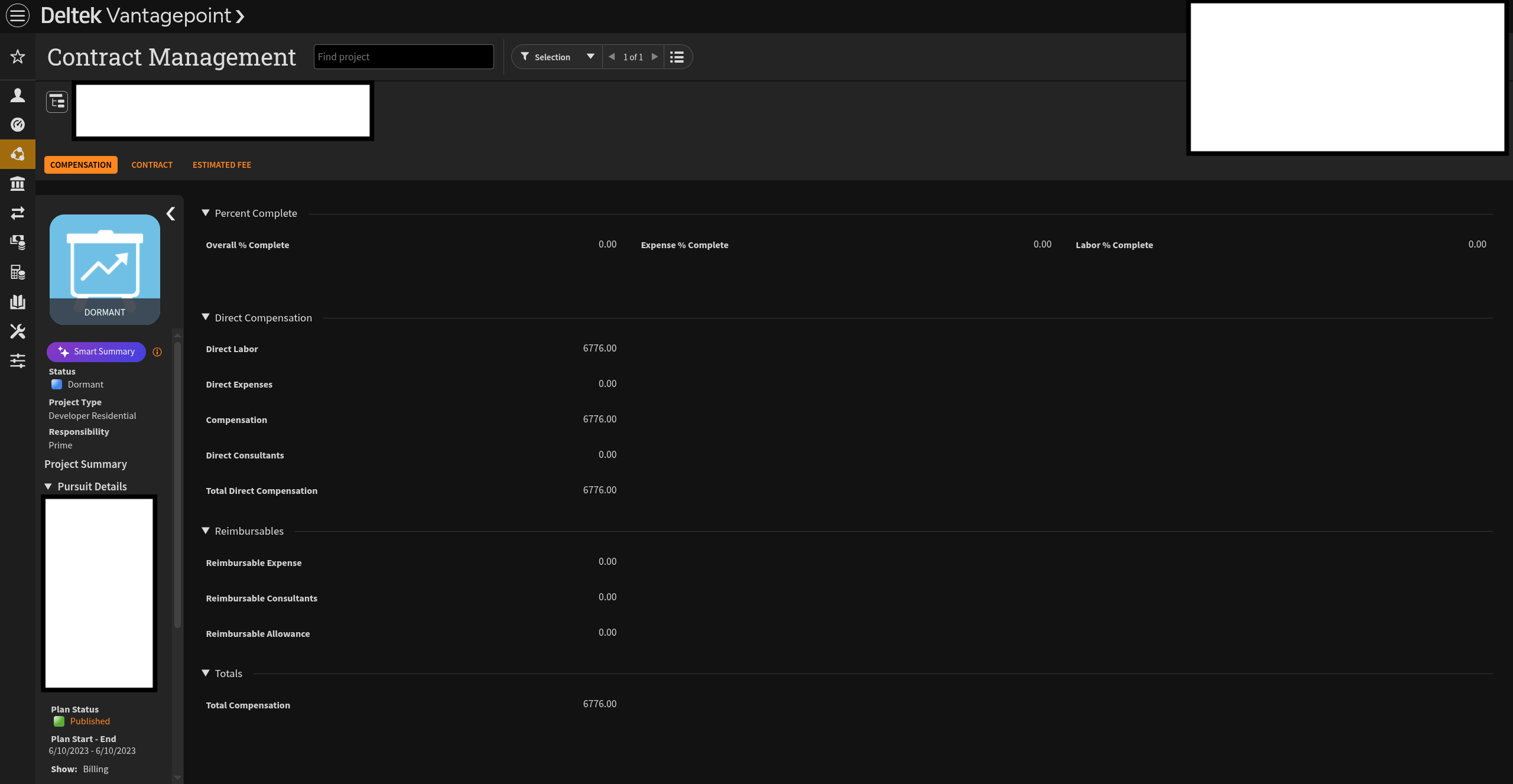
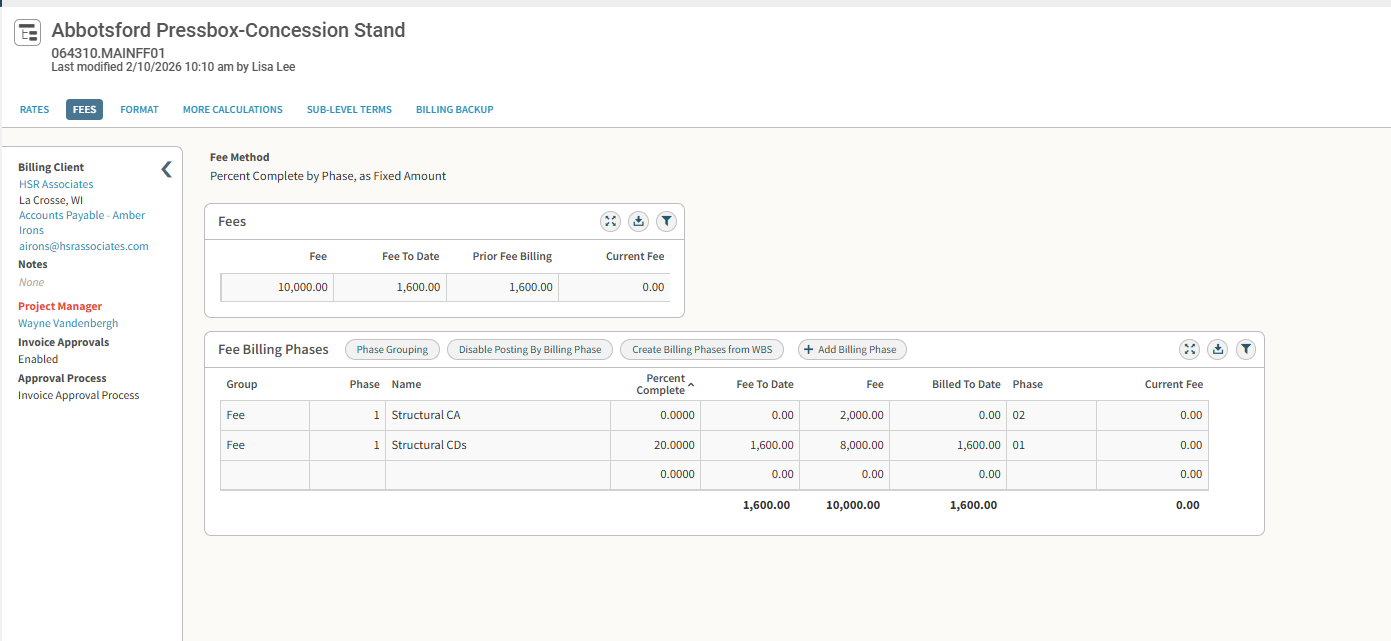
Setting Options
- Direct Labor Fee (Recommended) — Uses the value from the Direct Labor field in the Projects Hub > Contract Management > Compensation tab.
- Direct Labor Fee + Expense Fee — Calculates the total of the Direct Labor and Direct Expenses fields in the Projects Hub > Contract Management > Compensation tab.
- Direct Labor Fee + Expense Fee + Consultant Fee — Calculates the total of the Direct Labor, Direct Expenses, and Direct Consultants fields in the Projects Hub > Contract Management > Compensation
- Direct Labor Fee + Reimbursable Expense — Calculates the total of the Direct Labor field and the project's reimbursable allowance for expenses.
- Direct Labor Fee + Reimbursable Expense + Reimbursable Consultant — Calculates the total of the Direct Labor field and the project's reimbursable allowance for expenses and consultants.
- Direct Labor Fee + Expense Fee + Consultant Fee + Reimbursable Expense + Reimbursable Consultant — Calculates the total of the Direct Labor, Expense Fee, Consultant Fee, Reimbursable Expense, Reimbursable Consultant fields.
- Total Member Budgeted Billing by Labor Code — Pulls the budgeted billing amount for labor from the Labor Tab of the Budget Form.
- Total Member Budgeted Cost by Labor Code — Pulls the budgeted cost amount for labor from the Labor Tab of the Budget Form.
- Fee Billing Terms — Pulls the fee from the Billing Terms table.
If selecting a fee source other than Direct Labor options, make sure the required tables exist in your replica database before enabling.
20. Project Name Source
In Mosaic
Determines which Vantagepoint Project name field is used as the Project Title in Mosaic.
In Vantagepoint: Projects have a Name (short name) and Long Name field.
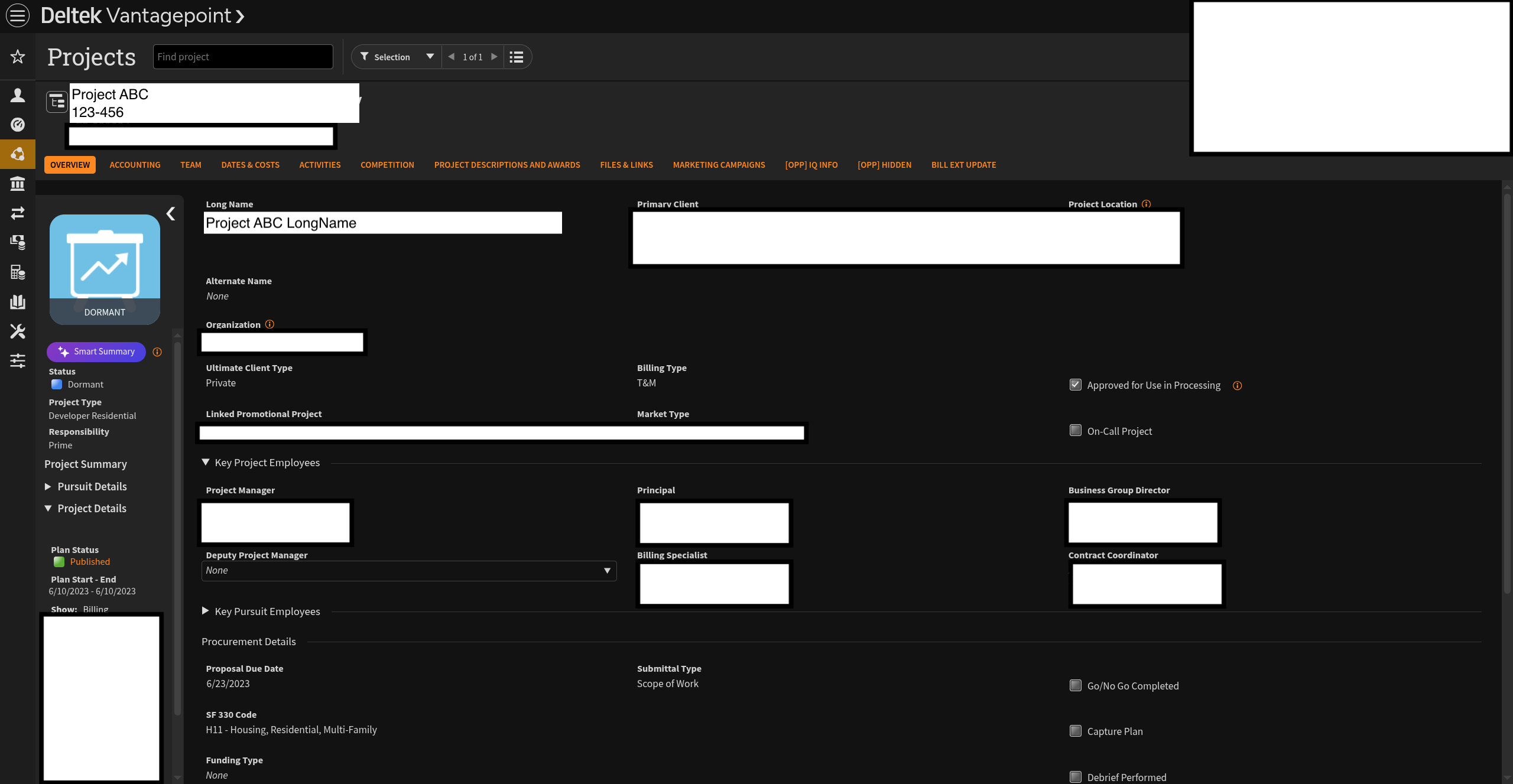
Setting Options
- Name (Recommended) — The Vantagepoint Project name will be used as the Mosaic Project name.
- Long Name — The Vantagepoint Project long name will be used as the Mosaic Project Name. If the long name is blank, the name will be used.
21. Zero Project Fee
In Mosaic
Defines how Mosaic handles Vantagepoint Projects with a Fee of zero.
Setting Options
- Clear Project Fee (Recommended) — Mosaic Project fee will equal the sum of Phase fees.
- Set Project Fee to Zero — Mosaic Project fee will equal zero.
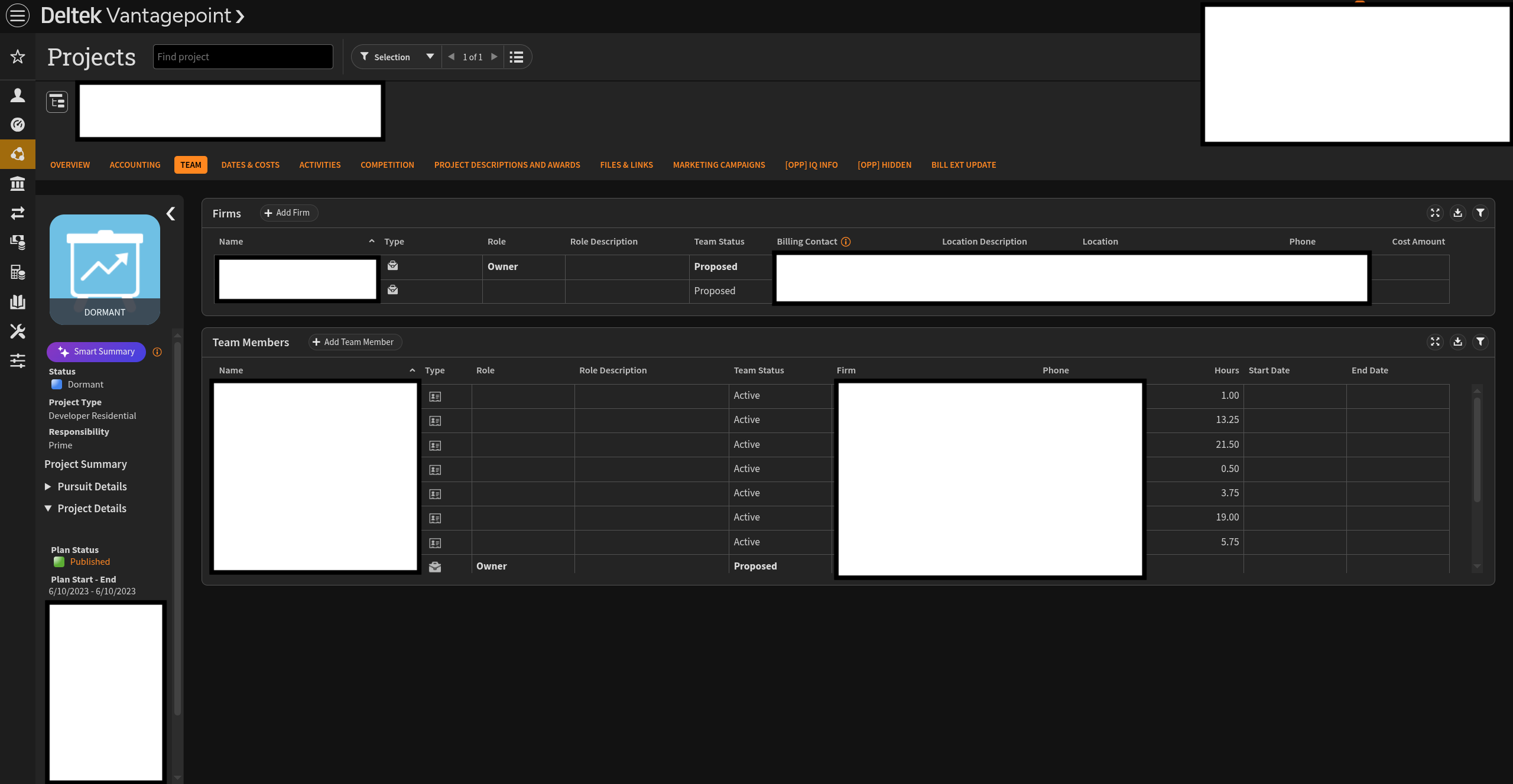
22. Project-level Roles
In Mosaic
Controls whether Vantagepoint Project-level Role assignments are transferred to Mosaic.
In Vantagepoint: Project-level Roles are assigned on the Project's Employee assignments, where each Employee can have a specific Labor Category for that Project.
Setting Options
- Transfer — Vantagepoint Project-level roles will be transferred to Mosaic.
- Do not transfer (Recommended) — Vantagepoint Project-level roles will not be transferred to Mosaic.
23. Role Source for Role Rate Projects
In Mosaic
Specifies how a Member's Role is determined in a Project when using a Role Rate Group.
Setting Options
- Match by Name (Recommended) — Uses the Name of the Member's Vantagepoint Role to identify the Project Role.
- Match by Category — Uses the Category of the Member's Vantagepoint Role to identify the Project Role.
Phases
Phase Settings
1. Linking Method
In Mosaic
A Phase is a distinct stage within a Project's lifecycle. This setting determines how Vantagepoint Phases are connected to Mosaic.
In Vantagepoint: Phases correspond to WBS2 entries under a Project.
Setting Options
- Manually linked — No Phases will be automatically linked.
- Automatically linked (Recommended) — All Phases that meet the criteria specified in the Automatic Linking Filter will be automatically linked. Phases that do not meet the criteria may be manually linked.
2. Non-Billable Fee as Budget
In Mosaic
Controls whether Phase Fees for non-billable Phases are transferred as Phase budgets.
Setting Options
- Transfer updates from today forward (Recommended) — Vantagepoint Phase fees will be transferred to Mosaic Phase budgets after changes in Vantagepoint. This setting will overwrite budgets on Mosaic.
- Do not transfer — Vantagepoint Phase fees will not be transferred to Mosaic Phase budgets. Select this option if manual management in Mosaic is preferred.
3. Order
In Mosaic
Controls how Phases within a Project are ordered in Mosaic.
Setting Options
- Phase Order (Recommended) — Orders Phases using the explicit Phase order from Vantagepoint after changes in Vantagepoint. This setting will overwrite Phase order on Mosaic.
- Phase Ref# (Task Order) — Orders Phases using the Phase's reference number from smallest to largest from Vantagepoint after changes in Vantagepoint. This setting will overwrite Phase order on Mosaic.
- Phase Name — Orders Phases alphabetically by the Phase's name from Vantagepoint after changes in Vantagepoint. This setting will overwrite Phase order on Mosaic.
- Set on Mosaic — Vantagepoint Phase order will not be transferred to Mosaic. Select this option if manual management in Mosaic is preferred.
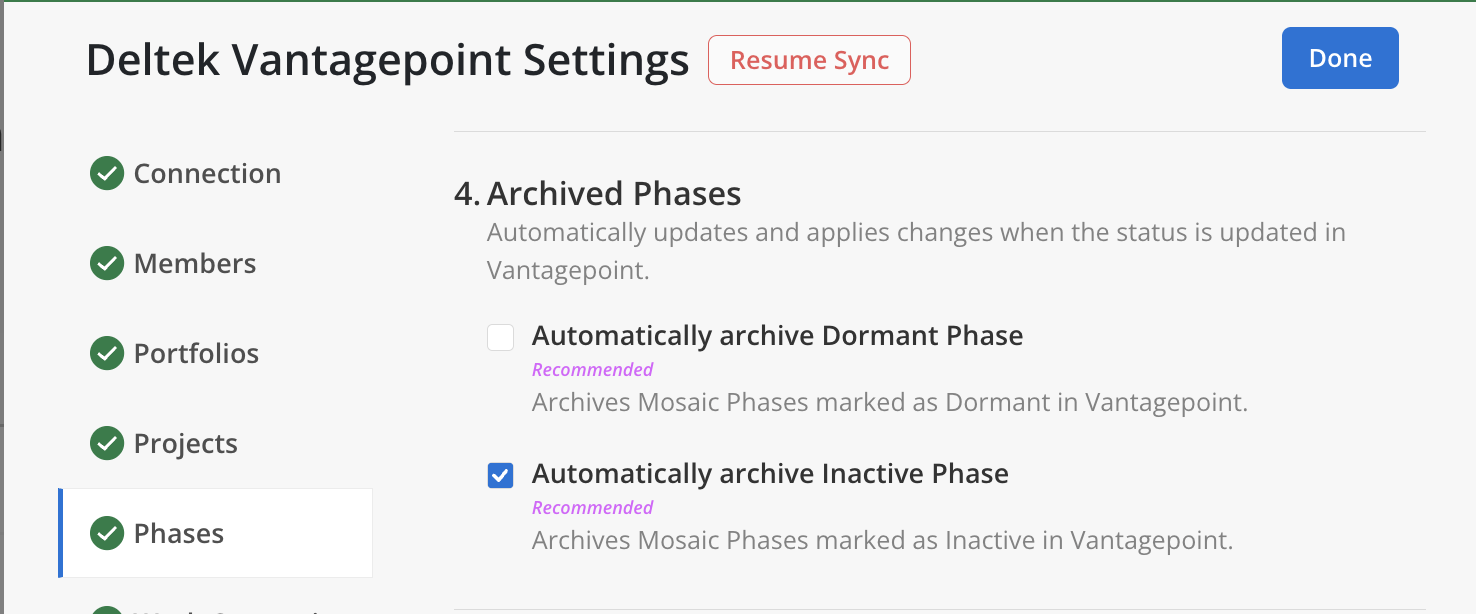
4. Archived Phases
In Mosaic
Configures which Phase statuses trigger archiving.
Setting Options
- Automatically archive Dormant Phase (Recommended) — Archives Mosaic Phases marked as Dormant in Vantagepoint.
- Automatically archive Inactive Phase (Recommended) — Archives Mosaic Phases marked as Inactive in Vantagepoint.
5. Phase Status Matching
In Mosaic
Maps each Vantagepoint phase status to a corresponding Mosaic Phase status. The mapping is applied any time a phase's status changes in Vantagepoint.
Default Mapping
| Vantagepoint Status | Mosaic Status |
|---|---|
| Active (A) | Active |
| Inactive (I) | Not Started |
| Dormant (D) | Hold |
For each Vantagepoint status, select the Mosaic Phase status that should be applied. The change is applied when the status is updated in Vantagepoint.
How it works
- Each Vantagepoint status is matched to a Mosaic status. The list of source statuses comes from your connected tool, so you'll need a tested connection before you can edit.
- Unmapped statuses sync as Active — if a status isn't listed, Mosaic sets the project or phase to Active.
- Click Reset to default at any time to restore Mosaic's recommended mapping for this integration.
- Changes apply on Save (the button reads Done when there are no changes). Updates affect future syncs; already-synced records keep their current status until they next change in Vantagepoint.
For a full walkthrough of the mapping editor, see Project & Phase Status Matching.
Previously (before Status Matching): Dormant Phases Status & Inactive Phases Status
Dormant Phases Status
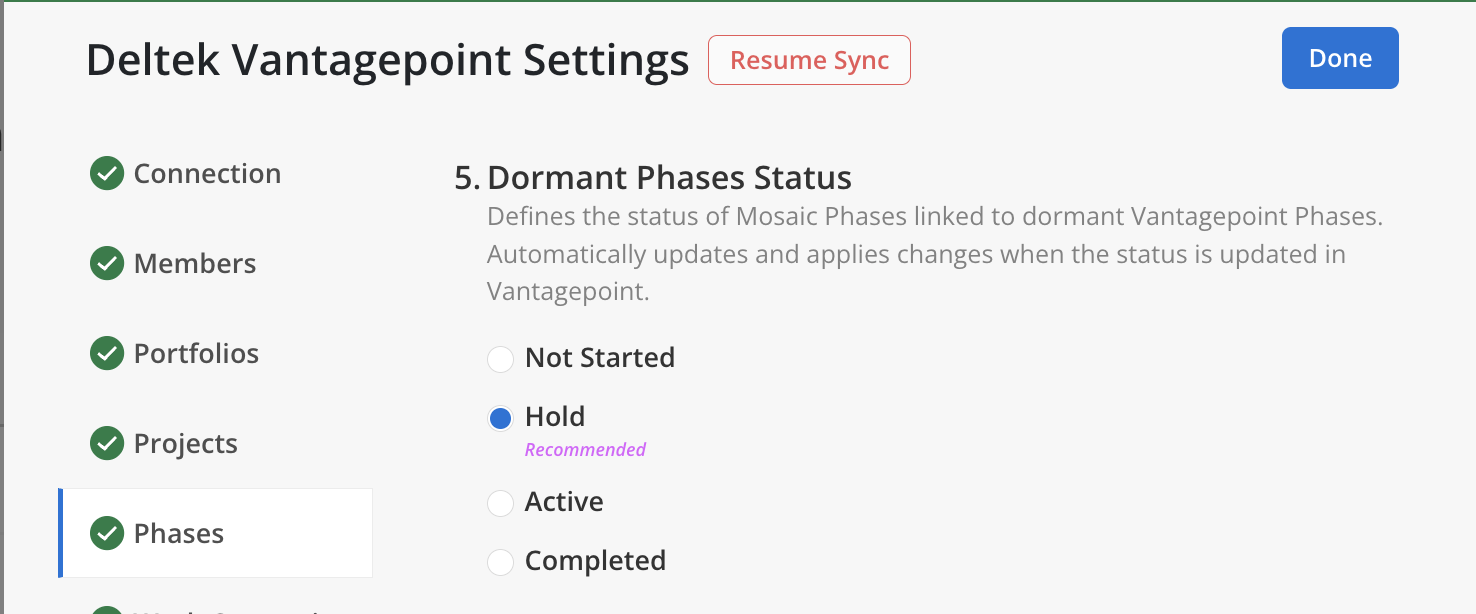
In Mosaic
Maps the Vantagepoint "Dormant" Phase status to a Mosaic Phase status. The change applies when the status is updated in Vantagepoint.
Inactive Phases Status
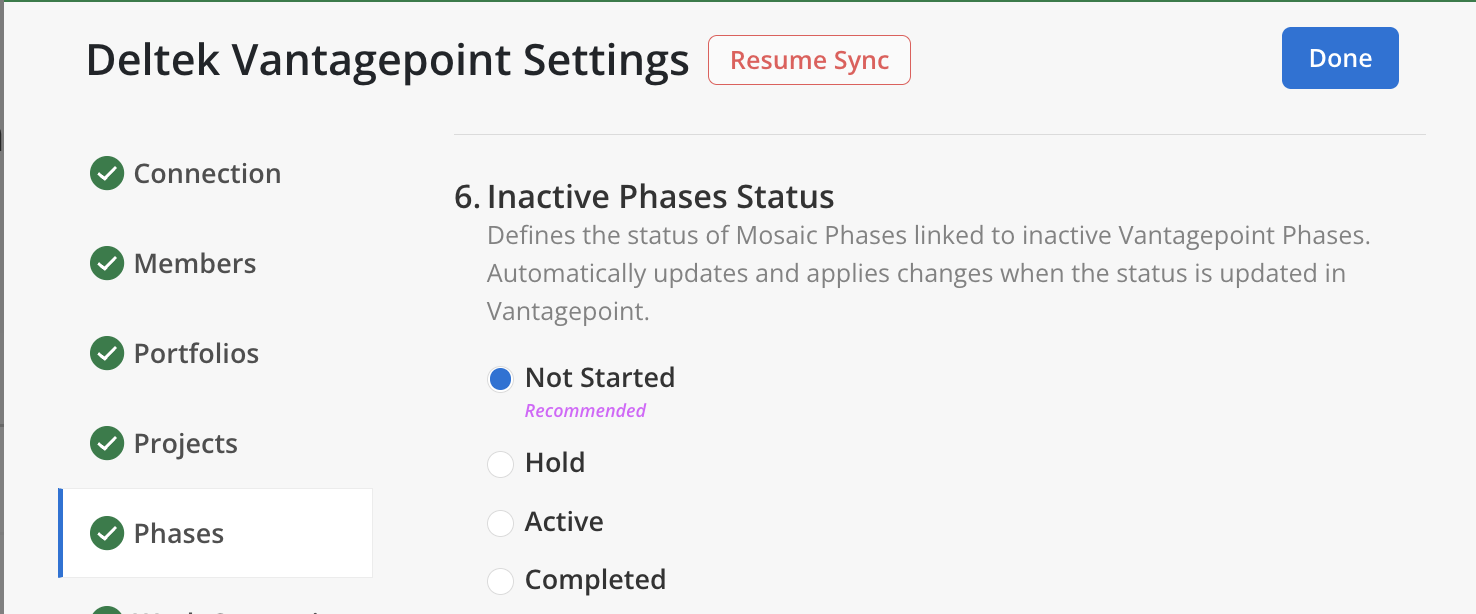
In Mosaic
Maps the Vantagepoint "Inactive" Phase status to a Mosaic Phase status. The change applies when the status is updated in Vantagepoint.
6. Phase Name Source
In Mosaic
Determines which Vantagepoint Phase name field is used in Mosaic.
Setting Options
- Name (Recommended) — The Vantagepoint Phase name will be used as the Mosaic Phase name.
- Long Name — The Vantagepoint Phase long name will be used as the Mosaic Phase name. If the long name is blank, the name will be used.
7. Phase Profit Center Name Source
In Mosaic
The Profit Center is a label used to associate Phases with organizational units.
Setting Options
- Organization Name (Recommended) — The Vantagepoint Organization Code and name will be used as the Mosaic Phase Profit Center name.
- Phase Long Name — The Vantagepoint Phase long name will be used as the Mosaic Phase Profit Center name.
Work Categories
Work Category Settings
1. Linking Method
In Mosaic
Work Categories classify the type of work being performed (e.g., Design, Project Management, Research). They are used to categorize Time Entries.
In Vantagepoint: Work Categories correspond to Activities or Labor Codes.
Setting Options
- Manually linked — No Work Categories will be automatically linked.
- Automatically linked (Recommended) — All Work Categories that meet the specified criteria will be automatically linked. Work Categories that do not meet the criteria may be manually linked.
Time Entries
Time Entry Settings
1. Transfer
In Mosaic
Time Entries are records of a Member's actual hours spent on Projects. They appear in Project Spent tabs and power budget analysis.
In Vantagepoint: Time Entries come from the Timesheets module.
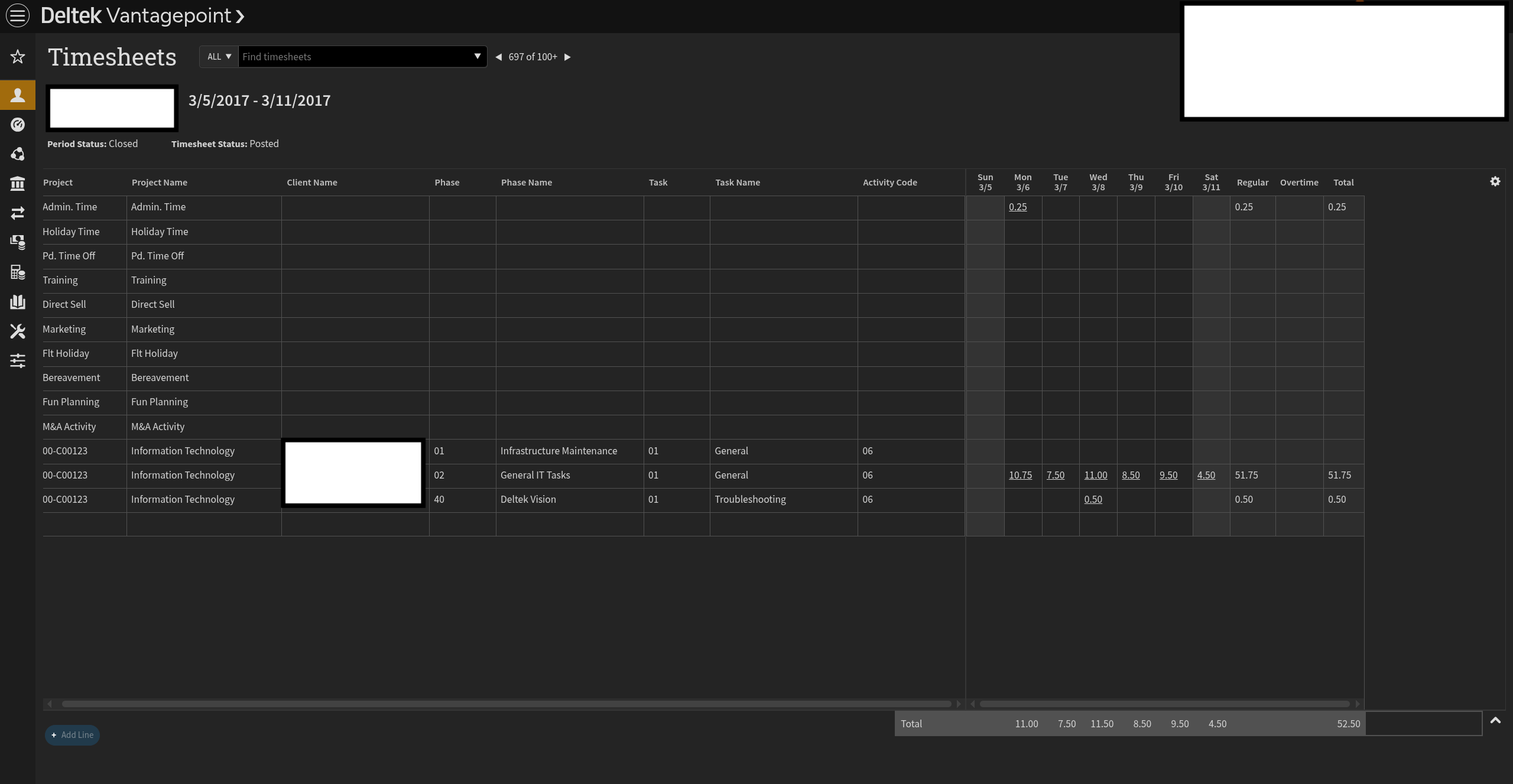
Setting Options
- Transfer one-way from Vantagepoint to Mosaic (Recommended) — Vantagepoint Time Entries will be transferred one-way to Mosaic after changes in Vantagepoint. Mosaic Time Entries will not be transferred to Vantagepoint.
- Do not transfer — Time Entries will not be transferred to or from Vantagepoint. Select this option if manual management in Mosaic is preferred.
2. Time
In Mosaic
When Time Entries are transferred, this nested setting determines which Vantagepoint Time Entries are included.
Setting Options
- Combined Time (Posted and Unposted time) (Recommended) — Unapproved and approved Vantagepoint time entries will be transferred. Mosaic recommends using Unposted Time as Spent Time until all time is posted.
- Posted Time Only — Only approved Vantagepoint time entries will be transferred.
For On-Premise deployments, Combined Time (Posted and Unposted time) is disabled (read-only) — On-Premise integrations transfer Posted Time Only.
3. Billable
In Mosaic
The billable status indicates whether recorded hours are chargeable to a client.
Setting Options
- Transfer updates from today forward (Recommended) — Vantagepoint Time Entry billable statuses will be transferred to Mosaic after changes in Vantagepoint. This setting will overwrite billable statuses on Mosaic.
- Transfer one time at first link — Vantagepoint Time Entry billable statuses will only be transferred to Mosaic when the Vantagepoint Time Entry is first linked.
- Do not transfer — Vantagepoint Time Entry billable statuses will not be transferred to Mosaic. Select this option if manual management in Mosaic is preferred.
4. Hourly Rates
In Mosaic
Hourly Bill Rates are the billing rates on each Time Entry record.
Setting Options
- Transfer updates from today forward (Recommended) — Vantagepoint Time Entry hourly rates will be transferred to Mosaic after changes in Vantagepoint. This setting will overwrite hourly rates on Mosaic.
- Transfer one time at first link — Vantagepoint Time Entry hourly rates will only be transferred to Mosaic when the Vantagepoint Time Entry is first linked.
- Do not transfer — Vantagepoint Time Entry hourly rates will not be transferred to Mosaic. Select this option if manual management in Mosaic is preferred.
Known display issue: in the settings modal, the Do not transfer option currently shows the Transfer one time at first link description. The option behaves as its label says — no hourly rates are transferred.
5. Cost Rates
In Mosaic
Time Entry Cost Rates are distinct from the hourly Bill Rates above. They affect cost calculations in Project budget views and profitability reports.
This setting is controlled by the Cost Rates feature flag. Contact your Mosaic team if this option is not visible.
Setting Options
- Transfer (Recommended) — Vantagepoint Time Entry cost rates will be transferred to Mosaic after changes in Vantagepoint. This setting will overwrite cost rates on Mosaic.
- Do not transfer — Vantagepoint Time Entry cost rates will not be transferred to Mosaic. Select this option if manual management in Mosaic is preferred.
6. Zero Bill Rate Amount
In Mosaic
Defines how Mosaic handles Time Entries with a Bill Rate of zero.
Setting Options
- Do not change zero billing amount (Recommended)
- Calculate amount using project bill rate and hours
Neither option carries a description in the settings modal. Do not change zero billing amount leaves a zero Bill Rate at zero; Calculate amount using project bill rate and hours sets the rate to null so Mosaic derives it from the Project Rates.
Rates
Rate Settings
1. Rate Groups
In Mosaic
Rate Groups define sets of billing rates that can be associated with Projects and Phases.
In Vantagepoint: Rate Groups correspond to Rate Tables.
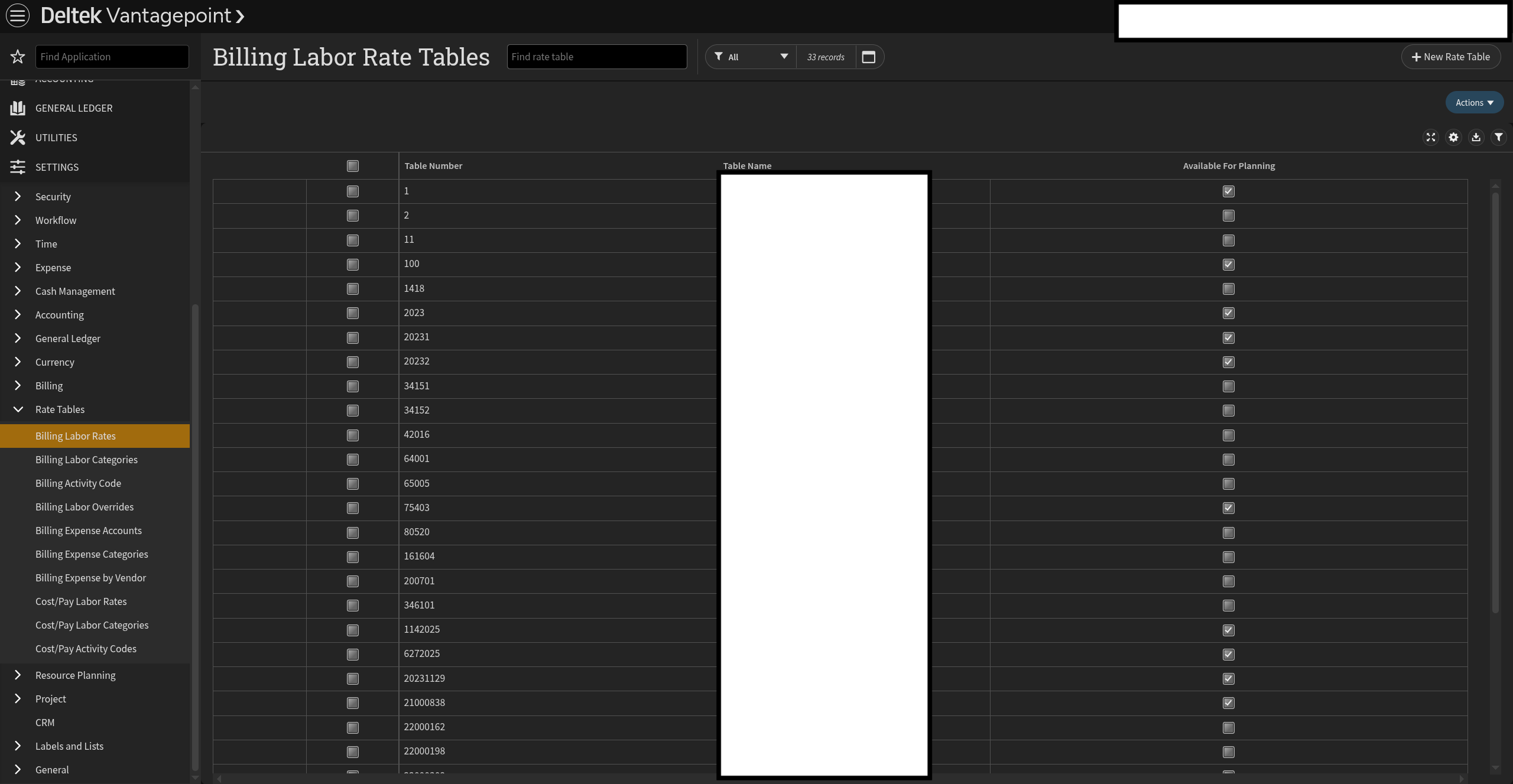
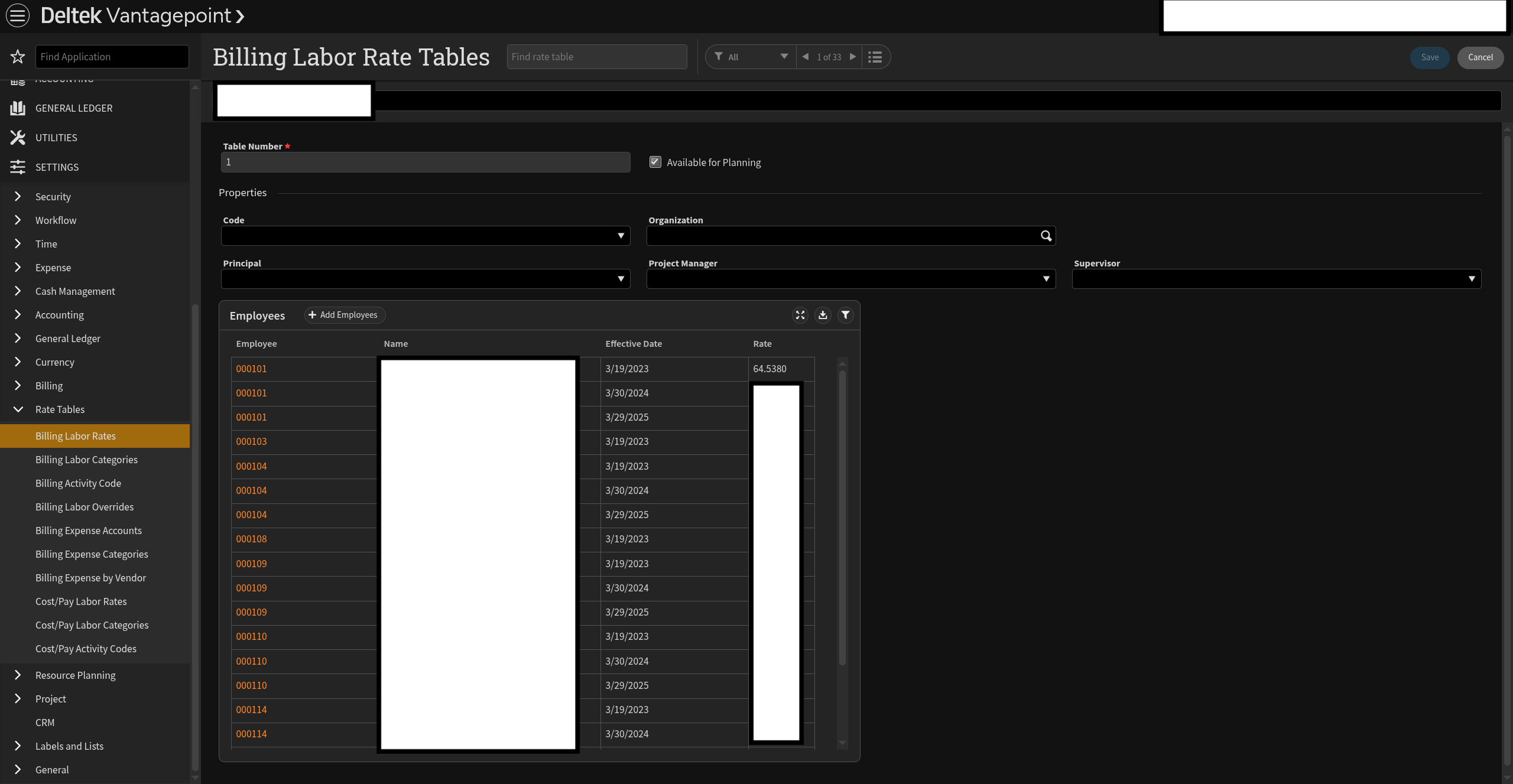
How Vantagepoint Rate Table types map to Mosaic:
Vantagepoint has three types of Rate Tables. Each maps to a different area in Mosaic:
Vantagepoint Rate Table Type Billing Method Mosaic Equivalent Where in Mosaic Labor Category Table By Category Role Rate Group Org Settings > Budget > Rates > Role Labor Code Table By Labor Code Work Category Rate Group Org Settings > Budget > Rates > Work Category Labor Rate Table (Employee) Rate Times Multiplier Member Project Rates Per-project member rate assignments (not in Org Settings) Only Labor Category and Labor Code tables sync as Rate Groups. Labor Rate Tables (employee-level) sync as Member Project Rates when the Project-Level Member Rates setting is enabled.
Setting Options
- Transfer updates from today forward — Vantagepoint Rate Groups will be transferred to Mosaic after changes in Vantagepoint. This setting will overwrite Rate Groups on Mosaic.
- Do not transfer (Recommended) — Vantagepoint Rate Groups will not be transferred to Mosaic. Select this option if manual management in Mosaic is preferred.
If you choose Transfer updates from today forward, avoid editing Rate Groups directly in Mosaic.
2. Default Role Rate Group Role Names
In Mosaic
Determines the source for Role names when using the Default Role Rate Group.
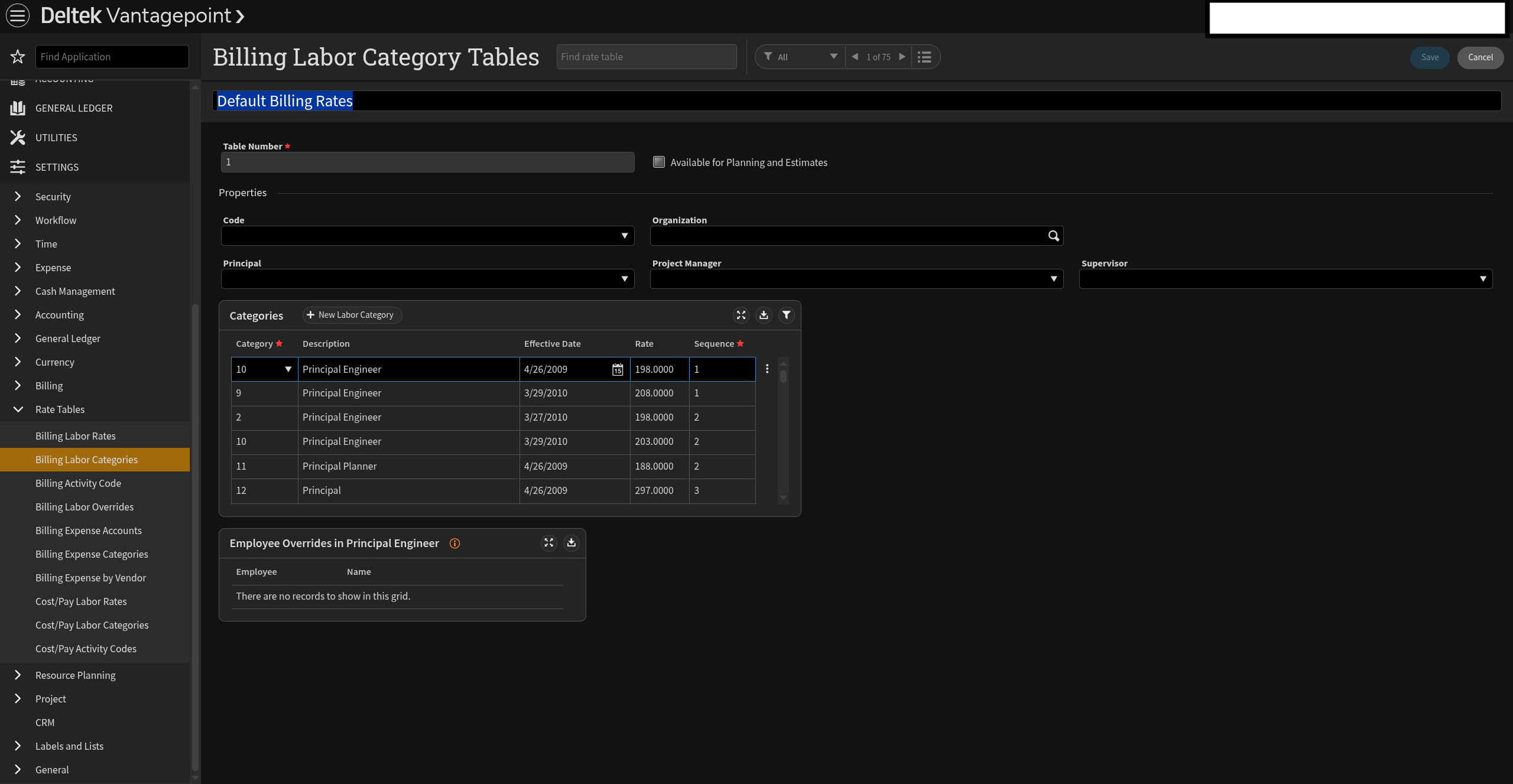
In Vantagepoint: This maps to either the Labor Category Names or the names from the Default Role Rate Group in Vantagepoint.
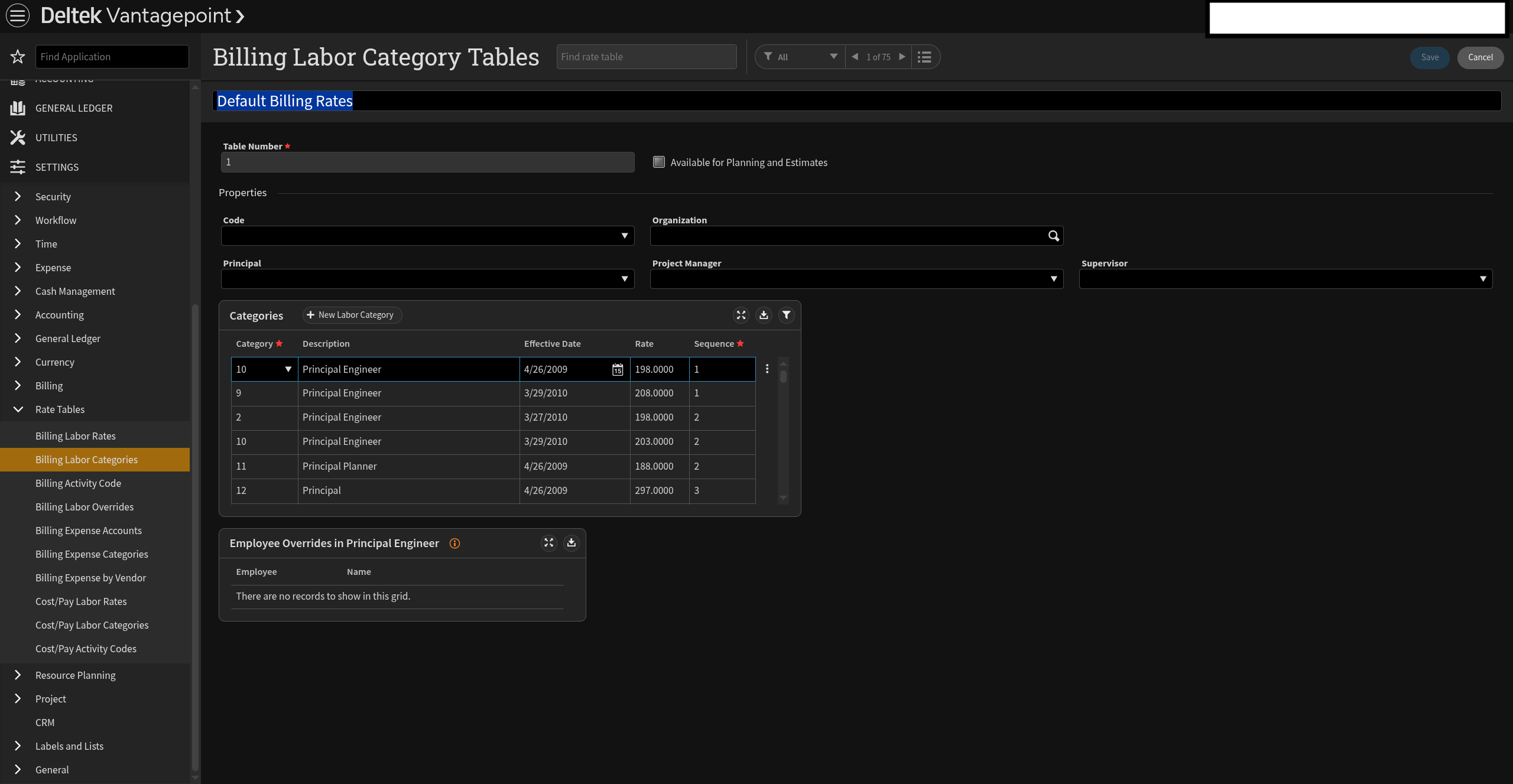
Setting Options
- Category Names (Recommended)
- Labor Category Group Names — Uses the names from the Default Role Rate Group.
3. Default Role Rate Group
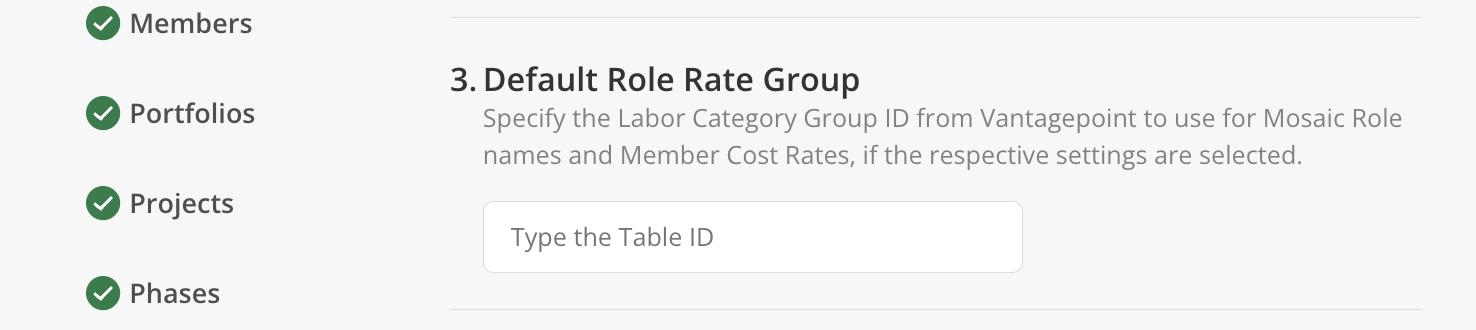
In Mosaic
Specifies the Vantagepoint Labor Category Group ID for Role names and Member Cost Rates.
In Vantagepoint: This maps to a Labor Category Group ID in Vantagepoint.
Setting Options
Text input field. Enter the numeric Labor Category Group ID. Leave blank if not applicable.
4. Rate Descriptions Source
In Mosaic
Rate Descriptions provide additional context for rate entries.
Setting Options
- Generic Resource Table (Recommended) — Vantagepoint rate descriptions in the Generic Resources table will be transferred to Mosaic rates.
- Do not transfer — Vantagepoint rate descriptions will not be transferred to Mosaic.
5. Role Source
In Mosaic
Controls whether Vantagepoint Labor Categories are transferred as Mosaic Member Roles.
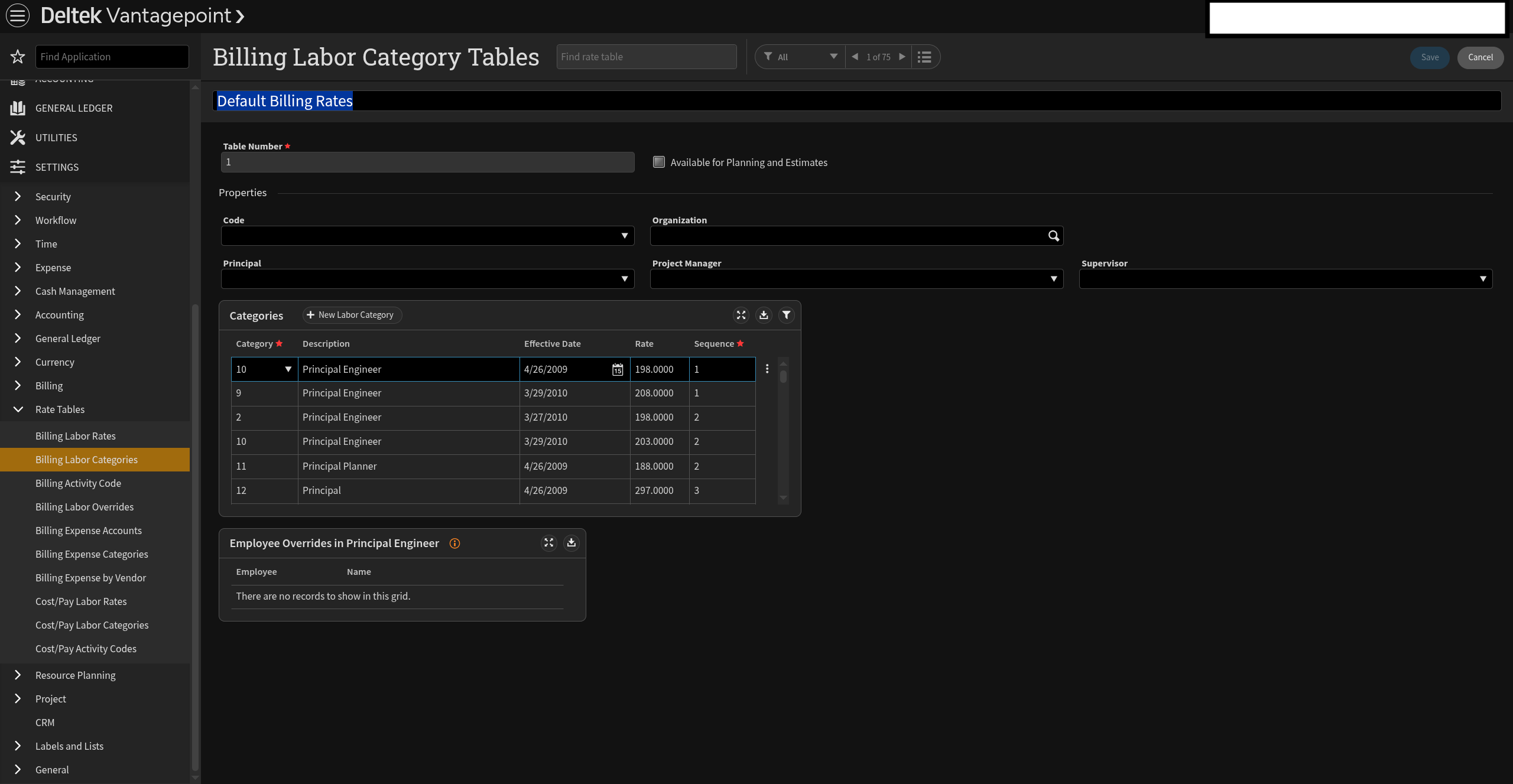
In Vantagepoint: Roles come from the Labor Category Rates table.
Setting Options
- Labor Category Table (Recommended) — Vantagepoint labor categories from the Labor Category Rates table will be transferred as Mosaic Member Roles.
- Do not transfer — Vantagepoint Member Roles will not be transferred to Mosaic.
6. Standard Roles and Rates
In Mosaic
Controls which Standard Roles and their associated rates are transferred from Vantagepoint. Determines whether all Roles and Rates are transferred or only those actively used.
In Vantagepoint: Roles and Rates come from the Generic Resources table. Active Roles are those with entries in this table.
Setting Options
- Transfer all (Recommended) — Vantagepoint roles and rates, even if they are not used in the Generic Resource table, will be transferred to Mosaic.
- Transfer active roles and rates only — Active Vantagepoint roles and rates used in the Generic Resource table will be transferred to Mosaic. Others will not be transferred.
Contact the Mosaic Solutions team if you need assistance configuring any of these settings or if you'd like to discuss the best configuration for your workflow.
Updated about 1 month ago