
Install Chello in Microsoft Teams
Set up Chello by uploading the app file to Microsoft Teams, then connect your Mosaic account through a direct message to Chello.
Before You Begin
You'll need:
- The Chello Teams app package (
.zip), provided by your Customer Success Manager. Keep the file zipped. - Microsoft Teams on desktop or in a web browser, signed in to your work account.
- Permission to upload custom apps in Teams.
- Access to the Mosaic account you want to connect.
Custom app uploads may be restricted. If your organization restricts custom app uploads, your Teams administrator will need to enable access or install the app for you.
Upload and Install Chello
-
Open Microsoft Teams and make sure you're signed in to the correct organization.
-
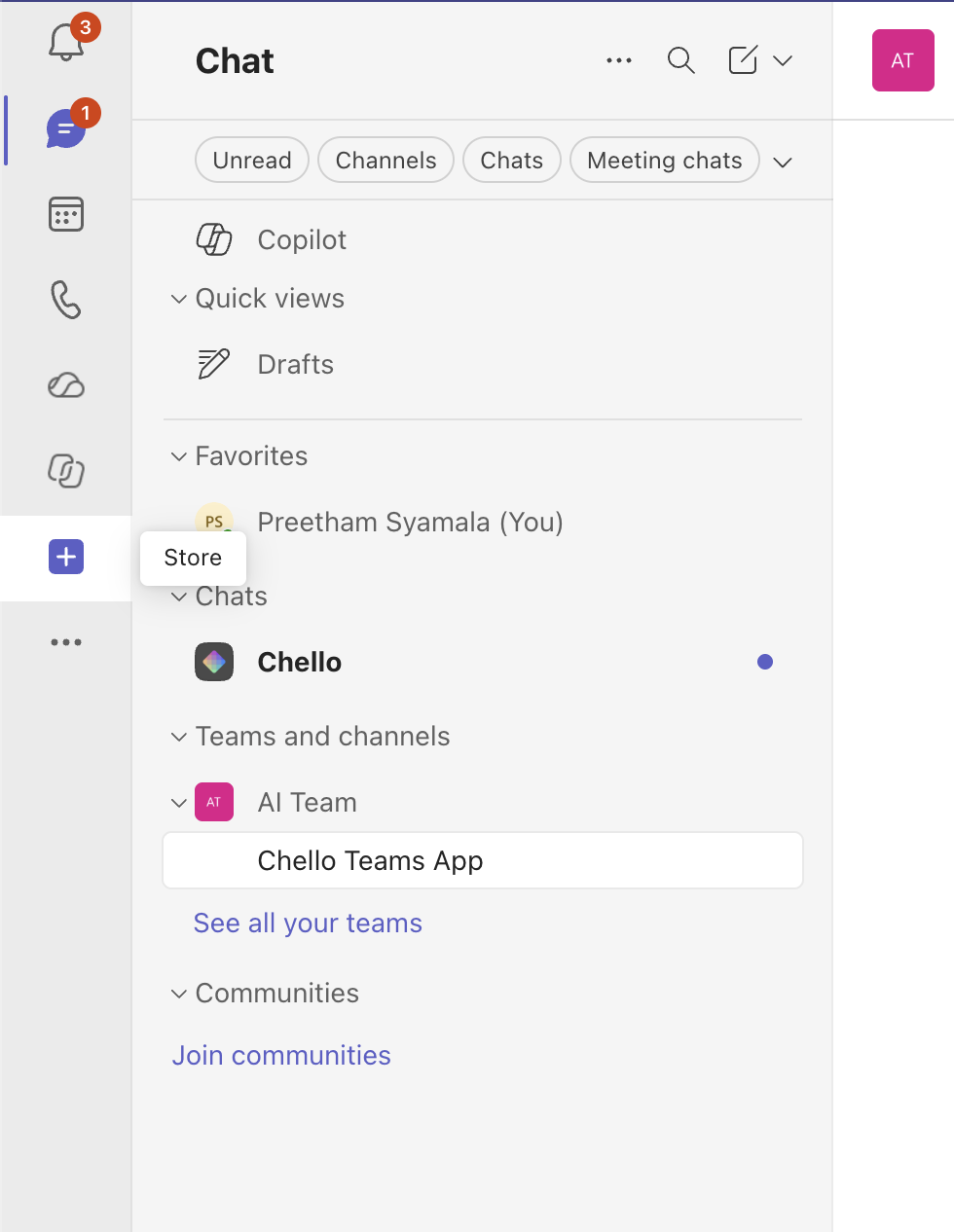
Select Store in the left sidebar. This opens the Apps page.
-
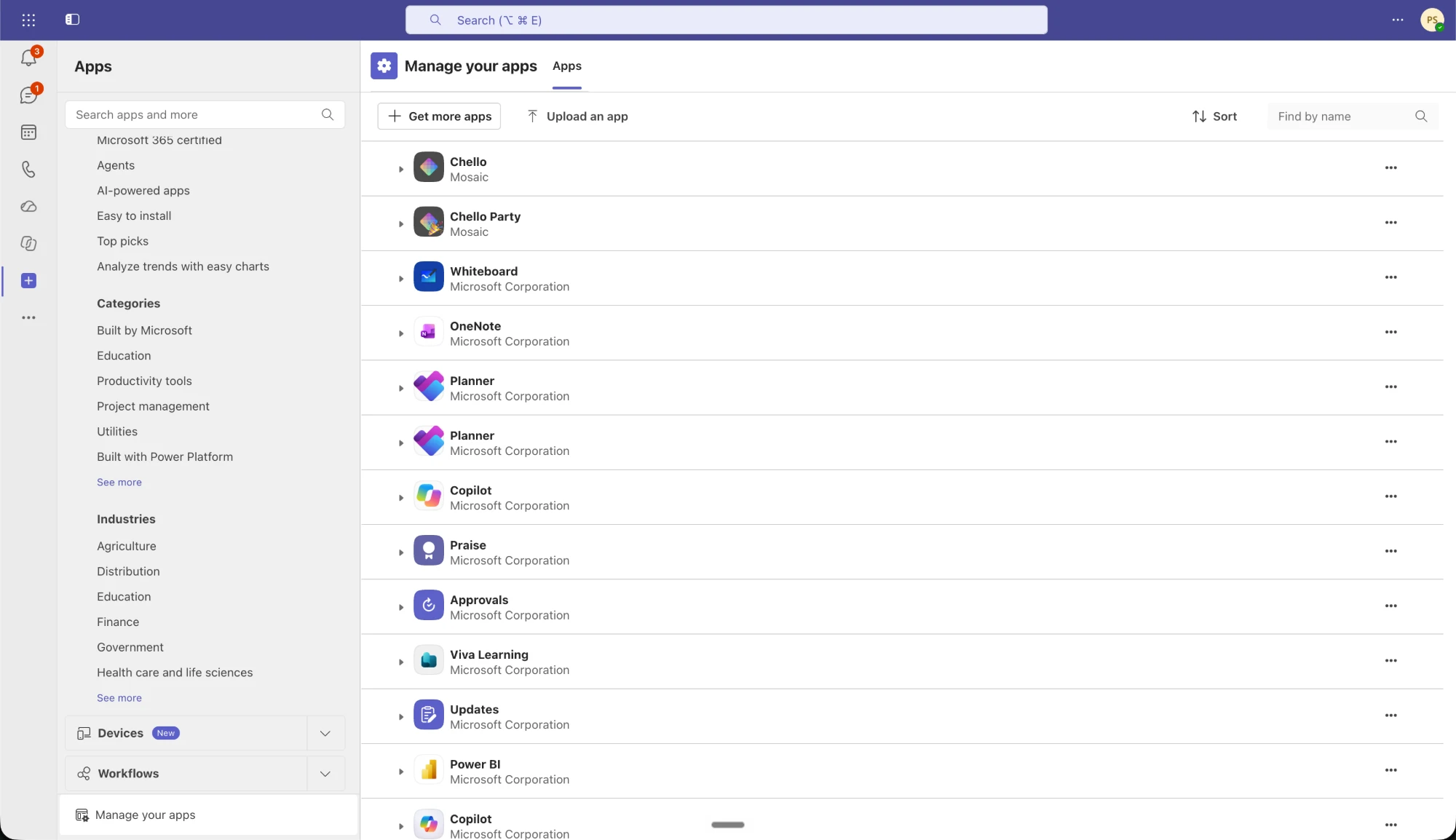
Select Manage your apps, then Upload an app. Depending on your Teams layout, the upload option may appear under … .
-
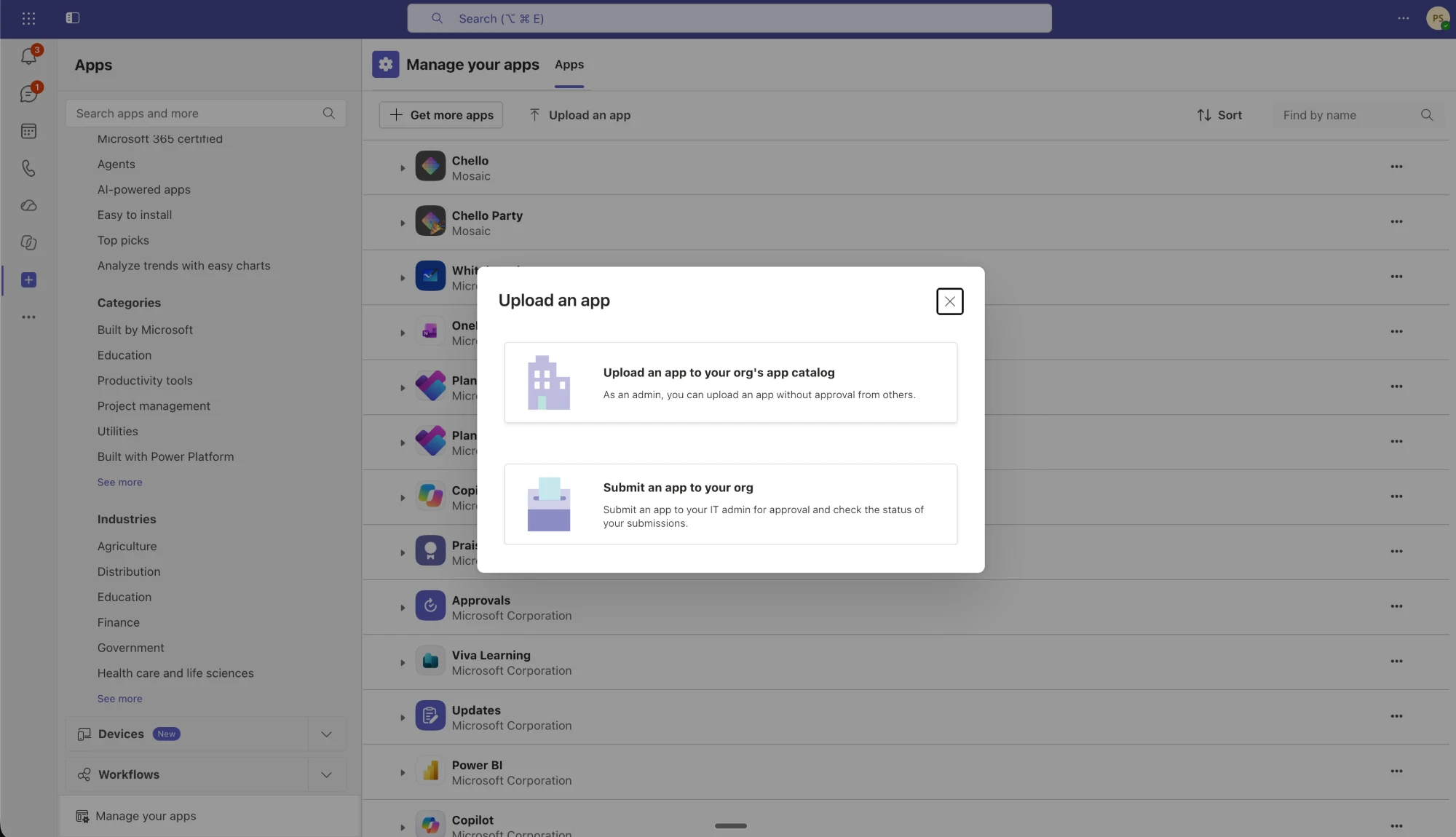
Select the upload option. Depending on your role, it's labeled Upload a custom app or Upload an app to your organization's app catalog.
-
Choose the Chello app package (
.zip) from your computer. -
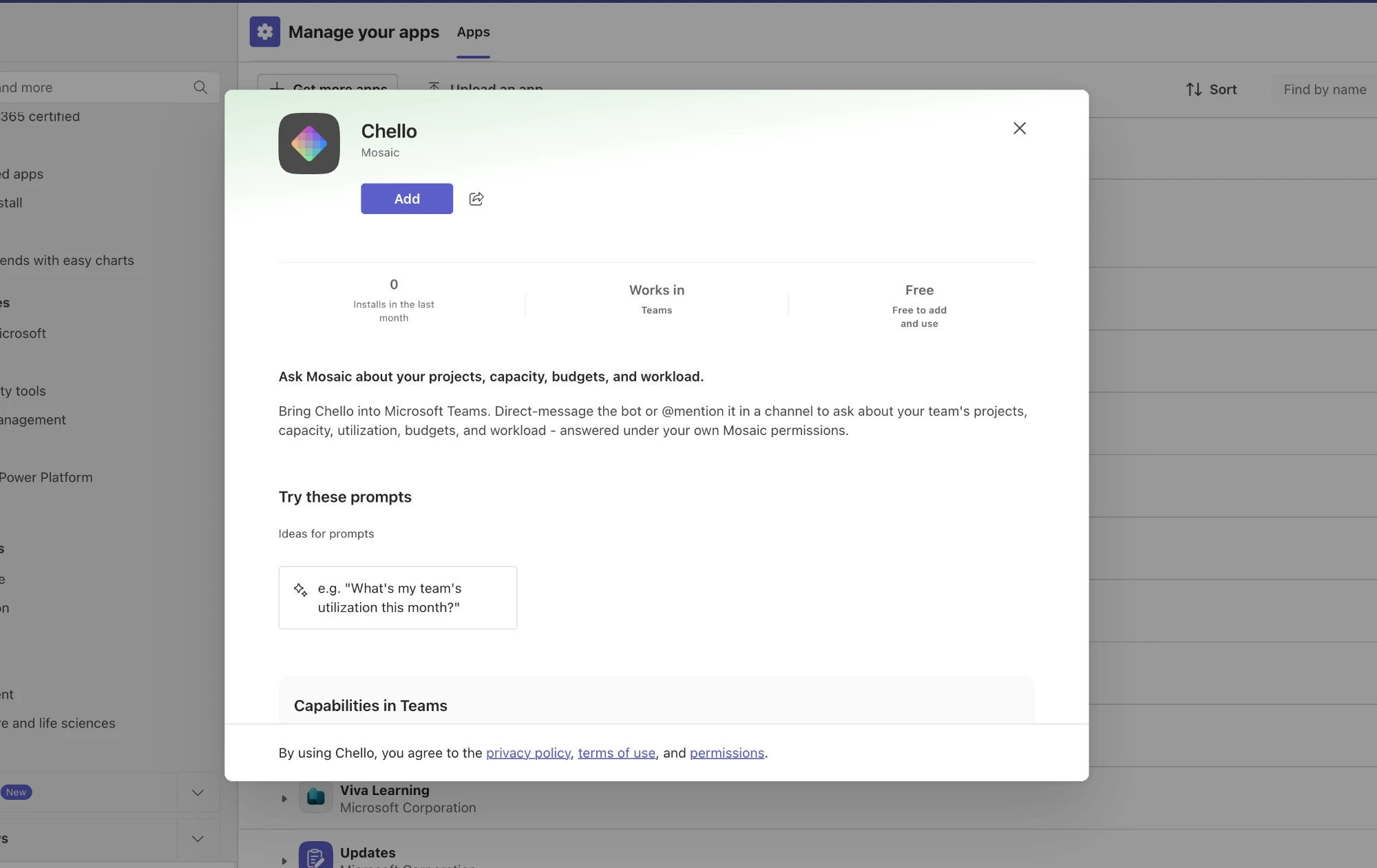
When the Chello app details appear, select Add. If prompted to choose where to add it, choose the option for personal use so you can message Chello directly.
Connect Your Mosaic Account
Each user must connect their own Mosaic account.
-
Open Chello in Teams and go to its personal chat.
-
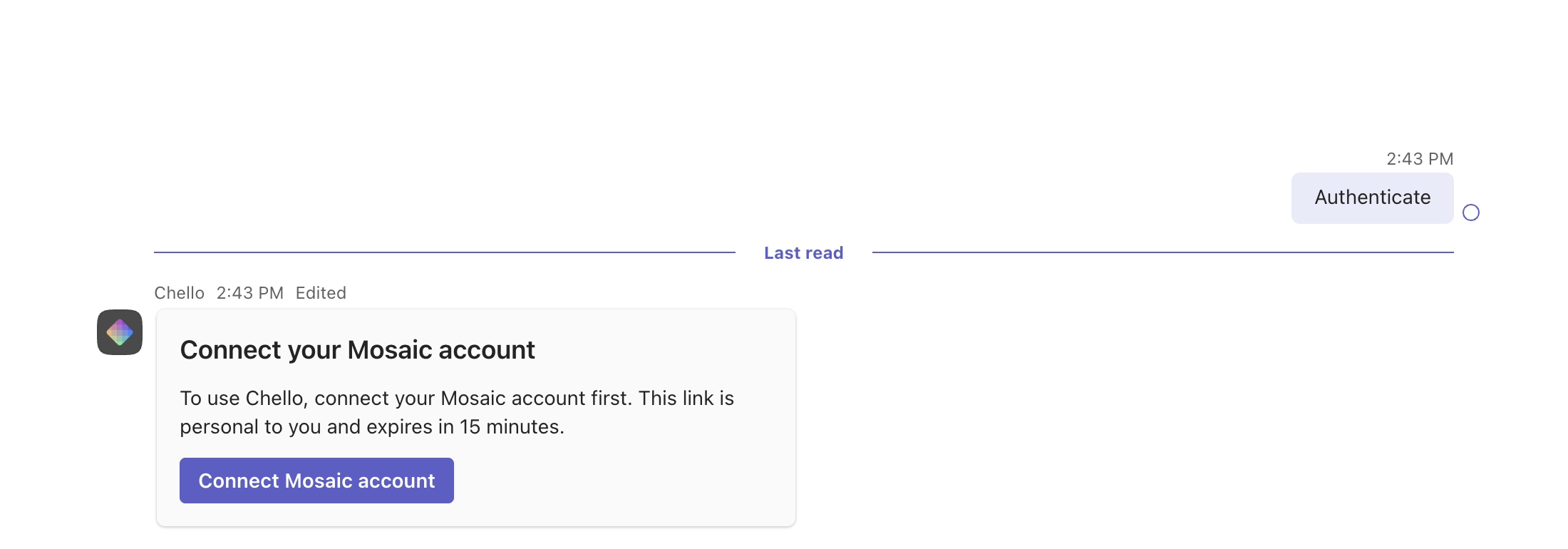
Send Chello a direct message to begin connecting your account.
-
Follow the sign-in link or prompt from Chello.
-
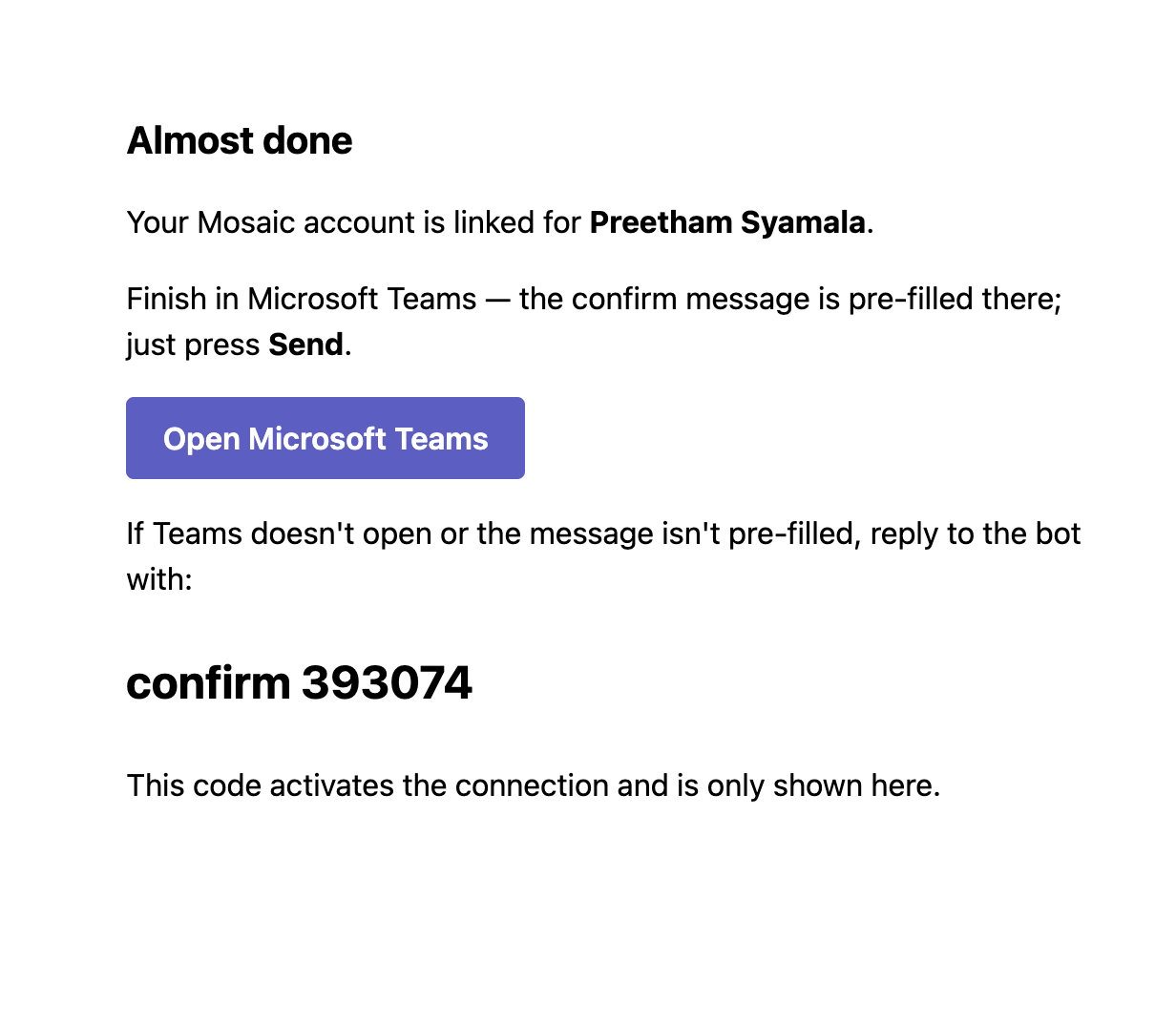
Complete the Mosaic sign-in and authorization flow (OAuth). Sign in to the Mosaic account you want to connect and approve the requested access.
-
Copy the confirmation code provided during the connection flow.
-
Return to the same direct message conversation with Chello and send:
confirm XXXXXXReplace
XXXXXXwith your actual confirmation code. Use lowercaseconfirm, followed by one space and the code. For example, if your code is123456, sendconfirm 123456.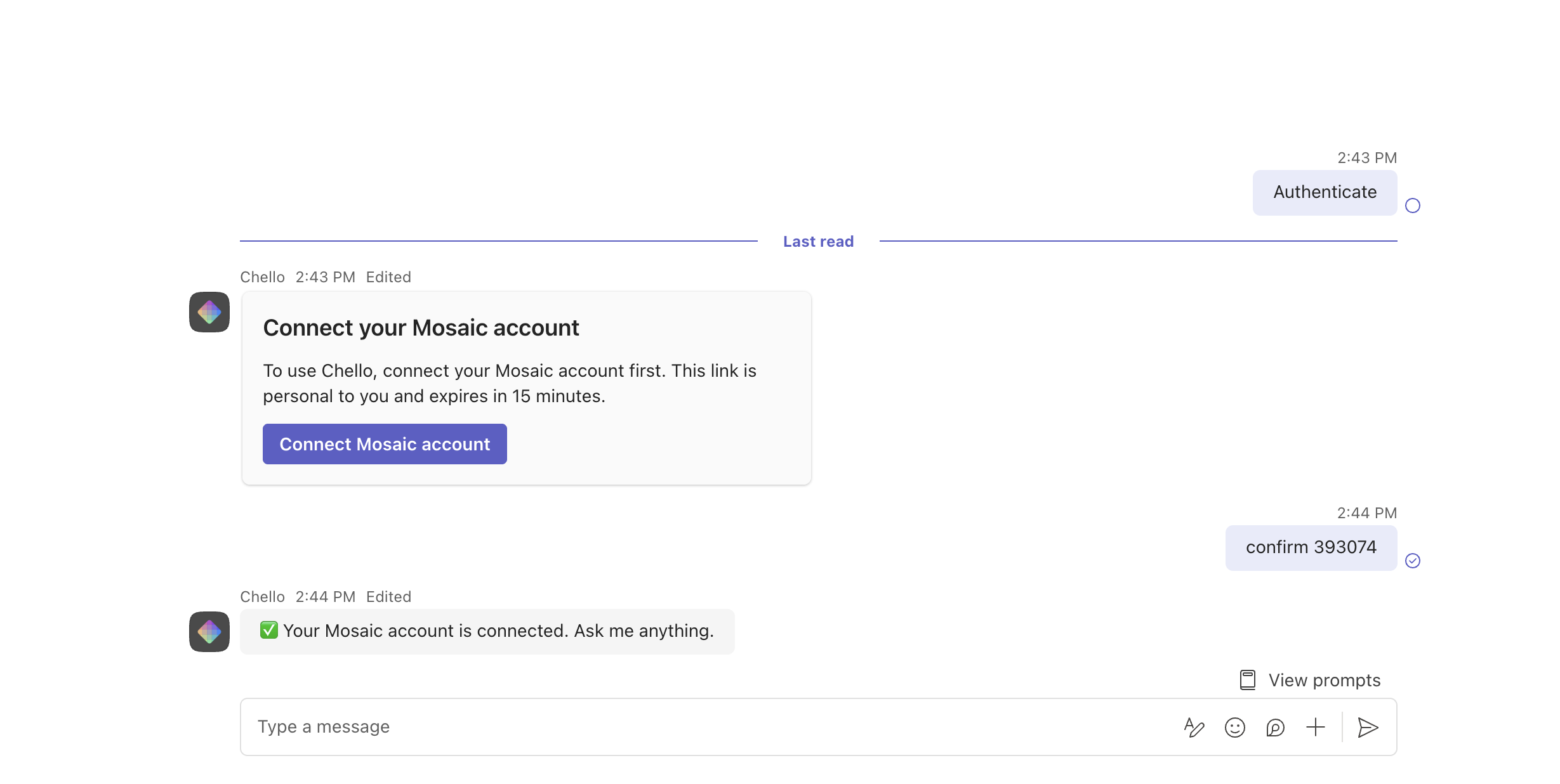
-
Check Chello's response to verify that the connection completed successfully.
Signing in is only part of the setup. You must send theconfirm XXXXXXmessage to finish connecting your Mosaic account. Complete this step in your direct message with Chello.
How to use
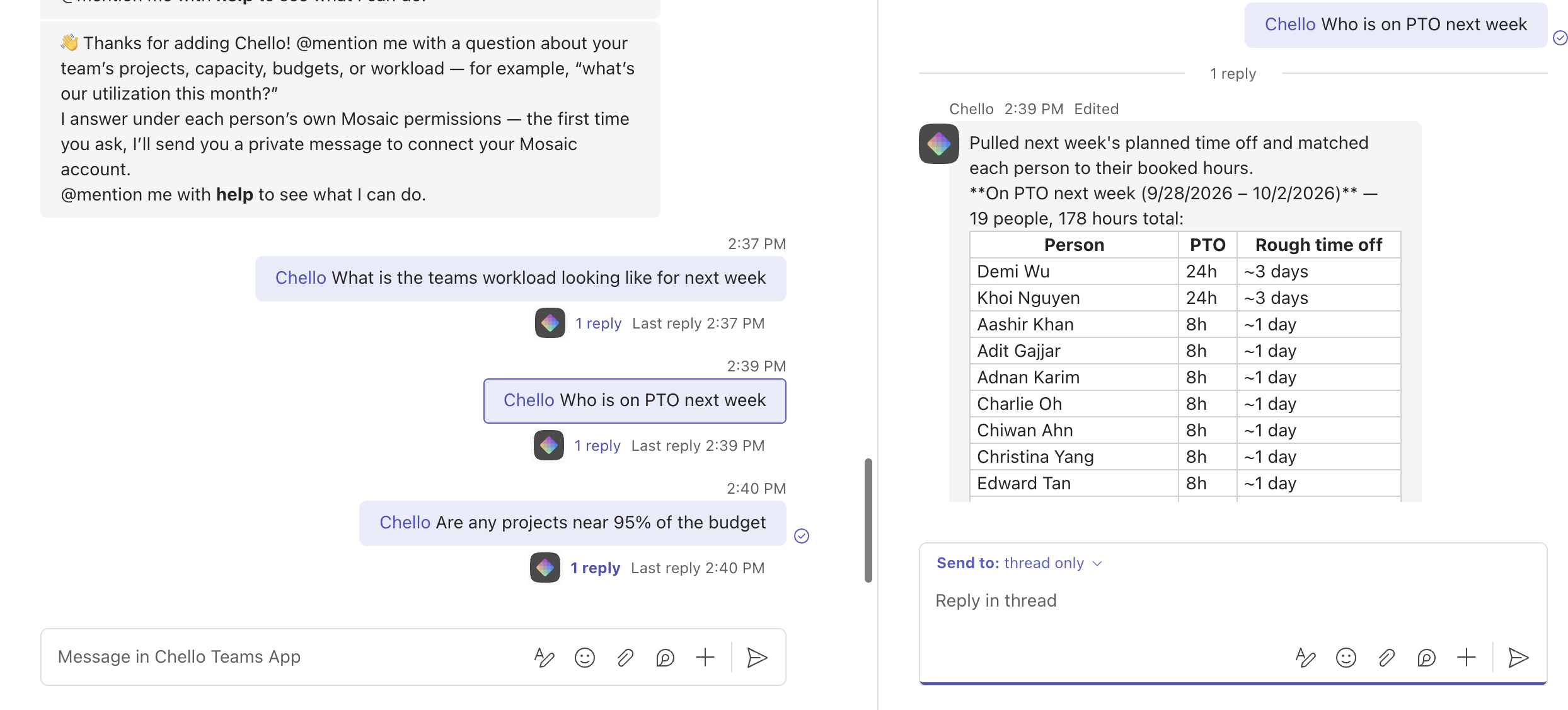
There are two ways to use the Chello app in Microsoft Teams:
Directly messaging the app:
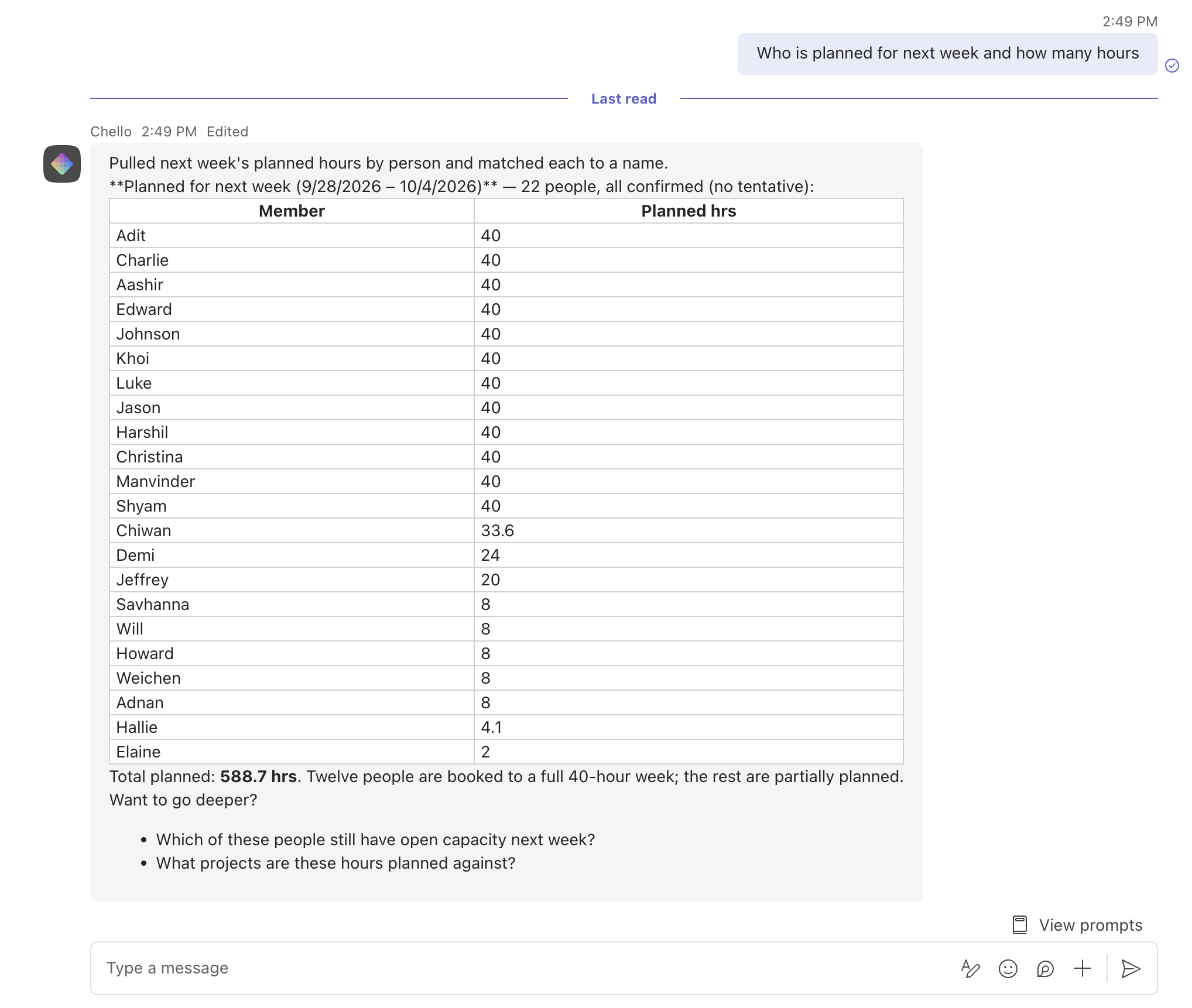
Open a direct message or personal chat with Chello to ask questions and interact with it privately.
Mentioning the app in a channel:
Include Chello in a channel conversation by tagging it (@Chello). Note that Chello will only respond if it is explicitly mentioned/tagged and will not respond to arbitrary messages in the channel.
Troubleshooting
I don't see an upload option
Ask your Teams administrator to check whether custom app uploads are enabled for your account. They can also upload the package through the Teams admin center under Teams apps → Manage apps → Upload new app; some layouts place this under Actions. See Microsoft's custom app administration guide.
Teams rejects the upload
Make sure you selected the original Chello .zip package. If the upload still fails, send the error details to your administrator or the Chello team and request the latest package.
I installed Chello but haven't connected Mosaic
Open a direct message with Chello and complete all the steps in Connect Your Mosaic Account, including sending the confirmation message.
My confirmation message isn't working
Check that you sent it in the same Chello direct message where you started setup. Use exactly confirm, one space, and your actual code — without quotation marks, backticks, or the placeholder XXXXXX. If Chello reports that the code is invalid or expired, repeat the connection flow and use the new code.
Updated about 1 hour ago