
Project & Phase Status Matching
Customize how statuses from your connected tool map to Mosaic project and phase statuses, directly from your integration settings.
Customize how statuses from your connected tools map to Mosaic project and phase statuses — directly from your integration settings.
Overview
When Mosaic syncs projects and phases from an integrated tool, each incoming status needs a corresponding Mosaic status. Previously this mapping was managed behind the scenes. With Project & Phase Status Matching, you have full visibility and control over how those statuses translate into Mosaic.
What you can do
- See exactly how each status from your connected tool maps to a Mosaic status
- Customize the mapping to match your team's workflow
- Reset a mapping back to Mosaic's recommended defaults at any time
- Manage mappings independently for projects and phases
Before you start
You need a tested connection first. Status matching is built from the statuses in your connected tool, so Mosaic needs a working connection to populate it. Until your integration's credentials have been successfully tested and saved, the Edit button is disabled and you'll see "Please test connection to edit the status matching." Test your connection, then return to this setting.
Where to find it
Open your Integration Settings for the integration you want to configure.
Locate the Project Status Matching and Phase Status Matching sections.
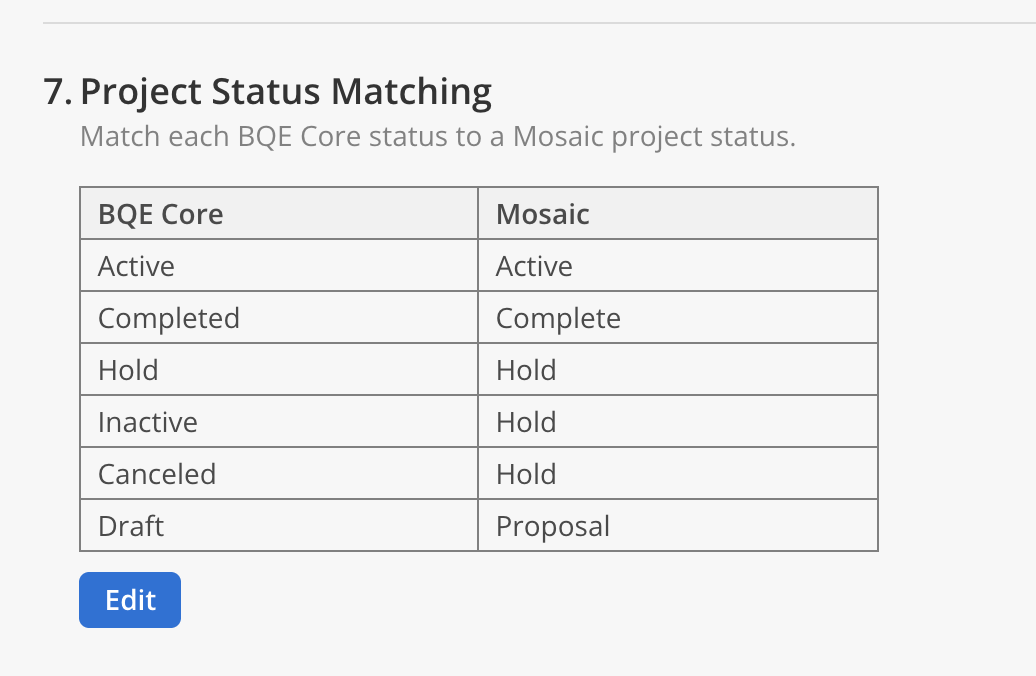
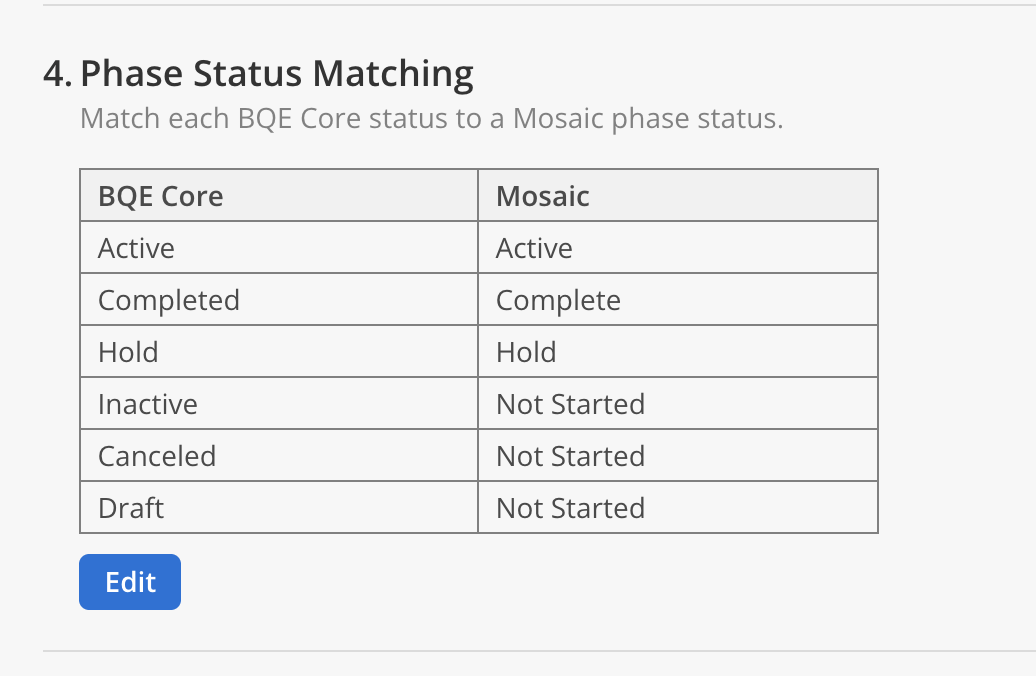
Click Edit on either section to open the mapping editor.
Status matching is available for supported integrations and is configured per integration.
Using the mapping editor
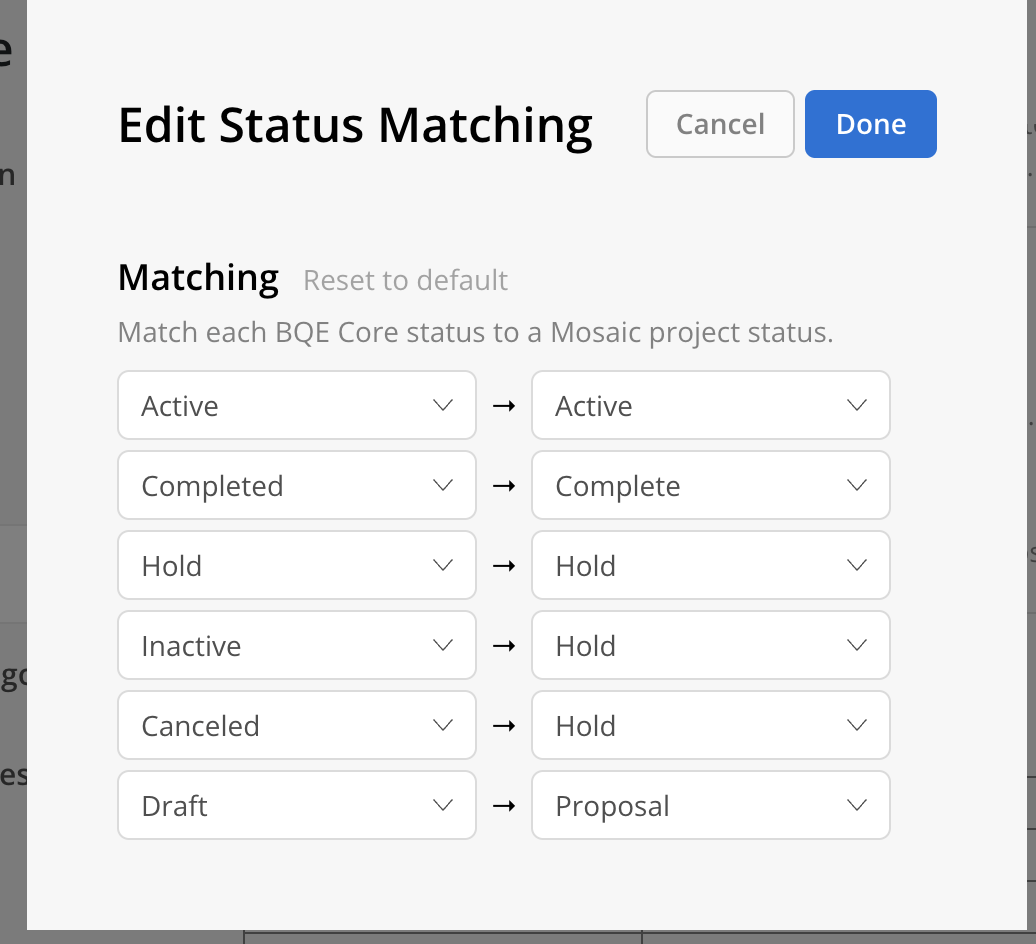
Each row pairs a status from your connected tool (left) with a Mosaic status (right). Both are dropdowns — the left lists the statuses available from your connected tool, and the right lists Mosaic's project or phase statuses.
To adjust a mapping
- Open the right-hand dropdown for any row and choose the Mosaic status it should map to.
- Click Save to apply your changes. If you haven't made any changes, the button reads Done.
- Click Reset to default to restore Mosaic's recommended mapping for that integration.
Things to know
- No duplicates — each status from your connected tool can be mapped only once per integration.
- Changes save on click — edits take effect when you click Save. With no changes, the button reads Done.
- Unmapped statuses sync as Active — if a project or phase comes in with a status that isn't in your mapping, Mosaic sets it to Active.
Defaults for new and existing customers
- New integrations are provisioned with a default mapping reflecting each integration's typical status set.
- Existing integrations were migrated automatically — current sync behavior is preserved, now visible and editable.
- Any previously hidden custom mappings tied to your account were moved into this setting so you can review and adjust them.
FAQ
Why is the Edit button greyed out?
Status matching is built from the statuses in your connected tool, so it only becomes editable once your integration's connection has been successfully tested and saved. Test the connection, then reopen the setting.
Will changing a mapping affect projects and phases that already synced?
Updates apply to future syncs. Existing records keep their current status unless they are updated by the source tool.
Can I have different mappings for projects and phases?
Yes — project status matching and phase status matching are configured separately, even within the same integration.
What happens if my connected tool has a status I haven't mapped?
Any status that isn't in your mapping syncs to Mosaic as Active. To control where it lands, add a mapping for that status.
Need help?
Reach out to Mosaic support if you'd like guidance on configuring your status matchings or migrating a complex workflow.
Updated 3 months ago