
Sample File & Results (Projects)
This page covers how to fill out your project import file and what your projects look like once they're in Mosaic. For the steps to upload and run the import, see the import walkthrough.
Throughout this page we use one example file with five projects — three fee-based and two hours-based — to show how everything fits together, including how both budget styles can live in the same file.
Download the templateStart from the sample file, then replace the example rows with your own data.
What one import can create
A single file can build a full project hierarchy:
- Projects — name, client, description, budget/fee, cost, currency, and rate settings
- Phases and subphases — up to 10 nested levels, with start/end dates, budgets, contract type, and milestones
- Work categories — the activity breakdown within each phase, with their own dates and budgets
Portfolios and rate groups are referenced, not created — they must already exist in Mosaic before you import.
How the file is structured
| Requirement | Value |
|---|---|
| File types | .csv, .xlsx, or .tsv |
| Max file size | 20 MB |
| First row | Column headers |
| Each row | One line item of your project structure |
Each row is one line of the structure, and you repeat the project across its rows. A project with three phases uses three rows that repeat the Project name and vary the phase columns. Mosaic groups rows into the same project when the Project (and Project Ref#, if used) match.
How the example file is laid out
The example file has 16 rows that build 5 projects. The first three track budgets in fees/dollars; the last two track in hours:
| Rows | Project | Budget style | What the rows describe |
|---|---|---|---|
| 1–3 | 125 Bluestone Way (Residential Projects) | Fee | Phase "Preliminary Design" (subphases + a "Planning" work category), plus a "Permit Approval" milestone |
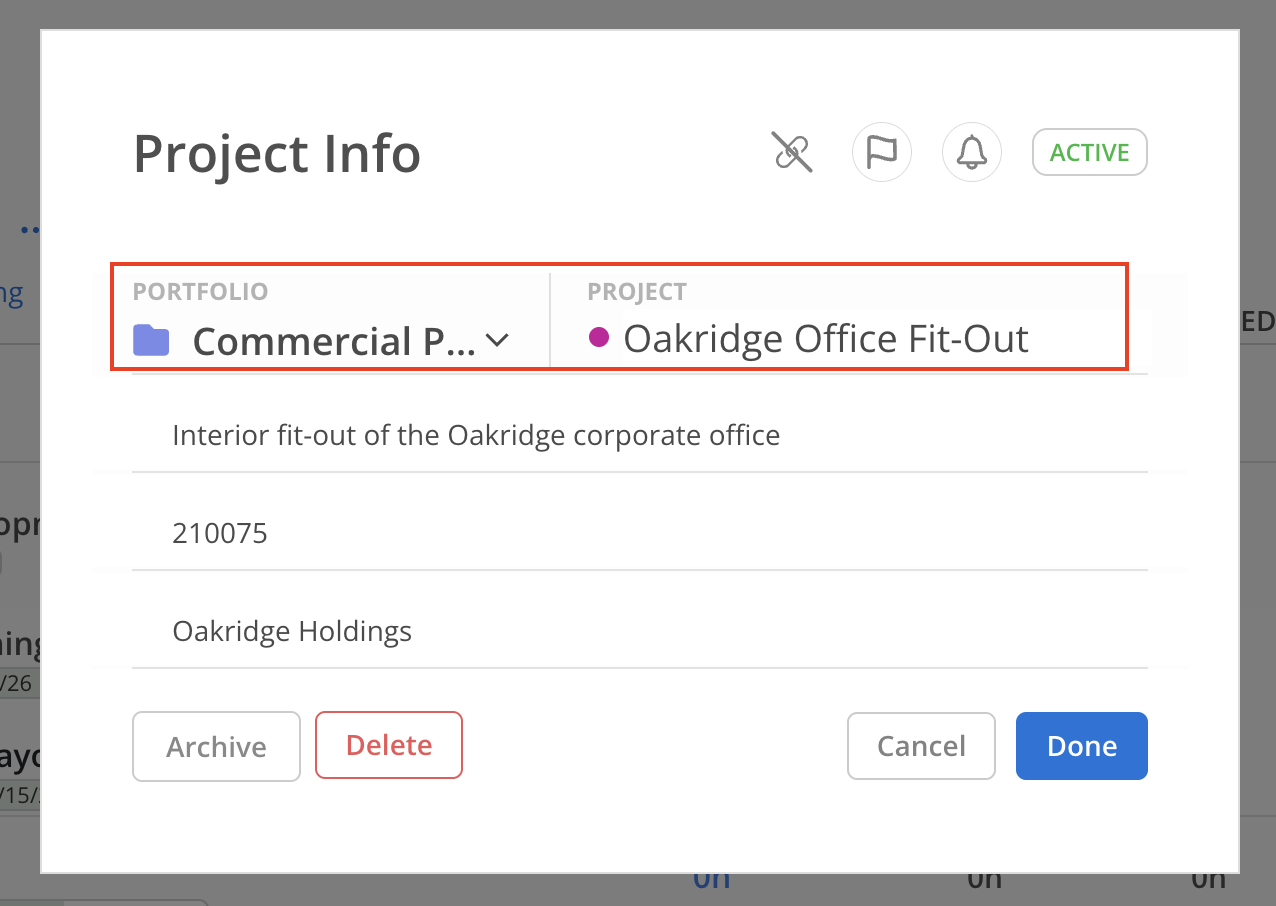
| 4–5 | Oakridge Office Fit-Out (Commercial Projects) | Fee | Two phases, each with one work category |
| 6–9 | Lakeside Retail Center (Commercial Projects) | Fee | Four phases, including a "Permitting" milestone |
| 10–12 | Riverside Community Center (Public Works) | Hours | Three phases (subphases + work categories) and a "Design Approval" milestone |
| 13–16 | Harbor Point Renovation (Commercial Projects) | Hours | Three phases, including "Construction Documents" with two work categories and a "Final Handover" milestone |
Notice how the Portfolio, Project, Ref#, Client, and Description columns repeat identically on every row of the same project — that's how Mosaic keeps them together. The phase and work-category columns are what change row to row.
Here's a trimmed slice of the file — the three 125 Bluestone Way rows, plus the first row of the next project:
| Project | Ref# | Phase | Subphase 1 | Start Date | End Date | Phase Fee | Milestone | Work Category |
|---|---|---|---|---|---|---|---|---|
| 125 Bluestone Way | 210050 | Preliminary Design | Concept Development | 2026-03-01 | 2026-03-20 | 1000 | FALSE | — |
| 125 Bluestone Way | 210050 | Preliminary Design | Concept Development | 2026-03-01 | 2026-03-20 | 1000 | FALSE | Planning |
| 125 Bluestone Way | 210050 | Permit Approval | — | 2026-05-15 | 2026-05-15 | — | TRUE | — |
| Oakridge Office Fit-Out | 210075 | Design Development | Space Planning | 2026-01-10 | 2026-04-30 | 60000 | FALSE | Interior Layout |
What to notice:
- Rows 1–3 repeat
125 Bluestone Wayand210050— every row of the same project repeats its Project and Ref#, which is how Mosaic groups them into one project. Row 4's Project changes, starting a new one. - Dates use
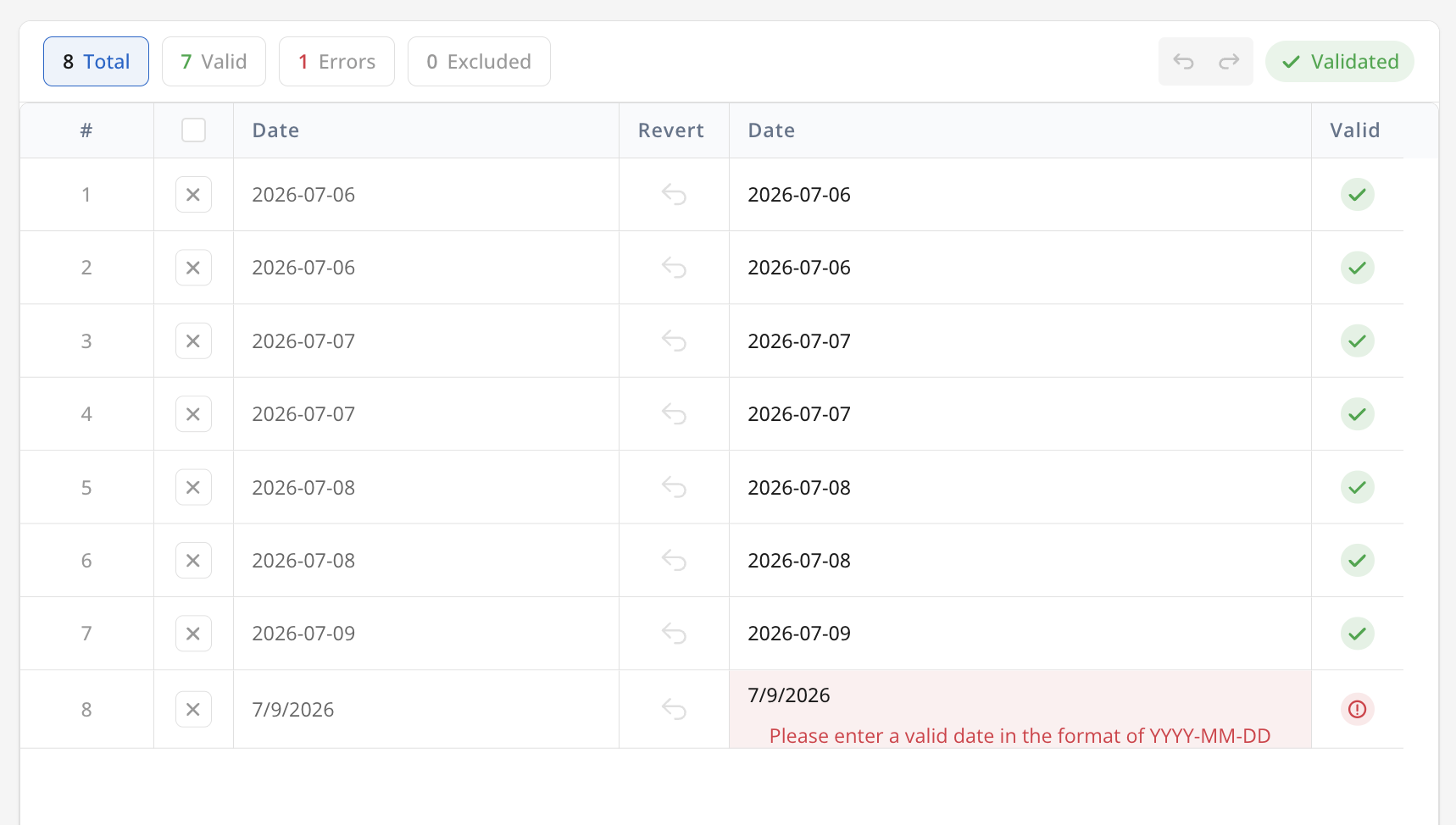
YYYY-MM-DD(e.g.2026-03-01) — any other format is rejected. - Row 3 is a milestone (
Phase Is Milestone = TRUE) — a single date (start = end) and no fee or budget. - Project is the only always-required column — the dashes mark cells you can safely leave blank.
One header, blanks where a column doesn't applyEvery project uses the same set of columns. Fee-based projects fill in Project Fee / Budget and leave Project Budget Hours blank; hours-based projects do the opposite. You don't need a value in every column — just fill what applies to each project.
The hours-based projects (rows 10–16)
The last two projects — Riverside Community Center (1200 hrs) and Harbor Point Renovation (2400 hrs) — track budgets in hours using the Project Budget Hours column instead of the fee/budget columns. A few things they show:
- Hours-based projects leave the fee/dollar columns blank (Project Fee, Project Budget, phase budgets). Their contract types are
Hourlyand the "Budget With" values are time-based (Total Member Time Budget,Total Spent + Planned Time). - A phase with more than one work category repeats the phase across rows — Harbor Point's "Construction Documents" appears on two rows so it can carry both "Drafting" and "Specifications."
- Milestones ("Design Approval", "Final Handover") use the same start and end date and leave budget/contract/work-category cells blank.
NoteThe Project Budget Hours column only maps when the target workspace is in hours-only mode. In a fee-based workspace it won't appear — use Project Fee / Budget instead.
Column reference
Only Project is always required. Include just the columns that apply to your data — leave the rest out. These are the columns used in the example file.
NoteSome columns (cost budget, budget hours, priority, region, currency, etc.) only appear if the matching feature is turned on in your workspace. If a column you expect is missing, that feature may be off.
Project columns
| Column | Required? | Format / accepted values | Example |
|---|---|---|---|
| Portfolio Name | Required only if importing into portfolios | Must match an existing portfolio | Commercial Projects |
| Project | ✅ Always | Text — the project name | Oakridge Office Fit-Out |
| Project Ref# | Conditional | Required when two projects share the same name | 210075 |
| Project Client | Optional | Text — existing clients are suggested | Oakridge Holdings |
| Project Description | Optional | Text | Interior fit-out of the Oakridge corporate office |
| Project Fee | Optional | Zero or a positive number | 120000 |
| Project Budget | Optional | Zero or a positive number | 90000 |
| Project Budget Cost | Optional | Zero or a positive number (cost-rates feature) | 85000 |
| Project Budget Hours | Optional | Zero or a positive number (hours-only workspaces) | (blank) |
Phase columns
| Column | Required? | Format / accepted values | Example |
|---|---|---|---|
| Phase | Optional | The phase name (or "Main Project Phase") | Design Development |
| Phase Ref# | Optional | An identifier for the phase | 100 |
| Subphase 1 … Subphase 9 | Optional | Names for nested levels (10 deep total) | Space Planning |
| Subphase Ref# 1 … 9 | Optional | Identifiers for each subphase | 110 |
| Phase Start Date | Optional | YYYY-MM-DD | 2026-01-10 |
| Phase End Date | Optional | YYYY-MM-DD — on or after the start date | 2026-04-30 |
| Phase Order | Optional | A whole number greater than 0, unique within its parent | 1 |
| Phase Budget Status | Optional | Must match a budget status in your workspace | Active, Not Started |
| Phase Fee / Phase Budget | Optional | Zero or a positive number | 60000 |
| Phase Contract Type | Optional | Fixed Fee or Hourly | Hourly |
| Phase Is Milestone | Optional | true / false — milestones cannot carry a budget, fee, or contract type | false |
| Phase Budget With | Optional | See accepted values below | Use Entered Budget |
Accepted "Phase Budget With" values: Use Entered Budget · Total Spent + Planned Time · Total Member Time Budget · Subphases + Work Categories Budgets
Work-category columns
| Column | Required? | Format / accepted values | Example |
|---|---|---|---|
| Work Category | Optional | The activity name | Interior Layout |
| Work Category Ref# | Optional | An identifier | C10 |
| Work Category Start / End Date | Optional | YYYY-MM-DD | 2026-01-15 |
| Work Category Fee / Budget | Optional | Zero or a positive number | 20000 |
| Work Category Contract Type | Optional | Fixed Fee or Hourly | Hourly |
| Work Category Budget With | Optional | See accepted values below | Total Spent + Planned Time |
Accepted "Work Category Budget With" values: Use Entered Budget · Total Spent + Planned Time · Total Member Time Budget · Use % of Phase Budget
Rules that keep your file valid
Getting these right up front prevents almost every import error:
- Dates must be
YYYY-MM-DD(e.g.2026-03-15). Any other format is rejected. - End dates must fall on or after the matching start date. (A milestone uses the same date for start and end — see "Permit Approval,"
2026-05-15to2026-05-15.) - Repeat project values consistently. The Portfolio, Client, Description, Fee, and Budget must be the same on every row of a given project — mismatches are flagged.
- Milestones (
Phase Is Milestone = true) can't carry a budget, fee, contract type, budget status, or work categories — leave those cells blank, as the example does. - Don't set both a fixed budget and a "budget as % of fee" for the same item.
- Duplicate project names need a unique Project Ref# to tell them apart.
- "Budget With" and "Contract Type" must be spelled exactly as listed above.
What your import looks like in Mosaic
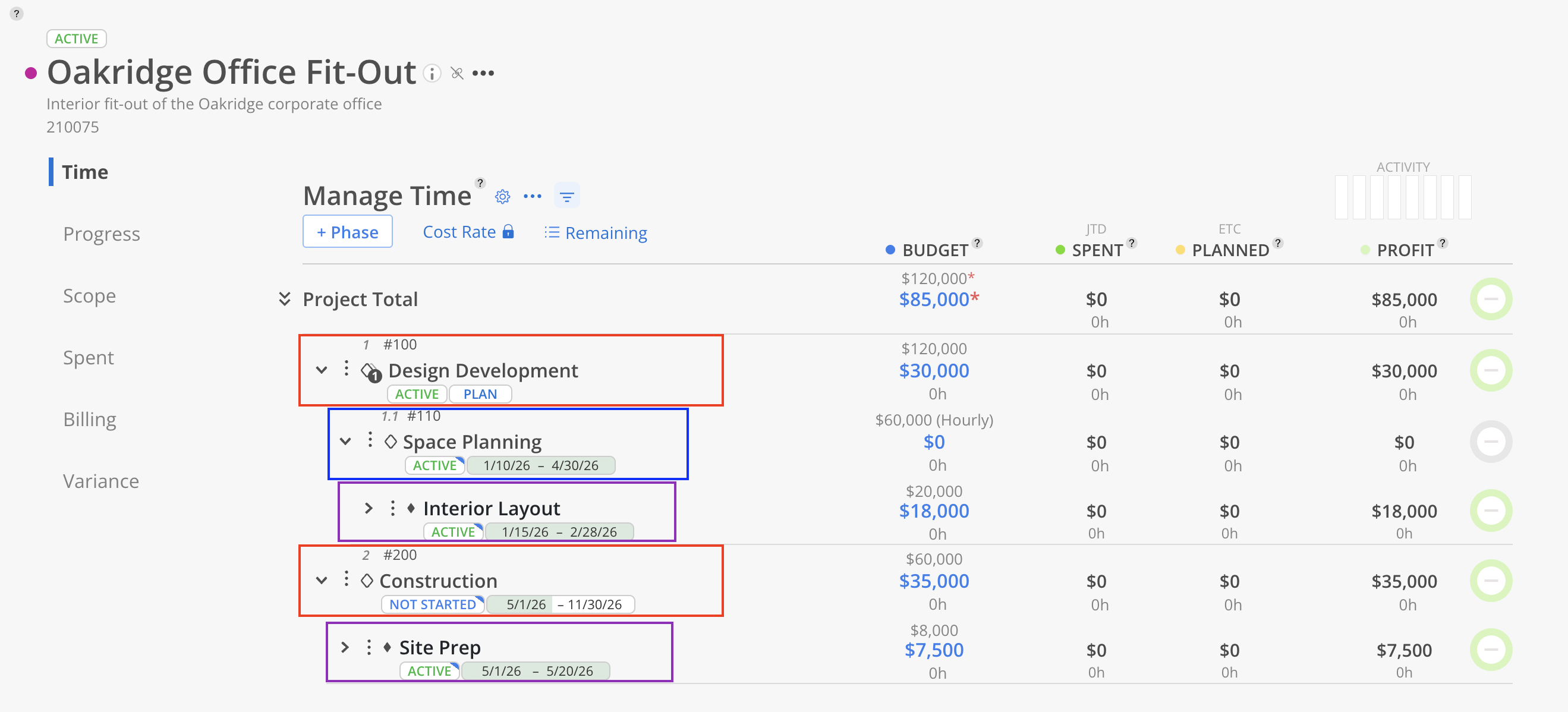
The clearest place to see an imported project is its Budget. Open the project and click Budget — the budget modal lays out everything the file created in one table, mirroring your rows almost one-for-one. Here's where each column lands:
-
The phase hierarchy becomes the rows of the budget table — phases, their subphases nested beneath, and work categories under those.
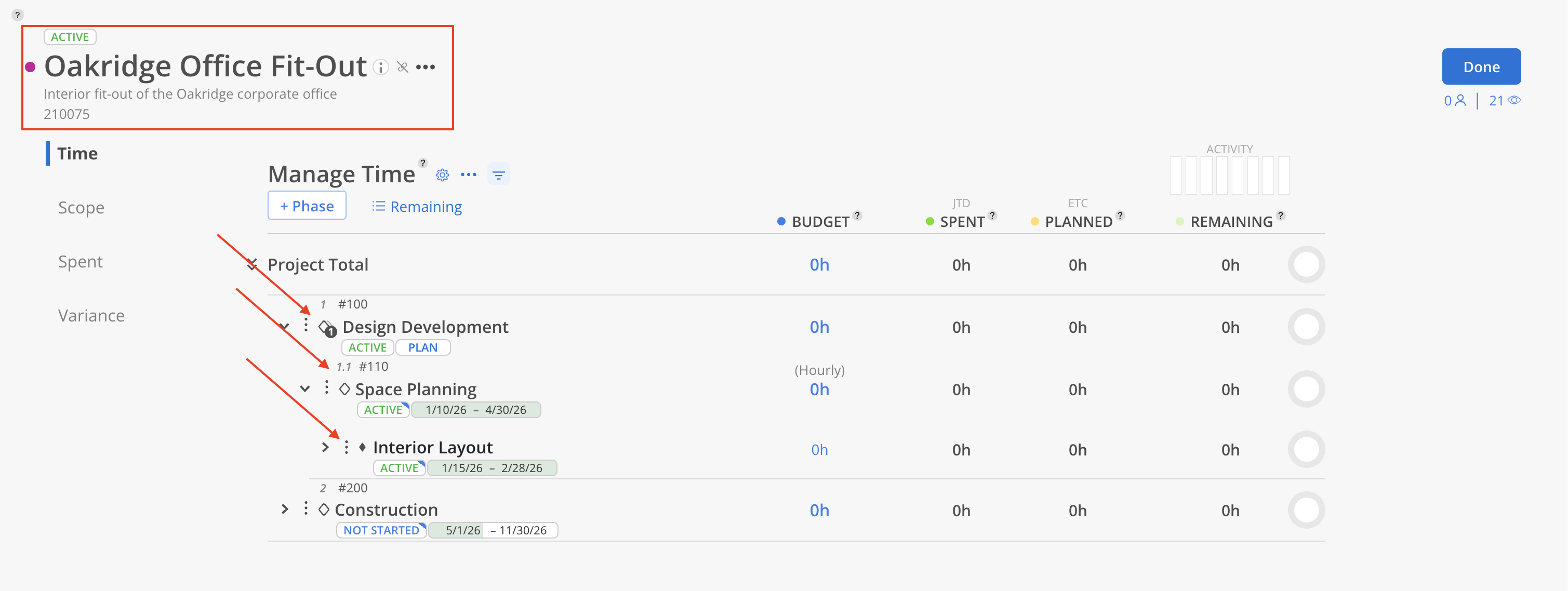
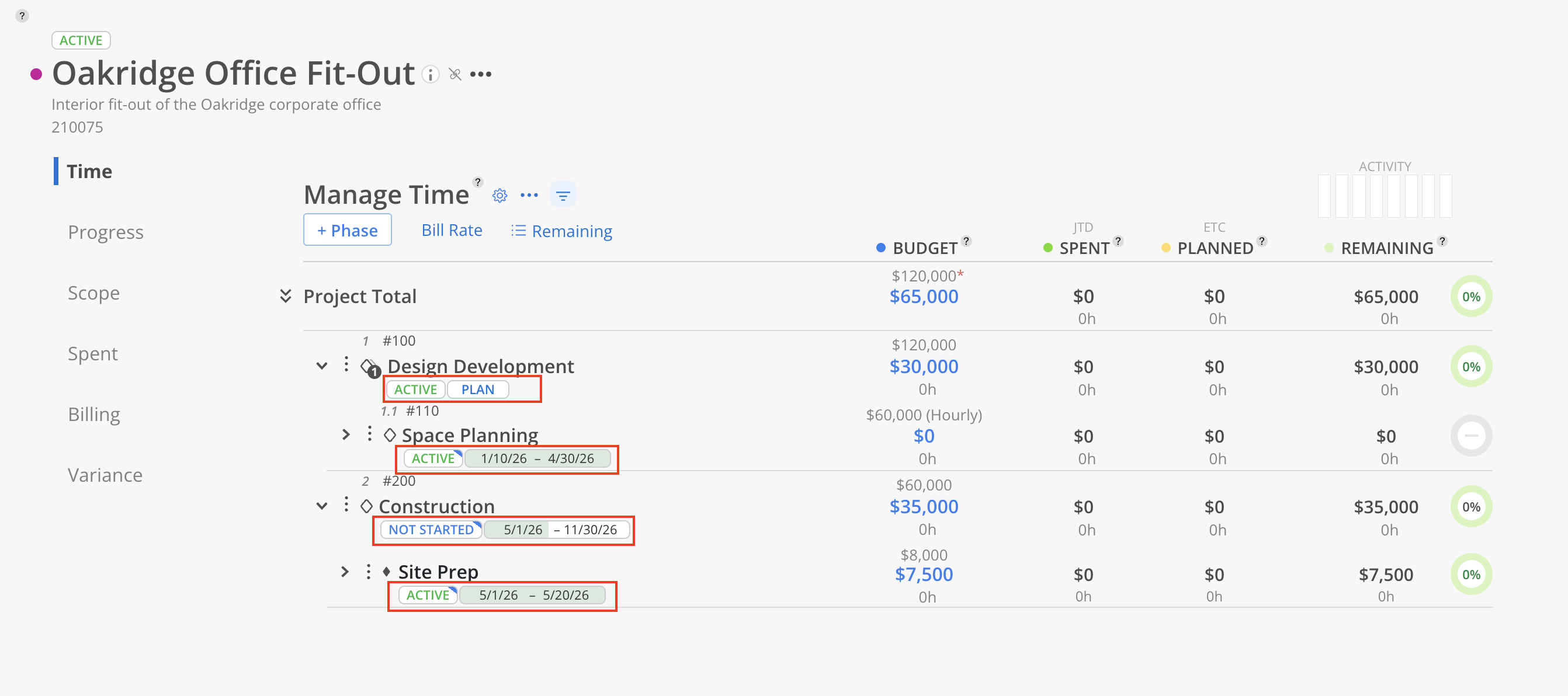
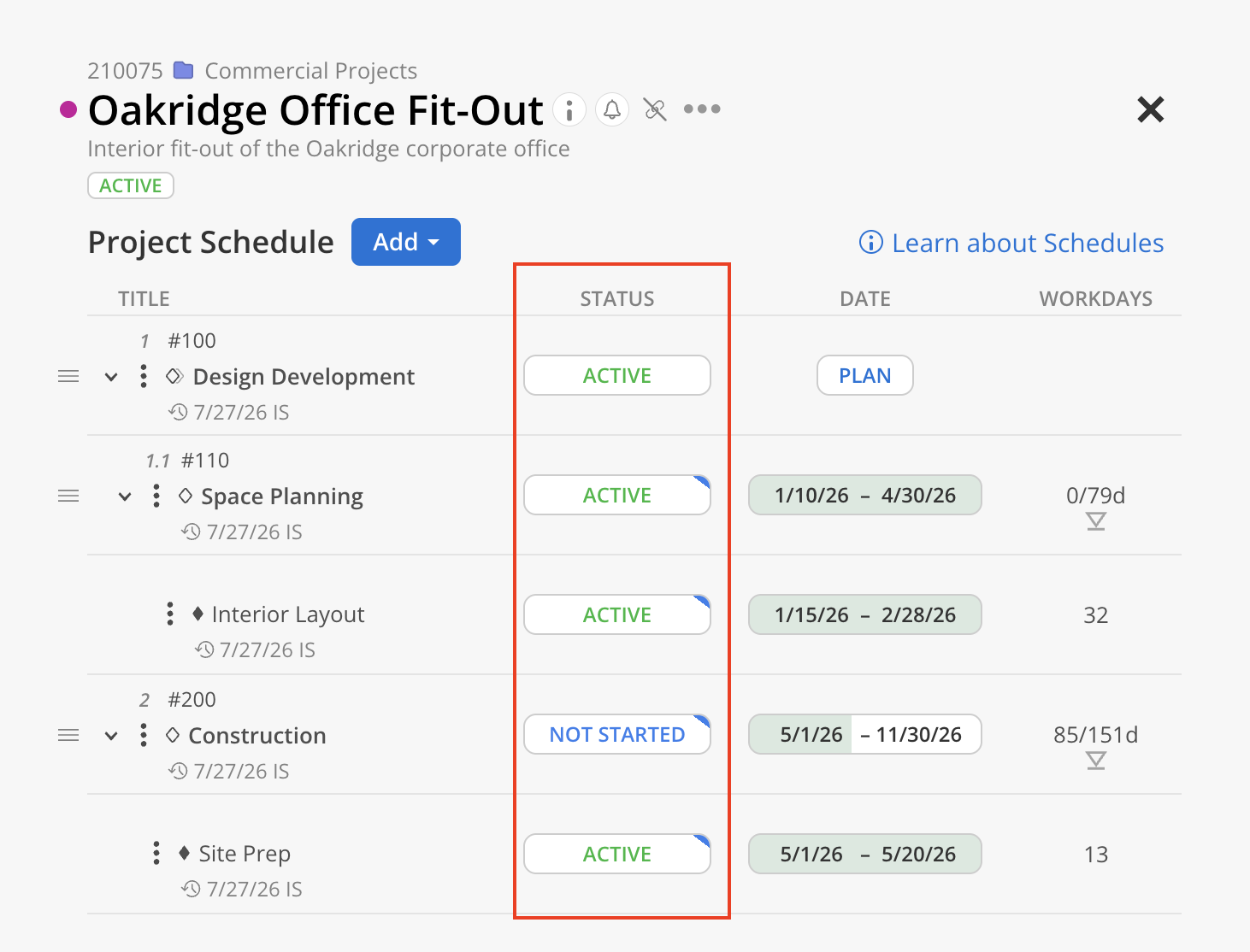
For example, Oakridge Office Fit-Out nests Design Development → Space Planning → Interior Layout (phase → subphase → work category) and Construction → Site Prep (a work category straight under the phase)
-
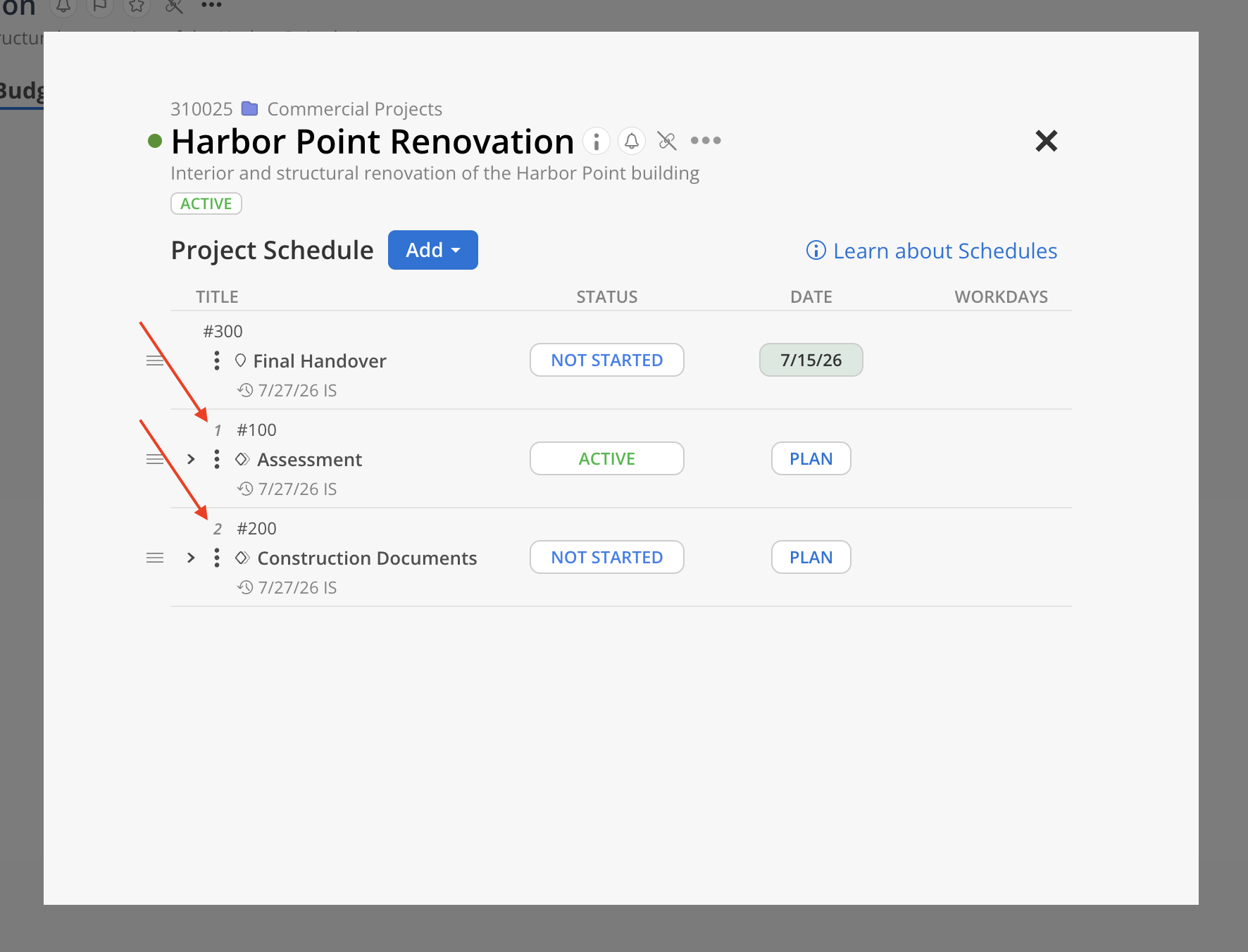
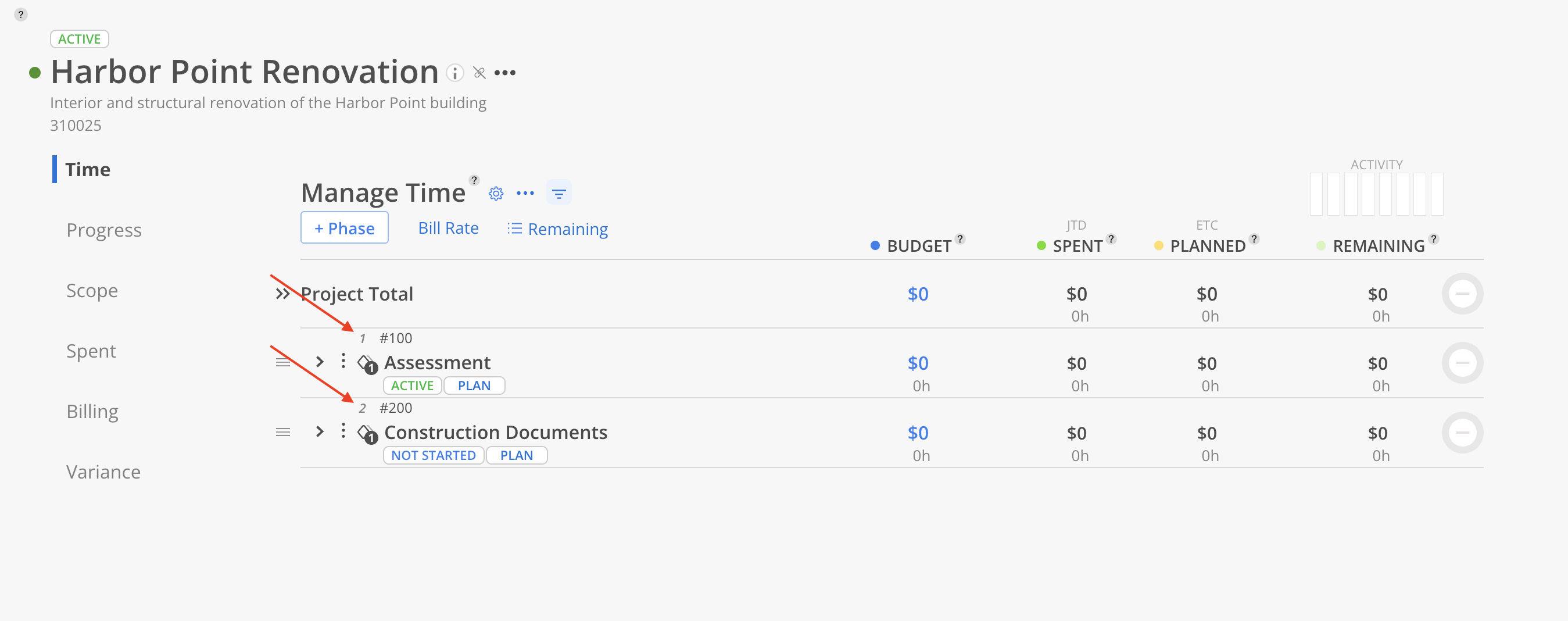
Phase Order controls the sequence phases and subphases appear in — you'll see it reflected in both the Project Schedule modal and the Budget table. Milestones are the exception: the Phase Order value isn't applied to them.
-
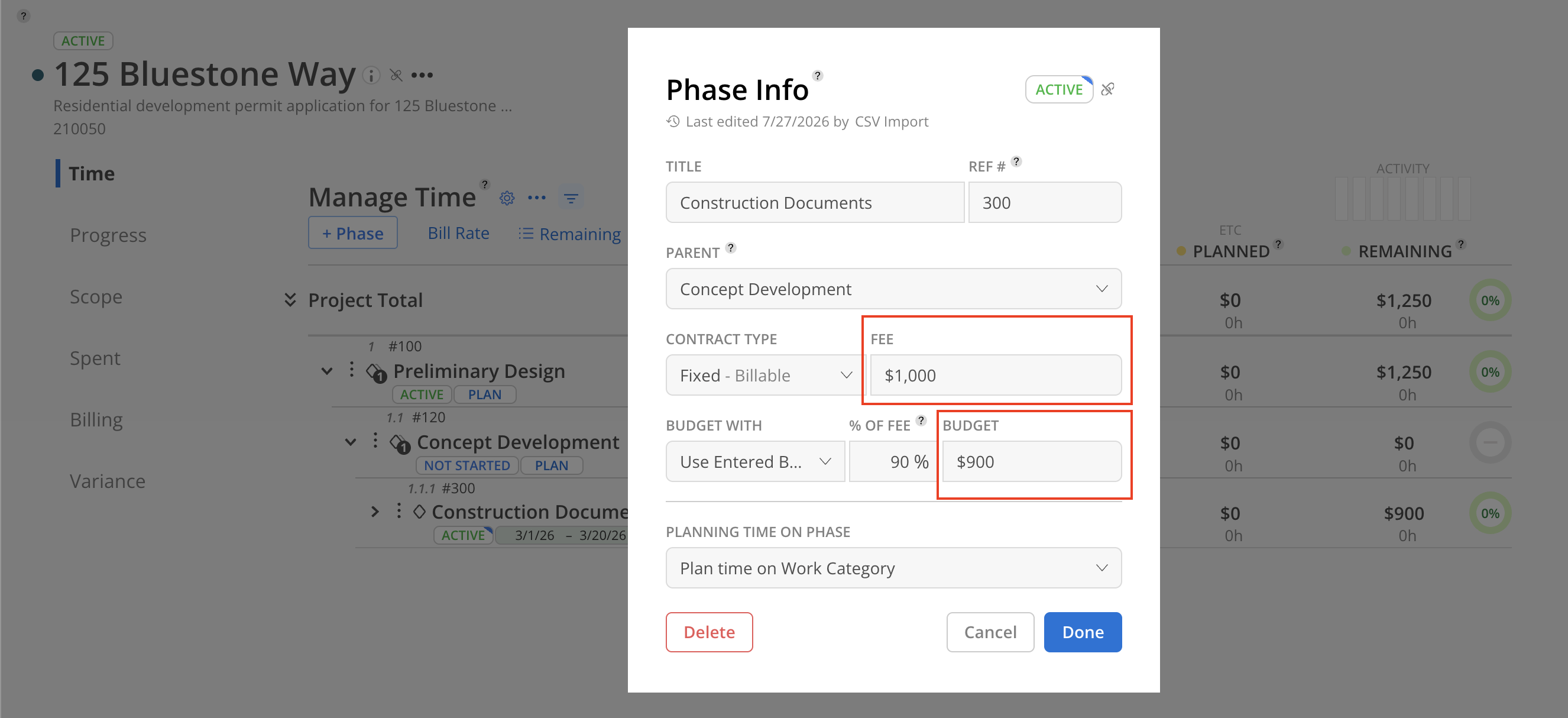
Fee and Budget columns carry your Phase Fee / Phase Budget and Work Category Fee / Budget straight into the table. For example, 125 Bluestone Way's Construction Documents shows a
900budget in the table, and opening its Phase Info reveals the imported1,000fee and900budget. The project-level Fee, Budget, and Budget Cost roll up as the project total at the top.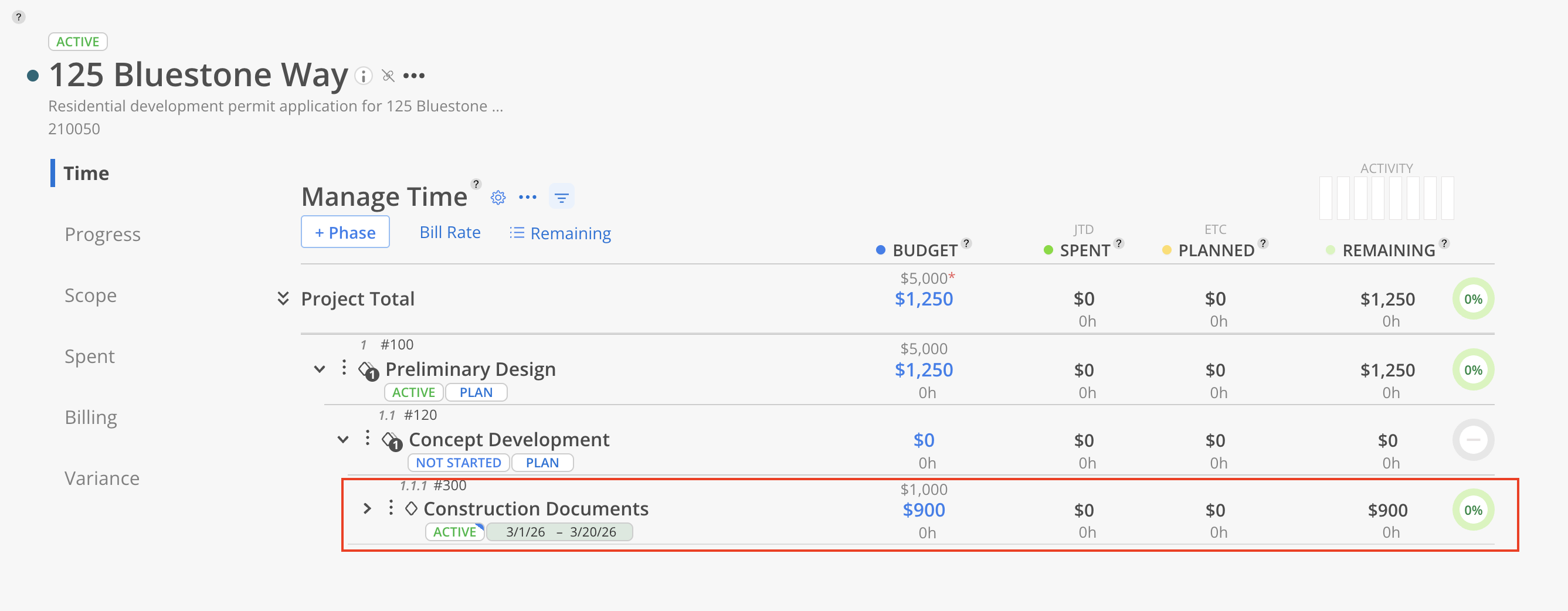
-
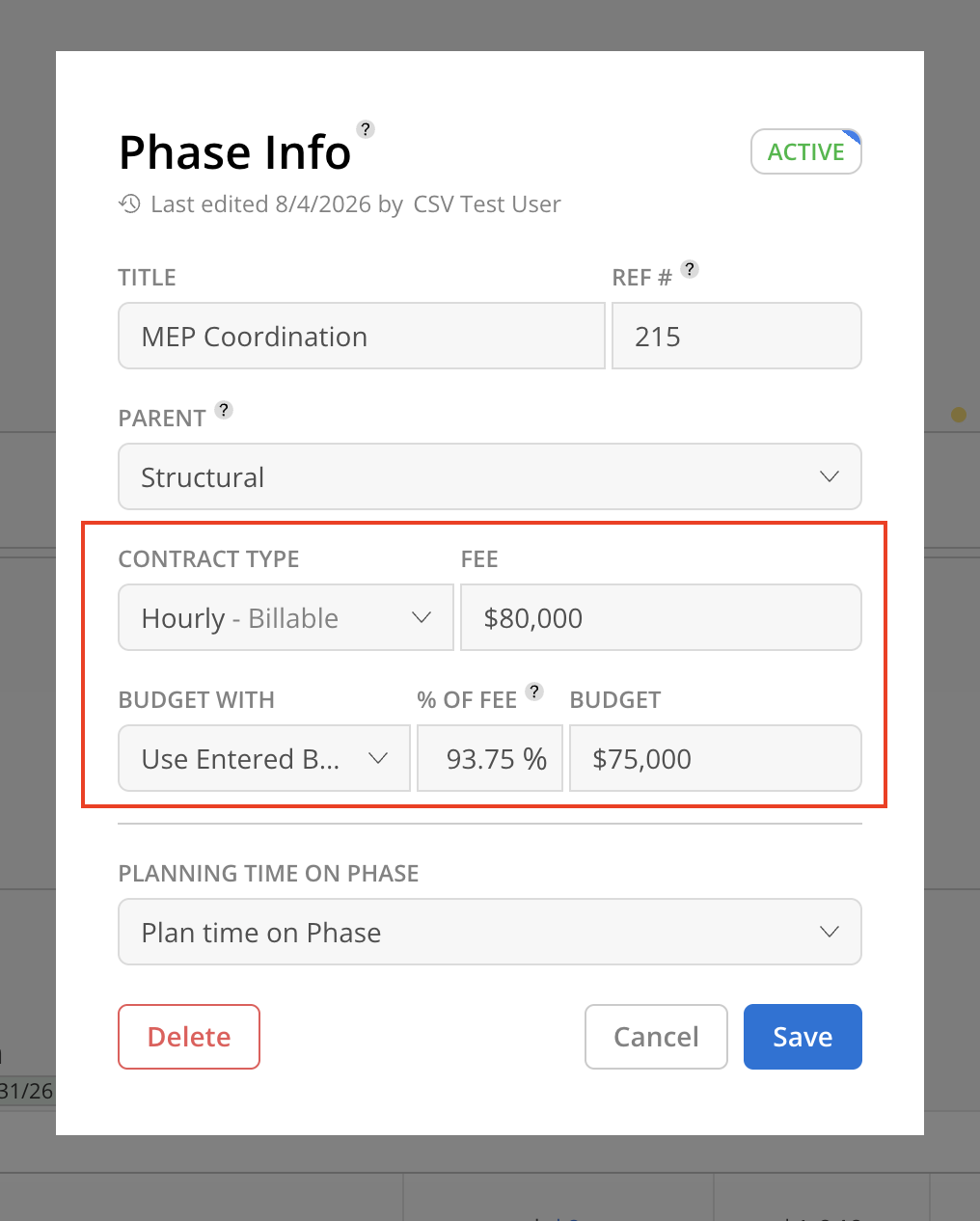
Contract Type shows each phase and work category as Fixed Fee or Hourly. Click the budget cell of a Phase on the Budget Table to see the field.
-
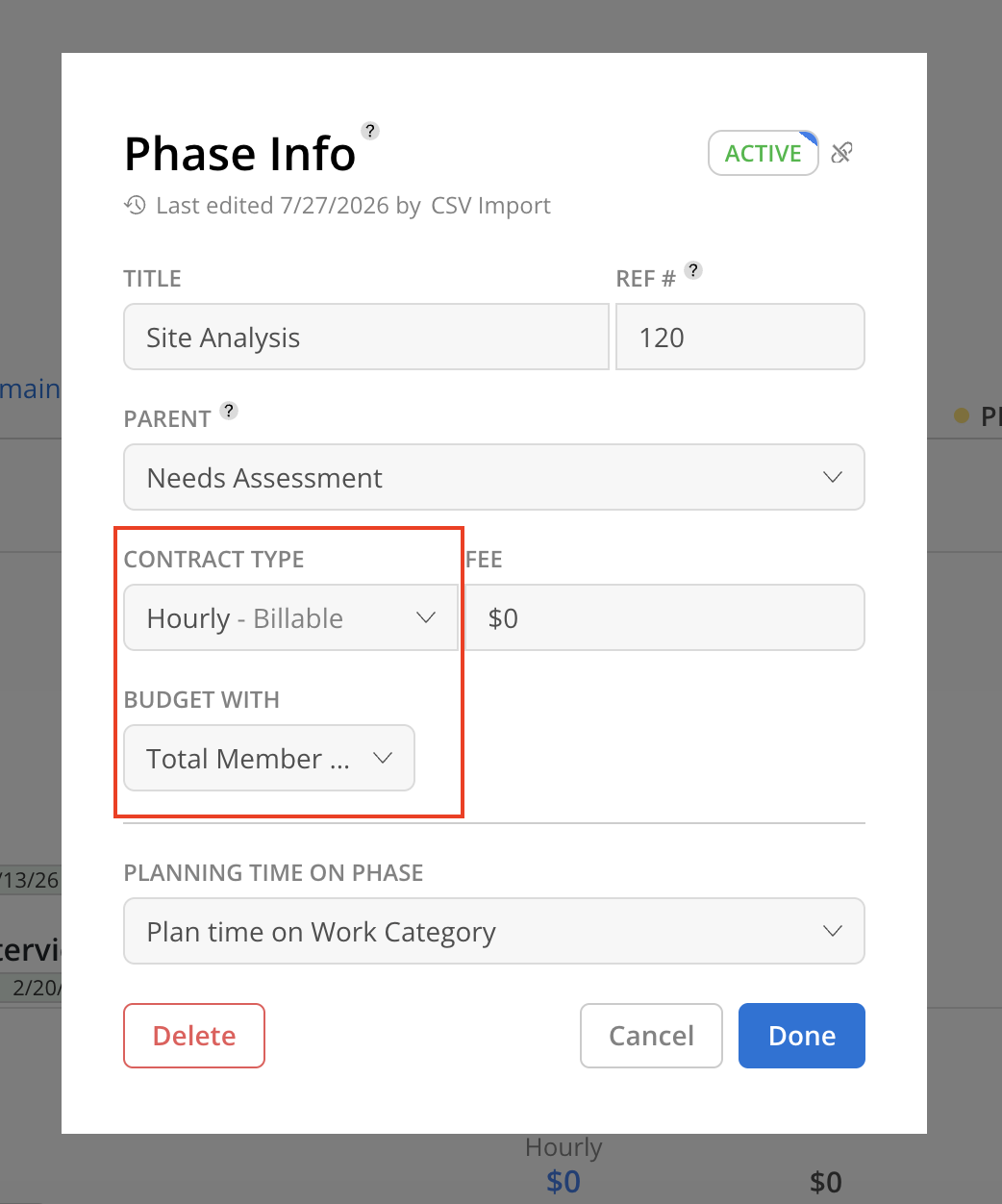
Budget With sets how each row is budgeted — Use Entered Budget, Total Member Time Budget, Total Spent + Planned Time, or Use % of Phase Budget. Click the budget cell of a Phase on the Budget Table to see the field.
-
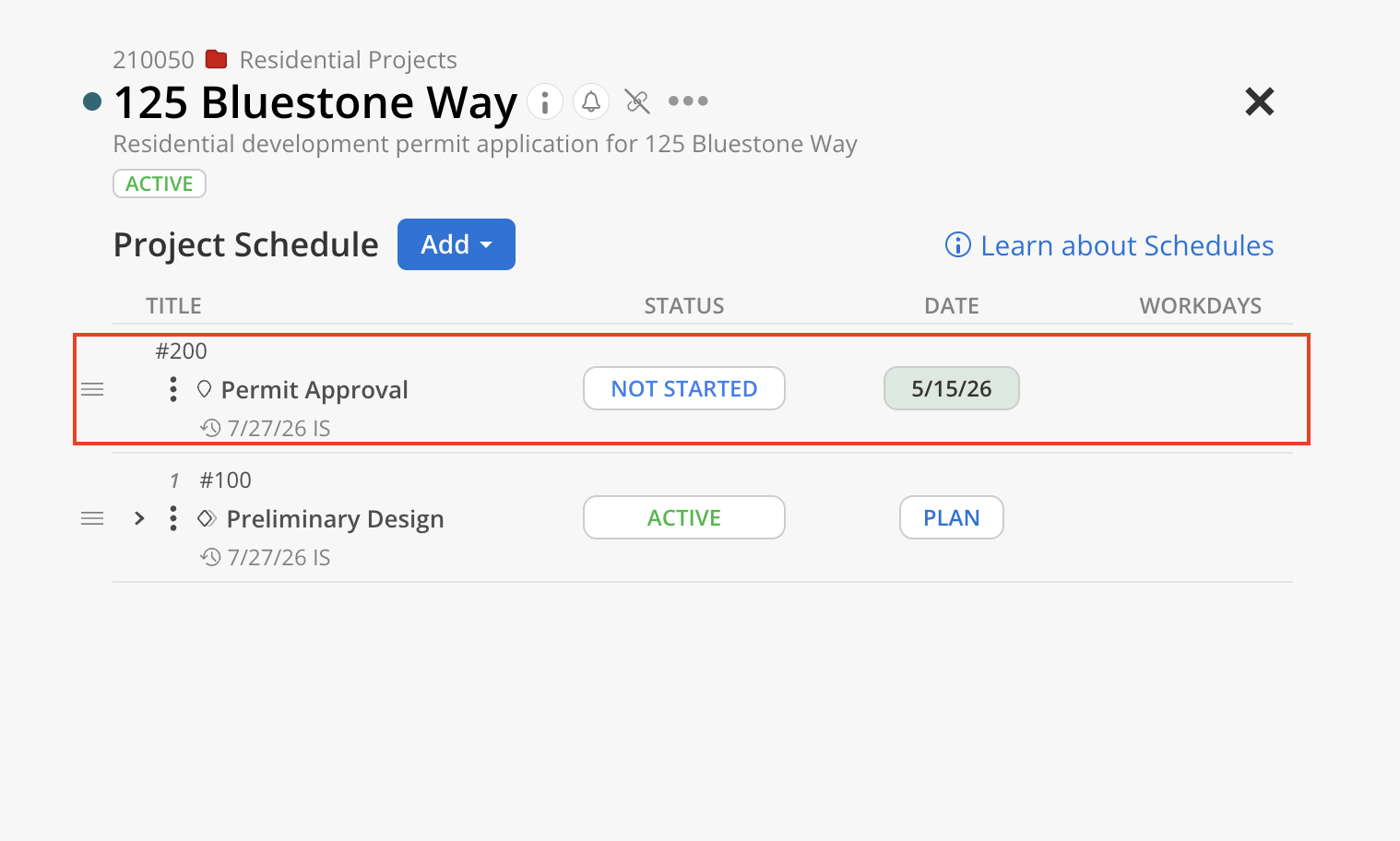
Phase Is Milestone = true appears as a milestone marker on a single date — e.g. Bluestone's Permit Approval and Lakeside's Permitting.
-
Phase Budget Status shows each phase's status. For example Oakridge's Design Development is Active and Construction is Not Started. You set it per phase from your workspace's configured statuses; it's required on non-milestone phases and left blank on milestones.
-
Start / End Dates populate the date fields for each phase and work category, which also drive the bars on the Project Planner / Timeline.
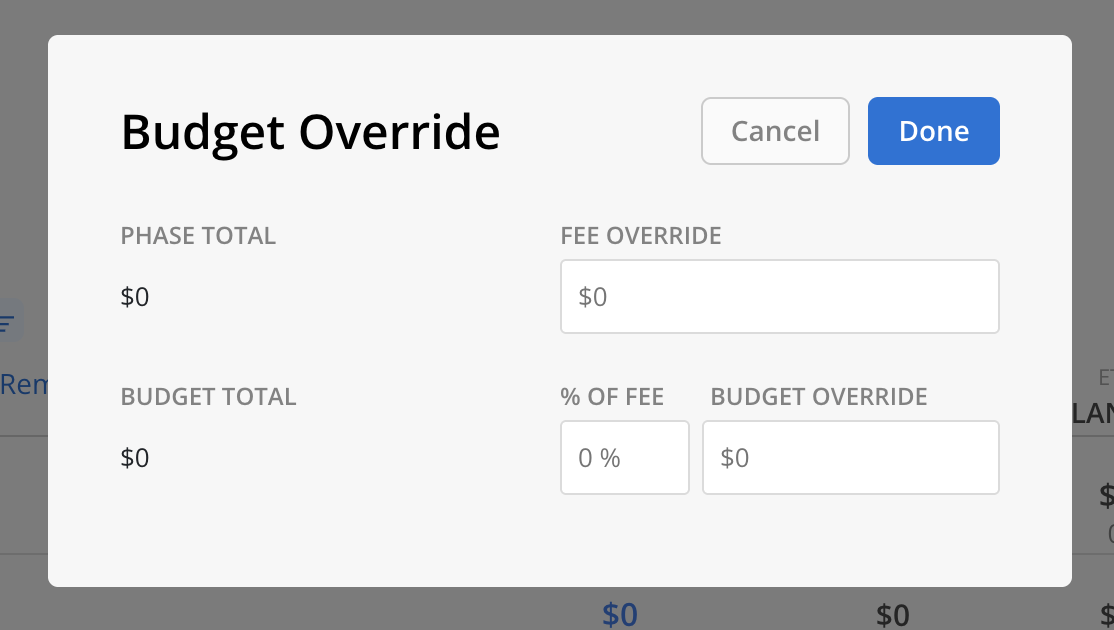
The override modal shows the project's imported budget values:
- Project Fee — override fee value for the project. (Only for teams with Budget Tracking configured in Currency.)
- Project Budget — override budget value of the bill rate for the project. (Only for teams with Budget Tracking configured in Currency.)
- Project Budget Cost — override budget value of the cost rate for the project. (Only for teams with Budget Tracking configured in Currency and cost rate enabled.)
- Project Budget Hours — override budget hours value for the project. (Only for teams with Budget Tracking configured in Hours rather than Currency.)
Clicking a budget cell opens this modal. Which budget number appears depends on the view you're in:
-
In bill rate view, the modal shows the Project Budget 125 Bluestone Way's
2,500.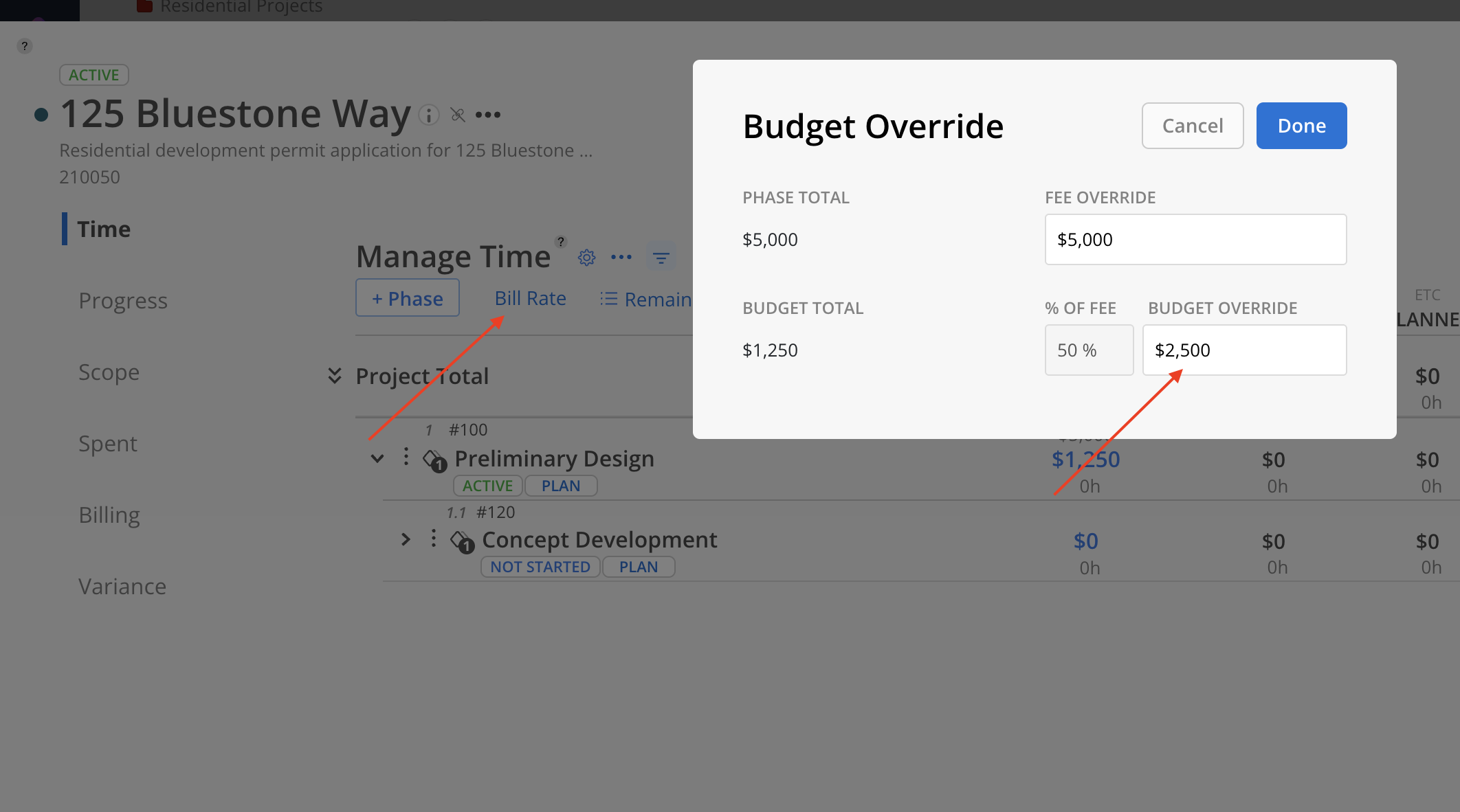
-
In cost rate view, it shows the Project Budget Cost — e.g.
48,000.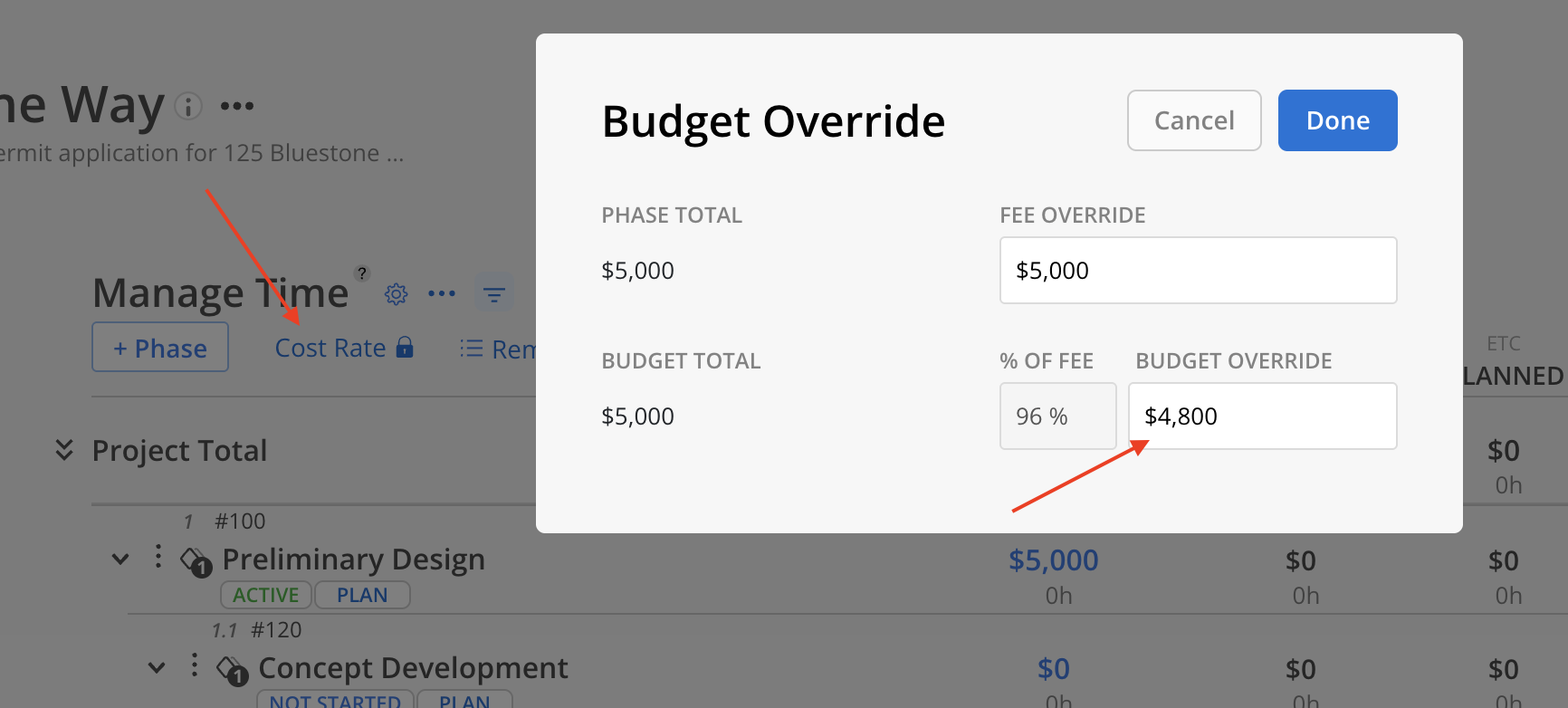
-
The Project Fee always shows in both views — e.g.
5,000.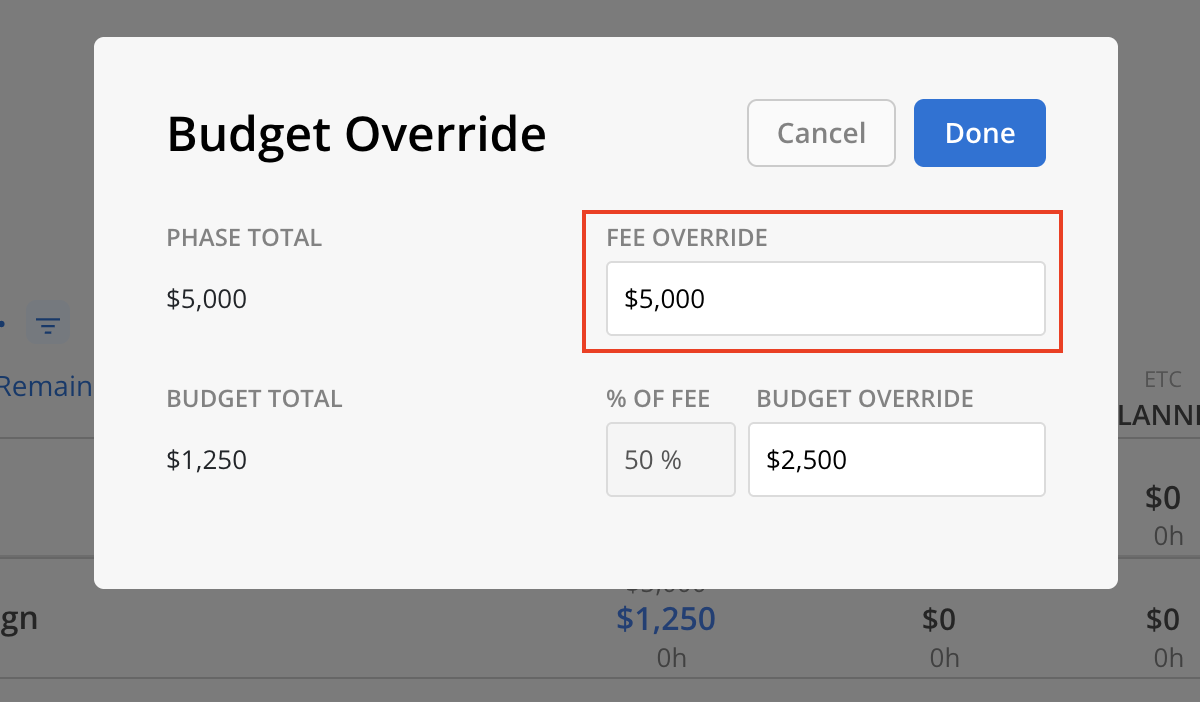
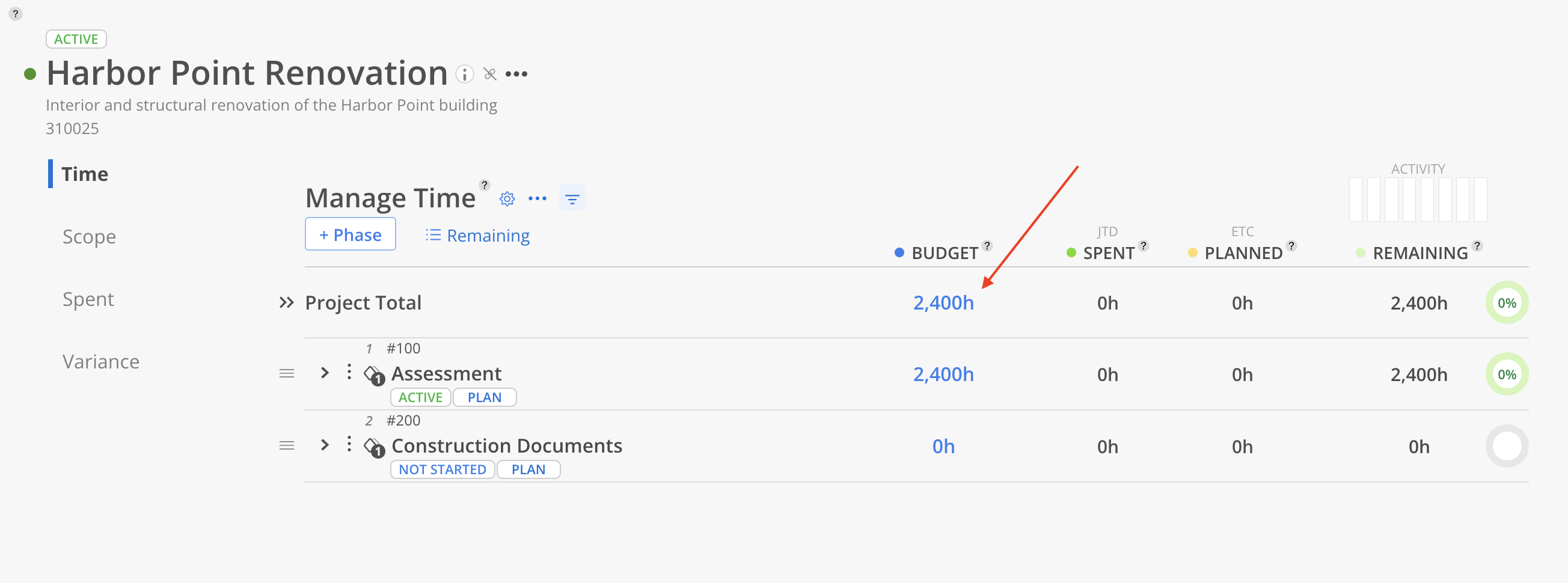
The two hours-based projects (Riverside Community Center, Harbor Point Renovation) show their budgets in hours rather than fees, using the Project Budget Hours you set.
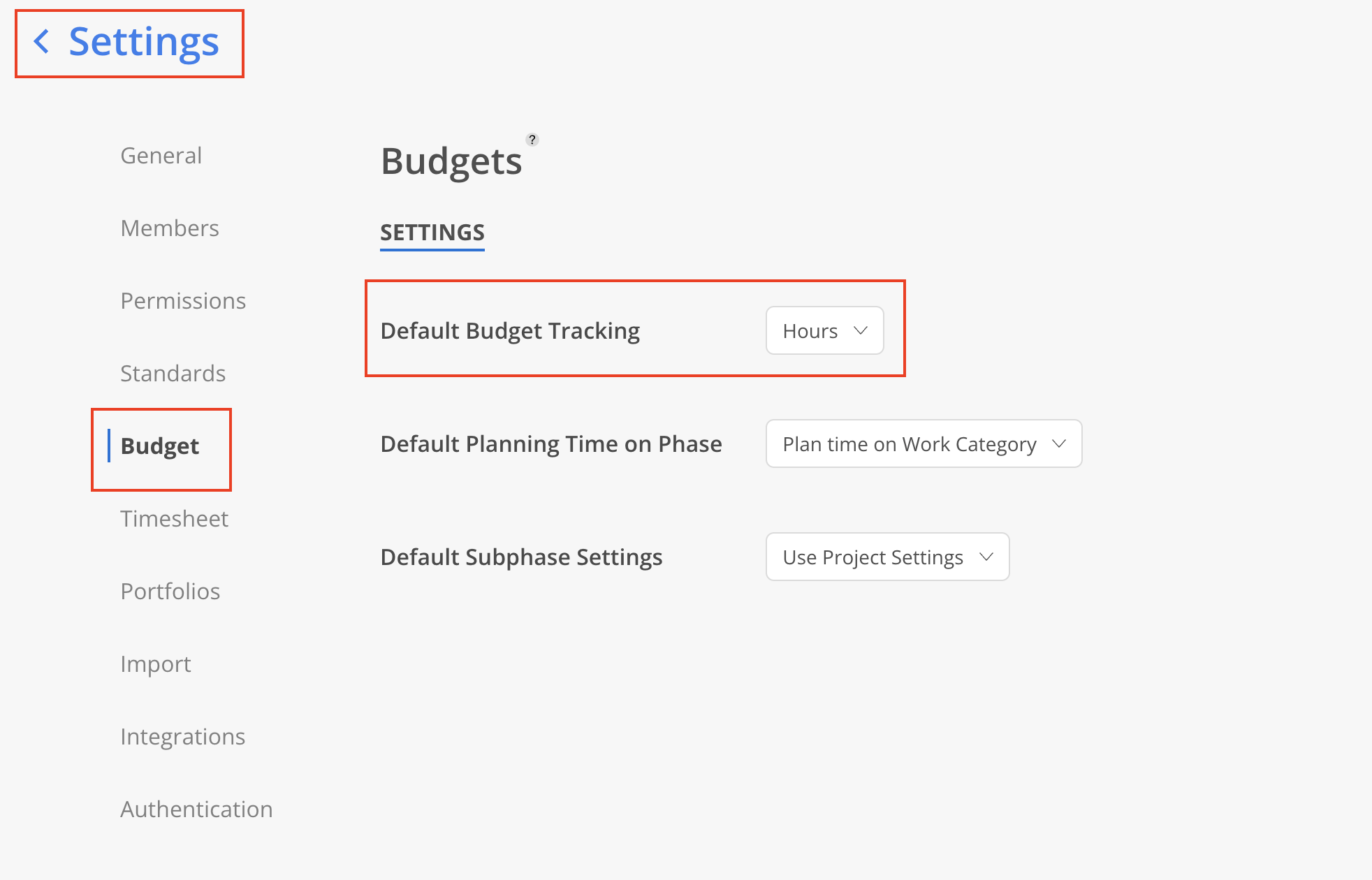
When your workspace is set to track budgets in hours (in your organization's budget settings), the Budget modal shows each project's total in hours instead of a currency amount.
Click the budget cell on the project total row to open the override — for Harbor Point Renovation it shows the imported 2400.
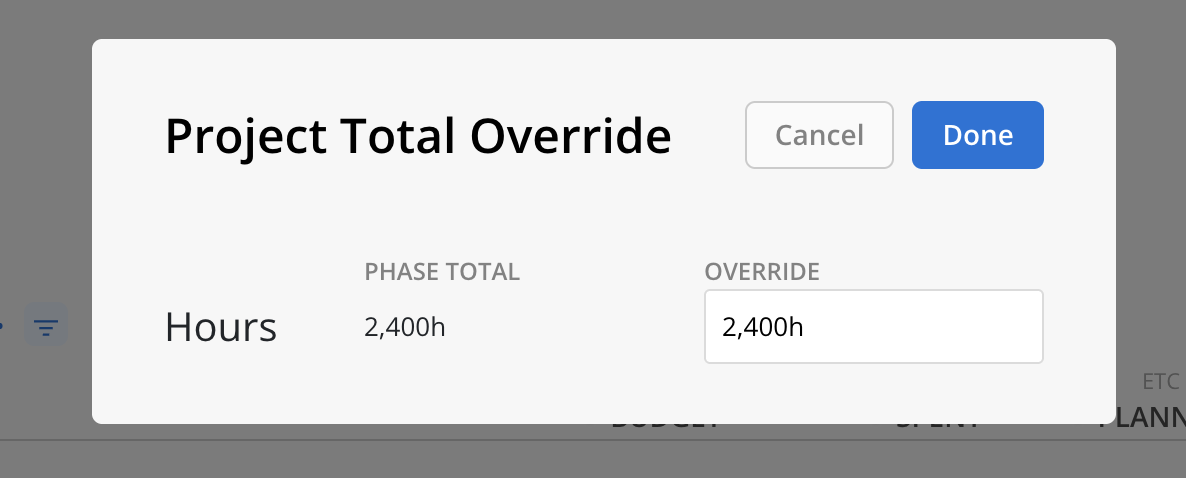
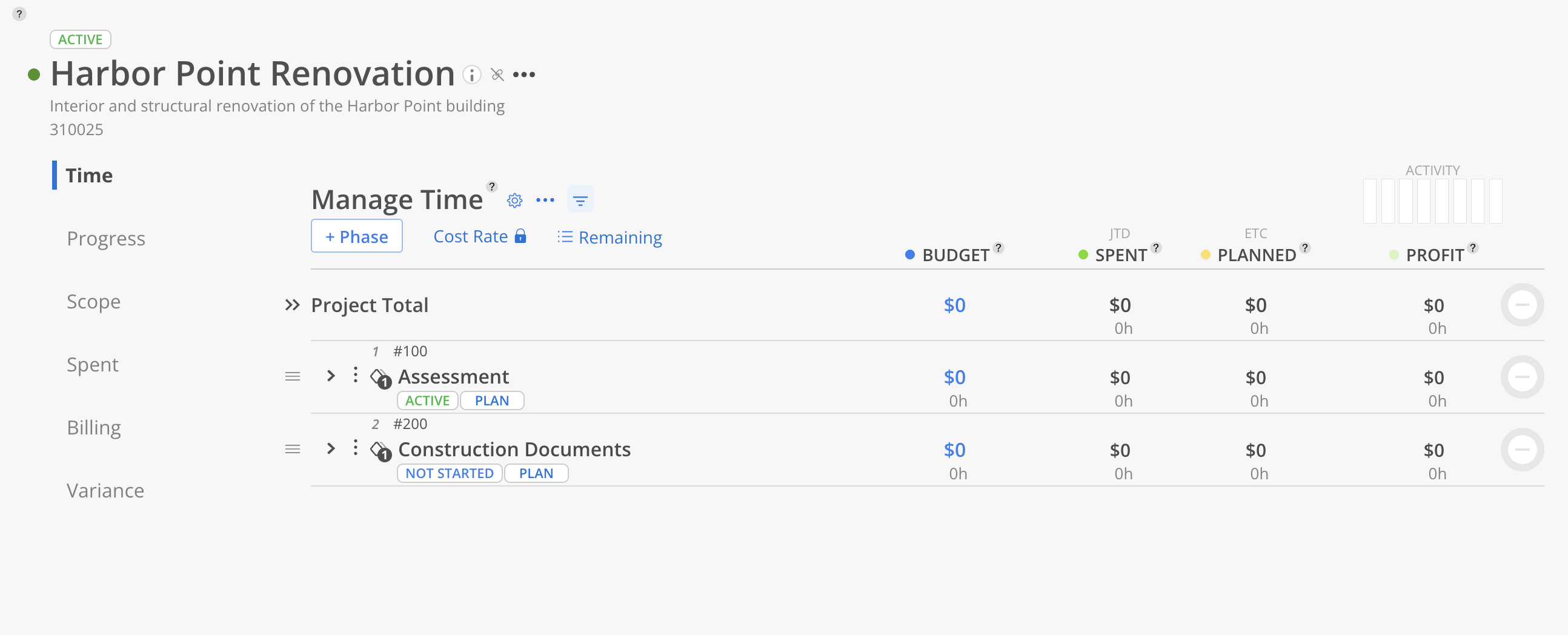
Because the budget setting is hours rather than a currency, the override has no currency value attached.
Updated 3 months ago