
Unanet A/E Visual Settings Guide
A visual walkthrough of every Unanet A/E integration setting in Mosaic, explaining what each option does and how it maps data.
What this page covers: This guide walks through each provisioning setting available in the Unanet A/E Cloud integration. Use it to plan your configuration before onboarding, reference during setup, or review when adjusting settings later.
| Applies to | Unanet A/E Cloud |
| When to use | Before onboarding, during setup, or when changing settings |
| Related guides | Unanet A/E Cloud Integration Setup, Unanet A/E Integration FAQ, Project & Phase Status Matching |
Overview
These provisioning settings control how data flows between Unanet A/E and Mosaic. Each setting determines whether a specific data type is transferred, how it is mapped, and what values are used. The choices you make here should align with the Standard Operating Procedures (SOP) discussed with your Customer Success Manager (CSM) — these settings bring in the data to match your expected workflows.
For onboarding: before you apply settings: Selecting Transfer or Automatically linked for Projects and Phases will immediately begin syncing all matching records. It is strongly recommended to select 'save as draft' first, then apply after/during your onboarding call with your CSM and Solutions Engineers.
About "Transfer updates from today forward": Once saved, this option displays the date the setting was last changed — for example, Transfer updates from 8/19/2026 forward. The date is shown for reference only; it is not enforced as a sync cut-off.
Sections at a Glance
| Section | What It Covers | Settings |
|---|---|---|
| Connection | Credentials for connecting to Unanet A/E and an optional connection name | 2 |
| Members | Employee records, roles, bill rates, and archive status | 4 |
| Portfolios | Default portfolio, linking method, and portfolio source | 3 |
| Projects | Project linking, Ref #s, statuses, fees, rates, portfolios, and naming | 16 |
| Phases | Phase linking, budgets, ordering, and statuses | 4 |
| Time Entries | Timesheet data, billable status, and hourly rates | 3 |
| Rates | Rate group transfer | 1 |
For a quick-reference table of all settings and recommended defaults, see the Settings Summary.
Connection
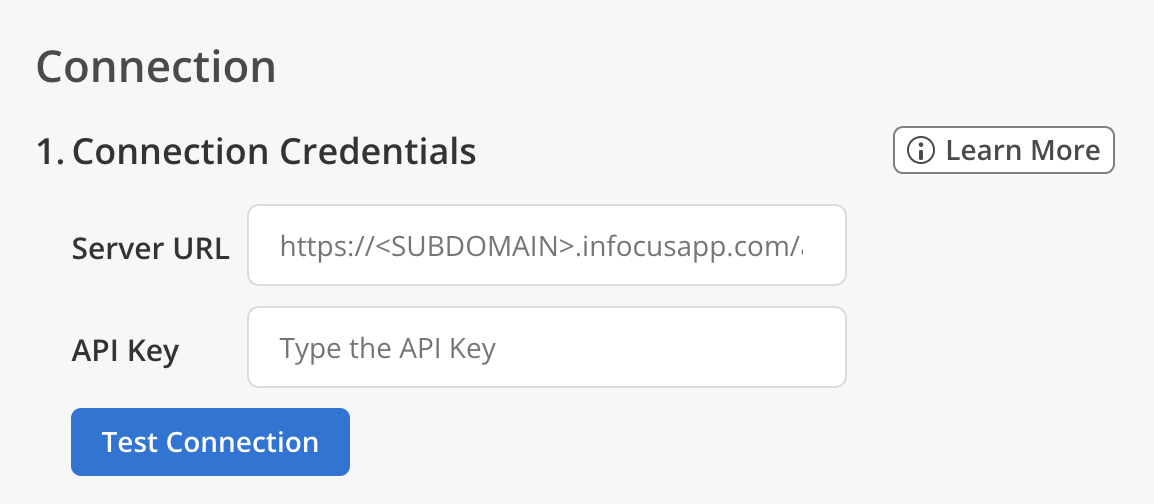
1. Connection Credentials
Definition
This is where you enter the credentials that allow Mosaic to connect to your Unanet A/E environment and bring in your data.
Fields
| Field | Description |
|---|---|
| Server URL | The base URL of your Unanet A/E API, typically in the format https://<yourcompany>.infocusapp.com/api/<yourcompany>. |
| API Key | The API key generated in your Unanet A/E environment. |
To Get Started
- In Unanet A/E, navigate to Administration > API Management > Manage Keys and generate a new API key for the Mosaic integration.
- Please provide the Server URL and API Key to your Customer Success Manager. Mosaic's integrations team will use these to configure the custom API endpoints required for the integration.
- Once the endpoint configuration is complete, your CSM will confirm and you can enter the credentials in the Mosaic app.
- Review the full setup instructions in the Unanet A/E Cloud Integration Setup guide.
In Mosaic
After entering your credentials, click the Test Connection button to verify that Mosaic can successfully authenticate and reach your Unanet A/E environment. The test confirms end-to-end connectivity before any data is synced.
If the test fails, double-check your credentials and refer to the Unanet A/E Integration FAQ. Common issues include an incorrect Server URL format or an API key that has been regenerated or revoked in Unanet A/E.
API keys may be rotated or revoked over time. If syncing stops working unexpectedly, generate a new API key in Unanet A/E and update it here.
2. Connection Name (optional)
Definition
An optional name for this connection. It distinguishes this connection from other Unanet A/E connections on the same team, and appears wherever the connection is referenced in Mosaic. Leave it blank to show none.
This is a text input with a 50-character limit — for example, Houston Office.
Members
1. Standard Roles
Definition
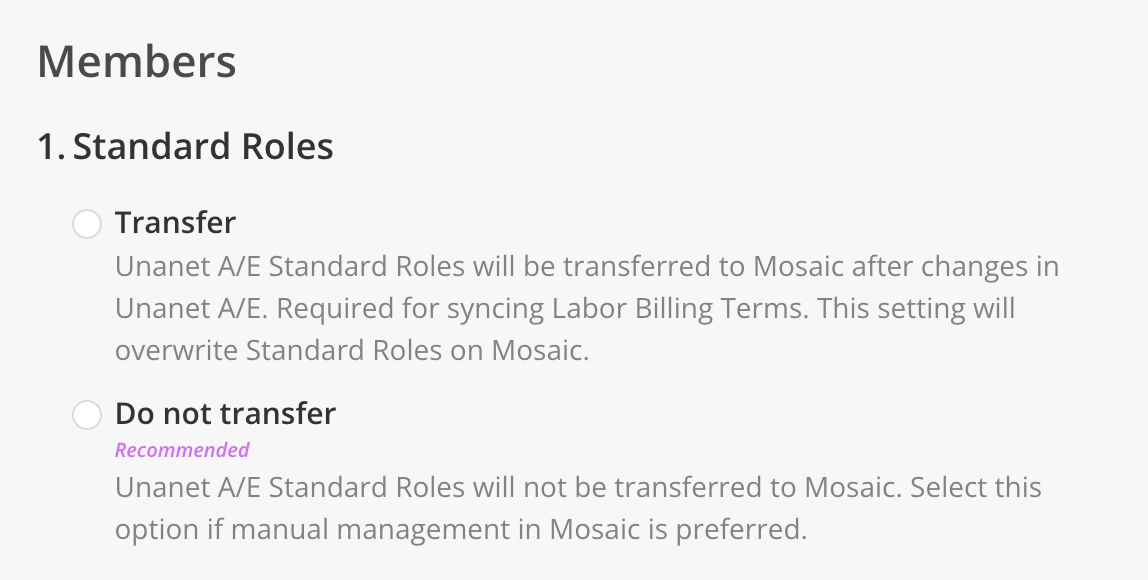
This setting controls whether Standard Roles from Unanet A/E are transferred to Mosaic. Standard Roles are the default roles assigned to employees (e.g., Designer I, Project Manager, Principal). Standard Roles define the set of available roles that can be assigned to members across the platform.
Settings Choices
- Transfer updates from today forward — Unanet A/E Standard Roles will be transferred to Mosaic after changes in Unanet A/E. Required for syncing Labor Billing Terms. This setting will overwrite Standard Roles on Mosaic.
- Do not transfer (Recommended) — Unanet A/E Standard Roles will not be transferred to Mosaic. Select this option if manual management in Mosaic is preferred.
In Mosaic
When set to Transfer updates from today forward, the full list of Unanet A/E labor categories will appear as available Roles in Mosaic. These roles are used for resource planning, filtering, and rate calculations. Any changes to Standard Roles in Unanet A/E will overwrite the corresponding roles in Mosaic on each sync.
When set to Do not transfer, roles must be created and maintained manually within Mosaic. Choose this if your firm manages roles independently in Mosaic or if the Unanet A/E role list does not align with how your team plans work.
2. Bill Rates
Definition
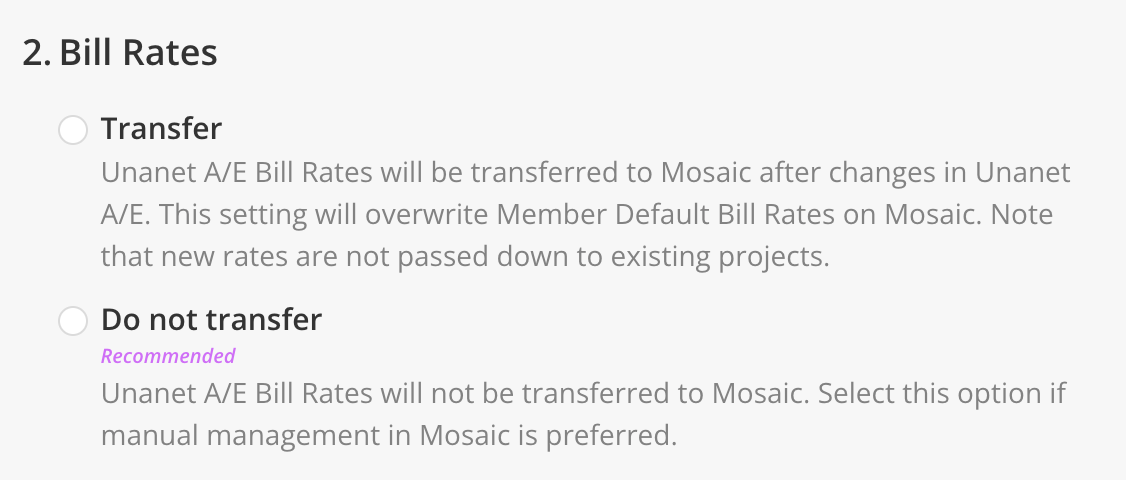
This setting controls whether member-level Bill Rates from Unanet A/E are transferred to Mosaic. Bill Rates determine what each member is billed at and are used in budget, planning, and reporting calculations across Mosaic.
Settings Choices
- Transfer updates from today forward — Unanet A/E Bill Rates will be transferred to Mosaic after changes in Unanet A/E. This setting will overwrite Member Default Bill Rates on Mosaic. Note that new rates are not passed down to existing projects.
- Do not transfer (Recommended) — Unanet A/E Bill Rates will not be transferred to Mosaic. Select this option if manual management in Mosaic is preferred.
In Mosaic
When set to Transfer updates from today forward, each member's Default Bill Rate in Mosaic will reflect the rate from Unanet A/E. These rates appear on Member profiles and are applied when members are added to new projects.
When set to Do not transfer, bill rates must be set and maintained manually in Mosaic via Settings > Members > Rates.
Updating a member's Bill Rate in Unanet A/E updates their default rate in Mosaic. Existing project assignments will continue to use the rate that was in effect when they were assigned, unless Bill Rate Override (below) is set to override existing rates.
3. Bill Rate Override
Definition
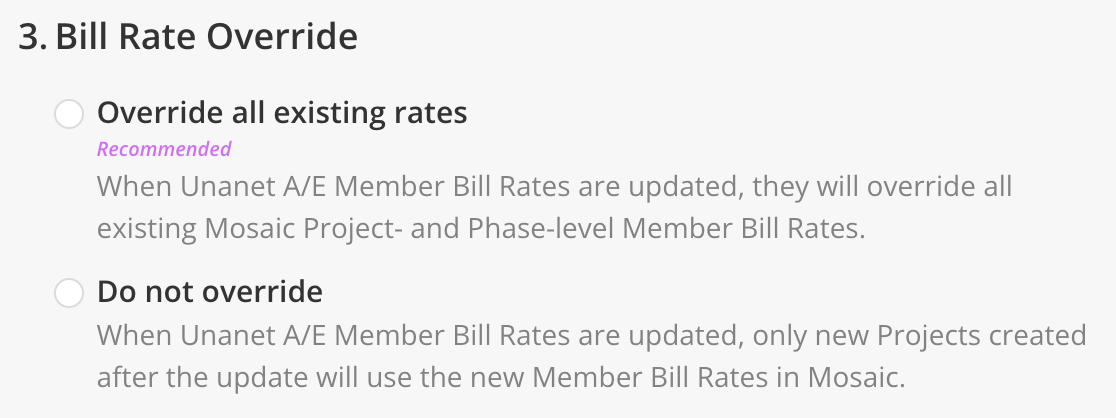
This setting controls what happens to Bill Rates on existing Mosaic projects and phases when Member Bill Rates are updated in Unanet A/E. By default, updates to a member's rate only affect new projects created after the update. This setting determines whether those updates also flow back into projects and phases that already exist.
Applies only when Bill Rates (above) is set to Transfer updates from today forward.
Settings Choices
- Override all existing rates (Recommended) — When Unanet A/E Member Bill Rates are updated, they will override all existing Mosaic Project- and Phase-level Member Bill Rates.
- Do not override — When Unanet A/E Member Bill Rates are updated, only new Projects created after the update will use the new Member Bill Rates in Mosaic.
In Mosaic
When set to Override all existing rates, a rate change in Unanet A/E flows downstream to every existing project and phase the member is on. This is useful for firms that want a single source of truth for rates and expect rate changes to apply to active work.
When set to Do not override, rate changes only apply going forward. Use this if your firm prefers to lock in rates at the time of project staffing and manage historical project rates independently.
** Please talk to your CSM before enabling Override.**
4. Work Location
In Mosaic
Controls whether a Member's Work Location from Unanet A/E is transferred to their Mosaic profile. Work Locations appear on Member profiles and can be used for filtering and reporting.
Setting Options
- Transfer — Unanet A/E Member Work Locations will be transferred to Mosaic after changes in Unanet A/E. This setting will overwrite Member Work Locations on Mosaic.
- One time at first link — Unanet A/E Member Work Locations will only be transferred to Mosaic when the Unanet A/E Member is first linked.
- Do not transfer (Recommended) — Unanet A/E Member Work Locations will not be transferred to Mosaic. Select this option if manual management in Mosaic is preferred.
5. Employee Archive Status
Definition
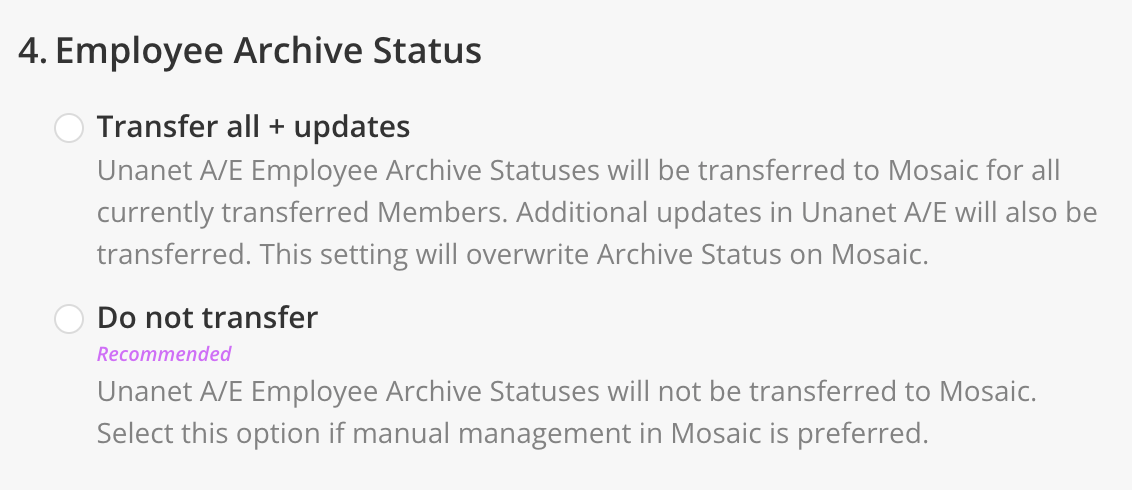
In Unanet A/E, employees can be marked as archived (typically when they leave the firm or are no longer active). This setting determines whether that archive status flows into Mosaic to automatically archive the corresponding Member.
Settings Choices
- Transfer all + updates — Unanet A/E Employee Archive Statuses will be transferred to Mosaic for all currently transferred Members. Additional updates in Unanet A/E will also be transferred. This setting will overwrite Archive Status on Mosaic.
- Do not transfer (Recommended) — Unanet A/E Employee Archive Statuses will not be transferred to Mosaic. Select this option if manual management in Mosaic is preferred.
In Mosaic
When set to Transfer all + updates, archiving an employee in Unanet A/E will automatically archive the corresponding Member in Mosaic, removing them from active member lists and project staffing. Reactivating an employee in Unanet A/E will reverse the archive in Mosaic on the next sync.
When set to Do not transfer, Member archive status must be managed manually in Mosaic via Settings > Members. This is useful if your firm handles offboarding in Mosaic independently from Unanet A/E, or if you want to retain archived employees as active Members in Mosaic for historical reporting purposes.
Archiving a Member in Mosaic does not delete their historical project assignments, time entries, or rate records — it only removes them from active lists and prevents future staffing.
6. Office Transfer
In Mosaic
Controls whether the list of Offices from Unanet A/E is transferred to Mosaic. Offices can be assigned to Members and used for filtering and reporting.
Setting Options
- Transfer — Unanet A/E Offices will be transferred to Mosaic after changes in Unanet A/E. This setting will overwrite Offices on Mosaic.
- Do not transfer (Recommended) — Unanet A/E Offices will not be transferred to Mosaic. Select this option if manual management in Mosaic is preferred.
Portfolios
1. Default for new Projects

Definition
A Portfolio in Mosaic is a folder used to organize multiple projects — for example, by department, client, manager, or type of work. This setting determines which Portfolio newly linked Unanet A/E projects are placed into by default.
This setting works in combination with the Projects > Projects with an Unlinked Portfolio and Projects > Projects without a Portfolio settings, which determine when the default portfolio is applied.
Many firms start by selecting Import as the default, then periodically sort imported projects into department- or client-specific Portfolios. The Import portfolio also gives a clear visual signal that a project hasn't been fully organized yet.
This setting is referenced by multiple Projects settings. Changing it affects where projects without a linked or assigned portfolio end up.
2. Linking Method
Definition
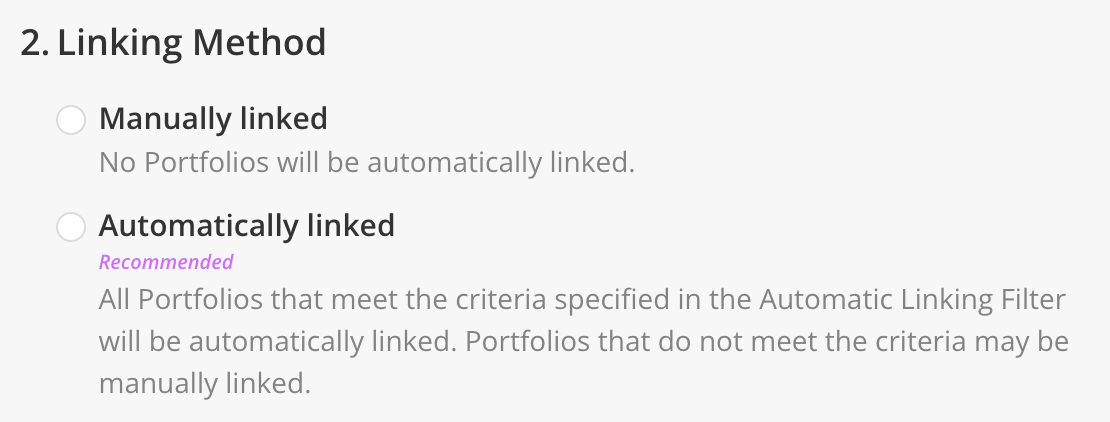
This setting is part of an automatic portfolio routing logic (by Project Manager) and works in combination to settings below (Projects Portfolio and Source). It associates a project with a portfolio and allows for a new portfolio to be created when a new Source is detected.
Settings Choices
- Manually linked — No Portfolios will be automatically linked.
- Automatically linked (Recommended) — All Portfolios that meet the criteria specified in the Automatic Linking Filter will be automatically linked. Portfolios that do not meet the criteria may be manually linked.
When Automatically linked is selected, an Add/Edit Filters button appears, and a filter option for Portfolios with Linked Projects is available to restrict auto-linking to specific Portfolios.
In Mosaic
When set to Manually linked, you control exactly which Portfolios have what projects. This is useful during initial setup when you want to build the Mosaic portfolio structure deliberately.
When set to Automatically linked, new Portfolios appear in Mosaic as they're detected. This is the recommended approach if you choose Project Manager in the source setting below, so that new Portfolios flow through as new Project Managers are added.
Note: When a Unanet A/E Portfolio becomes linked to a Mosaic Portfolio, existing Projects that already point to it in Unanet A/E are automatically re-routed from the default Portfolio to the newly-linked Portfolio in Mosaic. You can link new Portfolios at any time — projects will move to the correct location without a re-sync.
3. Source
Definition
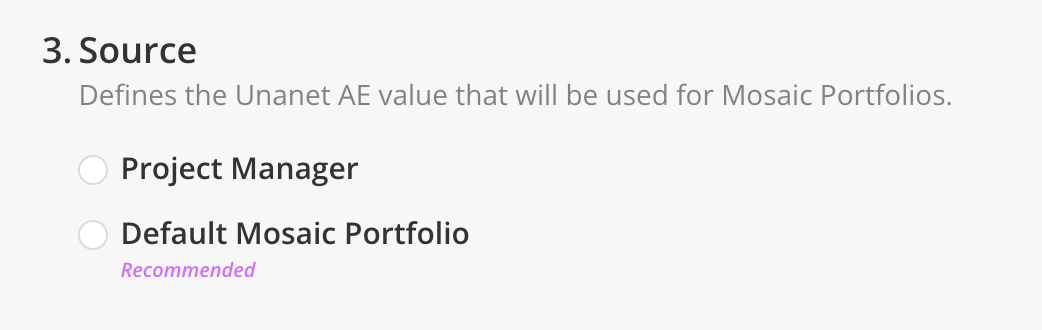
This setting defines which Unanet A/E value is used to route projects into Mosaic Portfolios. When a project is synced, you are able to choose Project Manager, which in combination to the setting above, allows for you to redirect projects into Portfolios based on Project Manager.
Settings Choices
- Project Manager — Projects will be organized into Portfolios based on the Project Manager assigned in Unanet A/E. A project is placed into the Portfolio matching its PM's name; if no matching Portfolio exists, one will be created automatically.
- Default Mosaic Portfolio (Recommended) — Portfolios will not be source-routed. All projects land in the default portfolio defined in setting #1 above and must be organized manually in Mosaic.
In Mosaic
When set to Project Manager, Mosaic automatically creates and populates PM-based Portfolios. This is useful for firms that organize their workload by who owns each project. Reassigning a PM in Unanet A/E will move the project to the new PM's portfolio on the next sync.
When set to Default Mosaic Portfolio, no automatic sorting happens and all projects go to the default portfolio (which is usually the import portfolio). Use this if your firm organizes projects in Mosaic by a structure that doesn't exist as a field in Unanet A/E (for example, by region, service line, or custom tag).
Portfolios are a Mosaic concept — Unanet A/E does not have a native "portfolio". The Source setting defines which Unanet A/E field Mosaic uses to mimic portfolio routing. If your firm doesn't organize by PM, Default Mosaic Portfolio is likely the right choice.
When using Project Manager, a project without a PM assigned will have no source value and will be routed according to the Projects > Projects without a Portfolio setting.
Projects
1. Linking Method
Definition
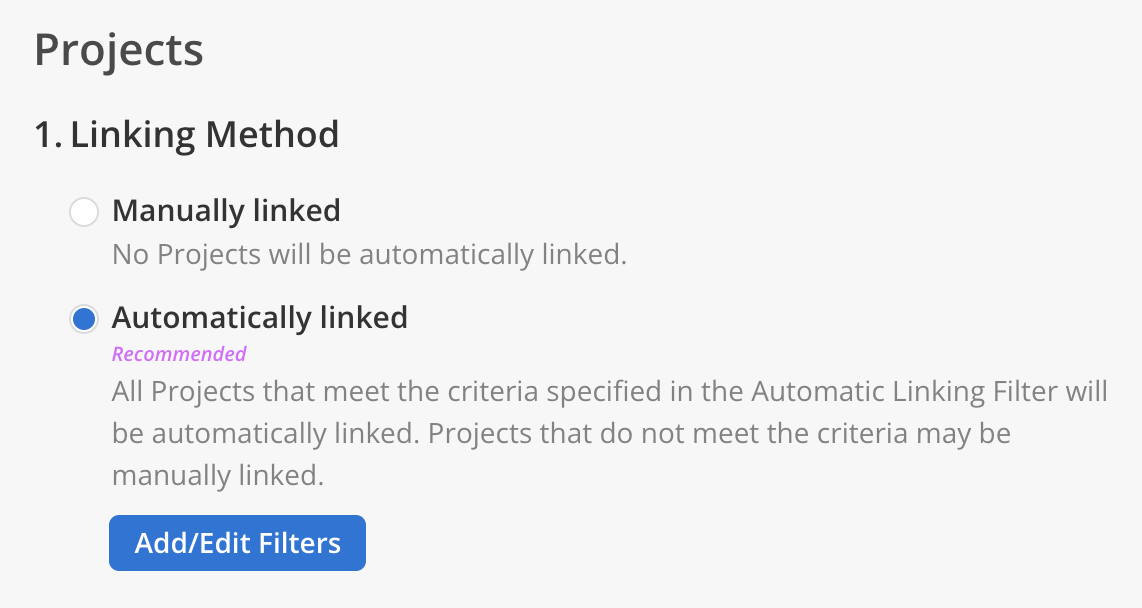
This setting controls whether new projects from Unanet A/E are automatically linked to Mosaic or require manual linking. Importing means bringing a project from Unanet A/E into Mosaic for the first time. Linking means establishing an ongoing connection so that changes sync automatically from Unanet to Mosaic.
Settings Choices
- Manually linked — No Projects will be automatically linked.
- Automatically linked (Recommended) — All Projects that meet the criteria specified in the Automatic Linking Filter will be automatically linked. Projects that do not meet the criteria may be manually linked.
When Automatically linked is selected, an Add/Edit Filters button appears, allowing you to configure filter criteria (for example, a "Date Created" range) for which projects should be auto-linked.
In Mosaic
When set to Manually linked, new Unanet A/E projects will not import into Mosaic until you explicitly import them. This gives you control over which projects exist in Mosaic but requires ongoing manual effort.
When set to Automatically linked, projects matching your filter criteria are imported and linked as soon as they are detected.
The "Date Created" filter is the most common filter choice. Setting this to the year your firm wants Mosaic history to begin (e.g., 2020 or 2022) prevents very old projects from flooding into Mosaic on initial sync.
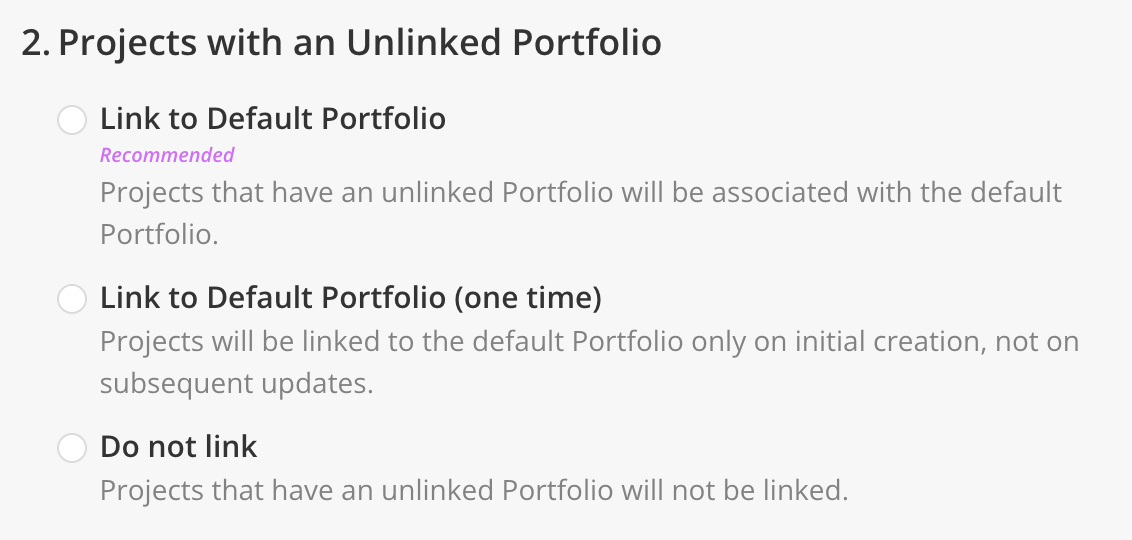
2. Projects with an Unlinked Portfolio
Definition
This setting controls how a project is associated with a portfolio when automatic portfolio routing is turned on.
Settings Choices
- Link to Default Portfolio (Recommended) — Projects that have an unlinked Portfolio will be associated with the default Portfolio.
- Link to Default Portfolio (one time) — Projects will be linked to the default Portfolio only on initial creation, not on subsequent updates.
- Do not link — Projects that have an unlinked Portfolio will not be linked.
In Mosaic
When set to Link to Default Portfolio, every project whose portfolio isn't yet linked gets pulled into the default portfolio on every sync cycle. If you move the project to a different Mosaic portfolio manually, a subsequent sync will move it back to the default portfolio.
When set to Link to Default Portfolio (one time), the project is placed in the default portfolio on creation, but subsequent syncs will not move it back. This is the safer option if you plan to manually organize projects in Mosaic before linking their portfolios.
When set to Do not link, projects will not appear in the default portfolio, but it's not linked to it at all, so if you move that project around to another portfolio, it will stay in that portfolio even after the next sync.
The continuous behavior of Link to Default Portfolio can cause projects to revert to the default portfolio after being moved manually. If your team expects to organize projects in Mosaic before linking all portfolios, consider (one time).
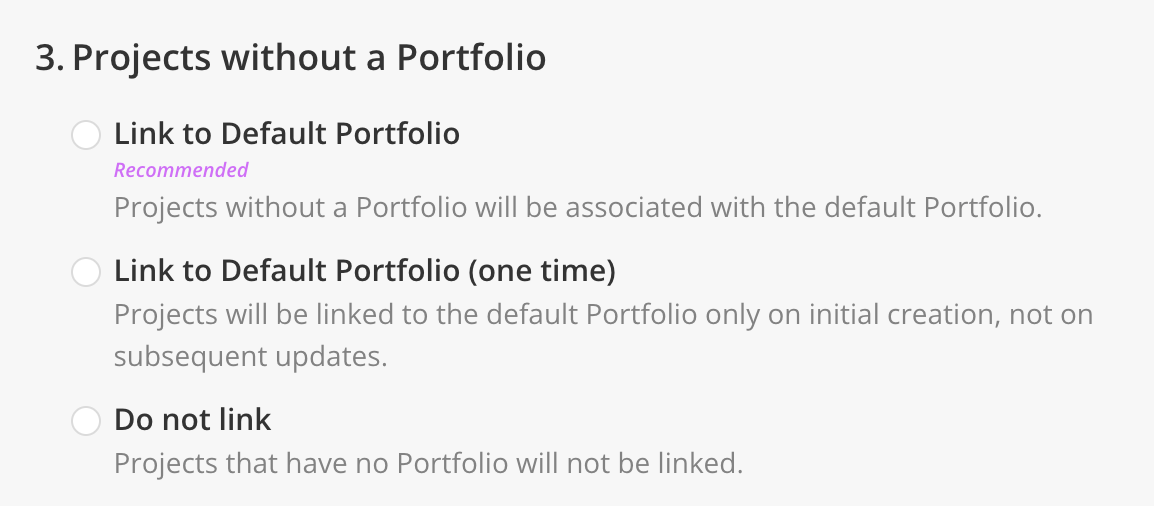
3. Projects without a Portfolio
Definition
This setting controls what happens to a project that isn't linked with a portfolio — for example, projects that have not been assigned a project manager when using Project Manager as the Portfolio source.
Settings Choices
- Link to Default Portfolio (Recommended) — Projects without a Portfolio will be associated with the default Portfolio.
- Link to Default Portfolio (one time) — Projects will be linked to the default Portfolio only on initial creation, not on subsequent updates.
- Do not link — Projects that have no Portfolio will not be linked.
In Mosaic
When set to Link to Default Portfolio, projects with no portfolio in Unanet A/E are continuously re-associated with the default portfolio. If you move one of these projects to a different Mosaic portfolio manually, the next sync will move it back.
When set to Link to Default Portfolio (one time), projects are placed in the default portfolio on their first sync only. After that, you can move them freely in Mosaic without the integration reverting the change.
When set to Do not link, projects without a portfolio will not appear in any portfolio in Mosaic.
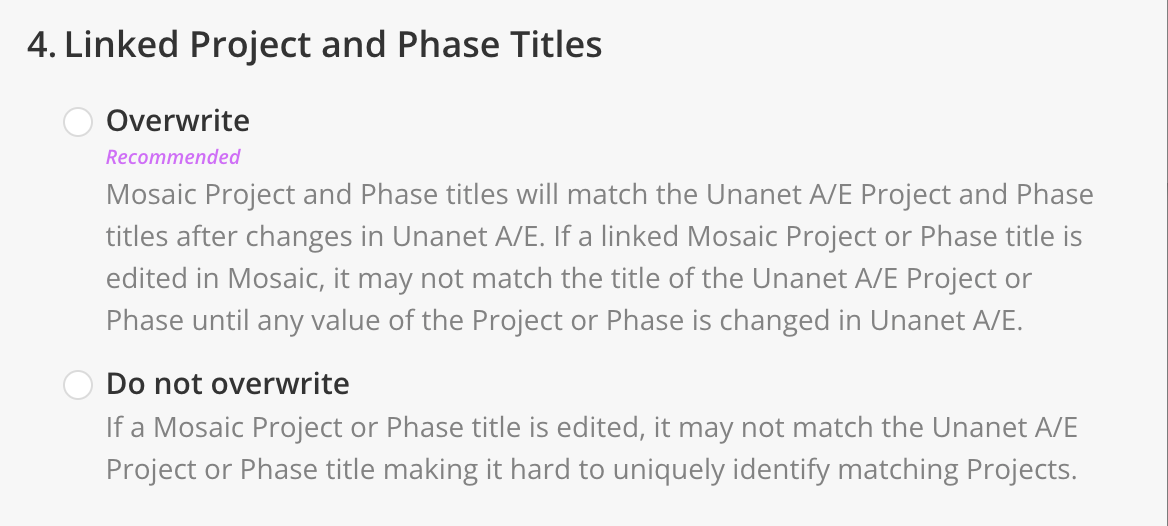
4. Linked Project and Phase Titles
Definition
This setting controls whether Mosaic project and phase titles are kept in sync with Unanet A/E, or whether titles can be edited independently in Mosaic.
Settings Choices
- Overwrite (Recommended) — Mosaic Project and Phase titles will match the Unanet A/E Project and Phase titles after changes in Unanet A/E. If a linked Mosaic Project or Phase title is edited in Mosaic, it may not match the title of the Unanet A/E Project or Phase until any value of the Project or Phase is changed in Unanet A/E.
- Do not overwrite — If a Mosaic Project or Phase title is edited, it may not match the Unanet A/E Project or Phase title making it hard to uniquely identify matching Projects.
In Mosaic
When set to Overwrite, Unanet A/E is treated as the source of truth for project and phase naming. Any title change in Unanet A/E flows through to Mosaic on the next sync and will overwrite edits made in Mosaic.
When set to Do not overwrite, you can rename projects and phases in Mosaic without having them reverted. Use this if your firm prefers different naming conventions in Mosaic than in Unanet A/E.
Maintain a single source of truth for naming. If you set to Overwrite, ensure your team members do not edit project or phase titles in Mosaic — their edits will be reverted.
5. Linked Project and Phase Ref #s
Definition
Reference numbers (Ref #s) uniquely identify Projects and Phases. This setting controls whether the Unanet A/E Project and Phase numbers overwrite the Ref #s on linked Mosaic Projects and Phases.
This setting is being rolled out gradually. If you do not see it in your integration settings yet, contact your Customer Success Manager.
Settings Choices
- Overwrite (Recommended) — Mosaic Project and Phase Ref #s will match the Unanet A/E Project and Phase Ref #s after changes in Unanet A/E. If a linked Mosaic Project or Phase Ref # is edited in Mosaic, it may not match the Ref # of the Unanet A/E Project or Phase until any value of the Project or Phase is changed in Unanet A/E.
- Do not overwrite — If a Mosaic Project or Phase Ref # is edited, it may not match the Unanet A/E Project or Phase Ref # making it hard to uniquely identify matching Projects.
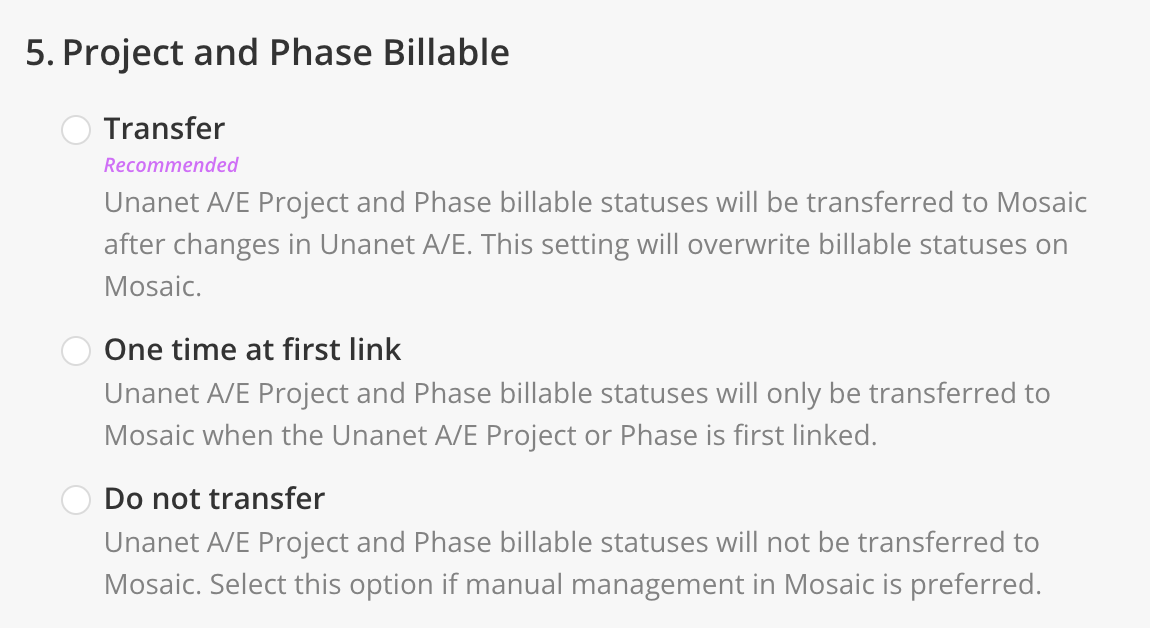
6. Project and Phase Billable
Definition
This setting controls whether the billable status of projects and phases is transferred from Unanet A/E to Mosaic. Billable status indicates whether a project or phase is chargeable to a client.
Settings Choices
- Transfer updates from today forward (Recommended) — Unanet A/E Project and Phase billable statuses will be transferred to Mosaic after changes in Unanet A/E. This setting will overwrite billable statuses on Mosaic.
- Transfer one time at first link — Unanet A/E Project and Phase billable statuses will only be transferred to Mosaic when the Unanet A/E Project or Phase is first linked.
- Do not transfer — Unanet A/E Project and Phase billable statuses will not be transferred to Mosaic. Select this option if manual management in Mosaic is preferred.
In Mosaic
When set to Transfer updates from today forward, any change to billable status in Unanet A/E (for example, marking a phase as non-billable after contract renegotiation) is reflected in Mosaic on the next sync.
When set to Transfer one time at first link, billable status is captured at the moment a project or phase enters Mosaic and is not updated afterward. Use this if your firm intentionally overrides billable status in Mosaic for planning purposes.
When set to Do not transfer, billable status is managed entirely in Mosaic's Project Info modal.
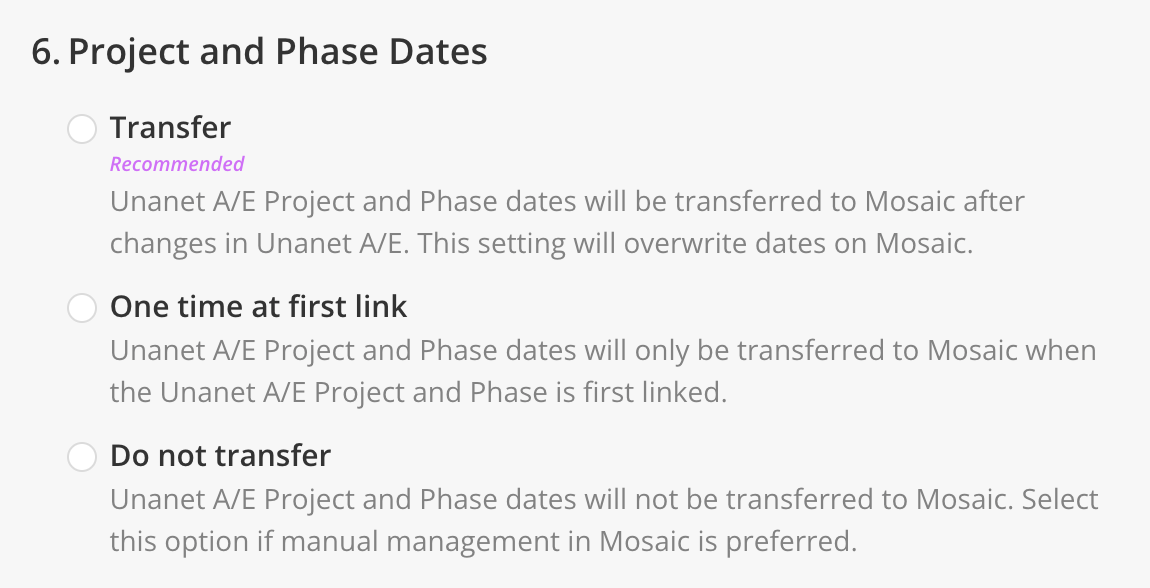
7. Project and Phase Dates
Definition
This setting controls whether the start and end dates of projects and phases are transferred from Unanet A/E to Mosaic.
Settings Choices
- Transfer updates from today forward (Recommended) — Unanet A/E Project and Phase dates will be transferred to Mosaic after changes in Unanet A/E. This setting will overwrite dates on Mosaic.
- Transfer one time at first link — Unanet A/E Project and Phase dates will only be transferred to Mosaic when the Unanet A/E Project and Phase is first linked.
- Do not transfer — Unanet A/E Project and Phase dates will not be transferred to Mosaic. Select this option if manual management in Mosaic is preferred.
In Mosaic
When set to Transfer updates from today forward, date changes made in Unanet A/E propagate to Mosaic on every sync. This keeps Mosaic's timeline aligned with the official contract dates in Unanet A/E.
When set to Transfer one time at first link, dates are set on initial import and are then managed independently in Mosaic. Choose this if your team extends or adjusts timelines in Mosaic for planning purposes that don't need to match Unanet A/E exactly.
When set to Do not transfer, project and phase dates must be set and maintained manually in Mosaic.
Dates can also be managed from within individual projects in Mosaic. If you use Transfer updates from today forward, manual date edits in Mosaic will be overwritten on the next sync.
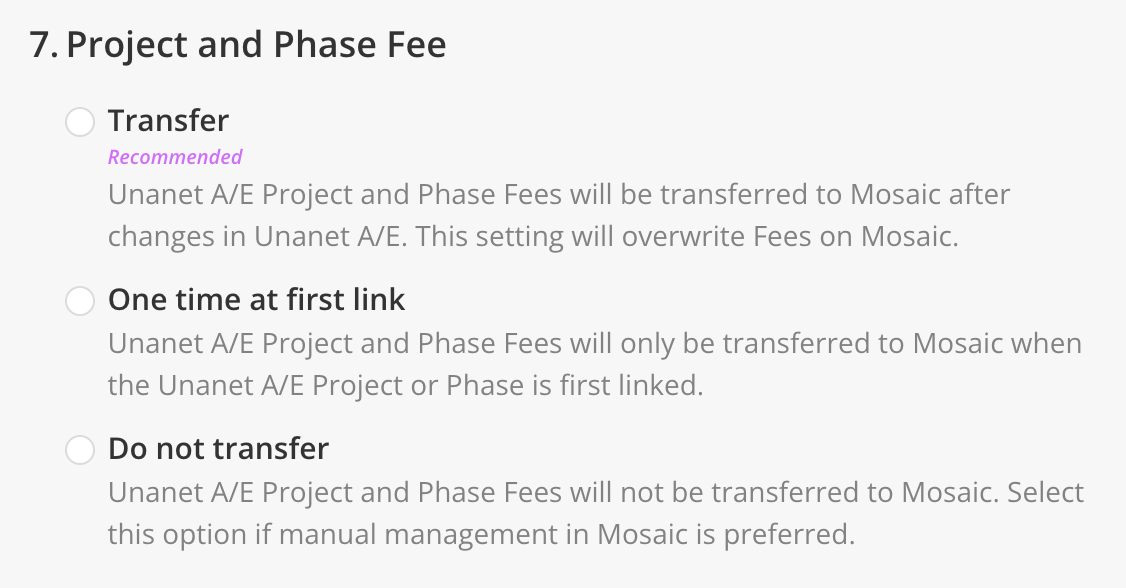
8. Project and Phase Fee
Definition
This setting controls whether project and phase fees are transferred from Unanet A/E to Mosaic. The fee represents the total amount budgeted or contracted for the project or phase, and is used in Mosaic for budget calculations, profitability reporting, and billing plans.
Settings Choices
- Transfer updates from today forward (Recommended) — Unanet A/E Project and Phase Fees will be transferred to Mosaic after changes in Unanet A/E. This setting will overwrite Fees on Mosaic.
- Transfer one time at first link — Unanet A/E Project and Phase Fees will only be transferred to Mosaic when the Unanet A/E Project or Phase is first linked.
- Do not transfer — Unanet A/E Project and Phase Fees will not be transferred to Mosaic. Select this option if manual management in Mosaic is preferred.
In Mosaic
When set to Transfer updates from today forward, fee changes in Unanet A/E (for example, after a contract amendment) are continuously reflected in Mosaic. Project fees appear in the project's Budget tab and are used for profitability metrics.
When set to Transfer one time at first link, fees are captured at contract signing and are managed in Mosaic thereafter. Use this if fees fluctuate in Unanet A/E in ways your planning team doesn't want to track.
When set to Do not transfer, fees are managed entirely in Mosaic.
The source of the fee value (Fixed Fee vs. Labor Budget) is controlled separately by the Project and Phase Fee Source setting below.
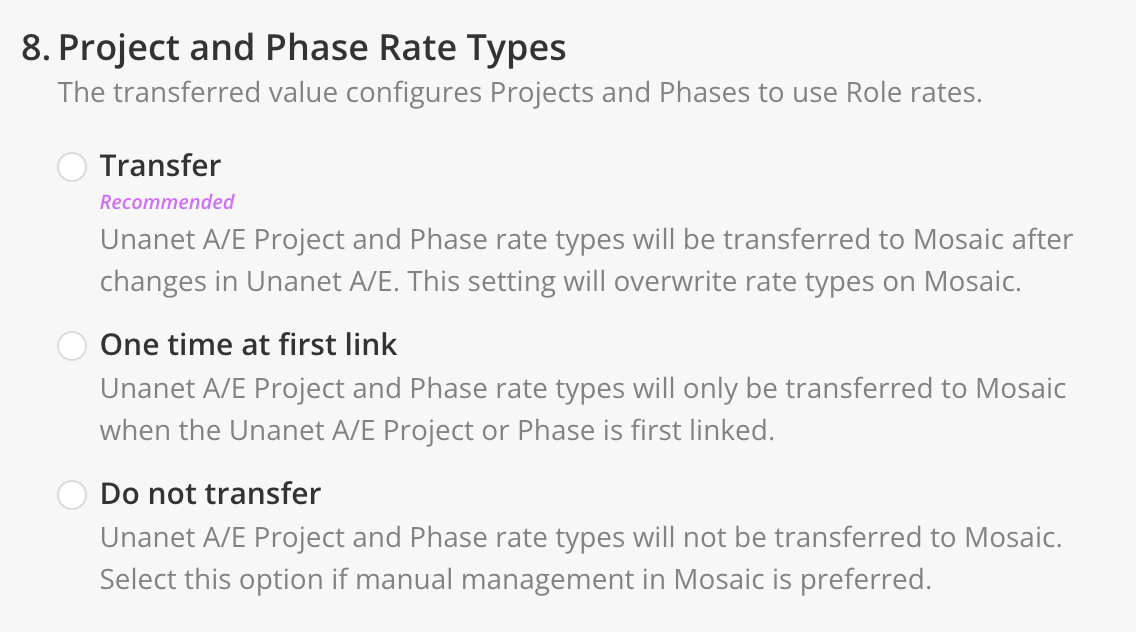
9. Project and Phase Rate Types
Definition
This setting controls whether the rate type (Member, Role, or Work Category) for projects and phases is transferred from Unanet A/E to Mosaic. The rate type determines how Mosaic calculates rates for planning and budgeting.
Settings Choices
- Transfer updates from today forward (Recommended) — Unanet A/E Project and Phase rate types will be transferred to Mosaic after changes in Unanet A/E. This setting will overwrite rate types on Mosaic.
- Transfer one time at first link — Unanet A/E Project and Phase rate types will only be transferred to Mosaic when the Unanet A/E Project or Phase is first linked.
- Do not transfer — Unanet A/E Project and Phase rate types will not be transferred to Mosaic. Select this option if manual management in Mosaic is preferred.
In Mosaic
When set to Transfer updates from today forward, rate type changes in Unanet A/E are reflected in Mosaic. This is useful when your firm changes billing models on a project (for example, switching from role-based billing to member-based billing) and wants Mosaic to follow.
When set to Transfer one time at first link, the rate type is established at project creation and is then managed independently in Mosaic.
When set to Do not transfer, rate types are managed entirely in Mosaic.
This setting controls the type of rate (Member / Role / Work Category), not the rate values. Rate values come from the rate sources configured in the Rates section and the project's associated Rate Group.
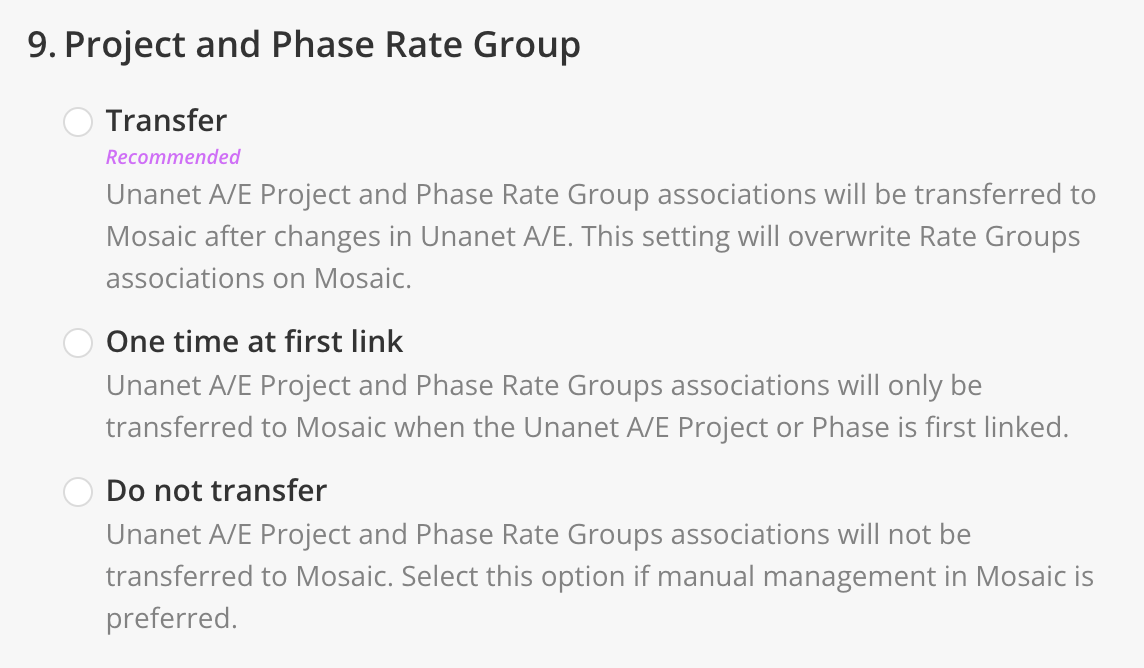
10. Project and Phase Rate Group
Definition
This setting controls whether the Rate Group association for projects and phases is transferred from Unanet A/E to Mosaic. A Rate Group defines the rates applied to a project's members, roles, or work categories.
Settings Choices
- Transfer updates from today forward (Recommended) — Unanet A/E Project and Phase Rate Group associations will be transferred to Mosaic after changes in Unanet A/E. This setting will overwrite Rate Groups associations on Mosaic.
- Transfer one time at first link — Unanet A/E Project and Phase Rate Groups associations will only be transferred to Mosaic when the Unanet A/E Project or Phase is first linked.
- Do not transfer — Unanet A/E Project and Phase Rate Groups associations will not be transferred to Mosaic. Select this option if manual management in Mosaic is preferred.
In Mosaic
When set to Transfer updates from today forward, if you change a project's Rate Group in Unanet A/E, the association is updated in Mosaic and the project's calculated rates will follow the new group.
When set to Transfer one time at first link, the Rate Group is assigned at project creation and then managed independently in Mosaic.
When set to Do not transfer, Rate Group assignments must be managed manually in Mosaic under Settings > Budget > Rates.
This setting requires the Rates > Rate Groups setting to also be set to Transfer updates from today forward so that the referenced Rate Groups themselves exist in Mosaic.
11. Bill Rate Source for Role Rates
Definition
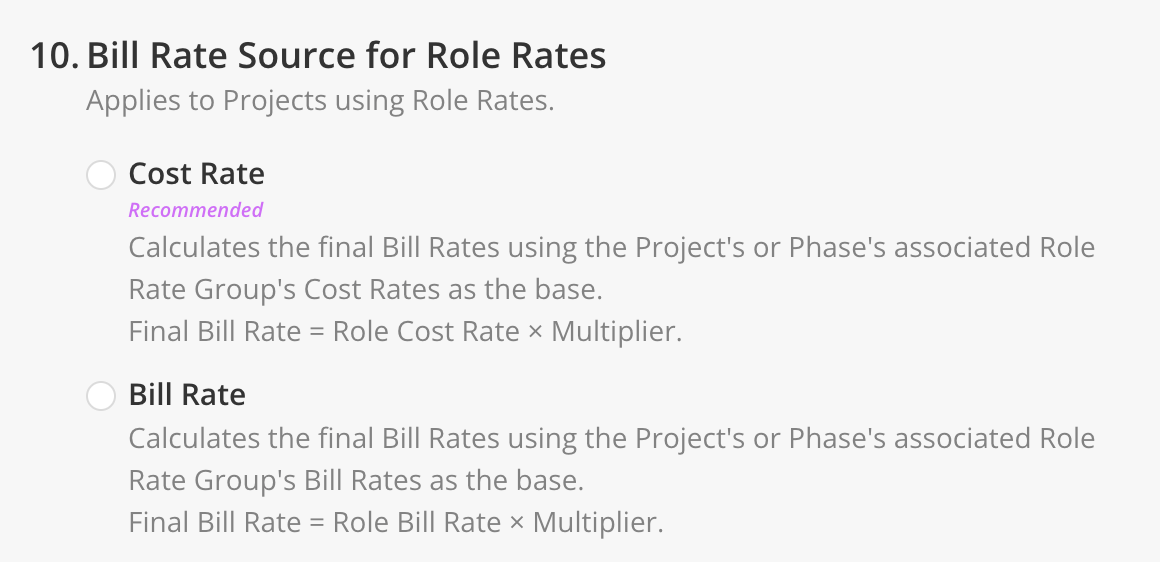
When a project or phase uses Role Rates, this setting determines whether the final Bill Rate is calculated from the Role Rate Group's Cost Rate or Bill Rate.
Applies to Projects using Role Rates.
Settings Choices
- Cost Rate (Recommended) — Calculates the final Bill Rates using the Project's or Phase's associated Role Rate Group's Cost Rates as the base. Final Bill Rate = Role Cost Rate × Multiplier.
- Bill Rate — Calculates the final Bill Rates using the Project's or Phase's associated Role Rate Group's Bill Rates as the base. Final Bill Rate = Role Bill Rate × Multiplier.
In Mosaic
When set to Cost Rate, the base for the calculation is your organization's internal cost per role (wages, benefits, overhead). This is the common choice for firms that apply a consistent markup multiplier over cost to determine client billing.
When set to Bill Rate, the base is an already-set client-facing bill rate, and the multiplier typically represents a further adjustment.
Cost Rate is feature-flagged. If you don't see the Cost Rate option, contact your Customer Success Manager to enable it. Cost Rate data is sensitive — some firms restrict this to admin users only.
12. Project Status Matching
In Mosaic
Maps each Unanet A/E project status to a corresponding Mosaic Project status. The mapping is applied any time a project's status changes in Unanet A/E.
Default Mapping
| Unanet A/E Status | Mosaic Status |
|---|---|
| Active | Active |
| Inactive | Proposal |
For each Unanet A/E status, select the Mosaic Project status that should be applied. The change is applied when the status is updated in Unanet A/E.
How it works
- Each Unanet A/E status is matched to a Mosaic status. The list of source statuses comes from your connected tool, so you'll need a tested connection before you can edit.
- Unmapped statuses sync as Active — if a status isn't listed, Mosaic sets the project or phase to Active.
- Click Reset to default at any time to restore Mosaic's recommended mapping for this integration.
- Changes apply on Save (the button reads Done when there are no changes). Updates affect future syncs; already-synced records keep their current status until they next change in Unanet A/E.
For a full walkthrough of the mapping editor, see Project & Phase Status Matching.
Previously (before Status Matching)
Inactive Projects Status
This setting defined the status that Mosaic Projects linked to inactive Unanet A/E Projects should be set to. When a project was marked inactive in Unanet A/E, Mosaic applied the status selected here.
Updates and applies changes when Project statuses are transferred.
- Proposal — Inactive Unanet A/E Projects are set to Proposal in Mosaic.
- Hold — Inactive Unanet A/E Projects are set to Hold in Mosaic.
- Active — Inactive Unanet A/E Projects remain Active in Mosaic.
- Completed — Inactive Unanet A/E Projects are set to Completed in Mosaic.
The selected status was applied on every sync where a Unanet A/E project was marked inactive. For example, if you selected Proposal, a project newly marked inactive in Unanet A/E would appear with a Proposal status in Mosaic, visually separating it from active work but keeping it accessible for reference.
Choose the status that best matched how your firm thought about inactive projects. Hold suggested the project may resume. Completed suggested the work was finished. Proposal was useful for projects that were never fully awarded.
13. Archive Inactive Unanet AE Projects
Definition
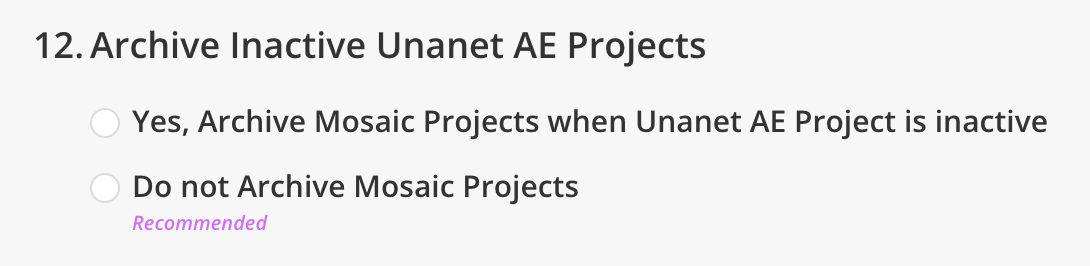
This setting controls whether projects marked inactive in Unanet A/E are automatically archived in Mosaic. Archived projects are hidden from most project lists and reports but can still be accessed if needed. Archiving works alongside — not instead of — the Project Status Matching setting above.
Settings Choices
- Yes, Archive Mosaic Projects when Unanet AE Project is inactive — Inactive Unanet A/E Projects will be archived in Mosaic, removing them from active project lists while preserving their data.
- Do not Archive Mosaic Projects (Recommended) — Inactive Unanet A/E Projects will remain active in Mosaic but will have their status updated according to the Project Status Matching setting.
In Mosaic
When set to Yes, Mosaic archives the project as soon as the next sync detects it as inactive in Unanet A/E. Archived projects can still be unarchived manually, and their historical data (time entries, rates, assignments) is preserved.
When set to Do not Archive, projects stay visible in Mosaic's active lists but carry the status defined in setting #12. This keeps inactive projects available for reporting and for reactivation without needing to unarchive.
This change takes effect on any project that is modified in Unanet A/E after the setting is configured. Projects that are already inactive may need a manual status change in Unanet A/E to re-trigger the archive behavior.
14. Project and Phase Fee Source
Definition
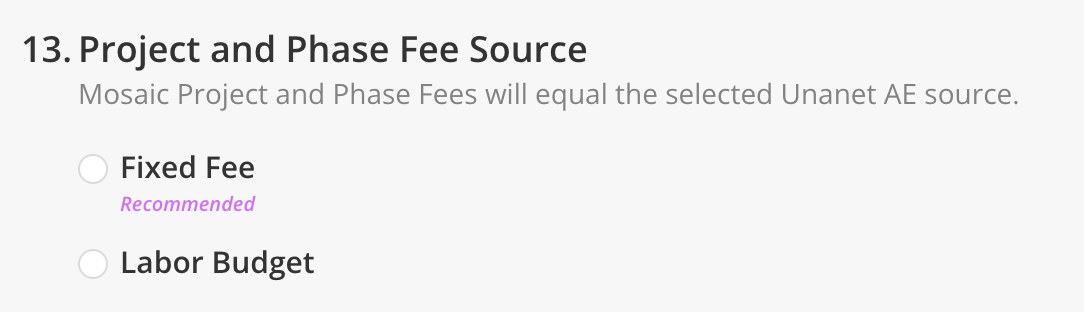
This setting determines which Unanet A/E field is used as the source of Project and Phase fees in Mosaic. Mosaic Project and Phase Fees will be taken from the selected Unanet A/E source below.
Settings Choices
- Fixed Fee (Recommended) — Use the Fixed Fee amount from Unanet A/E as the Mosaic fee.
- Labor Budget — Use the Labor Budget amount from Unanet A/E as the Mosaic fee.
In Mosaic
When set to Fixed Fee, Mosaic pulls the contracted Fixed Fee value from Unanet A/E. This is the standard choice for firms on fixed-price contracts where the fee represents the total client commitment.
When set to Labor Budget, Mosaic uses the labor budget instead. This is more appropriate for time-and-materials or cost-plus arrangements where the labor budget represents the planned effort rather than a fixed commitment.
The Fee Source setting is applied any time a project or phase is created or updated. Changing this setting mid-flight will affect future syncs but will not retroactively re-pull fees for existing projects unless those projects are also modified in Unanet A/E.
15. Zero Project Fee
Definition
Defines the Mosaic Project fee value for Unanet A/E Projects that have a zero Project fee.
Settings Choices
- Clear Project Fee (Recommended) — Mosaic Project fee will equal the sum of Phase fees.
- Set Project Fee to Zero — Mosaic project fee will equal zero.
In Mosaic
With Clear Project Fee, the Project fee is left empty so Mosaic rolls it up from the Phase fees. With Set Project Fee to Zero, the Project fee is stored as zero and no roll-up happens.
16. Project Portfolio

Definition
This setting controls whether Mosaic transfers changes from projects in Unanet A/E that affect project portfolio placement (and therefore association).
Settings Choices
- Transfer all + updates (Recommended) — The project's Portfolio association will be transferred to Mosaic on initial link and on subsequent updates.
- Do not transfer — No Portfolio association will be transferred. Projects will land in the default Portfolio regardless of their Unanet A/E Portfolio assignment.
In Mosaic
When set to Transfer all + updates, projects are sorted into Mosaic portfolios based on the Portfolio source configured in the Portfolios section. If you change the project's source value in Unanet A/E (for example, reassigning its Project Manager), the project moves to the new portfolio on the next sync.
When set to Do not transfer, all projects go to the default portfolio and must be sorted manually in Mosaic. Use this if your firm's portfolio structure in Mosaic doesn't mirror any field in Unanet A/E.
Setting hierarchy: This setting defines the default portfolio transfer behavior. The Indirect Charge Type Project Portfolio setting below can override this specifically for indirect-charge projects.
17. Indirect Charge Type Project Portfolio
Definition
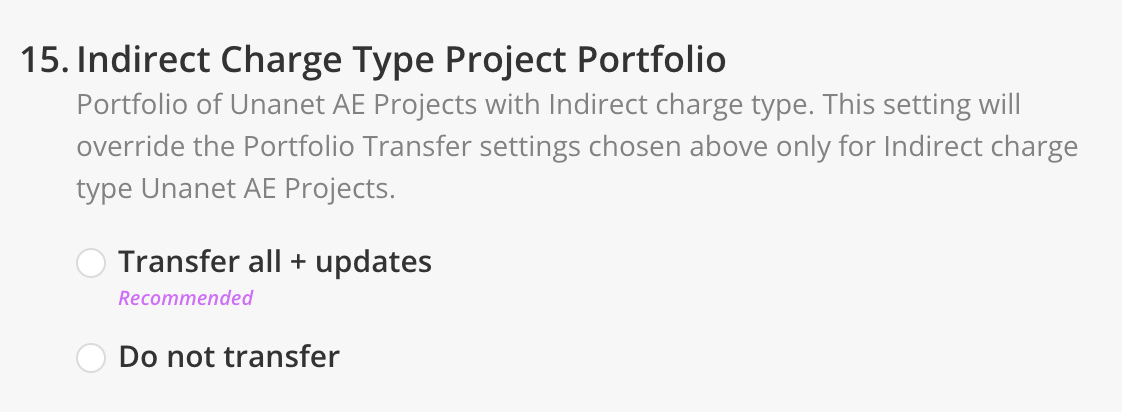
This setting overrides the Project Portfolio setting specifically for Unanet A/E projects with an Indirect charge type. Indirect-charge projects (administrative overhead, PTO, business development, etc.) may need to be excluded from the standard portfolio sorting logic.
Settings Choices
- Transfer all + updates (Recommended) — Indirect charge type projects follow the same portfolio transfer behavior as all other projects — their portfolio is transferred on initial link and on subsequent updates.
- Do not transfer — Indirect charge type projects will land in the default portfolio (typically the Import portfolio) regardless of what's in Unanet A/E.
In Mosaic
When set to Transfer all + updates, indirect-charge projects are sorted by the same Portfolio source as all other projects. If your Portfolio source is Project Manager and your indirect-charge projects have a PM assigned, they'll be sorted into that PM's portfolio alongside billable work.
When set to Do not transfer, indirect-charge projects bypass the Portfolio source logic entirely and are placed in the default portfolio. This is useful for firms that want their PM-based portfolios to show only client-facing work, with indirect projects consolidated elsewhere for admin purposes.
This setting specifically targets the Indirect charge type project. Other charge types follow the main Project Portfolio setting.
Phases
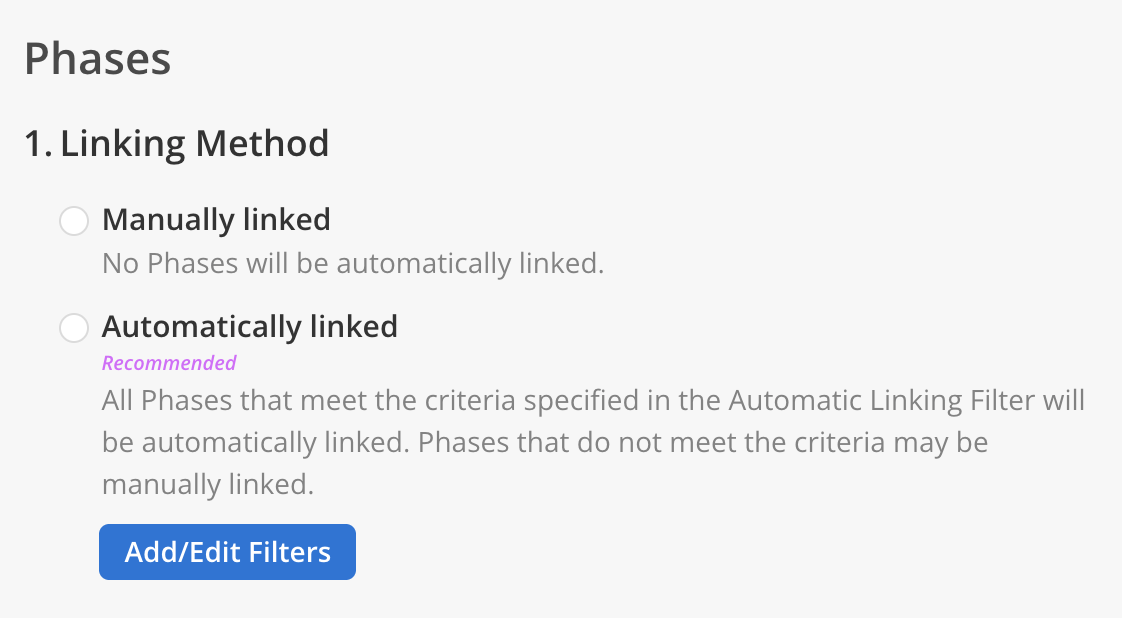
1. Linking Method
Definition
This setting determines how Unanet A/E phases are connected to Mosaic. A phase is a distinct stage within a project's lifecycle, with its own date range, fee, and status. Importing means bringing a phase from Unanet A/E into Mosaic for the first time. Linking means establishing an ongoing connection so that changes sync automatically.
Settings Choices
- Manually linked — No Phases will be automatically linked.
- Automatically linked (Recommended) — All Phases that meet the criteria specified in the Automatic Linking Filter will be automatically linked. Phases that do not meet the criteria may be manually linked.
When Automatically linked is selected, an Add/Edit Filters button appears, allowing you to configure filter criteria for which phases should be auto-linked.
In Mosaic
When set to Manually linked, new Unanet A/E phases will not appear in Mosaic until you explicitly import them. This gives you control over which phases exist in Mosaic but requires ongoing manual effort.
When set to Automatically linked, phases matching your filter criteria are imported and linked as soon as they are detected.
Phase linking is independent of project linking. You can have an auto-linked project with manually linked phases, or vice versa, depending on how your firm wants to control which sub-work appears in Mosaic.
2. Non-Billable Fee as Budget
Definition
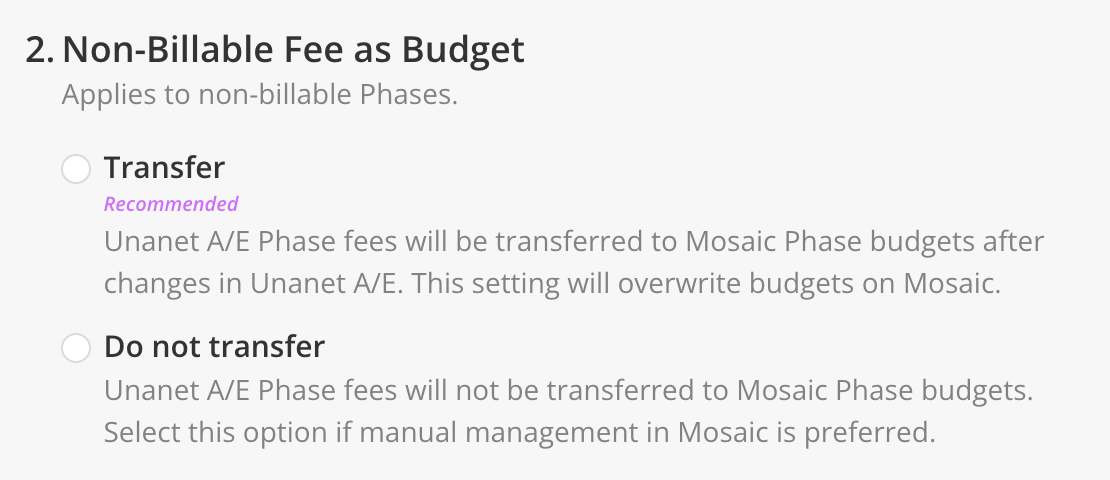
This setting controls whether Unanet A/E phase fees for non-billable phases are transferred to Mosaic as phase budgets. By default, fees are only meaningful for billable phases — this setting extends fee transfer to non-billable phases as well.
Applies to non-billable Phases.
Settings Choices
- Transfer updates from today forward (Recommended) — Unanet A/E Phase fees will be transferred to Mosaic Phase budgets after changes in Unanet A/E. This setting will overwrite budgets on Mosaic.
- Do not transfer — Unanet A/E Phase fees will not be transferred to Mosaic Phase budgets. Select this option if manual management in Mosaic is preferred.
In Mosaic
When set to Transfer updates from today forward, the fee value for non-billable phases populates the Mosaic Budget field. This is useful for firms that track budgets on internal or non-billable phases for resource planning and cost tracking purposes — for example, on overhead, PTO, or internal initiative phases.
When set to Do not transfer, non-billable phases in Mosaic will have no budget value unless one is entered manually.
This setting does not affect billable phases — their fees are always governed by the Projects > Project and Phase Fee setting.
3. Order
Definition
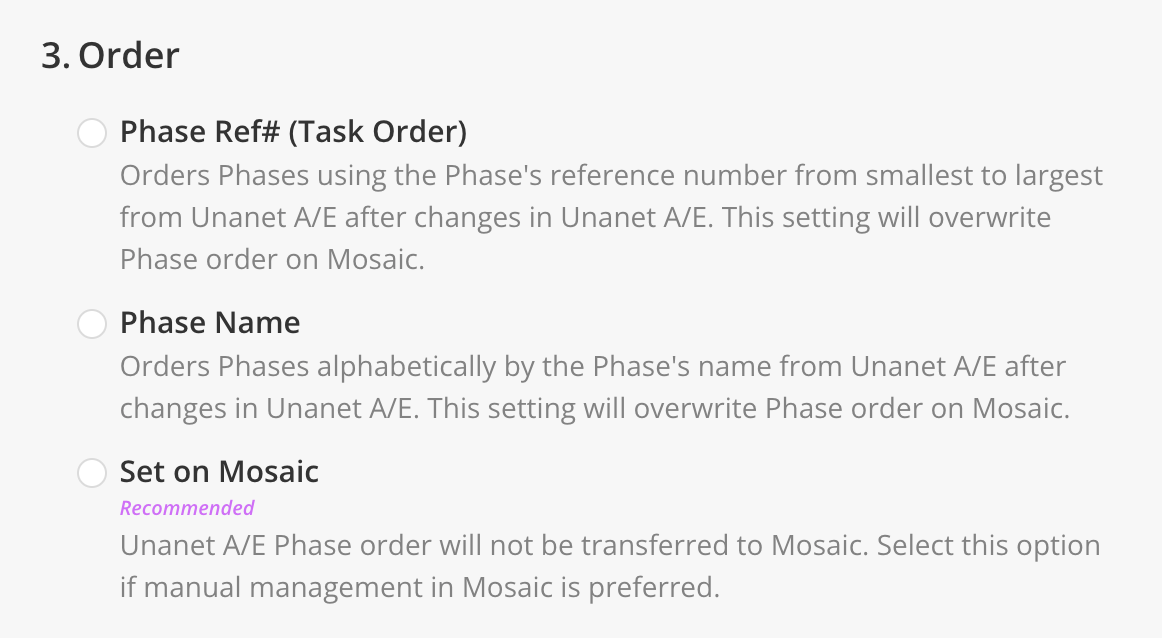
This setting controls how phases within a project are ordered in Mosaic. You can choose to sync the phase order or manage it manually in Mosaic.
Settings Choices
- Phase Ref# (Task Order) — Orders Phases using the Phase's reference number from smallest to largest from Unanet A/E after changes in Unanet A/E. This setting will overwrite Phase order on Mosaic.
- Phase Name — Orders Phases alphabetically by the Phase's name from Unanet A/E after changes in Unanet A/E. This setting will overwrite Phase order on Mosaic.
- Set on Mosaic (Recommended) — Unanet A/E Phase order will not be transferred to Mosaic. Select this option if manual management in Mosaic is preferred.
In Mosaic
The first two options both sync ordering from Unanet A/E and will overwrite any manual reordering done in Mosaic. Choose the method that best matches how your firm organizes phases in Unanet A/E — most A/E firms use phase reference numbers (e.g., 01 / 02 / 03 Schematic Design / Design Development / Construction Documents) and will want Phase Ref# (Task Order).
When set to Set on Mosaic, phase order is managed entirely within Mosaic. This is useful if your team prefers a different ordering in Mosaic than in Unanet A/E, or if you create phases in both systems.
Phase Ref# is the most common choice for Unanet A/E firms who already maintain numbered phase codes in Unanet A/E. Maintain a single source of truth — if you choose a Unanet A/E-synced option, avoid reordering phases manually in Mosaic, as your changes will be reverted on the next sync.
4. Phase Status Matching
In Mosaic
Maps each Unanet A/E phase status to a corresponding Mosaic Phase status. The mapping is applied any time a phase's status changes in Unanet A/E.
Default Mapping
| Unanet A/E Status | Mosaic Status |
|---|---|
| Active | Active |
| Inactive | Not Started |
For each Unanet A/E status, select the Mosaic Phase status that should be applied. The change is applied when the status is updated in Unanet A/E.
How it works
- Each Unanet A/E status is matched to a Mosaic status. The list of source statuses comes from your connected tool, so you'll need a tested connection before you can edit.
- Unmapped statuses sync as Active — if a status isn't listed, Mosaic sets the project or phase to Active.
- Click Reset to default at any time to restore Mosaic's recommended mapping for this integration.
- Changes apply on Save (the button reads Done when there are no changes). Updates affect future syncs; already-synced records keep their current status until they next change in Unanet A/E.
For a full walkthrough of the mapping editor, see Project & Phase Status Matching.
Previously (before Status Matching)
Inactive Phases Status
This setting defined the status that Mosaic Phases linked to inactive Unanet A/E Phases should be set to. When a phase was marked inactive in Unanet A/E, Mosaic applied the status selected here.
Updates and applies changes when Phase statuses are transferred.
- Not Started — Inactive Unanet A/E Phases are set to Not Started in Mosaic.
- Hold — Inactive Unanet A/E Phases are set to Hold in Mosaic.
- Active — Inactive Unanet A/E Phases remain Active in Mosaic.
- Completed — Inactive Unanet A/E Phases are set to Completed in Mosaic.
The selected status was applied any time a Unanet A/E phase was marked inactive. Choose the status that best matched how your firm thought about inactive phases:
- Not Started is useful for phases that haven't begun yet but are part of the planned project scope.
- Hold indicates a phase that may resume later.
- Completed indicates finished work.
- Active keeps the phase in the default active state — useful if your firm treats "inactive" in Unanet A/E as a non-meaningful status.
Time Entries
1. Transfer
Definition
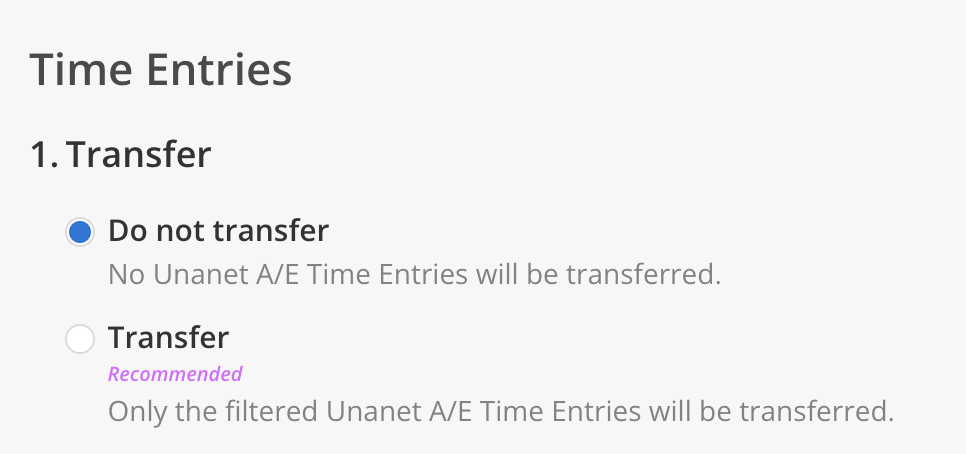
This setting controls whether Time Entries are transferred from Unanet A/E to Mosaic. Time Entries are the individual records of hours logged by members against projects, phases, and work categories — they drive spent-time reporting, billing calculations, and budget burn-down metrics in Mosaic.
Settings Choices
- Transfer one-way from Unanet A/E to Mosaic (Recommended) — Unanet A/E Time Entries will be transferred one-way to Mosaic after changes in Unanet A/E. Mosaic Time Entries will not be transferred to Unanet A/E.
- Do not transfer — Time Entries will not be transferred to or from Unanet A/E. Select this option if manual management in Mosaic is preferred.
In Mosaic
When set to Transfer one-way from Unanet A/E to Mosaic, Time Entries from Unanet A/E populate Mosaic's Timesheet views, Spent tab on projects, and budget calculations. This gives Mosaic a complete picture of actual hours worked, which is essential for accurate profitability and budget burn reporting.
When set to Do not transfer, Mosaic will have no record of actuals unless time is logged directly in Mosaic or imported via CSV. Select this only if your firm uses Unanet A/E exclusively for time tracking and does not need actuals to appear in Mosaic's reporting views.
The filter criteria for transferred Time Entries is configured separately by the Mosaic integrations team during setup. Contact your CSM if you need to adjust which time entries are included.
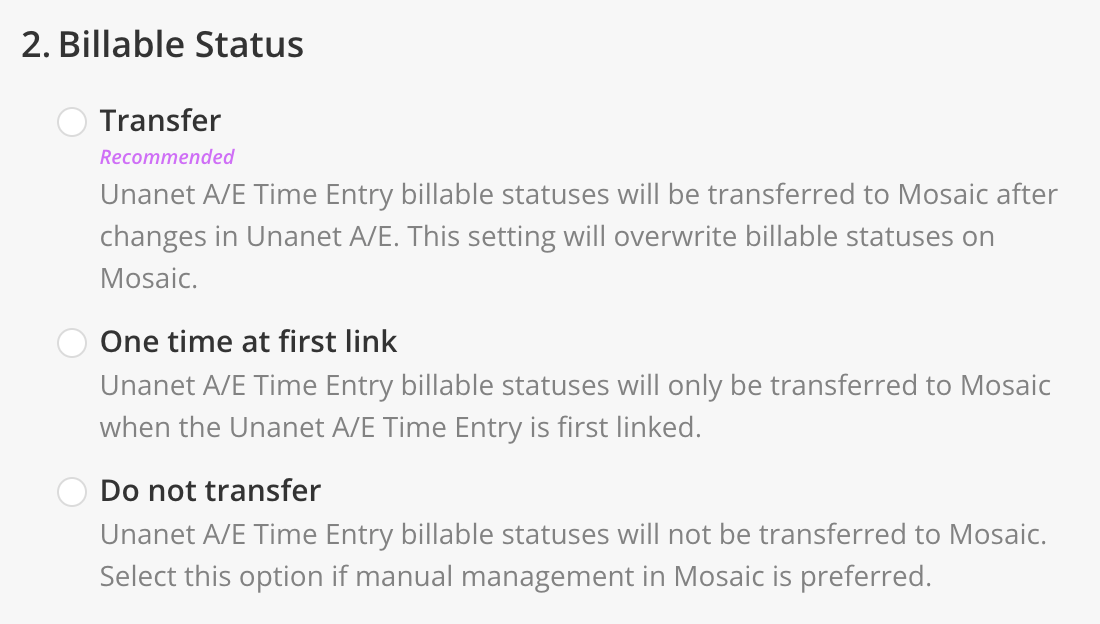
2. Billable
Definition
This setting controls whether the billable status of individual Time Entries is transferred from Unanet A/E to Mosaic. Time Entry billable status determines whether a specific logged hour is chargeable to a client, independent of the project or phase billable status.
Settings Choices
- Transfer updates from today forward (Recommended) — Unanet A/E Time Entry billable statuses will be transferred to Mosaic after changes in Unanet A/E. This setting will overwrite billable statuses on Mosaic.
- Transfer one time at first link — Unanet A/E Time Entry billable statuses will only be transferred to Mosaic when the Unanet A/E Time Entry is first linked.
- Do not transfer — Unanet A/E Time Entry billable statuses will not be transferred to Mosaic. Select this option if manual management in Mosaic is preferred.
In Mosaic
When set to Transfer updates from today forward, any change to a time entry's billable status in Unanet A/E flows through on the next sync. This keeps Mosaic's billable-hour calculations aligned with Unanet A/E.
When set to Transfer one time at first link, the billable status is captured at the moment the entry syncs to Mosaic and is not updated afterward. Use this if your firm intentionally overrides billable status in Mosaic (for example, to reclassify specific hours for internal reporting).
When set to Do not transfer, billable status is managed entirely in Mosaic.
Time Entry billable status is separate from Project/Phase billable status. A time entry logged to a billable phase can still be marked non-billable individually.
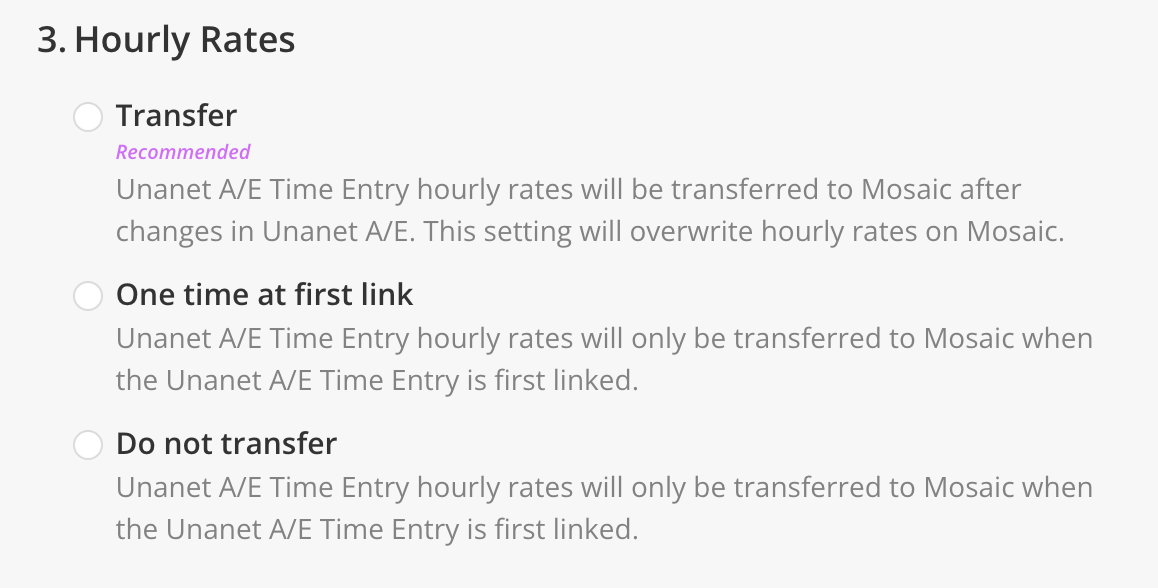
3. Hourly Rates
Definition
This setting controls whether the hourly rate attached to each Time Entry is transferred from Unanet A/E to Mosaic. The hourly rate is used in Mosaic to calculate the billable value of logged time.
Settings Choices
- Transfer updates from today forward (Recommended) — Unanet A/E Time Entry hourly rates will be transferred to Mosaic after changes in Unanet A/E. This setting will overwrite hourly rates on Mosaic.
- Transfer one time at first link — Unanet A/E Time Entry hourly rates will only be transferred to Mosaic when the Unanet A/E Time Entry is first linked.
- Do not transfer — Unanet A/E Time Entry hourly rates will not be transferred to Mosaic. Select this option if manual management in Mosaic is preferred.
Known display issue: in the settings modal, the Do not transfer option currently shows the Transfer one time at first link description. The option behaves as its label says — no hourly rates are transferred.
In Mosaic
When set to Transfer updates from today forward, hourly rate changes in Unanet A/E are reflected on Mosaic Time Entries, keeping billable value calculations aligned between systems.
When set to Transfer one time at first link, the rate is captured at the moment the entry syncs. This is useful if rates fluctuate in Unanet A/E in ways your Mosaic reporting shouldn't track.
When set to Do not transfer, hourly rates must be managed manually in Mosaic.
Hourly rates on Time Entries are distinct from Member Bill Rates (configured in the Members section). Time Entry hourly rates are per-entry snapshots; Member Bill Rates are member defaults applied to new project assignments.
Rates
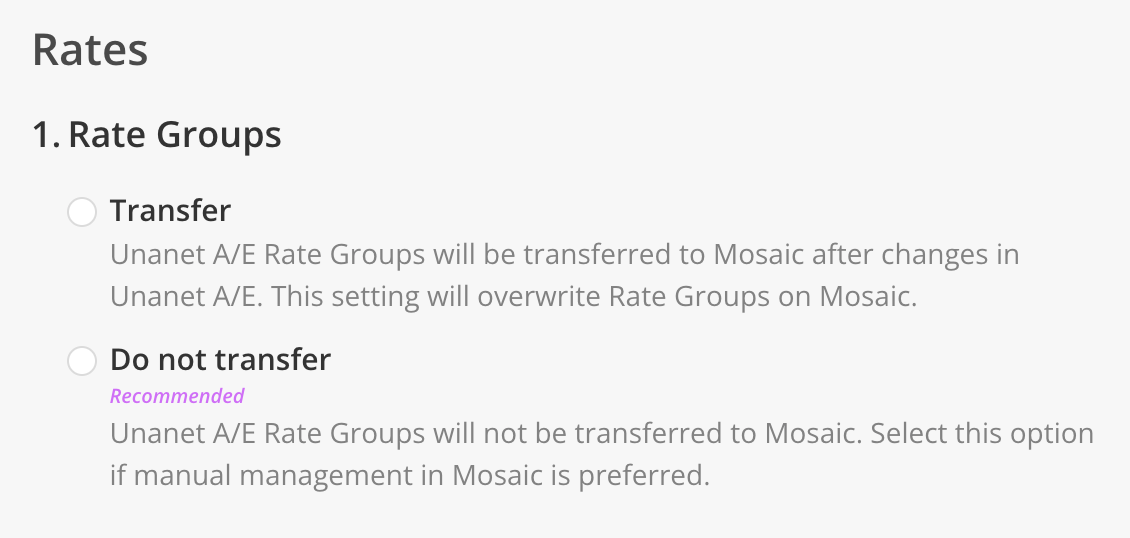
1. Rate Groups
Definition
This setting controls whether Rate Groups from Unanet A/E are transferred to Mosaic. A Rate Group is a collection of rates that can be applied to projects and phases. Rate Groups allow firms to maintain different rate structures for different client contracts, project types, or time periods.
Settings Choices
- Transfer updates from today forward — Unanet A/E Rate Groups will be transferred to Mosaic after changes in Unanet A/E. This setting will overwrite Rate Groups on Mosaic.
- Do not transfer (Recommended) — Unanet A/E Rate Groups will not be transferred to Mosaic. Select this option if manual management in Mosaic is preferred.
In Mosaic
When set to Transfer updates from today forward, the full catalog of Unanet A/E Rate Groups will appear in Mosaic under Settings > Budget > Rates. Any changes in Unanet A/E (renaming, adding rates, retiring rates) will overwrite the Mosaic version on each sync. This is the right choice when Unanet A/E is the source of truth for rate schedules.
When set to Do not transfer, Rate Groups must be created and maintained manually in Mosaic. Choose this if your firm maintains separate rate structures in Mosaic for planning purposes, or if your Unanet A/E rate catalog is cluttered with legacy data you don't want in Mosaic.
The Projects > Project and Phase Rate Group setting (which transfers the association between a project and its Rate Group) requires Rate Groups to exist in Mosaic. If Project Rate Groups are set to Transfer but Rate Groups here are set to Do not transfer, project-rate-group associations may fail to link.
Legacy rate data is a common migration issue. Firms migrating from another ERP to Unanet A/E often have residual rate groups in Mosaic that don't match the new Unanet A/E structure. If you're in this situation, discuss cleanup strategy with your CSM before enabling transfer.
Settings Summary
| # | Setting | Section |
|---|---|---|
| 1 | Connection Credentials | Connection |
| 2 | Connection Name (optional) | Connection |
| 3 | Standard Roles | Members |
| 4 | Bill Rates | Members |
| 5 | Bill Rate Override | Members |
| 6 | Work Location | Members |
| 7 | Employee Archive Status | Members |
| 8 | Office Transfer | Members |
| 9 | Default for new Projects | Portfolios |
| 10 | Linking Method | Portfolios |
| 11 | Source | Portfolios |
| 12 | Linking Method | Projects |
| 13 | Projects with an Unlinked Portfolio | Projects |
| 14 | Projects without a Portfolio | Projects |
| 15 | Linked Project and Phase Titles | Projects |
| 16 | Linked Project and Phase Ref #s | Projects |
| 17 | Project and Phase Billable | Projects |
| 18 | Project and Phase Dates | Projects |
| 19 | Project and Phase Fee | Projects |
| 20 | Project and Phase Rate Types | Projects |
| 21 | Project and Phase Rate Group | Projects |
| 22 | Bill Rate Source for Role Rates | Projects |
| 23 | Project Status Matching | Projects |
| 24 | Archive Inactive Unanet AE Projects | Projects |
| 25 | Project and Phase Fee Source | Projects |
| 26 | Zero Project Fee | Projects |
| 27 | Project Portfolio | Projects |
| 28 | Indirect Charge Type Project Portfolio | Projects |
| 29 | Linking Method | Phases |
| 30 | Non-Billable Fee as Budget | Phases |
| 31 | Order | Phases |
| 32 | Phase Status Matching | Phases |
| 33 | Transfer | Time Entries |
| 34 | Billable | Time Entries |
| 35 | Hourly Rates | Time Entries |
| 36 | Rate Groups | Rates |
Need help? Contact the Mosaic Solutions team if you need assistance configuring any of these settings or if you'd like to discuss the best configuration for your firm's workflow.
Updated about 1 month ago