
QuickBooks Online Visual Settings Guide
A visual walkthrough of every QuickBooks Online integration setting in Mosaic
What this page covers: This guide walks through each provisioning setting available in the QuickBooks Online integration. Use it to plan your configuration before onboarding, reference during setup, or review when adjusting settings later.
| Applies to | QuickBooks Online |
| When to use | Before onboarding, during setup, or when changing settings |
| Related guides | QuickBooks Online Integration |
Overview
These provisioning settings control how data flows between QuickBooks Online and Mosaic. Each setting determines whether a specific data type is transferred, how it is mapped, and what values are used.
The choices you make here should align with the Standard Operating Procedures (SOP) discussed with your Customer Success Manager (CSM). These settings bring in the data to match your expected workflows.
Settings are organized by data type. Each section covers the QuickBooks Online-specific configuration options, setting values, and numbering.
Before you apply settings: Selecting Transfer or Automatically linked for Projects and Phases will immediately begin syncing all matching records. It is strongly recommended to Save as Draft first, then apply after your onboarding/SOP call with your CSM and Solutions Engineers.
Sections at a Glance
| Section | What It Covers |
|---|---|
| Connection | Credentials for connecting to QuickBooks Online |
| Members | Employee archive status and Vendor handling |
| Portfolios | Organizing Projects into Portfolio folders |
| Projects | Project linking and title syncing |
| Phases | Phase linking and ordering |
| Work Categories | Service Item linking and payroll items |
| Time Entries | Timesheet transfer direction, billable status, and hourly rates |
Connection
Connection Settings
1. Credentials
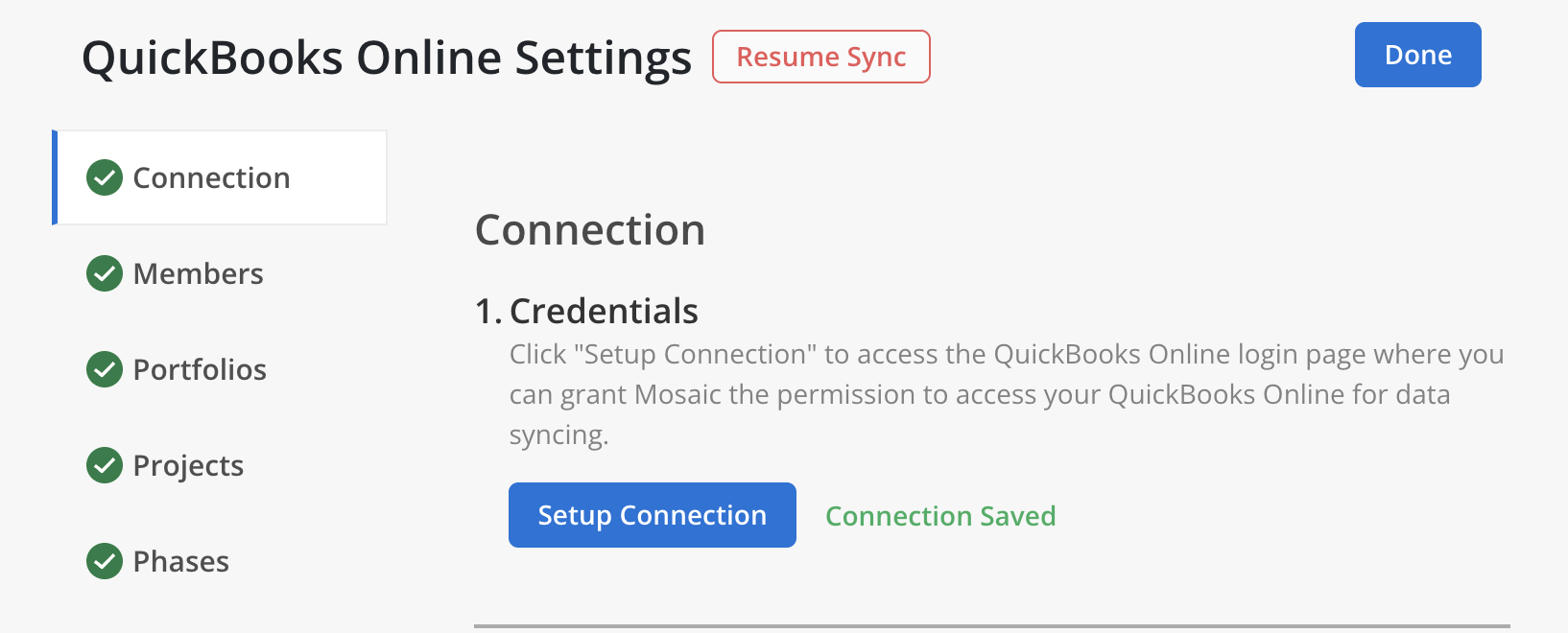
In Mosaic
Connection Credentials allow Mosaic to authenticate and connect to your QuickBooks Online company. Click Setup Connection to access the QuickBooks Online login page where you can grant Mosaic permission to access your QuickBooks Online data for syncing.
To Get Started
- Click the Setup Connection button.
- Log in to QuickBooks Online with an Admin account.
- If you have multiple companies, select the correct company and click Next.
- After authorization, Connection Saved will display next to the button.
Review the full setup instructions in the QuickBooks Online Integration guide.
Credentials are tied to the QuickBooks Online user who authorized the connection. If that user's access is removed, you will need to re-authenticate using another Admin account.
Connection Credentials are not saved when you click Save As Draft — credentials are only persisted after a successful connection.
Members
Members in Mosaic represent the people in your organization — your Employees imported from QuickBooks Online. Each Member must be manually linked in Mosaic to their corresponding QuickBooks Employee. The settings below control which Member-related fields are transferred and how Vendors are handled.
Member Settings
1. Employee Archive Status
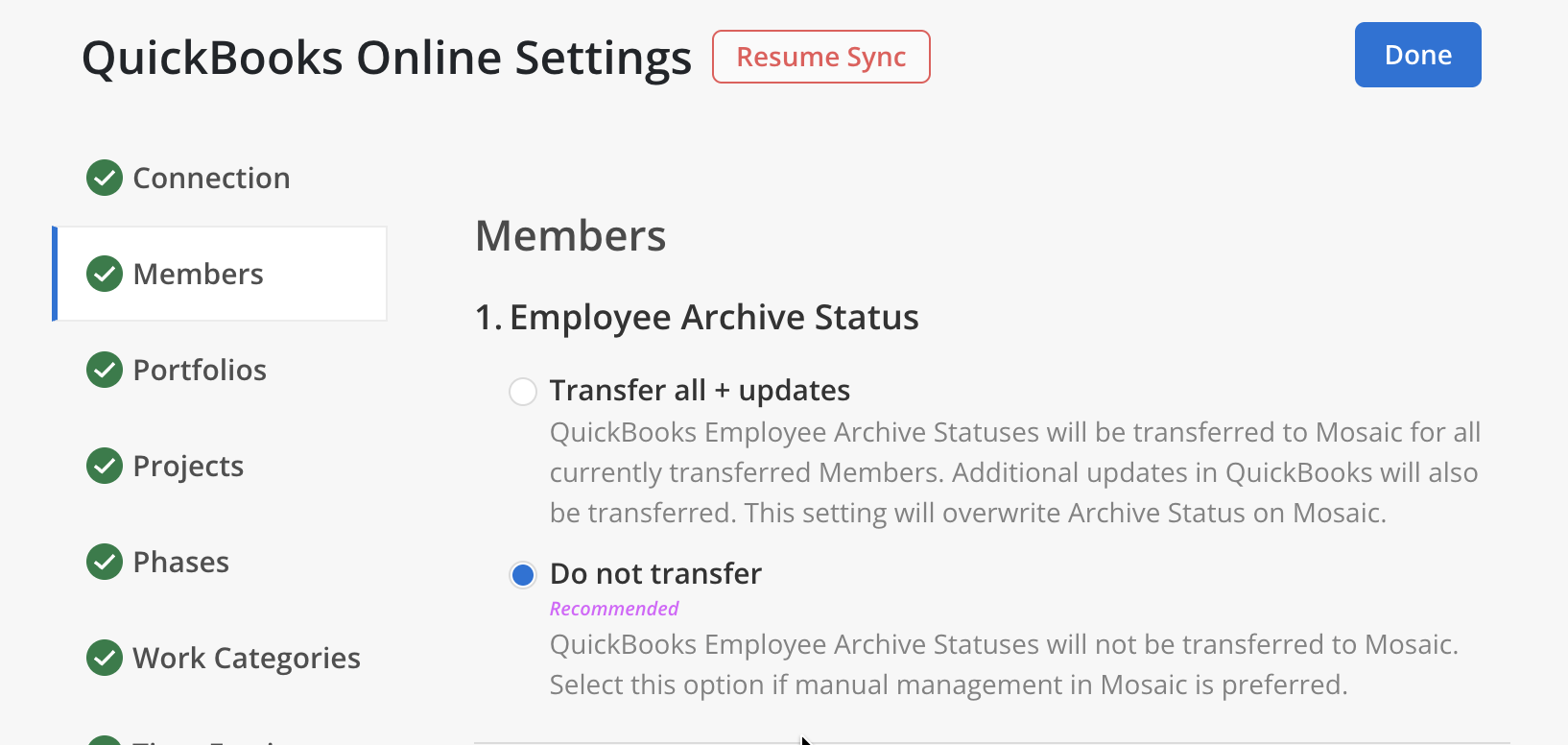
In Mosaic
Controls whether QuickBooks Employee archive statuses are transferred to Mosaic. Archiving hides Members from active planning views but preserves all data and associations for historical tracking.
In QuickBooks: Archive status corresponds to the Employee's active/inactive status on the Employee record.
Setting Options
- Transfer all + updates — Archive status stays in sync with QuickBooks. Marking an Employee inactive in QuickBooks will archive the corresponding Member in Mosaic on the next sync, and any manual archive changes in Mosaic will be overwritten.
- Do not transfer (Recommended) — Mosaic is the source of truth for archive status. Use this if your team prefers to control which Members are active in Mosaic independently of QuickBooks.
2. Fetch Vendors as Employees
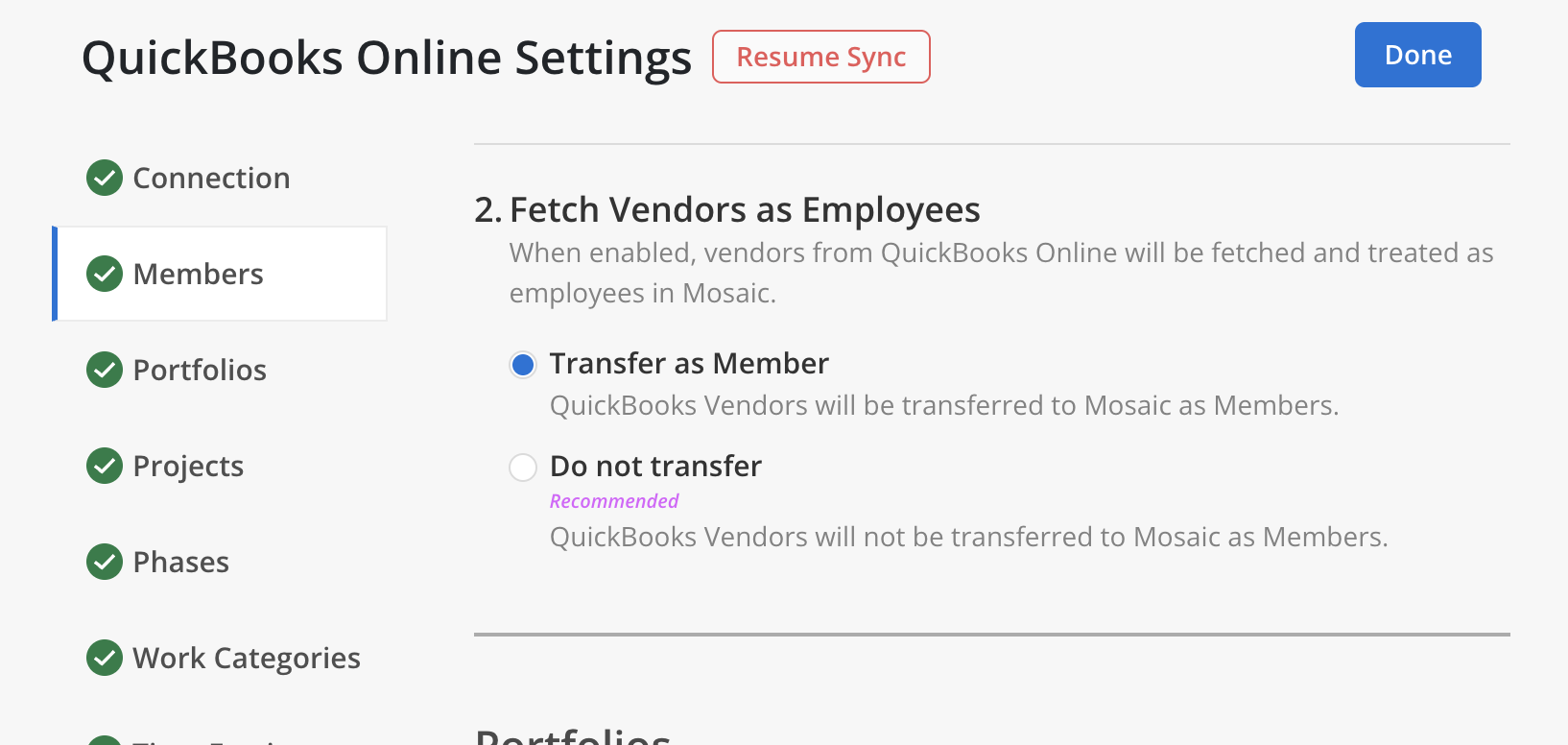
In Mosaic
When enabled, Vendors from QuickBooks Online will be fetched and treated as Employees (Members) in Mosaic. This is useful for firms that record Vendor time through QuickBooks and want that time to appear in Mosaic.
In QuickBooks: Vendors are maintained in the Vendors list in QuickBooks Online, separately from Employees.
Setting Options
- Transfer as Member — Vendors from QuickBooks appear in Mosaic as Members, so any time they log against Projects flows in alongside Employee time.
- Do not transfer (Recommended) — Only QuickBooks Employees become Members. Vendor records and their time entries are ignored.
By default, Mosaic does not sync Vendors from QuickBooks Online. To enable this feature so Vendor time entries sync between QuickBooks and Mosaic, inform your Customer Success Manager.
Portfolios
Portfolio Settings
1. Default for new Projects
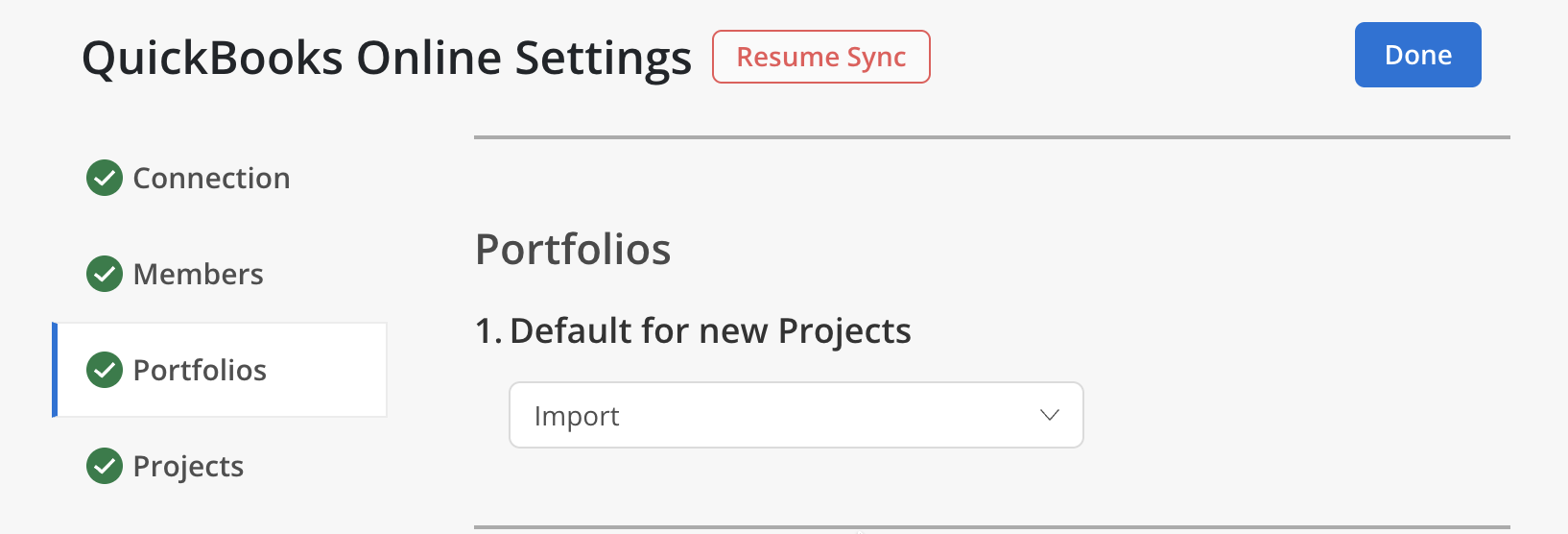
In Mosaic
A Portfolio is a folder used to organize multiple Projects — for example, by department, client, manager, or type of work. This setting determines which Portfolio newly linked QuickBooks Projects are placed into by default.
In QuickBooks: There is no direct equivalent to Portfolios in QuickBooks. This is a Mosaic-only organizational concept.
Setting Options
- No Portfolio — Newly linked Projects will not be assigned to any Portfolio. They can be moved into a Portfolio manually later.
- Import (default) — A built-in Portfolio provided by Mosaic specifically for integration-linked Projects. Convenient if you want all imported Projects to land in one place before being organized further.
- [Your Portfolios] — Select any other existing Mosaic Portfolio to automatically place newly linked QuickBooks Projects into that Portfolio.
This setting only applies to new Projects at the time they are first linked. It does not retroactively move existing linked Projects.
Many firms start by selecting Import as the default, then periodically sort imported Projects into department- or client-specific Portfolios.
Projects
Project Settings
1. Linking Method
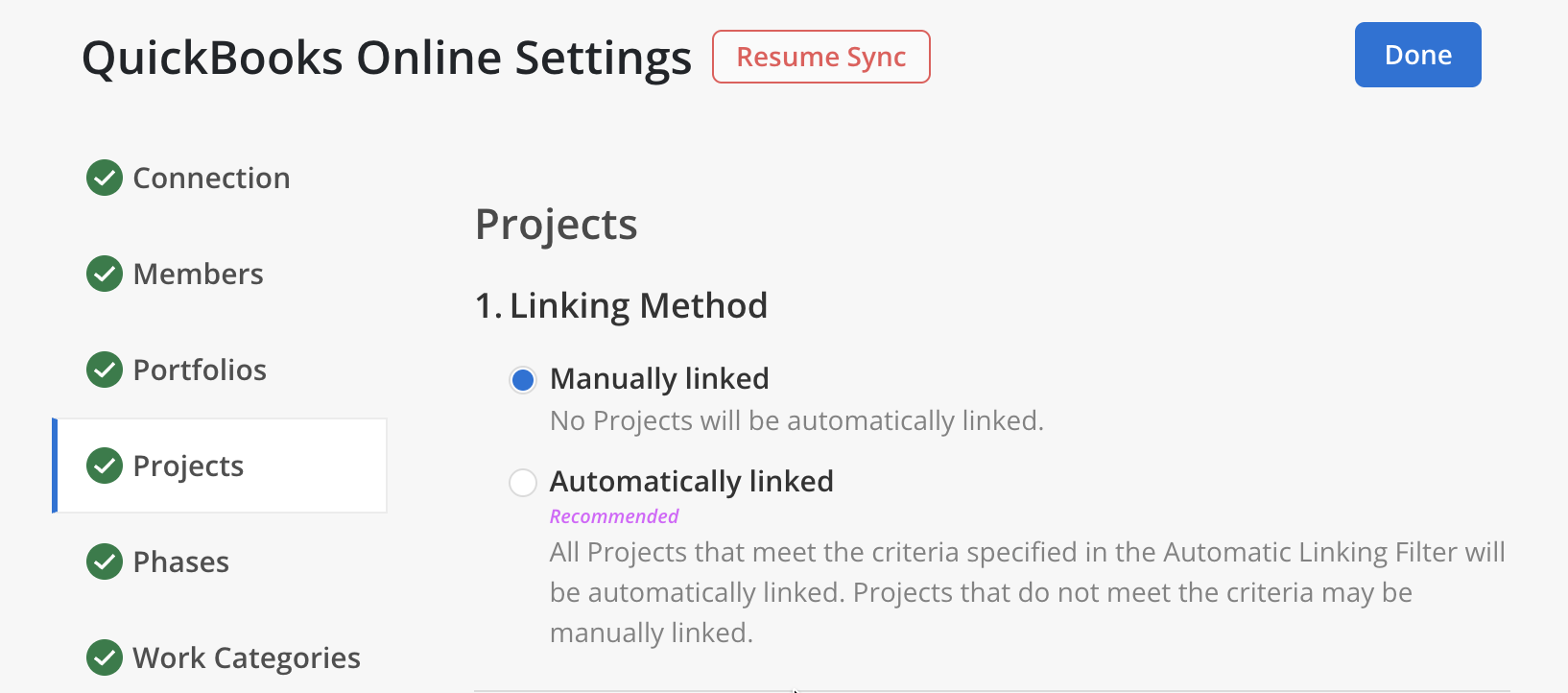
In Mosaic
This setting determines how QuickBooks Projects are connected to Mosaic. Importing means bringing a Project from QuickBooks into Mosaic for the first time. Linking means establishing an ongoing connection so that changes in QuickBooks are synced to Mosaic automatically.
In QuickBooks: Projects correspond to QuickBooks Online Projects and their associated Customer/Sub-Customer records.
Setting Options
- Manually linked — Nothing links automatically. You pick each QuickBooks Project to bring into Mosaic one at a time. Useful if only a subset of QuickBooks Projects should ever appear in Mosaic.
- Automatically linked (Recommended) — Any Project that matches the Automatic Linking Filter is brought in and kept in sync. Projects that don't match can still be linked manually.
2. Linked Project and Phase Titles
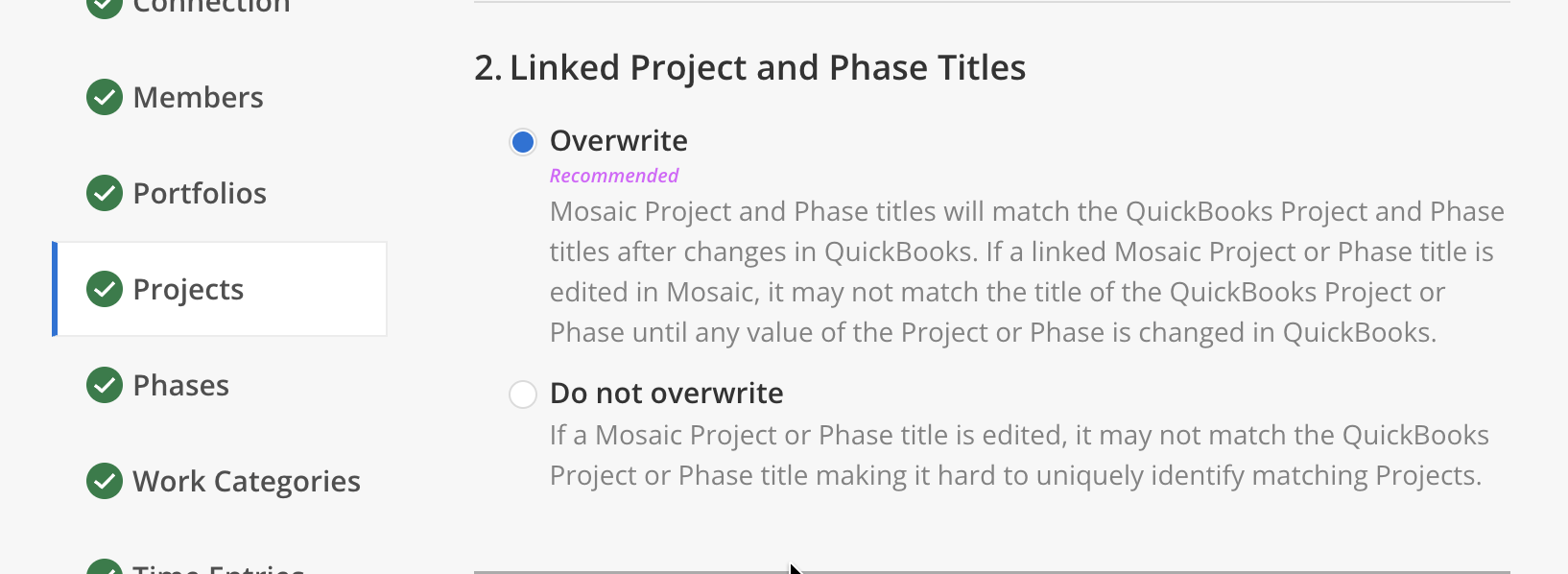
In Mosaic
This setting controls whether Mosaic keeps Project and Phase titles in sync with QuickBooks, or allows them to diverge after the initial link.
Setting Options
- Overwrite (Recommended) — Titles stay in sync with QuickBooks. Any rename in QuickBooks flows through to Mosaic on the next sync, and any title edited in Mosaic will be overwritten the next time the Project or Phase changes in QuickBooks.
- Do not overwrite — Titles can drift. After the initial link, renames in either system are kept independently — convenient if Mosaic users want their own naming, but mismatched titles can make matching Projects across systems harder.
If you choose Overwrite, ensure that team members do not edit Project or Phase titles directly in Mosaic, as those changes may be overwritten on the next sync.
Phases
Phase Settings
1. Linking Method
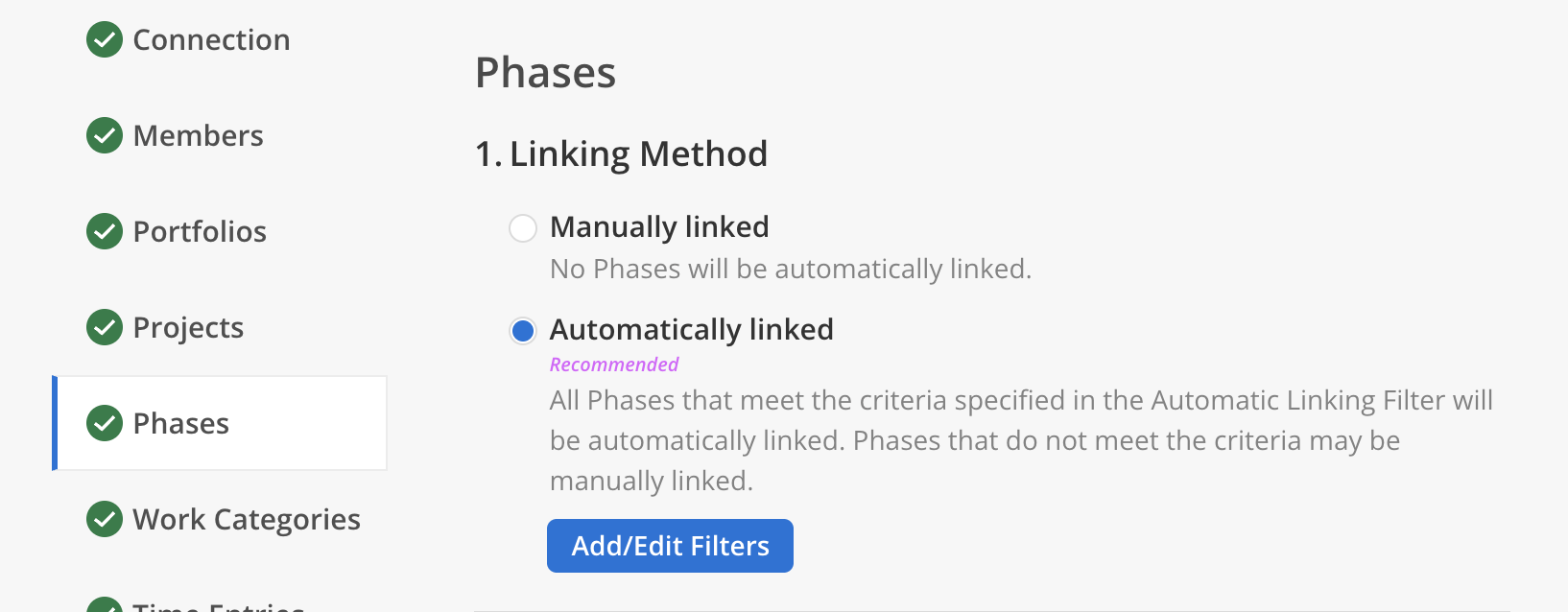
In Mosaic
A Phase is a distinct stage within a Project's lifecycle. This setting determines how QuickBooks Phases are connected to Mosaic.
In QuickBooks: Phases correspond to Sub-Customers or Sub-Projects nested under a parent Project in QuickBooks Online.
Setting Options
- Manually linked — Nothing links automatically. You pick each QuickBooks Phase (Sub-Customer / Sub-Project) to import one at a time.
- Automatically linked (Recommended) — Any Phase matching the Automatic Linking Filter is brought in and kept in sync. Click Add/Edit Filters to set the criteria. Phases that don't match can still be linked manually.
2. Order
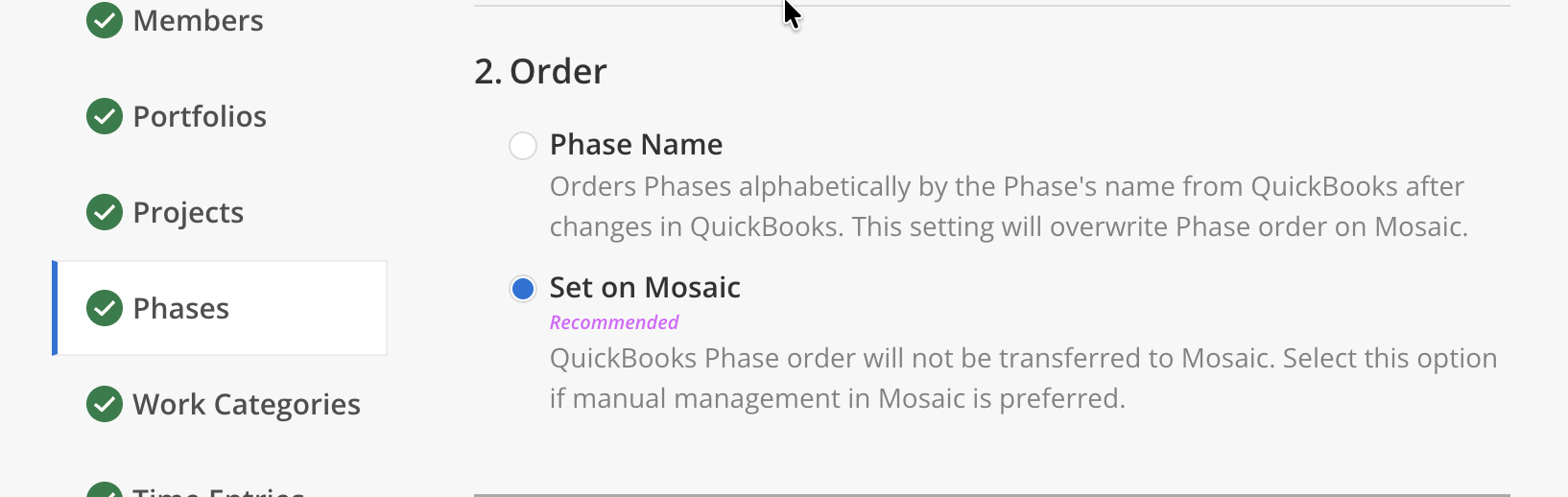
In Mosaic
This setting controls how Phases within a Project are ordered in Mosaic.
Setting Options
- Phase Name — Phases are ordered alphabetically by name from QuickBooks. Any manual reordering done in Mosaic will be overwritten on the next sync.
- Set on Mosaic (Recommended) — Phase order is managed entirely within Mosaic. Choose this when project leads want to drag Phases into a custom order that reflects how the work actually flows.
Maintain a single source of truth for ordering consistency. If you choose Phase Name, avoid reordering Phases manually in Mosaic.
Work Categories
Work Category Settings
1. Linking Method
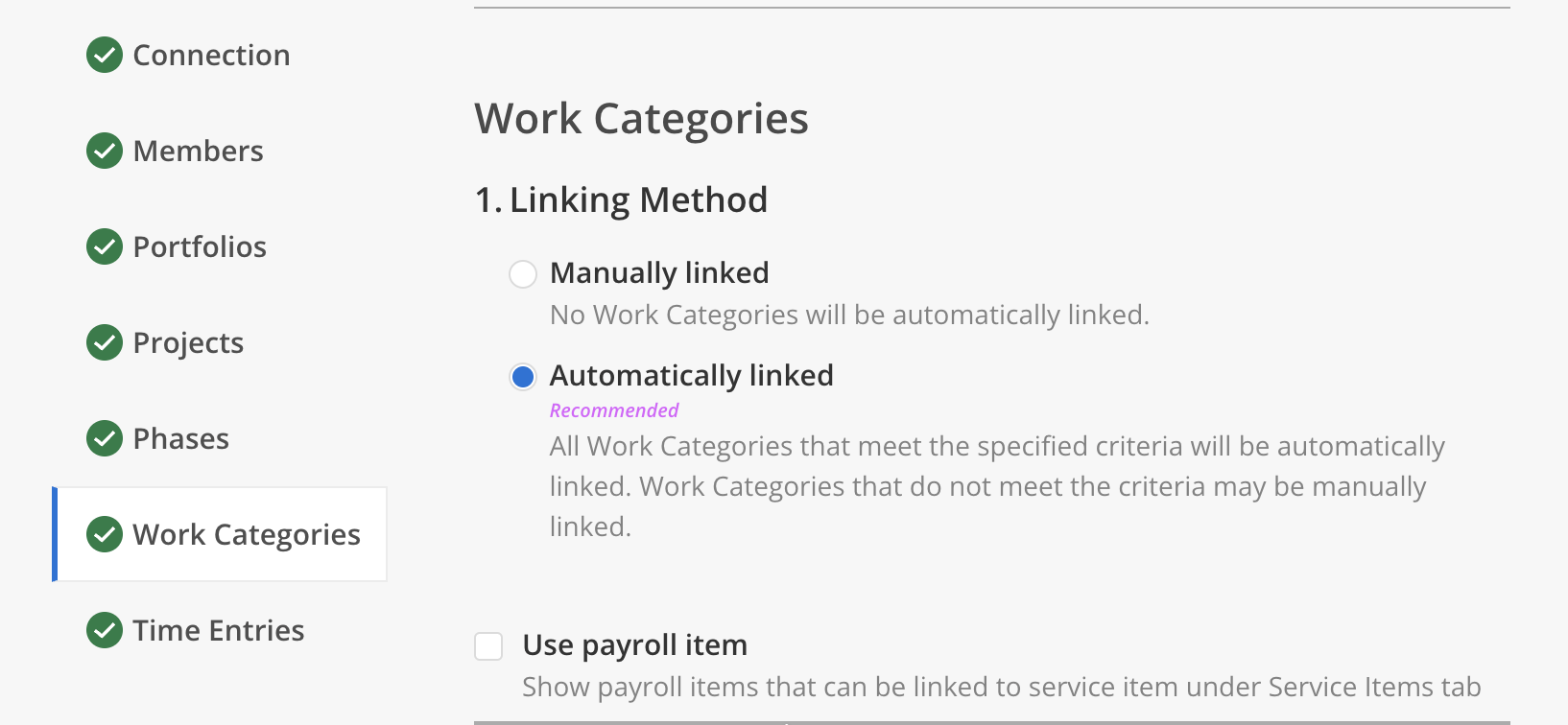
In Mosaic
Work Categories classify the type of work being performed (e.g., Design, Project Management, Research). They are used to categorize Time Entries across Projects.
In QuickBooks: Work Categories correspond to Service Items (and optionally Payroll Items) in QuickBooks Online.
Setting Options
- Manually linked — Nothing links automatically. You pick each QuickBooks Service Item to bring in as a Mosaic Work Category one at a time.
- Automatically linked (Recommended) — Any Service Item matching the filter criteria is brought in and kept in sync. Items that don't match can still be linked manually.
2. Use payroll item
In Mosaic
When enabled, payroll items that can be linked to a Service Item are shown under the Service Items tab. This allows Mosaic to treat payroll items as linkable Work Categories alongside standard Service Items.
Setting Options
- Enabled — Payroll items that map to a Service Item show up alongside Service Items in the linking picker, so payroll-driven time can drive Work Category classification.
- Disabled (default) — Only standard Service Items appear for linking. Choose this if your firm tracks time strictly by Service Item and doesn't want payroll items mixed in.
Time Entries
Time Entry Settings
1. Transfer
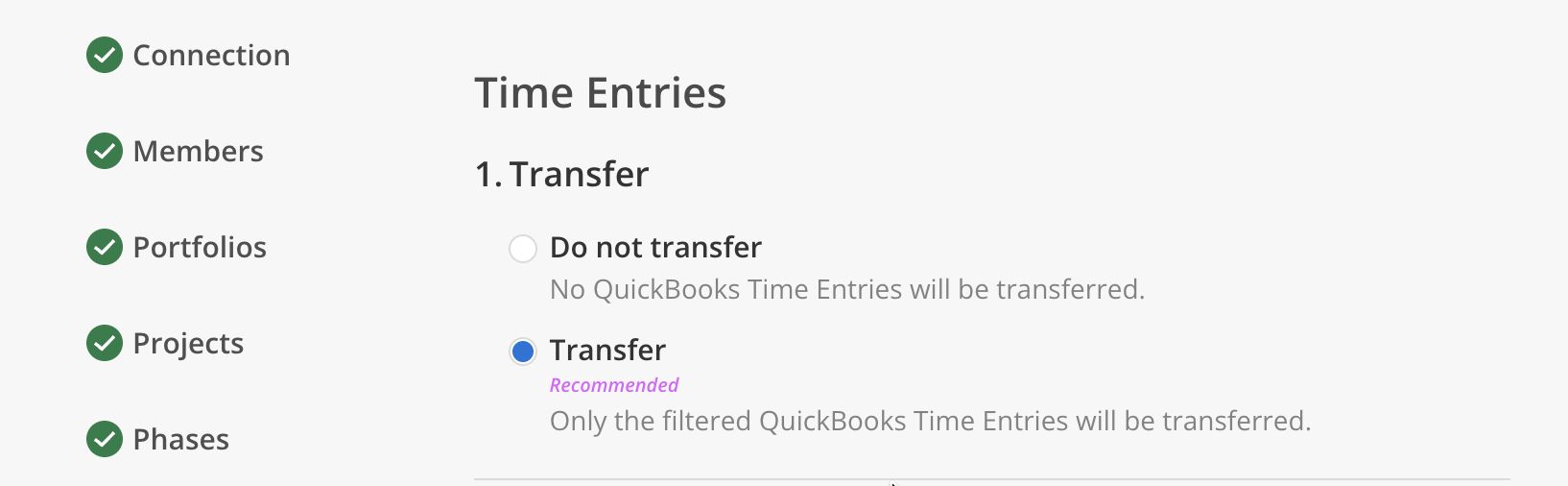
In Mosaic
Time Entries are records of a Member's actual hours spent on Projects. They appear in Project Spent tabs, power budget analysis, and enable management features like approve/reject, billable overrides, rate resets, and bulk edits.
In QuickBooks: Time Entries come from the Time tab / Weekly Timesheets in QuickBooks Online.
Setting Options
- Do not transfer — Time logged in QuickBooks stays in QuickBooks. Mosaic timesheets must be entered directly in Mosaic or imported via CSV.
- Transfer (Recommended) — Time Entries from QuickBooks flow into Mosaic so spent hours and budgets stay accurate. Use the filter criteria to limit which entries sync (for example, only entries on linked Projects).
2. Transfer to QuickBooks
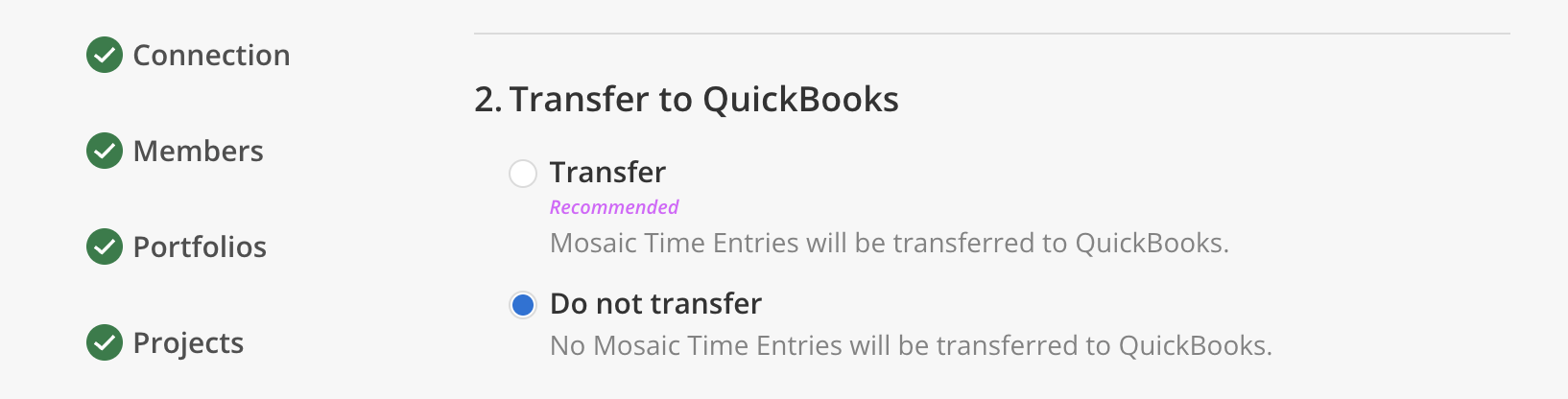
In Mosaic
Controls whether Mosaic Time Entries are pushed back to QuickBooks Online. Mosaic supports two-way syncing for Time Entries.
Setting Options
- Transfer (Recommended) — Time logged in Mosaic is pushed back to QuickBooks, so QuickBooks remains the system of record for billing and payroll without duplicate entry.
- Do not transfer — Mosaic-entered time stays in Mosaic only. Choose this if QuickBooks should only ever receive time entered directly in QuickBooks.
Two-way Time Entry sync is enabled by default. Let your Customer Success Manager know if you'd like to disable it at any time.
3. Billable Status
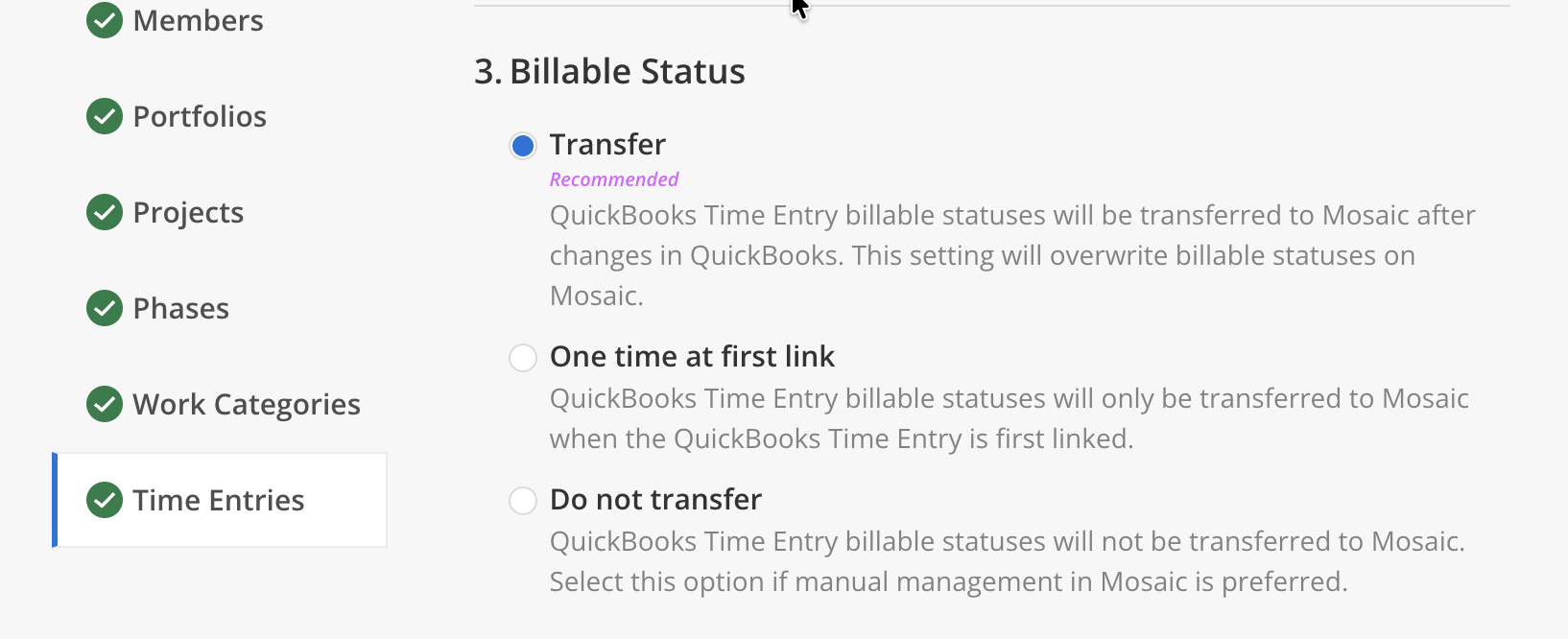
In Mosaic
The billable status on a Time Entry indicates whether the recorded hours are chargeable to a client.
In QuickBooks: The billable flag is set on each individual Time Entry record.
Setting Options
- Transfer (Recommended) — Billable status stays in sync. If a Time Entry is flipped between billable and non-billable in QuickBooks, the change flows to Mosaic on the next sync — and any override done in Mosaic will be replaced.
- One time at first link — The QuickBooks billable flag is captured when the entry first lands in Mosaic, then frozen. After that, Mosaic users can override billable status without it being undone.
- Do not transfer — Billable status is decided in Mosaic only. Useful if your team applies different billable rules than what's recorded in QuickBooks.
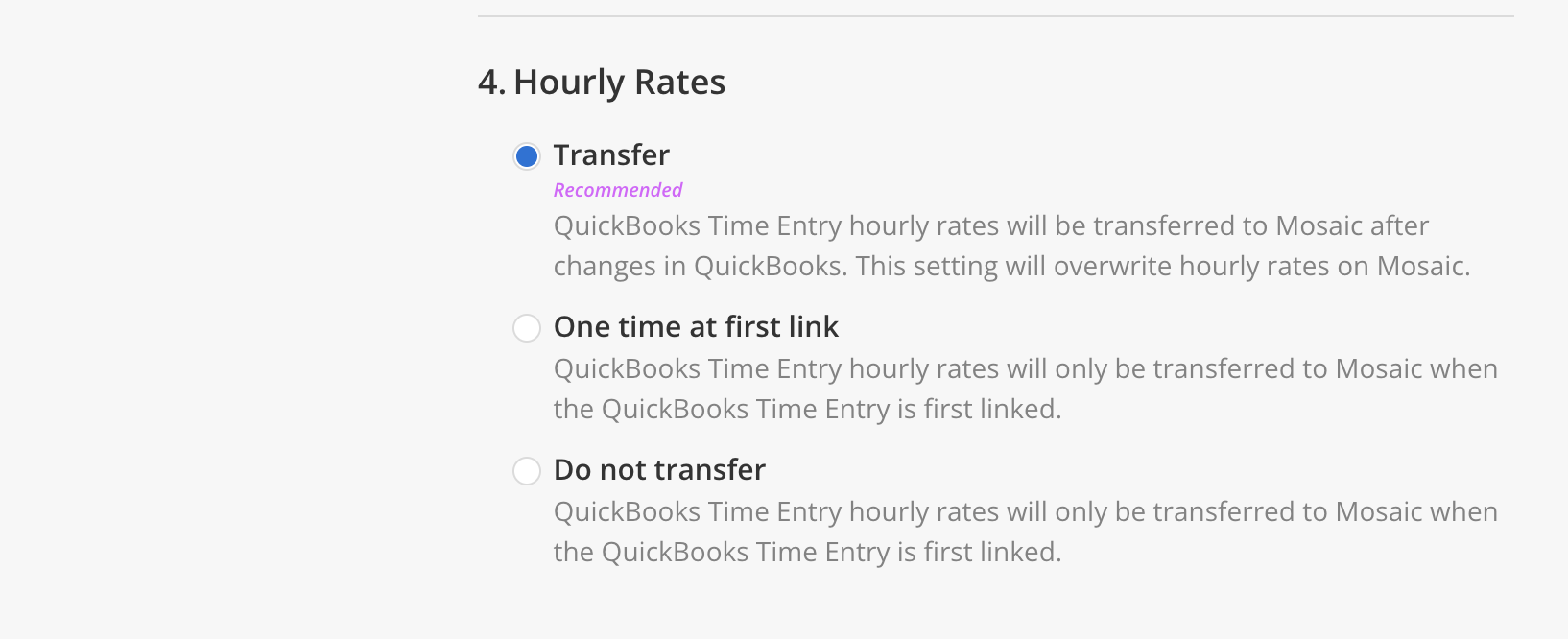
4. Hourly Rates
In Mosaic
Hourly Rates are the billing rates associated with each individual Time Entry record. They affect the spent amounts shown in Project budget views.
In QuickBooks: Hourly Rates come from the Bill Rate / Cost Rate field on each Time Entry.
Setting Options
- Transfer (Recommended) — Per-entry rates stay in sync with QuickBooks. Spent amounts in Mosaic match what QuickBooks will bill, and rate edits made in Mosaic will be overwritten on the next sync.
- One time at first link — The rate from QuickBooks is captured when the entry first lands in Mosaic, then preserved. Rate corrections made later in QuickBooks won't update existing Mosaic entries.
- Do not transfer — Mosaic calculates spent amounts using its own rate setup (Member, Role, or Work Category Rates) and ignores per-entry rates from QuickBooks.
Contact the Mosaic Solutions team if you need assistance configuring any of these settings or if you'd like to discuss the best configuration for your workflow.
Updated 4 months ago