
Blocked Time Entries
Mosaic imports time entries from your integrated system so your hours, budgets, and reports stay accurate. A time entry can only import once everything it references — the project, phase, member, and work category — is linked between your integrated system and Mosaic. When a required link is missing, the time entry waits, and the hours don't appear in Mosaic.
Blocked Time Entries surfaces these waiting entries throughout your integration settings so you can see how many time entries are stuck, which unlinked items are causing it, and exactly where to go to fix it.
Nothing changes about how your data syncsThese indicators are visibility only. Blocked time entries are never lost — they import automatically on the next sync cycle after you resolve the missing link.
When is a time entry "Blocked"?
A time entry shows as Blocked when all of the following are true:
- Something it references — a project, phase, member, or work category — is not linked between your integrated system and Mosaic, and
- None of the items it references is set to Do Not Link, and
- Its project or member IS linked — meaning the time entry belongs to work you're actively managing in Mosaic.
The third condition keeps the signal meaningful. If you've intentionally left old projects unlinked, their time entries are not counted as Blocked — only time entries connected to projects and people you actively use in Mosaic will raise an alert. These are the hours most likely to cause a mismatch between your integrated system and your Mosaic budgets and reports.
Not counted as Blocked:
- Time entries whose only unlinked references are marked Do Not Link
- Time entries referencing archived items
- Time entries on projects that are excluded by your auto-link filters
Blocked vs. other sync statuses
| Status | Meaning |
|---|---|
| Blocked | The time entry belongs to a linked project or member but can't import because a required link is missing. Actionable — linking the item resolves it. |
| Not Linked (Other) | The time entry references unlinked items, but its project or member isn't linked either. Typically work you're not managing in Mosaic. |
| Invalid Data | The time entry has a data problem (for example, a validation error) unrelated to linking. |
| Pending / In Process | The time entry is waiting on a normal sync cycle. No action needed. |
Where you'll see Blocked indicators
| Location | What you'll see |
|---|---|
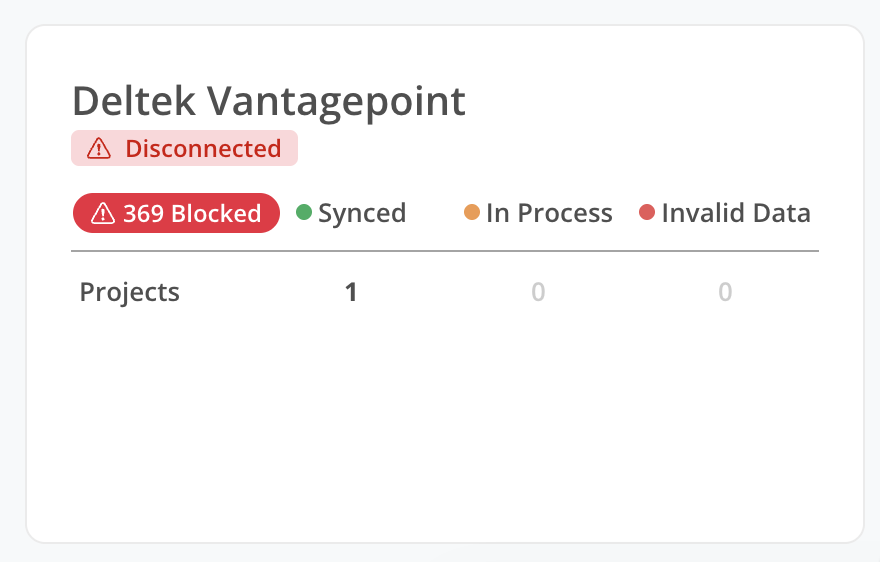
| Home > Integration widget | A red Blocked badge with the total count of blocked time entries for that integration. Hidden when the count is zero. Clicking it takes you to the Sync Log. |
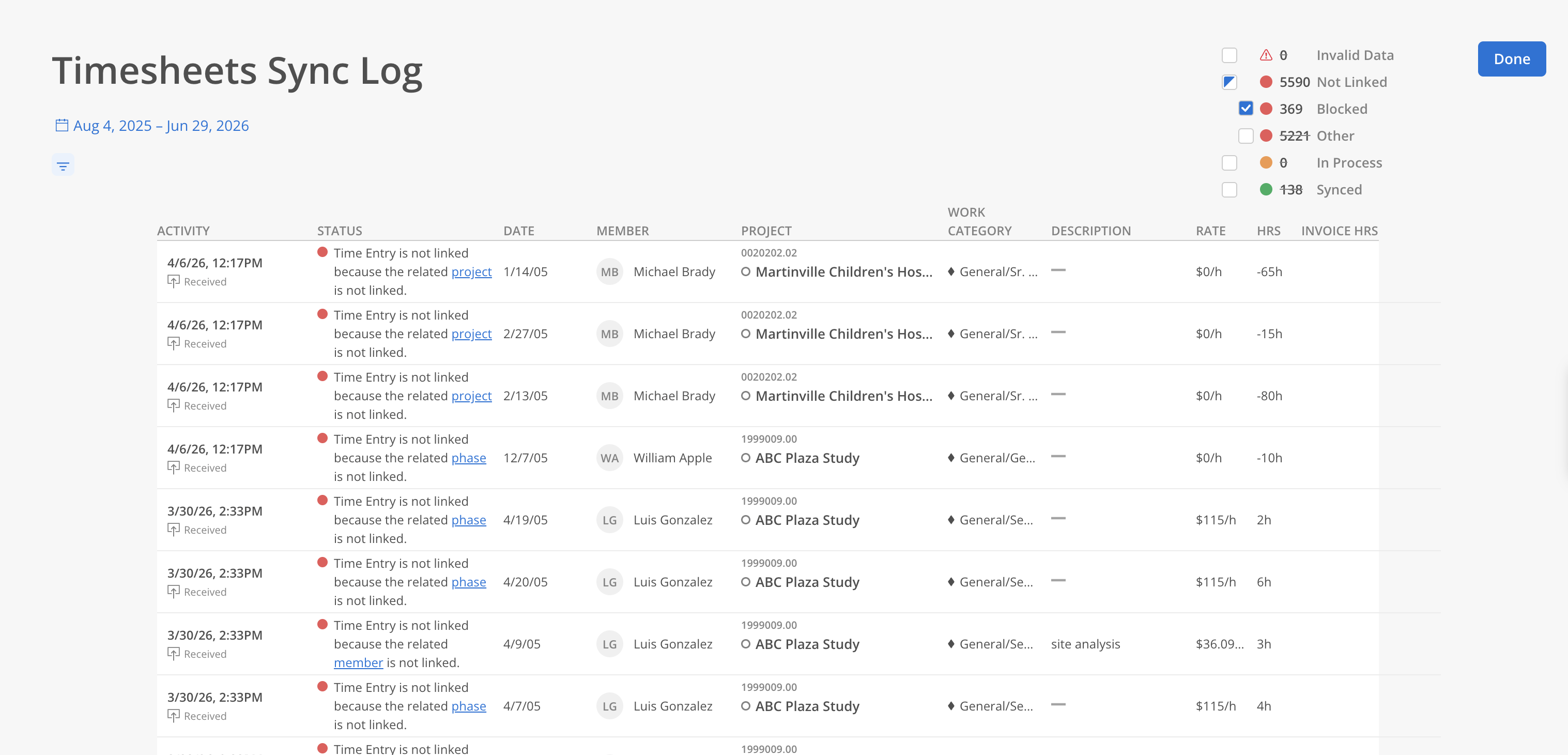
| Org Settings > Integrations > Sync Log > Time Entries | A Blocked filter, nested under the Not Linked filter, that isolates blocked time entries. Each entry's status message names the unlinked item — and the item type is a clickable link. |
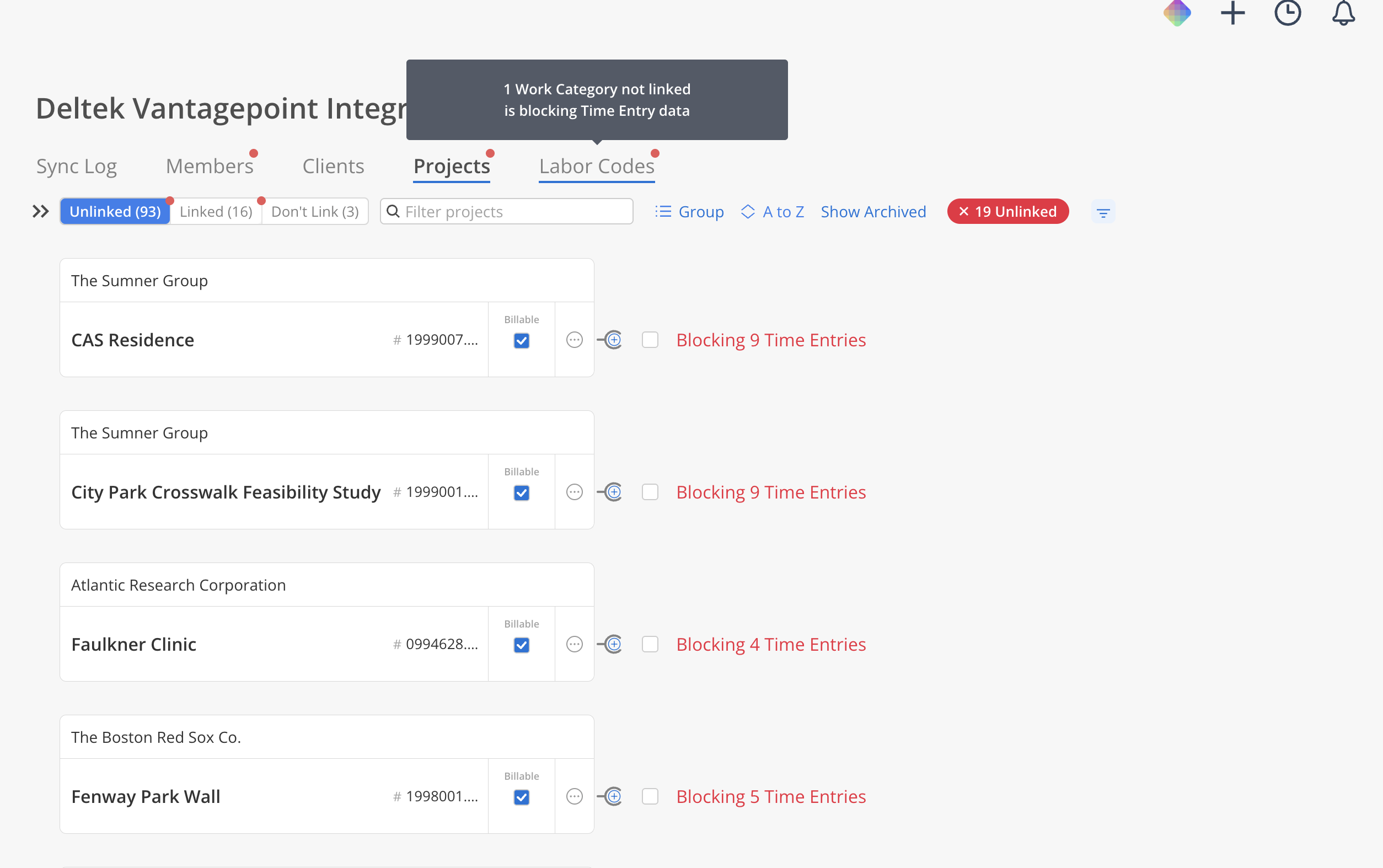
| Mapping tabs (Members, Projects, Labor Codes) | A red dot on any tab where unlinked items are blocking time entries. The dot clears once those items are resolved and the counts next refresh. |
| Projects > Linked / Not Linked sub-tabs | Separate red dots: Not Linked flags unlinked projects blocking time entries; Linked flags linked projects that contain unlinked phases blocking time entries. |
| Mapping pages | A # Unlinked filter button (for example, "5 Unlinked") that narrows the page to only the items blocking time entries. The number counts blocking items, not blocked time entries. Hidden when there are none. |
| Mapping rows | A Blocking X Time Entries label on each unlinked row, showing how many time entries that specific item is holding up. |
How to resolve blocked time entries
- Start from the badge. On your Home dashboard, click the Blocked badge on the Integration widget. You'll land on the Sync Log for that integration.
- Filter to Blocked. Open the Time Entries view and apply the Blocked filter (under Not Linked). Each entry's status message tells you what's missing — for example, "the related Member is not linked."
- Click the link in the message. Clicking the item type (such as Member) takes you directly to that mapping tab with the search bar pre-filled to the exact unlinked item. No searching required.
- Resolve the item. Link it to its Mosaic counterpart — or mark it Do Not Link if it's intentionally excluded. If you have several, use the # Unlinked filter button and start with the rows blocking the most time entries.
- Done. Your linking takes effect immediately, and the previously blocked time entries import on the next sync cycle. The Blocked counts and red dots are recalculated periodically, so they can take a few hours to clear.
TipThe red dots on the Members, Projects, and Labor Codes tabs are your quickest health check. No dots means no time entries are being blocked. Because the counts refresh periodically, a dot can linger for a few hours after you fix the underlying item.
FAQ
Are blocked time entries lost?
No. They're waiting, not dropped. As soon as the missing link is made, they import on the next sync cycle.
I linked the item — why is the red dot still showing?
Your fix took effect immediately, but the Blocked counts and red dots are recalculated periodically rather than instantly, so they can take a few hours to clear. If an indicator is still showing right after you resolve something, nothing is wrong.
When will the hours appear in Mosaic?
The previously blocked time entries import on the next sync cycle after you make the link.
The per-item counts add up to more than the total. Why?
A time entry blocked by two different unlinked items appears in both items' counts but is counted once in the total. Use per-item counts to prioritize; the total is the true number of blocked time entries.
We intentionally leave some projects unlinked. Will this flag all of them?
No. Time entries only count as Blocked when their project or member is linked in Mosaic. Items marked Do Not Link and archived items are always excluded.
Who can see these indicators?
Anyone who can view the Integration widget on Home and access Org Settings > Integrations — the same permissions as the rest of your integration settings.
Which integrations does this apply to?
Every Mosaic integration that syncs time entries.
Updated about 2 months ago