
Deltek Costpoint Cloud ODBC Troubleshooting
Resolving the ODBC Error: "Invalid User ID or Password"
If Mosaic Admin notifications alert you with the following message:
Error from Deltek Costpoint:[DataDirect][ODBC Hybrid driver][Service]Invalid user ID or password, it implies there's an issue with the ODBC Account credentials.
Step 1: Obtain a New ODBC User Password from Deltek Support
Please Note:
The error message
Error from Deltek Costpoint:[DataDirect][ODBC Hybrid driver][Service]Invalid user ID or passwordrefers specifically to the ODBC Account. You'll need to contact Deltek Support to change the expired ODBC Account Password.
To address this, please contact Deltek Support to request an updated ODBC Account Password following these steps:
- Your company’s SaaS Customer Administrator should log into the Deltek Support Center and navigate to the Deltek Cloud Solutions page.
- In the Service Request section, select the ODBC Read Only Access radio button.
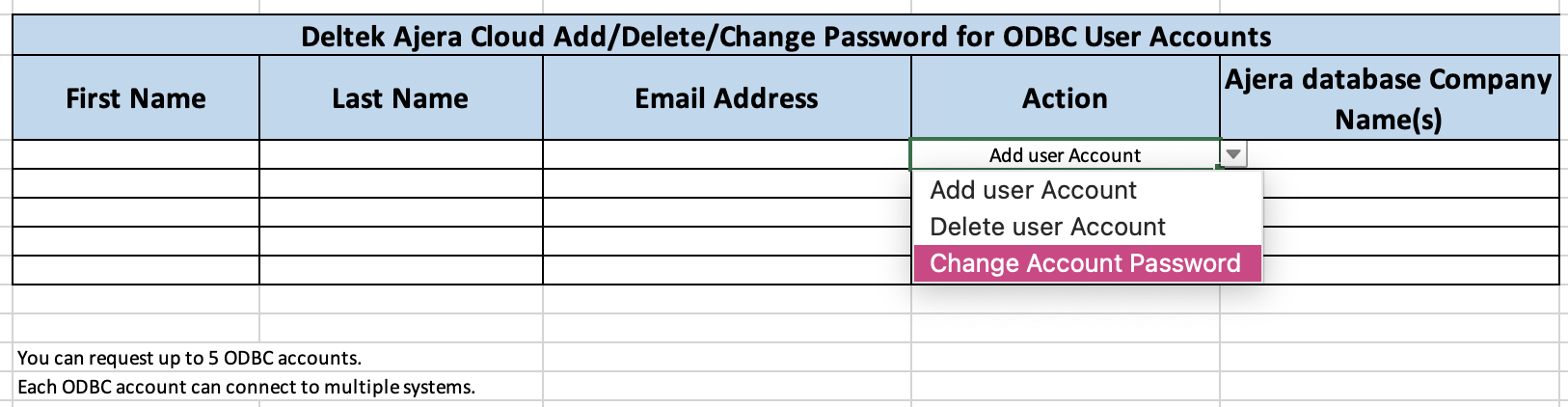
- Click the link in the Service Request to download the spreadsheet that should be used to log all
changes to ODBC access. The spreadsheet can also be downloaded from KB Article # 107175.- Enter the
First Name,Last Name,Email Address, andAjera database Company Name(s)for the existing ODBC Account used to connect the integration. - In the Action column, select
Change Account Password.
- Enter the
- Under User Access Form, select Choose File and upload the completed spreadsheet from step 3
above. - Click Submit.
- Upon submission, a dialog box displays containing the Case No. for the request and a link to Manage
Cases, where the case can be viewed or updated.
- Upon the completion, Deltek will notify the Account holder via email with the credentials and
configuration settings needed to connect to the ODBC service.
- Additionally, the SaaS Administrator will receive a confirmation email when the request is completed.
Your Deltek ODBC Account have a validity period of 120 days:
Please be advised that passwords for Deltek's ODBC Accounts have a validity period of 120 days. Ensure to update the passwords in Deltek and Mosaic accordingly to maintain uninterrupted service.
Step 2: Update the ODBC Credentials in Mosaic
Once you've received the updated password from Deltek Support, follow these steps to update Mosaic:
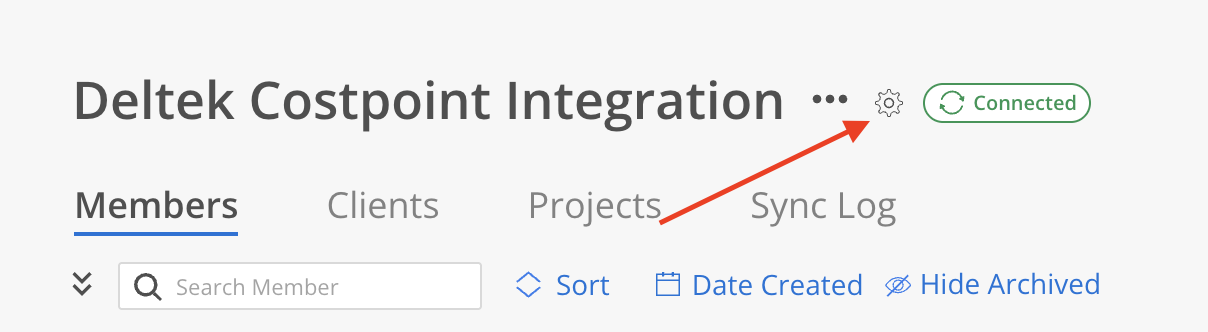
- Navigate to the Deltek Costpoint Integration section and click on the
Gearicon.
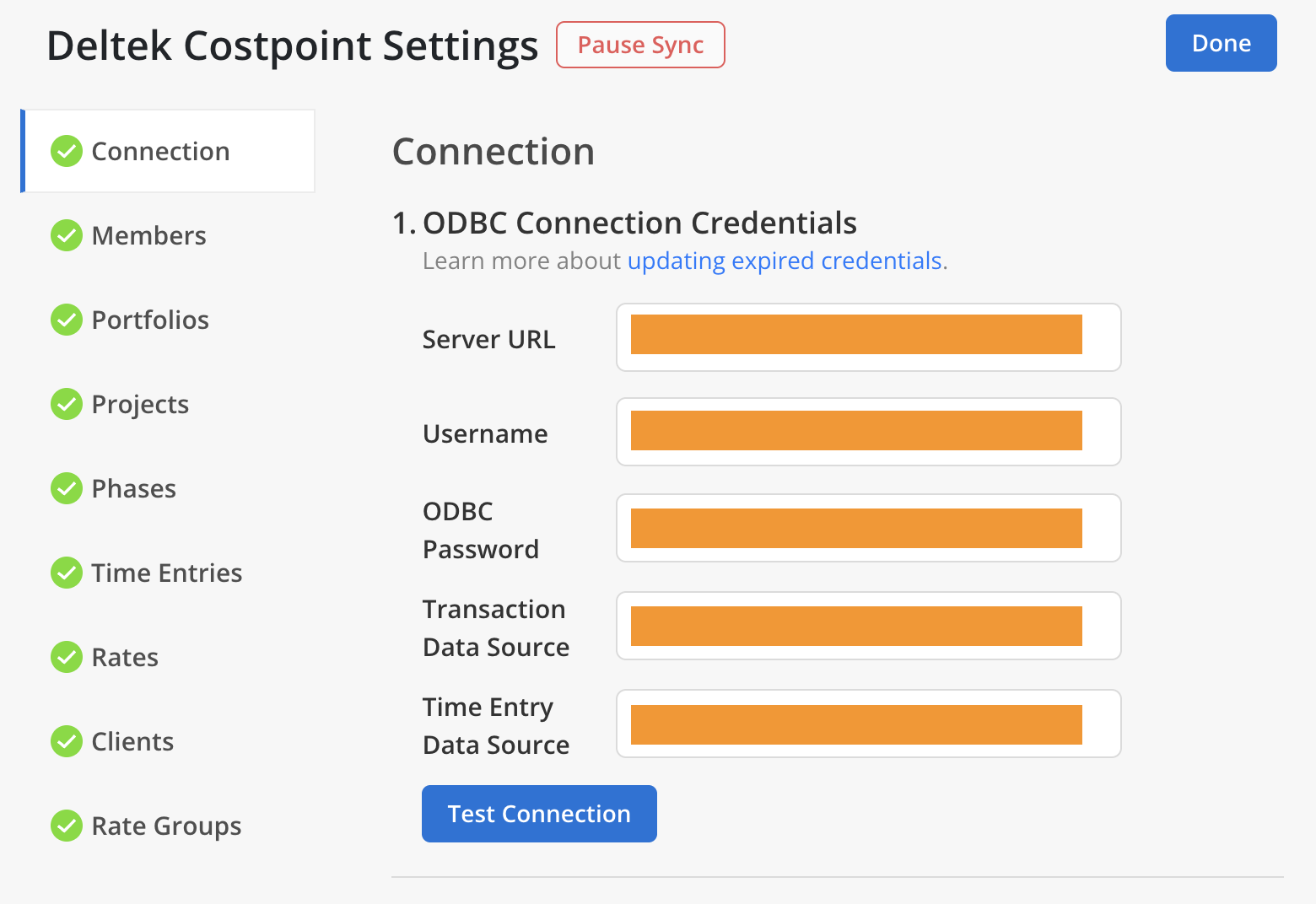
- A pop-up titled "Integration Settings" will appear. Input the new credentials, click Test Connection :
Only update the required fields
Your current credentials will pre-populate on this page and can be left as-is if you are not intending to change them.
i.e. Leave the pre-populated fields for
ODBC Username,ODBC Data Source - TE Transaction,ODBC Data Source - TransactionandODBC Service URLas they are if you are only updating the password.
- Ensure you see a message that reads:
Connection Saved.
By following these steps, you should have resolved the ODBC error. If issues persist, consider reaching out to Deltek Support for confirmation that the credentials are valid and/or your Mosaic Customer Success Manager.
Updated 2 months ago